Changelog

Keep track of all new product updates, fixes, and improvements.

Send Personalised AI Videos on LinkedIn With HeyGen

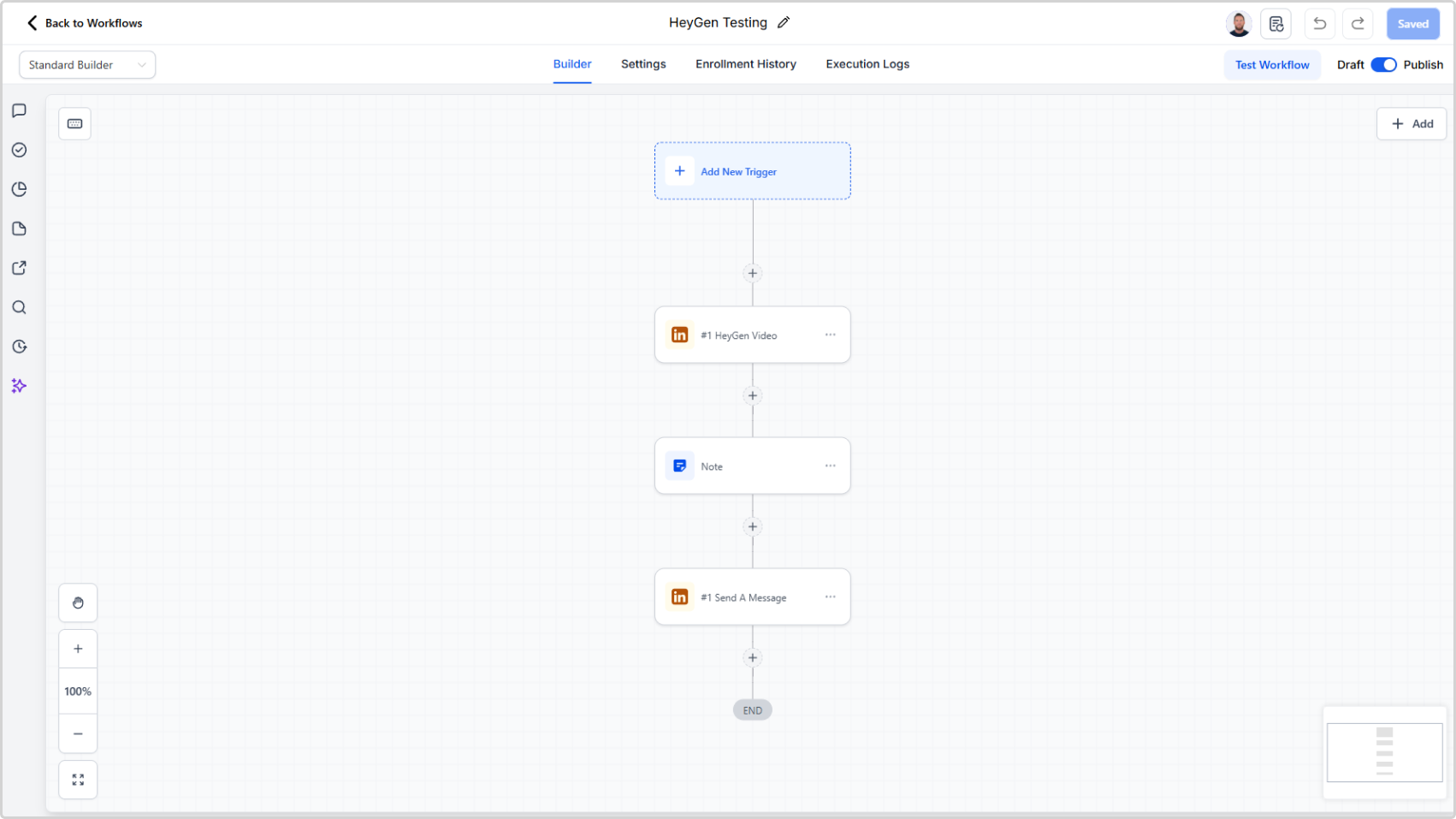
A new workflow action lets you generate AI videos using HeyGen and send them directly to LinkedIn contacts. Write a script, choose an avatar and voice, and the video is generated and delivered — automatically, at scale.

What's New

  • New HeyGen Generate Video workflow action that generates a video from a script, avatar, voice ID, aspect ratio, and title
  • Videos are generated via your HeyGen account and returned as a direct video URL
  • Pass the video URL variable straight into the Send A Message action to deliver it as a LinkedIn video message
  • Personalise scripts with dynamic variables so each video feels tailored to the recipient
  • API key configuration is handled in App Marketplace > LinkedConnector > API Configuration

Why It Matters

Video messages on LinkedIn stand out. They're harder to ignore and easier to connect with than plain text. Until now, sending a video required recording, uploading, and manually attaching a file to each message.

With this action, the entire process runs inside your workflows. A personalised AI video — using your chosen avatar and voice — is generated from a script and sent without any manual steps. It brings the kind of outreach that used to take hours per contact down to a single workflow action.

HeyGen Generate Video · Send A Message

Link and View LinkedIn Profiles Directly on Contact Records

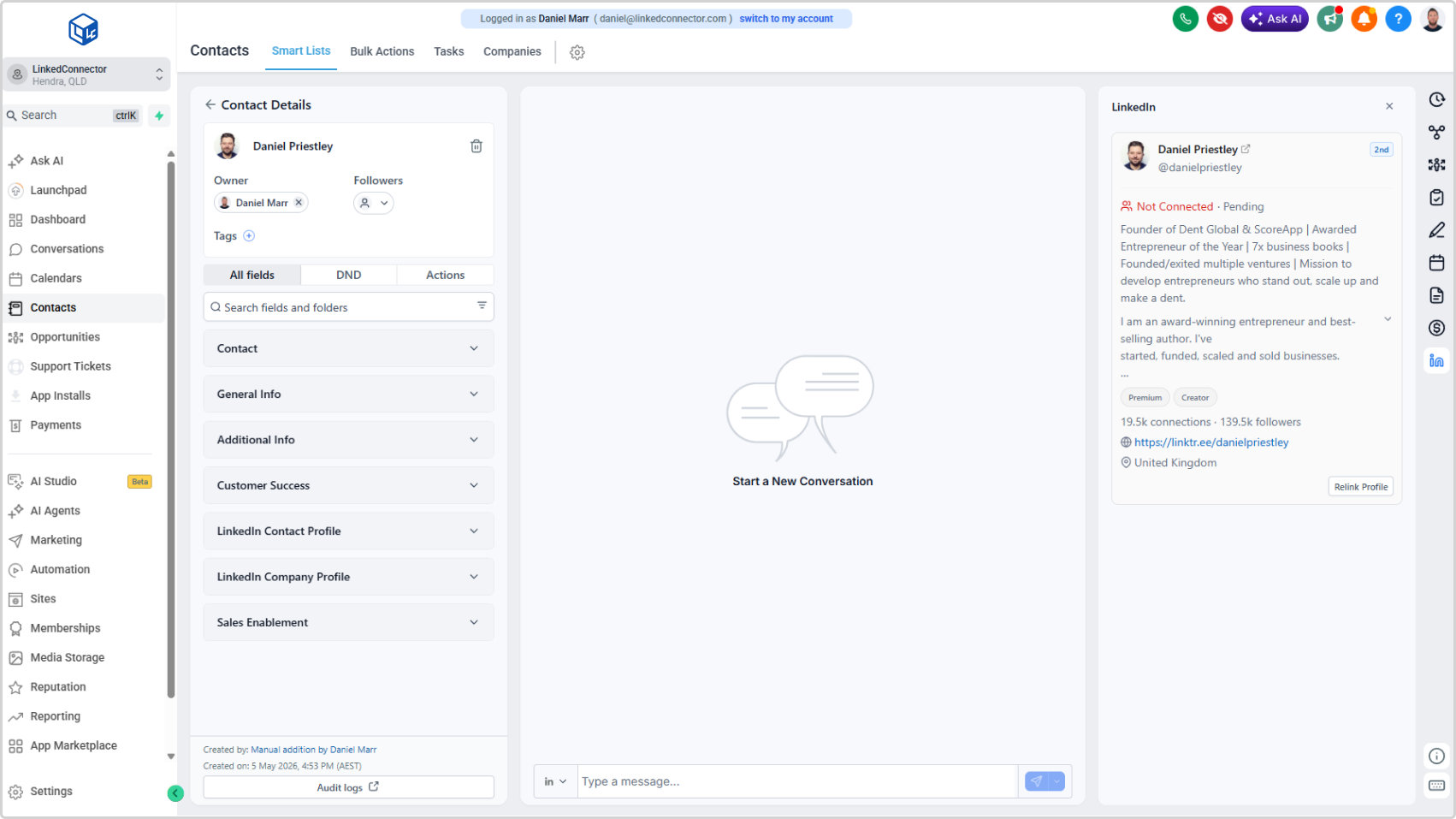
A new LinkedIn Contact Card now sits in the right sidebar of every Contact and Conversations record. Search for a LinkedIn profile, link it to the contact in a few clicks, and see their full profile summary — connection status, followers, premium badges, location, and more — without leaving the CRM.

What's New

  • A LinkedIn Contact Card available on every Contact and Conversations record in the right sidebar
  • Search for a LinkedIn profile using the contact's name and business — results show name, headline, location, public ID, and connection degree
  • Scroll and load more results to find the right person
  • Link the profile with one click — basic profile data is retrieved and stored in the contact's custom fields automatically
  • The card displays connection status, Premium and Creator badges, connections, followers, website links, location, and profile summary
  • Relink Profile button refreshes the data at any time to keep profile information current
  • Enable or disable the card per sub-account from the Sub Account Details modal in the agency dashboard
  • Available on both the Contact page and the Conversations page for in-context reference while messaging

Why It Matters

Before this, there was no way to see a contact's LinkedIn profile details inside the CRM without switching tabs. You either searched manually on LinkedIn or relied on data that was imported separately.

The LinkedIn Contact Card changes that. Link a profile once and the key details are right there — visible while you're messaging, while you're reviewing a contact, while you're building a workflow. It brings LinkedIn context into the place where you're already working.

For deeper data — work history, education, skills — enrol the contact in a workflow and use the Retrieve User Profile action to pull the full profile into your custom fields.

LinkedIn Contact Card

Custom Menu Links Are Now Created Automatically

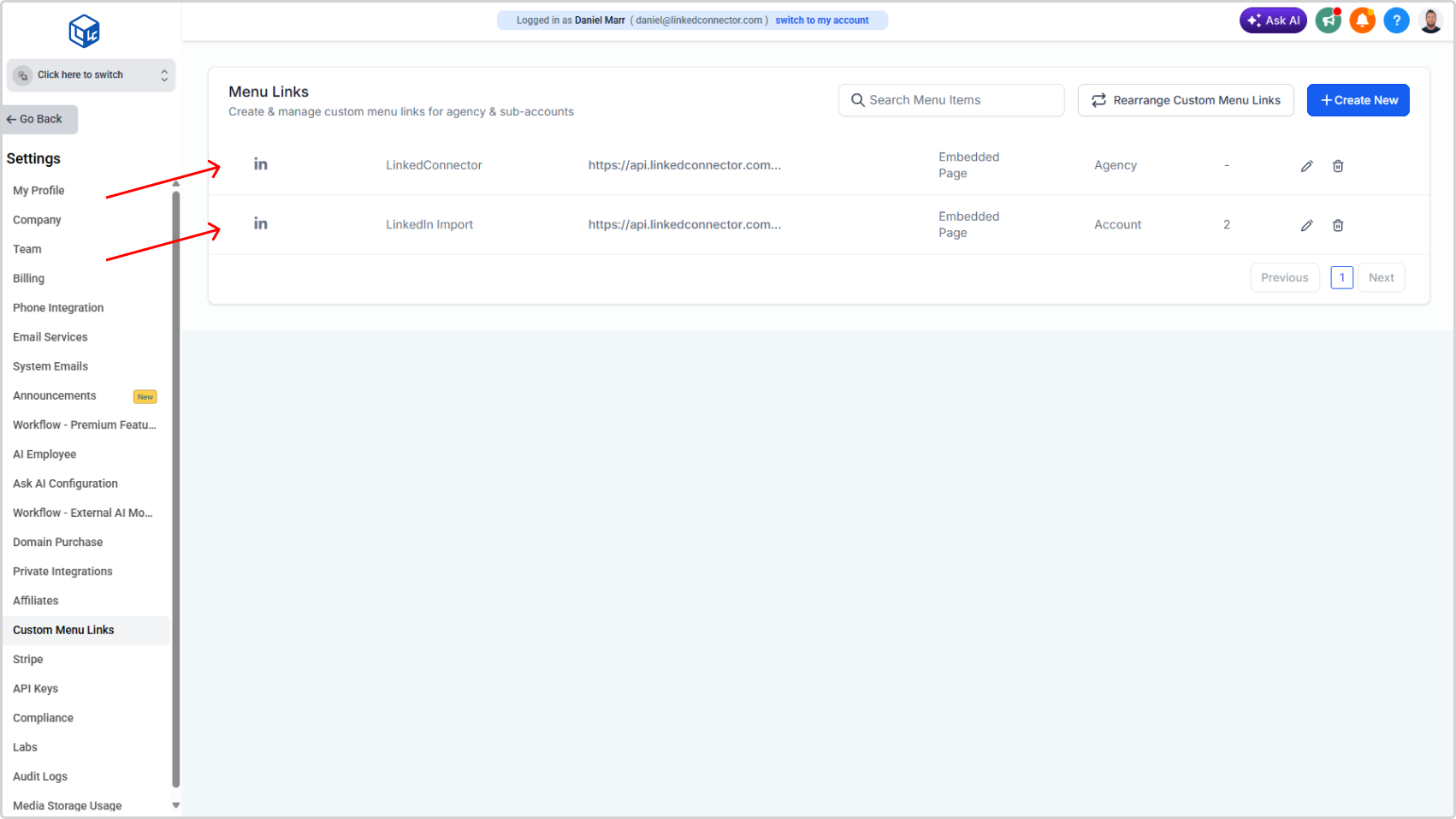
New agency installations no longer require manual setup of custom menu links. The LinkedIn dashboard link and the LinkedIn import tool are now created automatically the moment you install LinkedConnector.

What's New

  • Both custom menu links — the agency dashboard link and the LinkedIn import tool — are automatically created for new agency installations
  • No manual link creation required for either tool
  • To display the import tool in a sub-account, administrators simply navigate to the existing link and assign the sub-accounts where it should appear
  • The app must be connected at any sub-account before the import tool becomes active there

Why It Matters

Previously, setting up custom menu links was a manual process — find the settings, create each link, enter the correct URL, configure the sidebar and role visibility, and save. Two separate links, every installation.

That step is gone. The links are ready when the installation is complete. For the import tool, all that's left is selecting which sub-accounts should have access. It's one less configuration step during onboarding and one fewer place where something can go wrong.

⚠️
Note: Prior to 04/03/26 Custom menu links will need to be manually configured as per the below article.

Add Custom Menu Links

New Onboarding Assistant

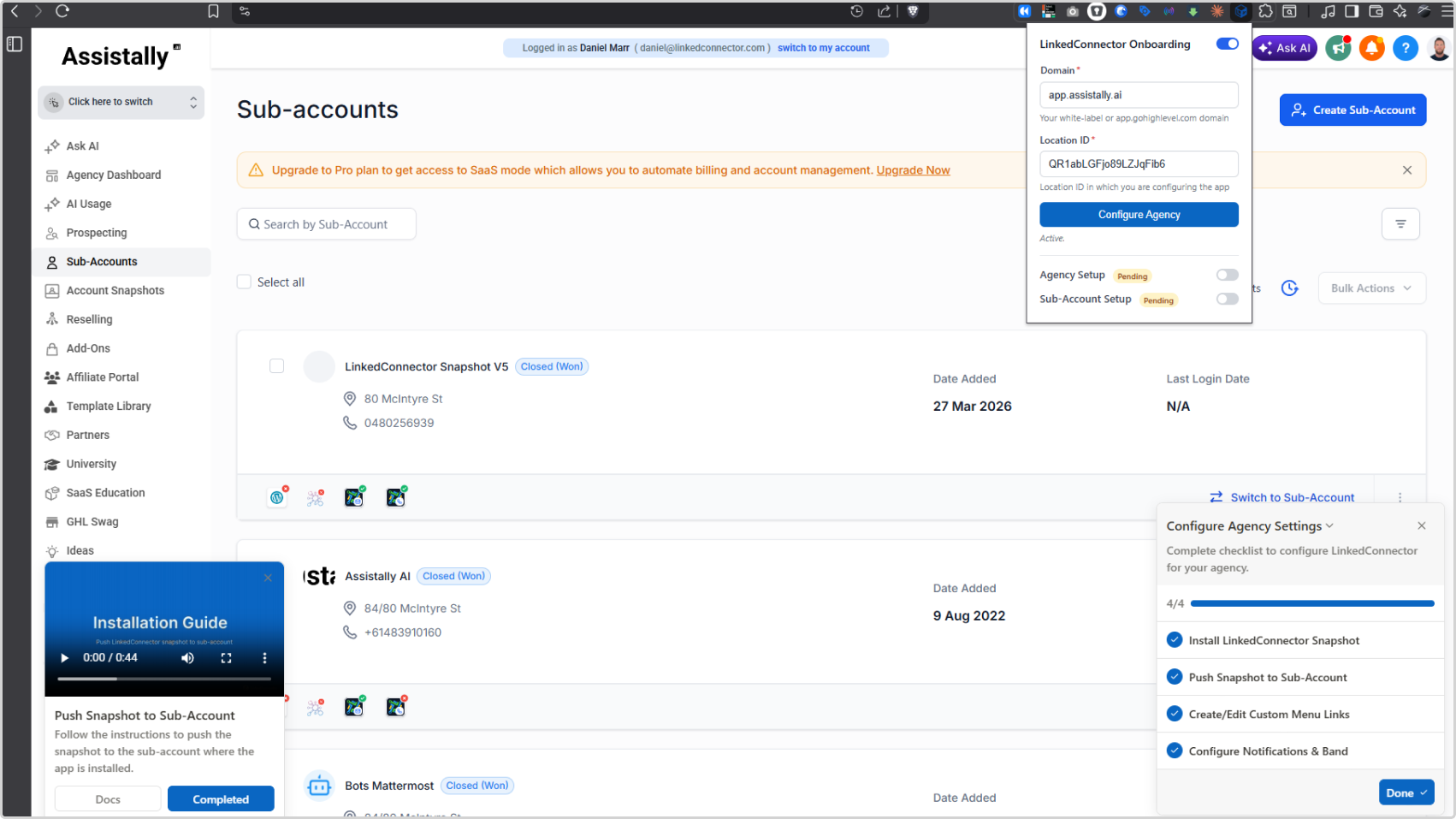
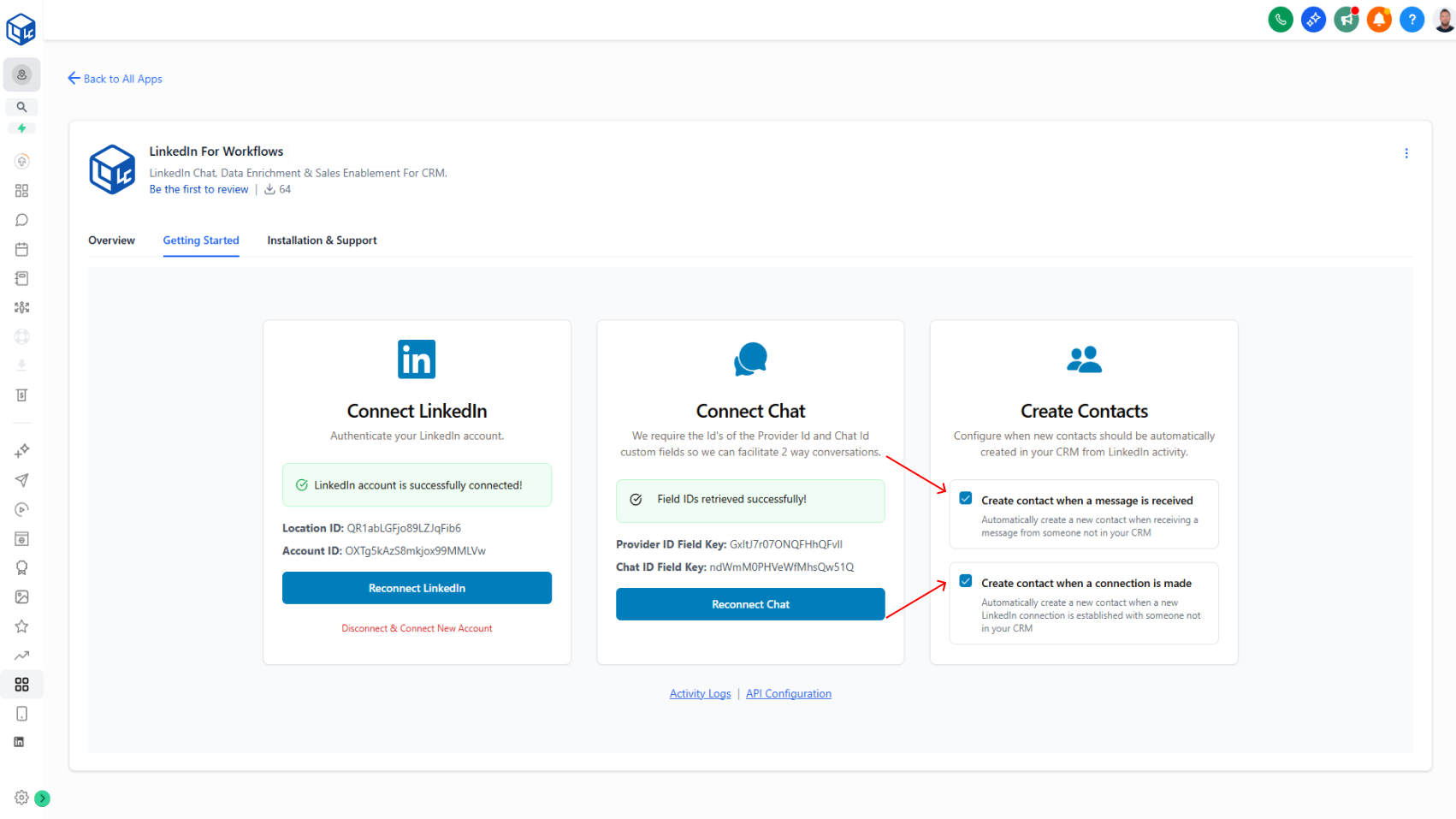
Getting your agency and sub-accounts configured just got a lot easier. The new LinkedConnector onboarding extension walks you through every setup step in order — with video walkthroughs, documentation links, and progress tracking built in.

What's New

  • A Chrome extension that guides you through the full onboarding process from start to finish
  • Separate checklists for agency setup and sub-account setup, each with step-by-step instructions
  • Video walkthroughs and documentation links available at every step — no searching required
  • Progress tracking shows your current status for agency and sub-account setup at a glance
  • Multi-sub-account support — configure additional sub-accounts by updating your Location ID and running the sub-account flow again
  • Toggle the extension on or off at any time from your browser toolbar

Why It Matters

First-time setup used to mean jumping between documentation, tracking your place manually, and figuring out the right order. The onboarding extension removes all of that. It redirects you to the right page, shows you exactly what to do, and marks each step complete as you go. Agency configuration only needs to be done once — after that, adding new sub-accounts takes a fraction of the time.

Get the Extension · User Guide

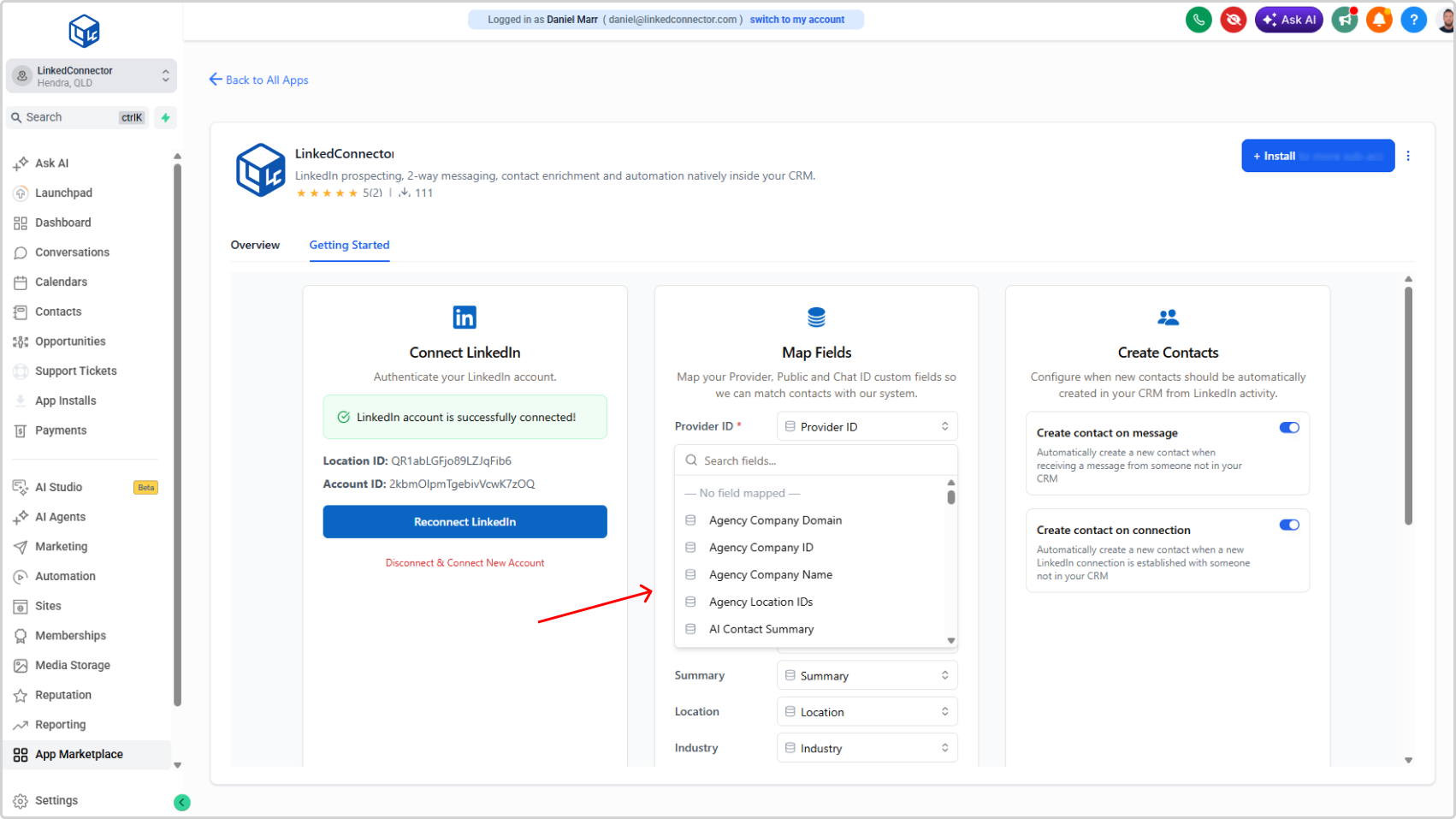
Custom Field Mapping Is Now a Searchable List

Mapping your CRM fields to LinkedIn data is now significantly faster and simpler. Instead of manually copying field keys and pasting them into open text fields, you can now retrieve your sub-account's custom fields directly and select them from a searchable list.

What's New

  • Custom fields are now retrieved directly from your sub-account — no manual copying required
  • A searchable dropdown replaces open text input, so you can find the right field by name in seconds
  • All available CRM custom fields appear in the list, making it easy to confirm you're selecting the correct one

Why It Matters

The old approach required switching between your sub-account settings and the mapping page, copying field keys, and pasting them in without any visual confirmation. One wrong character and the mapping would fail silently.

The new flow keeps everything in one place. Search for the field name, select it from the list, and move on. It reduces setup time, eliminates copy-paste errors, and means field mappings work correctly the first time — so LinkedIn data publishes to the right CRM fields from day one.

Map Custom Fields

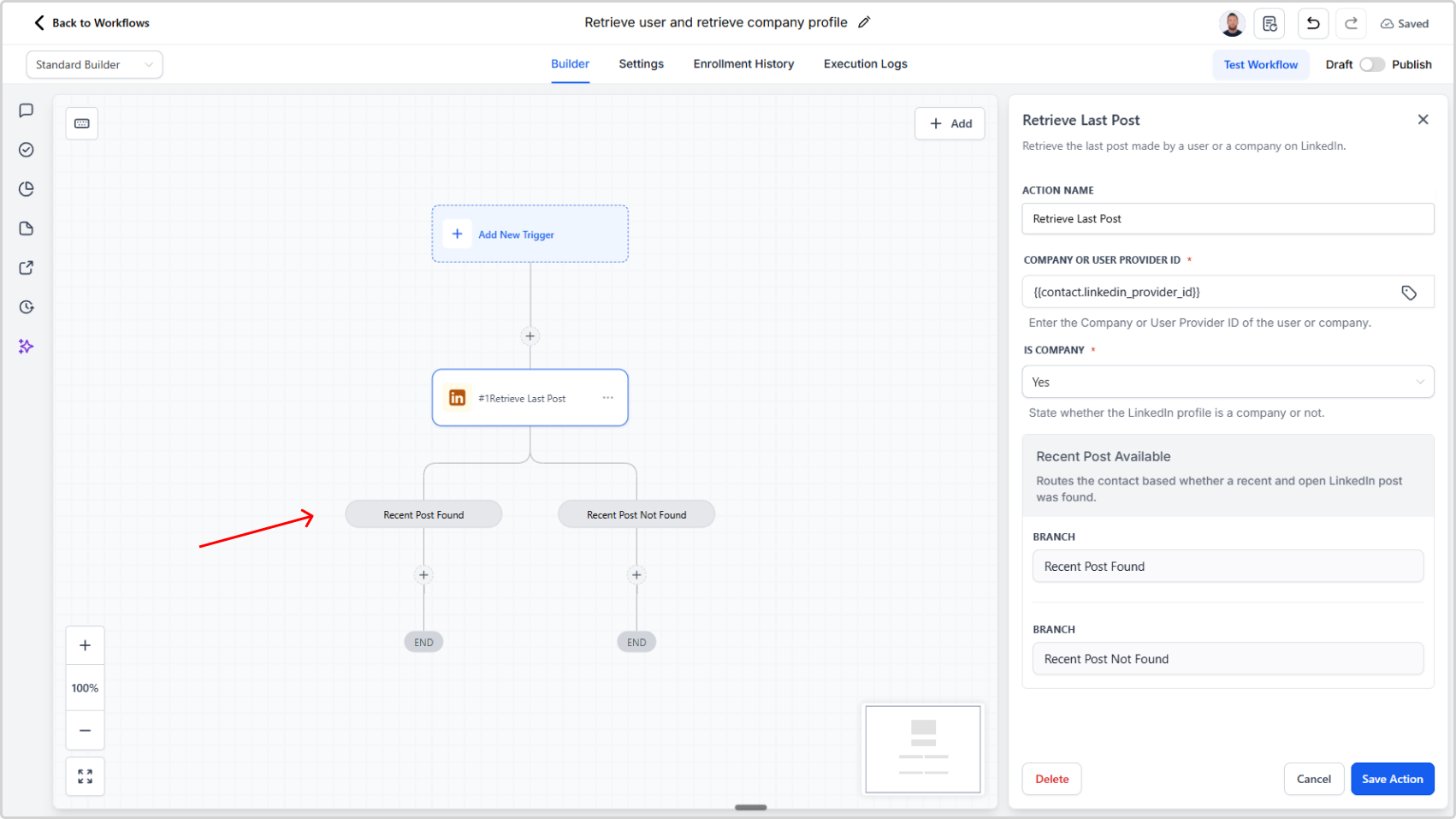
Upgraded Retrieve Last Post with Built-In Branching

Retrieve Last Post now includes built-in found/not found branching based on post eligibility, removing the need for extra if-else actions in your workflows.

Overview

We’ve upgraded Retrieve Last Post to automatically evaluate whether a valid recent post is available and route the workflow to the correct branch.

This reduces workflow complexity and cuts down the number of actions required.

What Changed

Built-in branch outcomes

Retrieve Last Post now routes to:

  • Recent post found when an eligible post is available
  • Recent post not found when no eligible post is available

Eligibility checks now handled automatically

The action now checks whether the post:

  • Is recent (within one month)
  • Is public
  • Supports react/comment actions
  • Is not a share

If all criteria are met, the workflow continues through Recent post found.
If any criteria are not met, it continues through Recent post not found.

Why This Matters

  • No separate if-else action needed after Retrieve Last Post
  • Fewer workflow actions
  • Cleaner workflow logic
  • Simpler setup and maintenance

Impact

Workflows that previously used additional conditional logic after Retrieve Last Post can now rely on the action’s built-in branching and be streamlined.

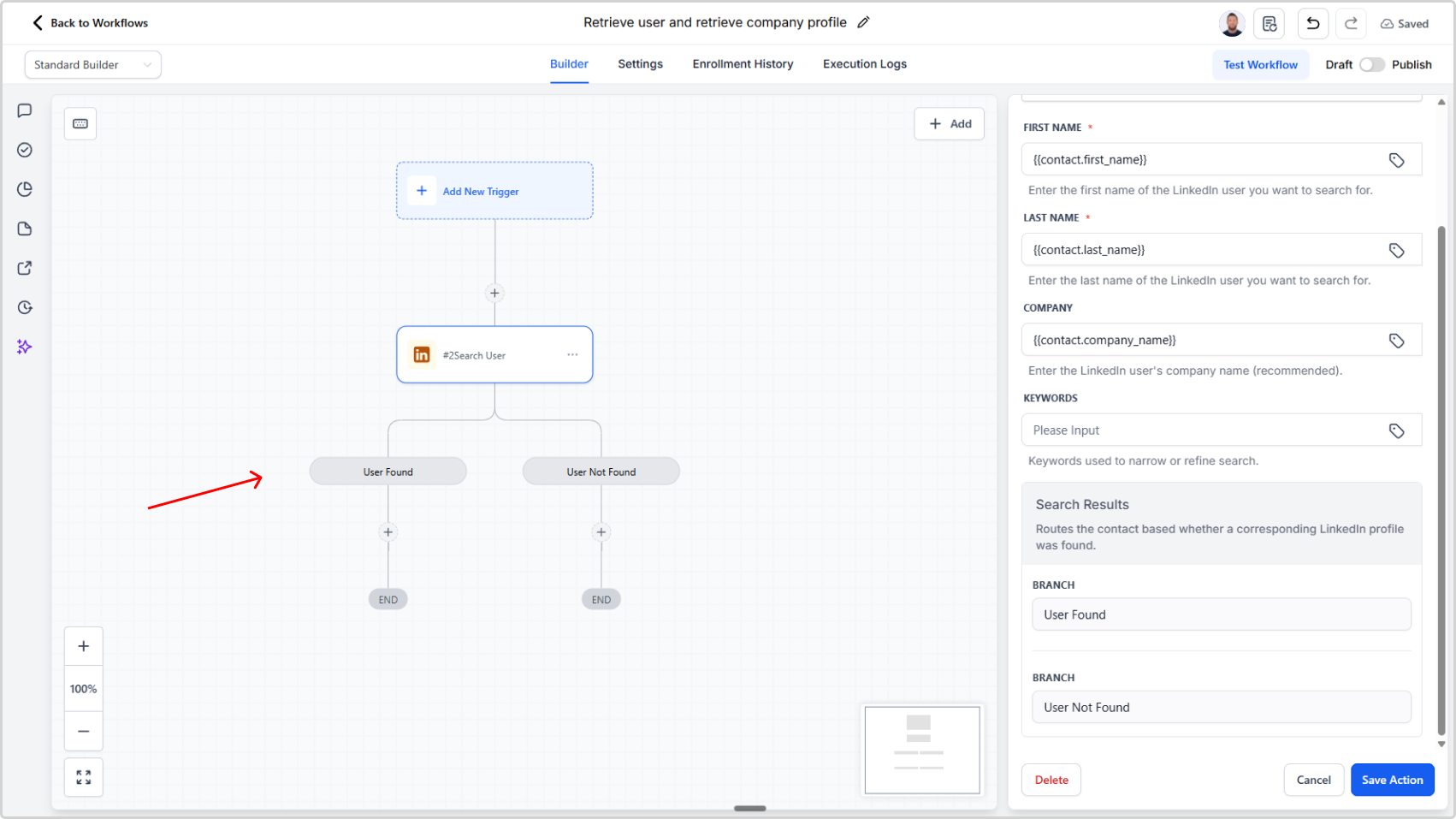
Upgraded Search User and Search Company Actions with Built-In Branching

We’ve upgraded search user and search company with built-in found/not found branches, so workflows no longer need separate if-else actions after these steps.

Overview

We’ve improved the search user and search company actions to simplify workflow building and reduce action count.

These actions now include built-in branching logic that automatically handles whether a result is found.

What Changed

New built-in branches

Both actions now route automatically to:

  • User found / Company found branch when a match is found
  • User not found / Company not found branch when no match is found

Backend result handling

The backend now determines the search outcome and routes the workflow to the correct branch automatically.

Why This Matters

  • No extra if-else step needed after search user or search company
  • Fewer actions per workflow
  • Simpler workflow design
  • Lower complexity for users building automations

Impact

If your current workflows use if-else actions immediately after search user or search company to check for found/not found outcomes, you can now replace that logic with the built-in branches and streamline your flow.

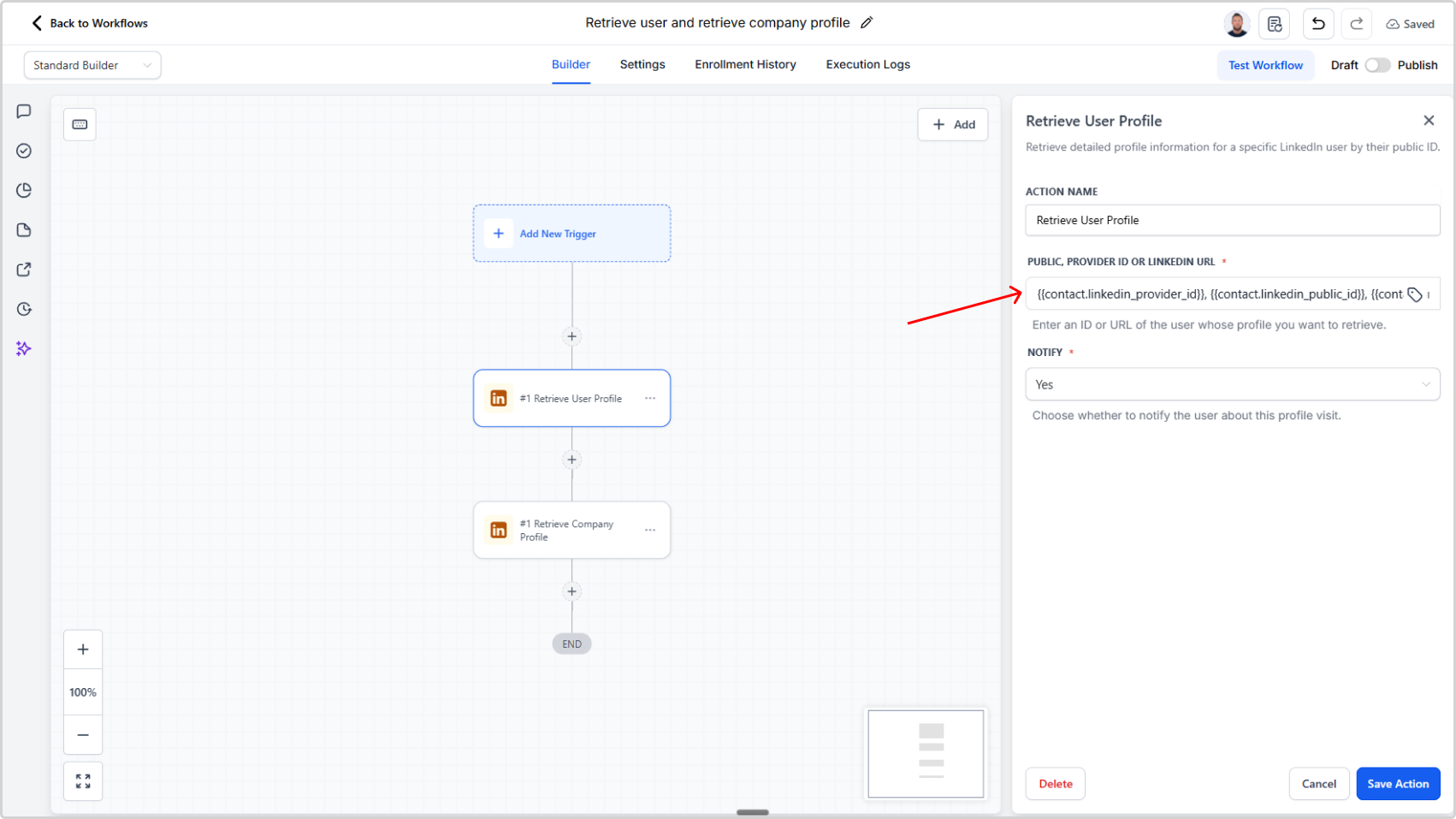
Improved Retrieve User and Company Profile Actions

We’ve improved retrieve user profile and retrieve company profile to accept comma-separated identifiers in a single input, so workflows no longer need multiple branches for different identifier types.

Overview

The retrieve user profile and retrieve company profile actions are now more flexible and workflow-friendly.

Previously, each action could only accept one identifier type at a time. If your workflow might receive different identifier types, you had to build separate branches to handle each case.

Now, both actions support comma-separated input values, so you can provide multiple identifier types in one field.

What Changed

Before

Each action accepted only one of the following per run:

  • Provider ID
  • Public ID
  • LinkedIn profile URL

This often required multiple workflow branches.

Now

Both actions accept a single comma-separated input containing any combination of:

  • Provider ID
  • Public ID
  • LinkedIn profile URL

Why This Matters

  • Fewer workflow branches
  • Simpler action configuration
  • Cleaner and more maintainable automation logic

Example

{{contact.linkedin_provider_id}}, {{contact.linkedin_public_id}}, {{contact.linkedin_profile_url}}

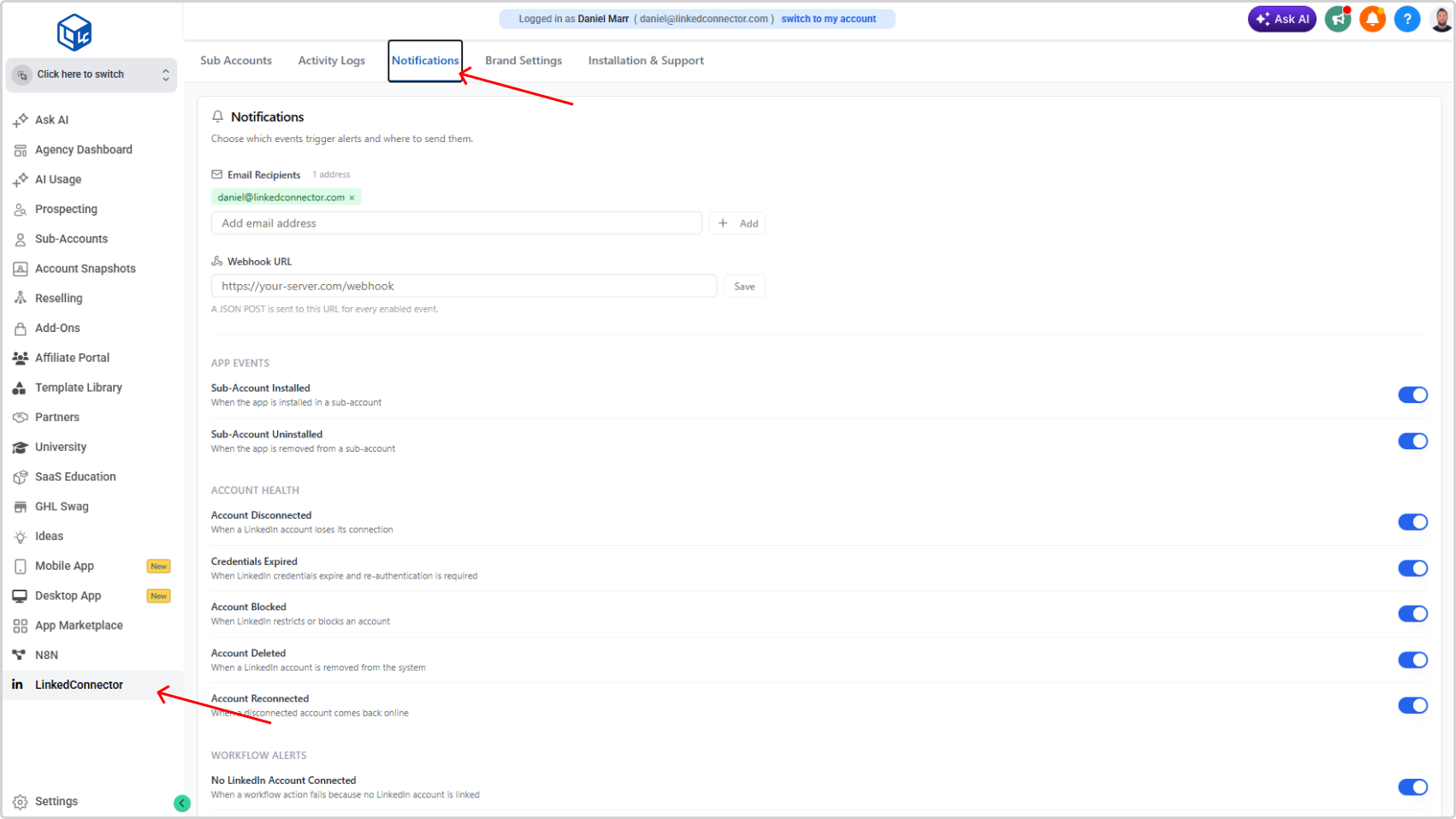
New Notification System for App & LinkedIn Events

You can now receive real-time alerts via email and webhook for app lifecycle events and LinkedIn account health events. Configure recipients and endpoints once in the Notifications tab — no polling required.

What's New

  • Email and webhook notifications for critical events
  • Configurable per event type — enable only what you need

App Events: Sub-Account Installed, Sub-Account Uninstalled

Account Health: Account Disconnected, Credentials Expired, Account Blocked, Account Deleted, Account Reconnected

Workflow Alerts: No LinkedIn Account Connected, Insufficient Credits

Why It Matters

Know the moment a LinkedIn account disconnects or credentials expire — before it causes workflow failures — and automate your response with webhook-triggered systems.

Notifications — Agency Management Dashboard

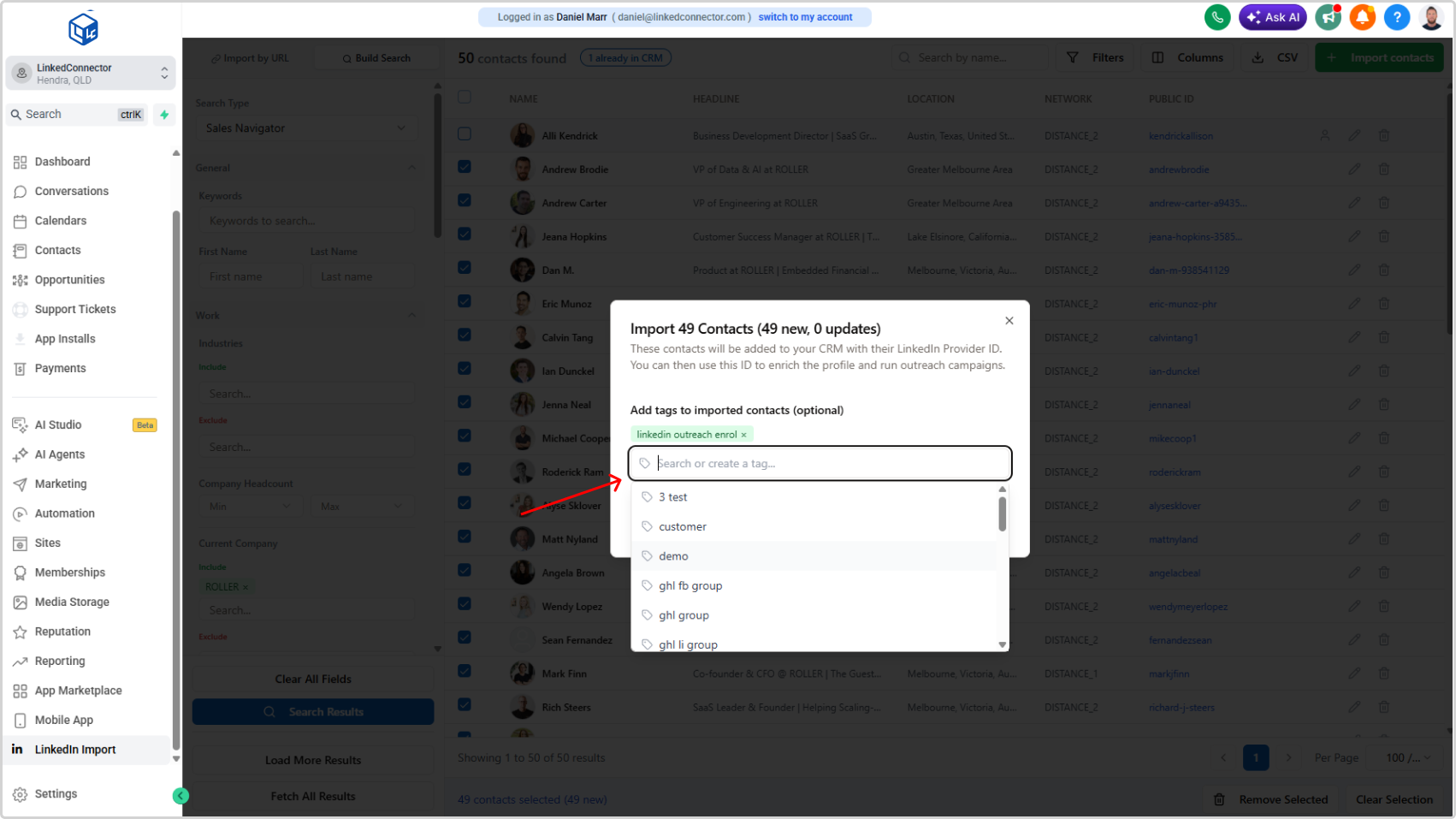
Apply CRM Tags During LinkedIn Contact Import

You can now search, select, and create CRM tags while importing LinkedIn contacts with the LinkedConnector import tool.

What’s New

We’ve added additional tagging support to the LinkedIn contact import flow in LinkedConnector.

When importing contacts to your CRM, you can now:

  • Search existing CRM tags
  • Select one or more tags to apply
  • Create new tags directly in the import modal

This update is available to all users.

How to Get the Update

If you do not see this feature yet, or experiencing any issues you may need to update the LinkedConnector App so we have the permissions to search tags in your CRM:

  1. Go to App Marketplace
  2. Select Installed Apps
  3. Select LinkedConnector
  4. Click Update in the top-right corner

After updating, the tagging option should function correctly.

Snapshot is Now Live on the App Marketplace

We’ve moved the LinkedConnector Snapshot to the App Marketplace to simplify installation, updates and maintenance.

It’s now live and available for users to install directly from the marketplace, making setup and ongoing management much easier.

What’s new

You can now find and install the snapshot by searching LinkedConnector Snapshot or using the direct installation link here.

How to install

  1. Open the App Marketplace
  2. Search for LinkedConnector Snapshot
  3. Install it into your Agency
  4. Install it into any Sub-Accounts where you want it active

Why this matters

Moving to the App Marketplace gives us:

  • Easier snapshot installation across accounts
  • Simpler snapshot management for agencies and sub-accounts
  • Better ability for our team to maintain and update the snapshot over time

This means less friction for users today, and smoother improvements going forward.

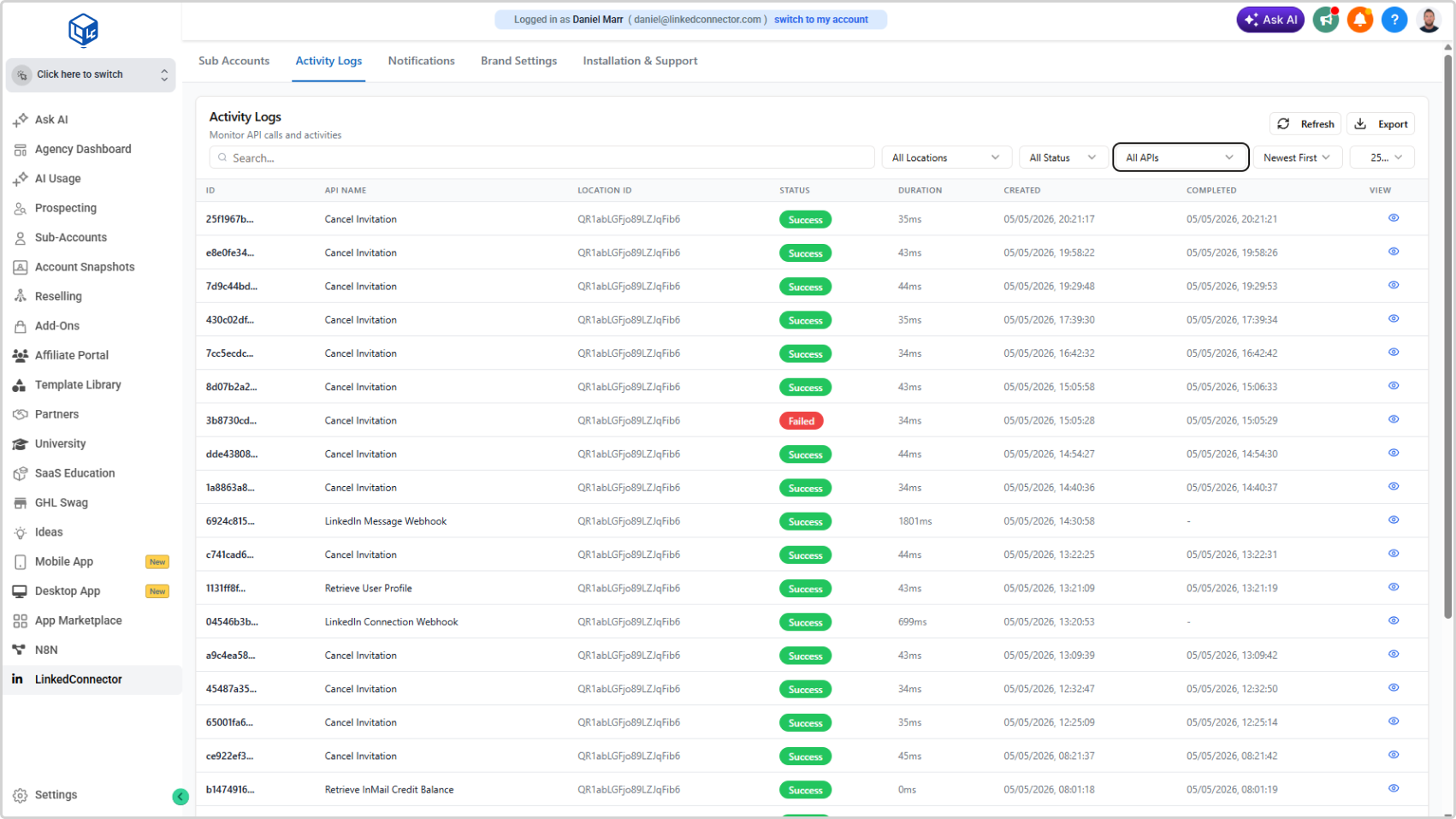
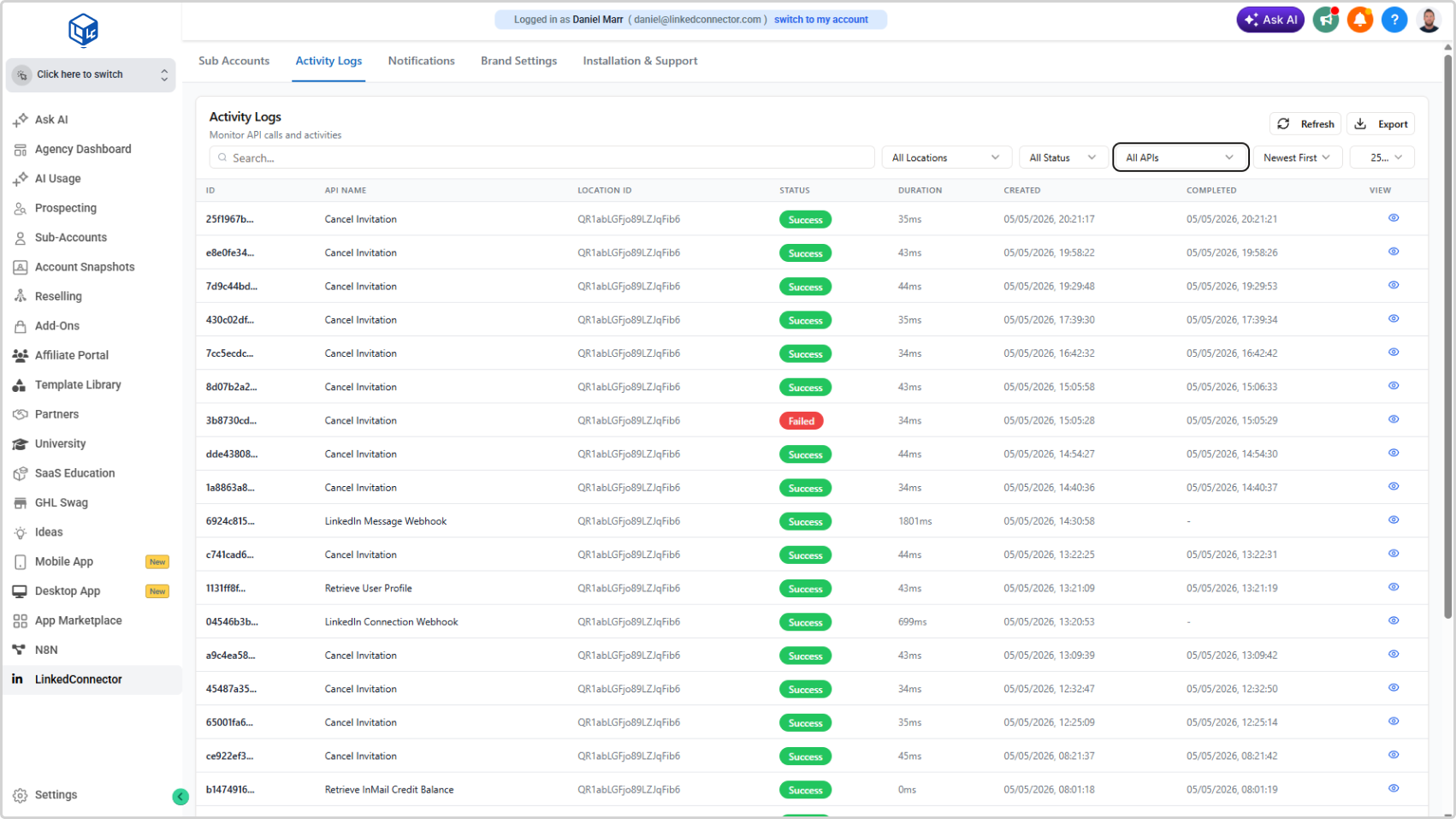
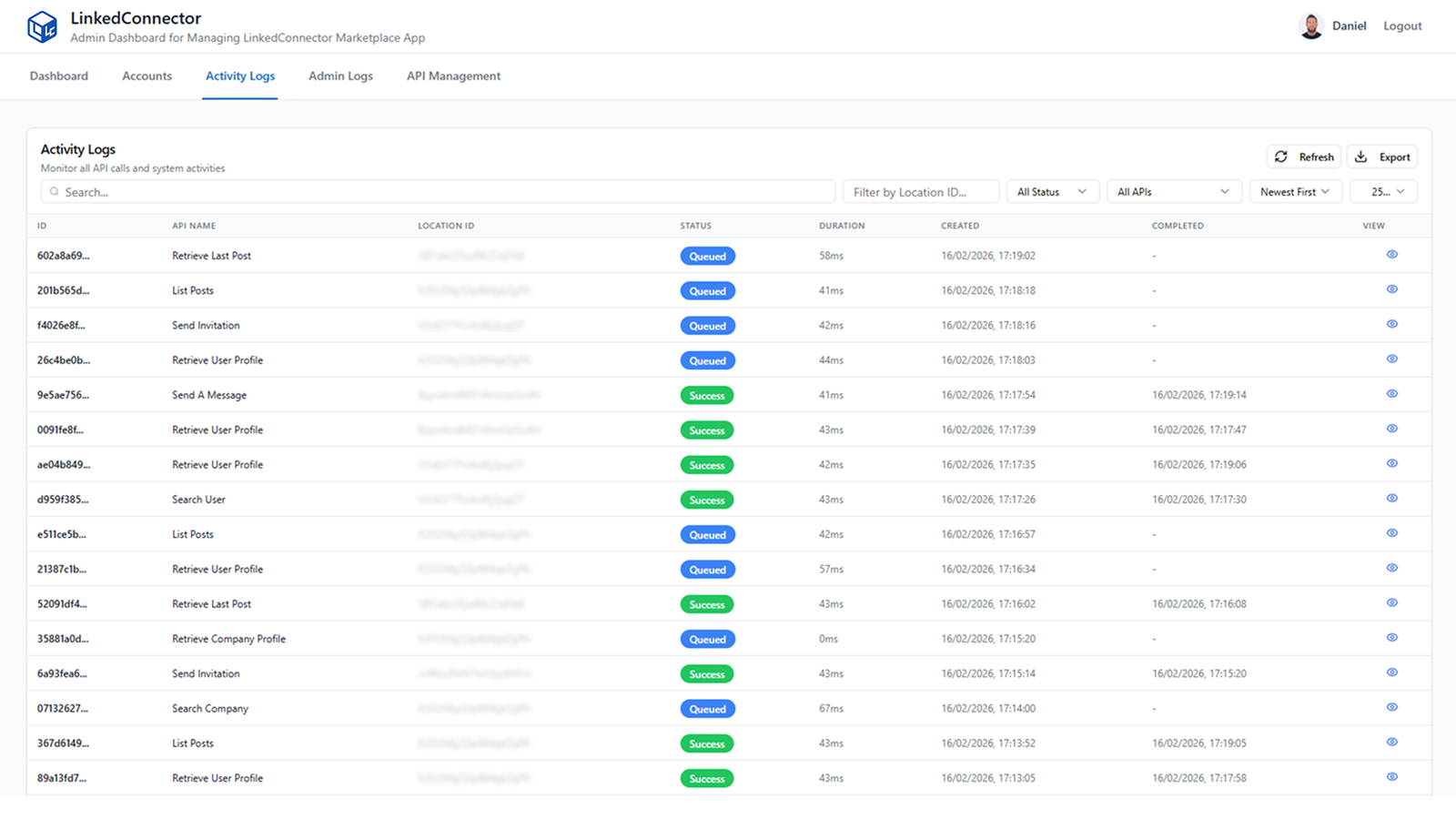
Activity Logs Relocated to Agency Dashboard

Activity Logs have moved from the sub-account Getting Started page to the Agency Dashboard. Sub-accounts no longer see operational monitoring data — that visibility now sits exclusively at the agency level.

What Changed

  • Activity Logs removed from the sub-account Getting Started page
  • Activity Logs now available only in the Agency Dashboard
  • All existing log data and functionality remains unchanged — just relocated

Agency Management Dashboard

Duplicate Contact Detection in LinkedIn Importer

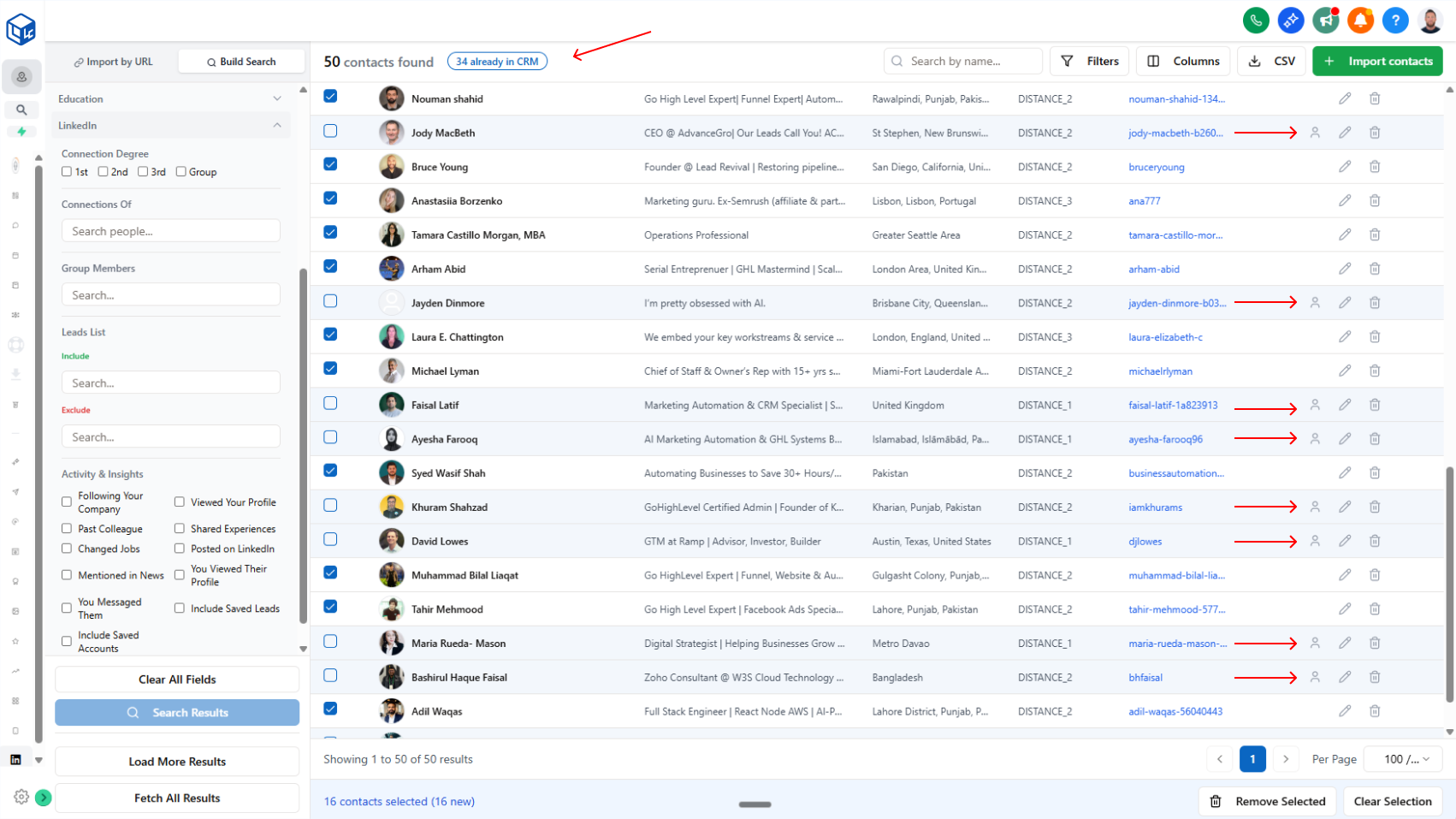
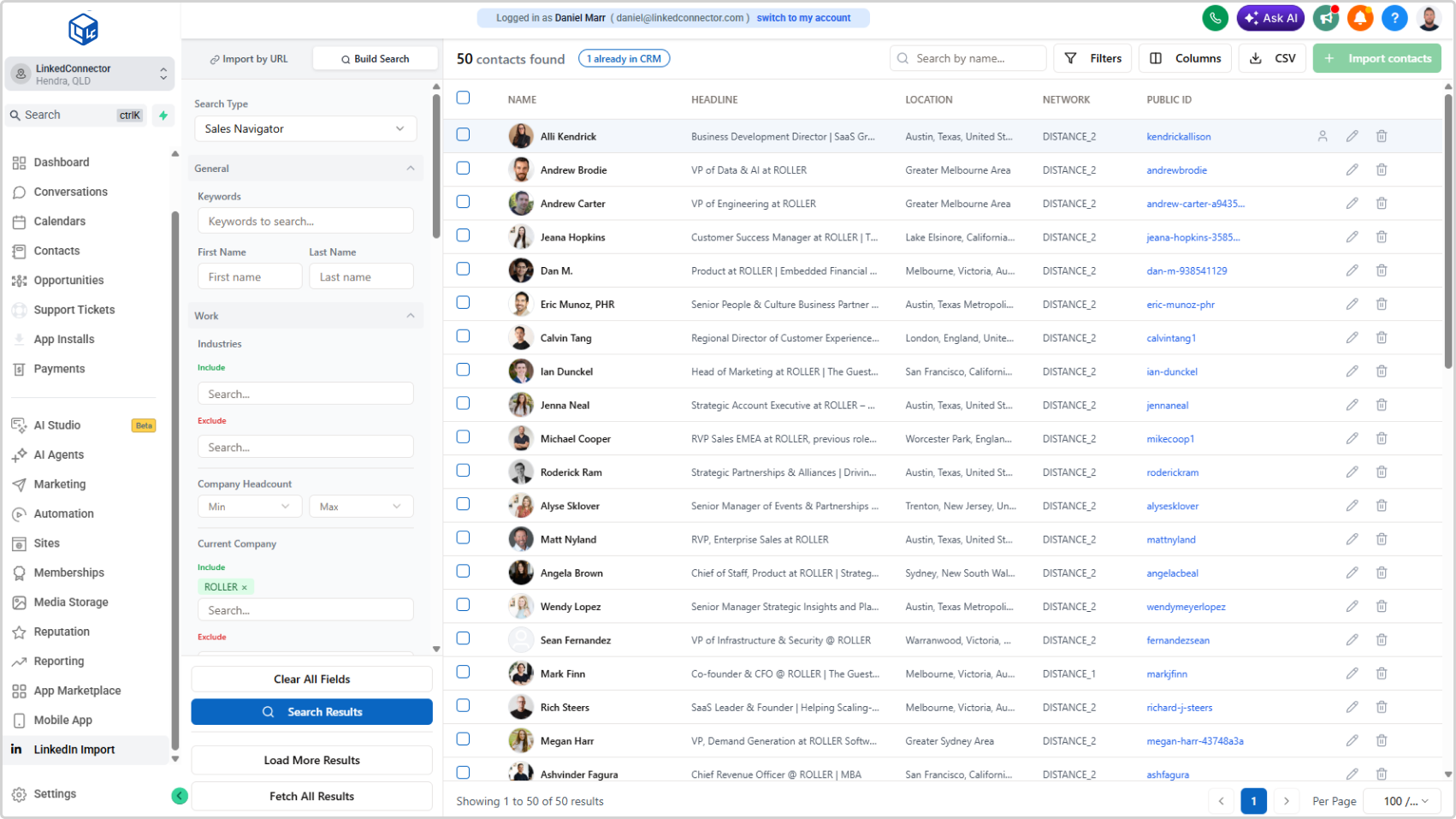
Avoid importing duplicate contacts. The LinkedIn Importer now shows which contacts are already in your CRM and automatically skips them when you select all—preventing duplicate enrichment and outreach.

Stop importing contacts you already have. Instantly see which leads are already in your CRM.

What it does:

When you search for LinkedIn profiles using the LinkedIn Importer, the system now checks your CRM and highlights any contacts that already exist. A badge at the top shows the exact count (e.g., "34 already in CRM"), and duplicate rows are highlighted with a profile icon on the right.

  • Duplicates are clearly marked and visually highlighted
  • Badge shows exact count of contacts already in your CRM
  • When you select all, only new contacts are selected (duplicates automatically skipped)
  • You can manually check duplicates if you want to update their data with new information

Why it matters:

No more accidental duplicate imports. You avoid enriching the same contact twice, sending duplicate outreach, or wasting credits on contacts you already own. Full control stays with you—skip duplicates by default, but override when you need to refresh contact data.

How to use it:

Search for LinkedIn profiles in the LinkedIn Importer. Review the badge showing duplicates, then select all to import only new contacts. Check any duplicate rows manually if you want to update them.

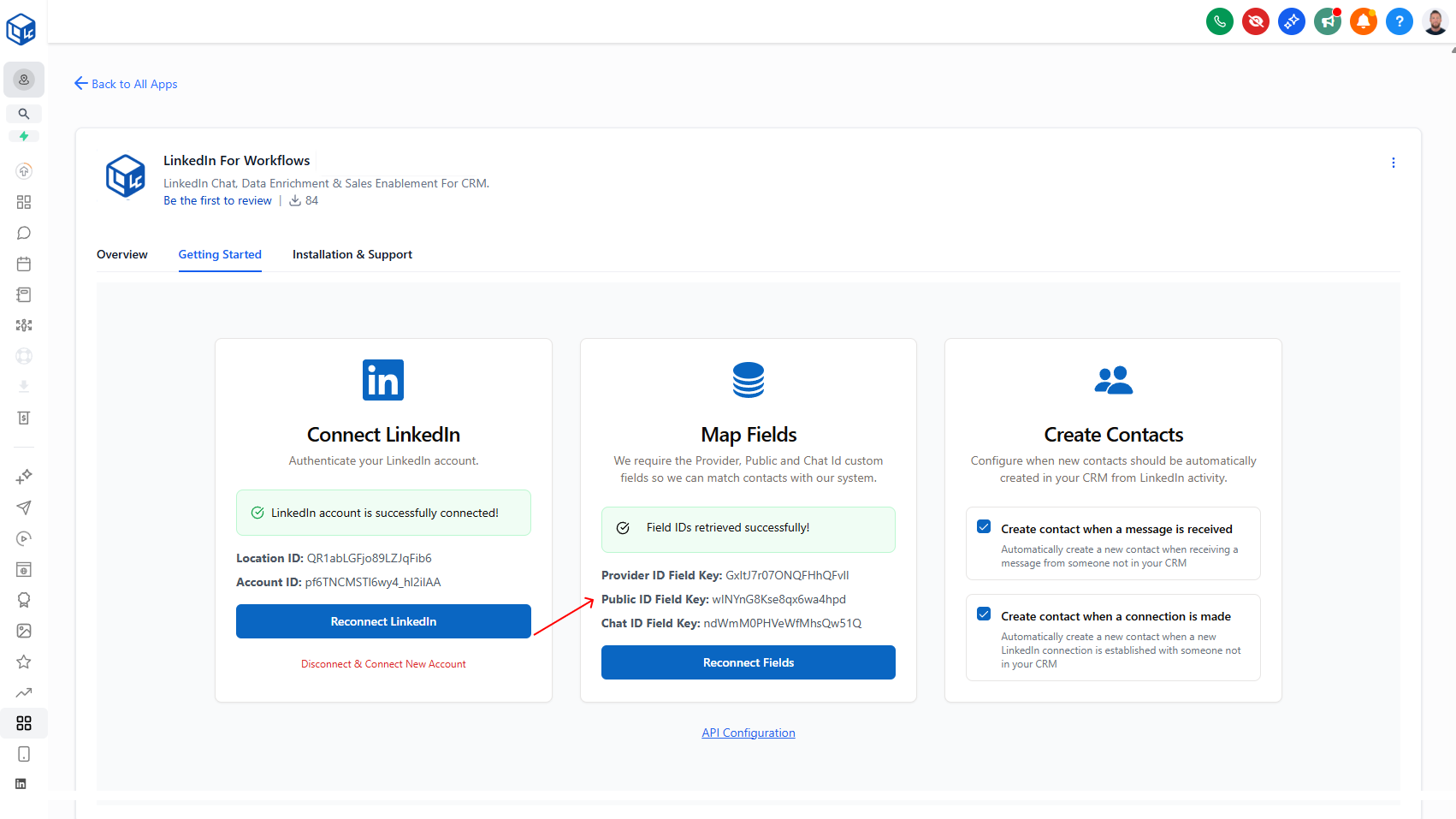
Map Public ID Field Key for Contact Matching

Map your Public ID field for better contact lookups and duplicate detection. When messages arrive or you import contacts, the system can now match them more accurately by checking the Public ID in your CRM—reducing duplicates and improving data accuracy.

Improve contact lookups and duplicate detection by mapping your Public ID field.

What it does:

You can now map your CRM's Public ID field to LinkedConnector. This gives the system a second way to find and match contacts in your CRM—especially useful when messages come in or you're importing new leads. The system uses this alongside Provider ID, so you get more accurate lookups and better duplicate detection.

  • Map your Public ID field key from your CRM custom fields
  • Improves accuracy when messages arrive (contacts matched faster)
  • Prevents duplicate imports when you're bringing in new leads
  • Works across all LinkedIn account types (Classic, Sales Navigator, Recruiter)

Why it matters:

If you switch LinkedIn account types or import contacts across different APIs, the Public ID provides redundancy. Instead of relying on a single identifier that might change, you've got a backup way to match contacts, which means fewer duplicates and more reliable workflows.

How to use it:

Go to Sidebar → Marketplace → Installed Apps → LinkedConnector → Getting Started tab → Map Fields card → Click "Reconnect Fields" and include your Public ID field key.

Note: This is optional but highly recommended, especially if you're importing contacts regularly.

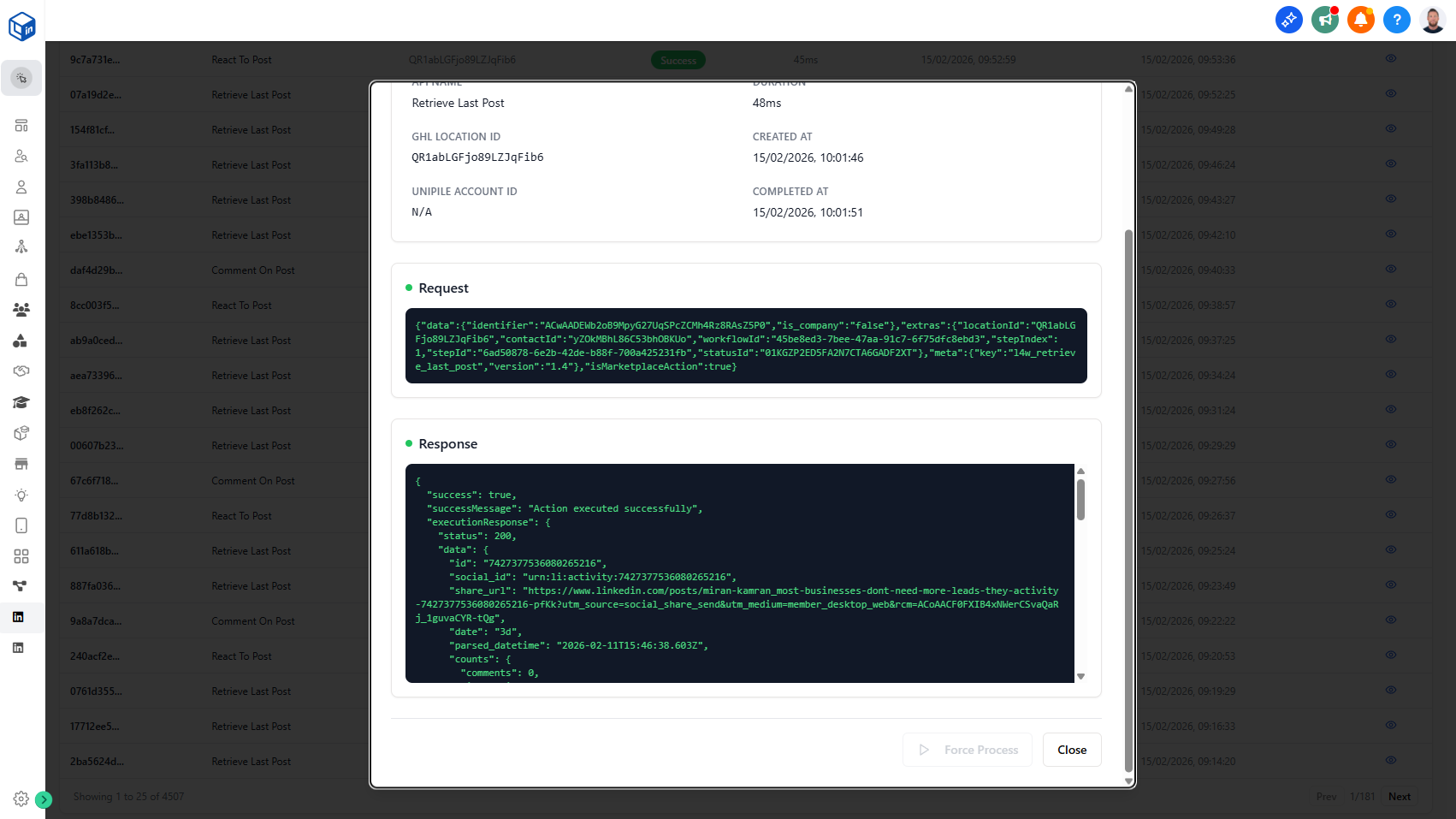
Improved Activity Logs Format

Activity Logs now show request and response payloads side by side, making it straightforward to see exactly what was sent and what came back — including missing fields, Provider IDs, and error details.

What's New

  • Request and response data displayed together in each log entry
  • Missing required fields (e.g., Provider IDs) are immediately visible
  • Log ID and Location ID shown for easy reference when contacting support
  • Clearer distinction between workflow configuration issues and missing contact data

Why It Matters

Instead of guessing why a workflow action failed, you can see the exact problem in the log. Faster diagnosis, fewer support tickets.

Agency Management Dashboard

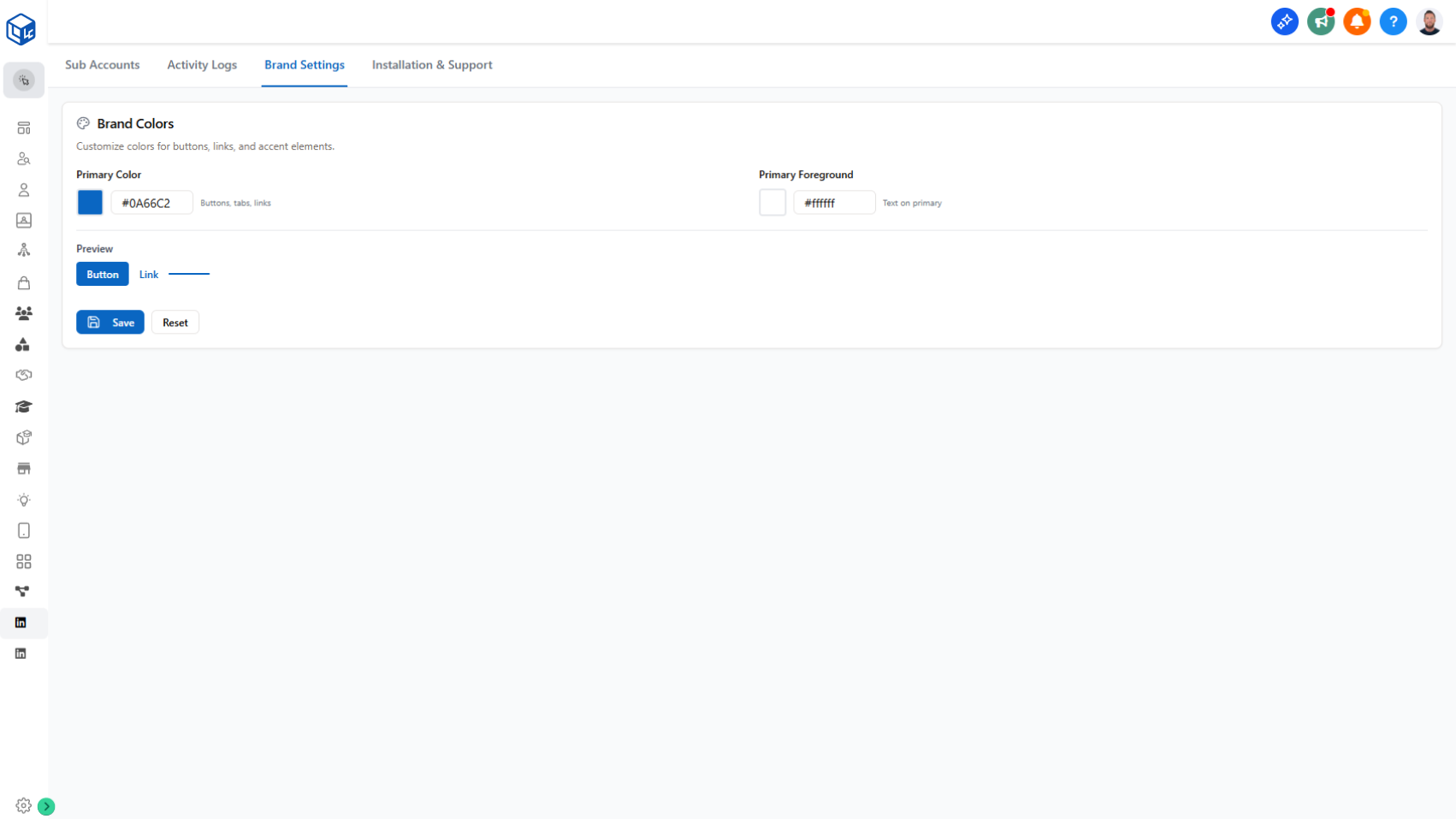
Customize Your Brand Colors

You can now set your agency's primary brand color and foreground color in the Agency Management Dashboard. Changes apply instantly across the Lead Importer and Getting Started Connection page, with a live preview before you save.

What's New

  • Set a primary brand color for buttons, tabs, and links
  • Set a primary foreground color for text on primary elements
  • Live preview of button and link appearance before saving
  • Changes apply immediately across all affected pages on refresh

Why It Matters

Your sub-account users see your brand throughout their workflow — not a generic third-party interface.

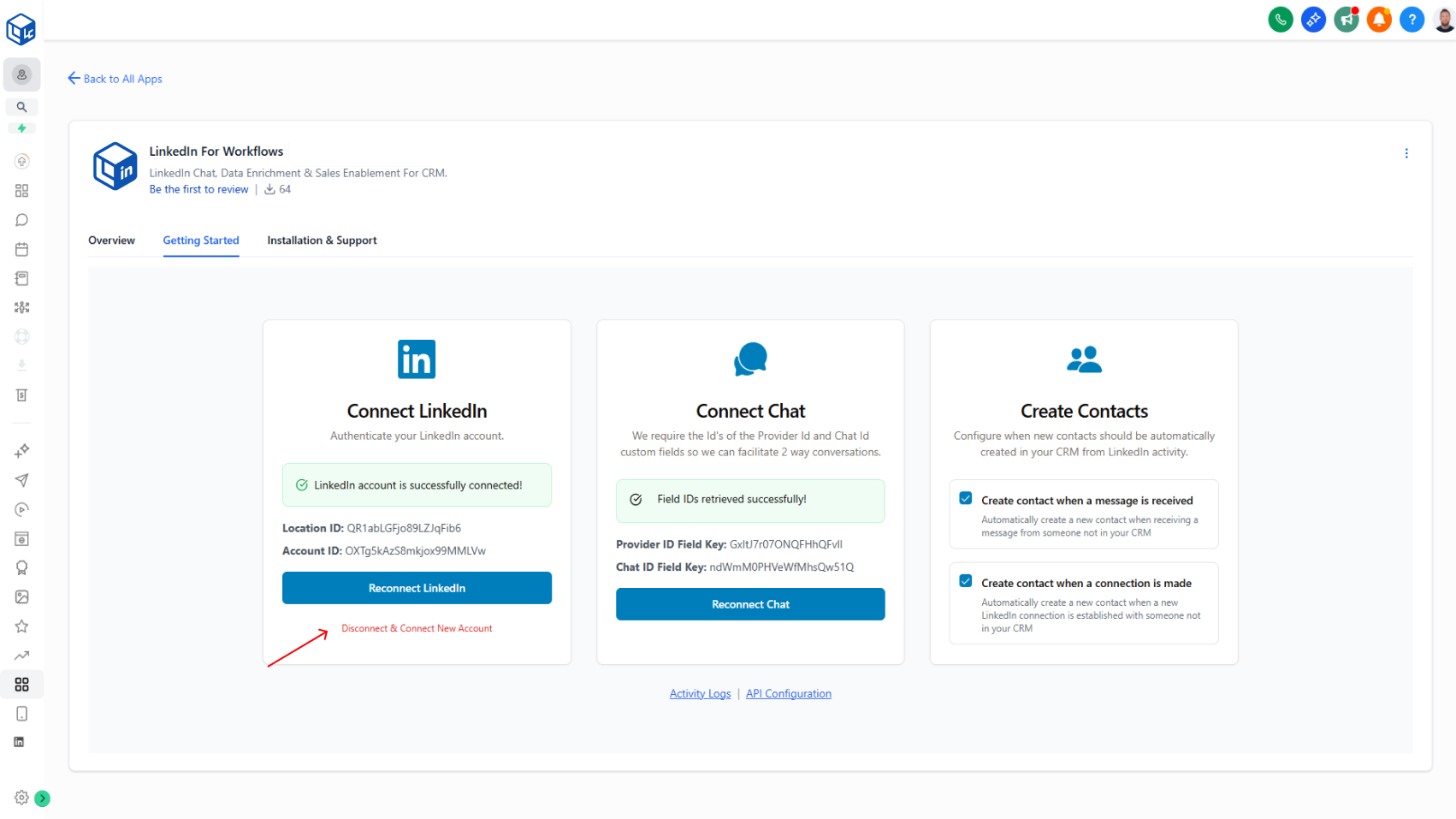
Ability to Disconnect & Reconnect LinkedIn Accounts

Switch LinkedIn accounts anytime without contacting support. Disconnect your current account and reconnect with a different account type (Sales Navigator, Recruiter, or Classic) directly from the Getting Started page.

Switch between different LinkedIn accounts or account types without support help.

What it does:

You now have full control over your LinkedIn account connection. If you've upgraded or downgraded to a different LinkedIn account type (Sales Navigator → Classic, Recruiter → Sales Navigator, etc.), you can disconnect your current account and reconnect a new one directly in the app.

  • Click Disconnect & Connect New Account (red text below the Reconnect LinkedIn button)
  • Follow the same authentication flow as your initial setup
  • Re-authenticate with your new LinkedIn account
  • Start using the features of your new account type immediately

Why it matters:

No more support tickets for account changes. You get instant autonomy to manage your own account upgrades, downgrades, and switches—keeping your workflow moving without friction.

How to use it:

Navigate to: Sidebar App Marketplace → Installed Apps → LinkedConnector → Getting Started tab → Connect LinkedIn card → Click Disconnect & Connect New Account

New Automatic Contact Creation Settings

Automatically add new LinkedIn connections and message senders to your CRM with two toggles—no more contact creation workflows required.

Automatically add new LinkedIn connections and message senders to your CRM with 2 simple toggles on the Getting Started Page.

What it does:

When someone connects with you on LinkedIn or sends you a message, they're now automatically added to your CRM without you having to manually create them:

  • When a new person messages you → they're auto-added with their name, LinkedIn profile ID, and chat ID
  • When you accept a new connection → they're auto-added with their name and profile ID
  • Both toggles are off by default (you control what gets created)
  • Only creates contacts if they're not already in your system

Why it matters:

Saves you time on manual data entry. Your CRM stays fresh with new contacts automatically, and you don't have to set up complicated "Create Contact" workflow steps anymore.

Migrating from workflows:

If you're already using "Create Contact" actions in your 1A: New Connection and 1B: New Message workflows, you can simplify your setup:

  1. Enable the relevant toggle(s) on the Getting Started tab
  2. Delete the "Create Contact" steps from your workflows (no longer needed)
  3. The automatic toggles will handle contact creation from now on

How to use it:

Side Menu → App Marketplace → Installed Apps → LinkedConnector → Getting Started tab

Agency Management Dashboard

Manage all your subaccounts from one dashboard. View installation status, monitor workflow activity, configure branding, and troubleshoot issues across all your LinkedIn integrations—no more logging in and out.

Centralized control for managing all your subaccounts in one place.

What it does:

Instead of logging into each subaccount separately, you now have a single dashboard that shows all your LinkedConnector installations. View which subaccounts are connected, check their activity, configure branding, and access support—all from one interface.

  • See all subaccounts at a glance with connection status and last activity
  • Monitor workflow activity logs across all subaccounts with filtering and 30-day history
  • Configure your brand colors and customize the interface
  • Access documentation, setup videos, and support resources

Why it matters:

No more context-switching between accounts. You get instant visibility into what's working and what's not across your entire agency portfolio, so you can troubleshoot faster and keep everything running smoothly.

How to use it:

Access the Agency Management Dashboard:

https://api.linkedconnector.com/agency

Add the custom menu link to your agency menu to get started. Works for all agency-level accounts.

💡
Requires a white label domain. Contact support for a custom link if not white labelled

LinkedIn Lead Importer

We're excited to introduce the LinkedIn Lead Importer, a powerful new interface that streamlines the process of finding, organizing, and importing LinkedIn prospects directly into your CRM in just a few clicks.

Automatically import LinkedIn prospects into your CRM from search results, post engagement lists, or Sales Navigator leads.

What it does:

Paste any LinkedIn search URL, sales navigator link, or recruiter list into the importer. Filter by location, industry, company, job title, education, groups, and more. Preview your leads before importing. The system automatically detects duplicates and updates existing records instead of creating new ones.

  • Import with full enrichment data (first/last name, photo, LinkedIn ID)
  • Smart duplicate handling to keep CRM clean
  • Optional tag-based enrollment into workflows
  • Supports LinkedIn Classic, Sales Navigator, and Recruiter searches

Why it matters:

Eliminates hours of manual copy-paste work. Ensures your CRM stays clean with automatic duplicate detection. Launches campaigns faster with enrichment-ready data.

How to use it:

Add the custom menu link to your sub-accounts:

https://api.linkedconnector.com/import?locationid={{location.id}}

Rate Limit & Action Queue System

The Rate Limit & Action Queue System protects your LinkedIn account through automatic pacing and intelligent queuing. All actions execute sequentially with natural delays, respecting daily and weekly limits while maintaining compliance.

Automatic backend protection that queues your workflow actions to stay within LinkedIn's rate limits.

What it does:

Every workflow action enters a queue and executes sequentially with randomized 60–90 second delays between actions. When daily or weekly limits are reached, the queue automatically pauses and resumes when limits refresh. No workflow steps are lost—everything queues and executes in order.

  • Prevents high-volume API bursts that trigger LinkedIn blocks
  • Simulates natural human-like behavior patterns
  • Automatic limit enforcement and recovery
  • Zero configuration needed

Why it matters:

Protects your LinkedIn account from overuse and compliance violations. Ensures workflows run reliably without hitting rate limits that would block your account. You get consistent, predictable automation without manual monitoring or intervention.

V3 Snapshot Release

V3 Snapshot restructures your workflow framework into organized campaign stages. Simpler structure, faster setup, better engagement results.

Redesigned workflow framework that organizes campaigns into logical stages.

What Changed:

Your automation framework is now organized into four distinct stages instead of separate, interchangeable actions. The new structure is: Warm-up (post engagement) → Outreach (connection requests) → Follow-up (post-acceptance messaging) → Fallback (InMail delivery).

How to Build Workflows Now:

Think in stages instead of individual actions. Start with post engagement to build familiarity with prospects. Layer in connection requests with personalized messaging. Set up automatic follow-up sequences that trigger when connections accept. Enable InMail as your fallback delivery option.

The framework guides you through a natural campaign progression instead of forcing you to assemble disconnected pieces.

Why It Matters:

Fewer moving parts mean fewer configuration errors. Setup is faster because you're following a proven campaign structure. Better engagement outcomes because warm-up happens before outreach. More reliable delivery with built-in fallback options.

Backend Migration to Lead Connectors SDK

Backend infrastructure upgrade using the Lead Connectors SDK modernizes authentication and token management. Your workflows run more reliably with fewer disconnects and better error handling—automatically.

Modernized backend architecture for more reliable OAuth handling and token management.

What Changed:

The authentication layer now uses the Lead Connectors SDK to fully automate OAuth 2.0 processes. This replaces manual token management with automatic app installation, daily token refresh, automatic cleanup detection, and improved error handling. The system is database-agnostic and follows industry-standard session management.

What It Means for You:

No action required on your end. Your existing workflows continue running normally, but with significantly higher reliability. CRM connections stay authenticated longer with fewer interruptions. Messaging, profile retrieval, search, and chat actions execute with improved consistency. Reconnect prompts happen less frequently because token refresh is now fully automated.

Why It Matters:

Fewer authentication errors means fewer failed actions. Reduced downtime from unexpected disconnects. Your workflows run smoother because the foundation beneath them is more stable. Future LinkedIn features will be built on top of this stronger, more reliable infrastructure.

Reference: https://linkedconnector.com/changelog/backend-migration-to-lead-connectors-sdk/

Workflow Action - Separate Messages and InMail Actions

Messages and InMail now have separate workflow actions for clearer setup and better tracking.

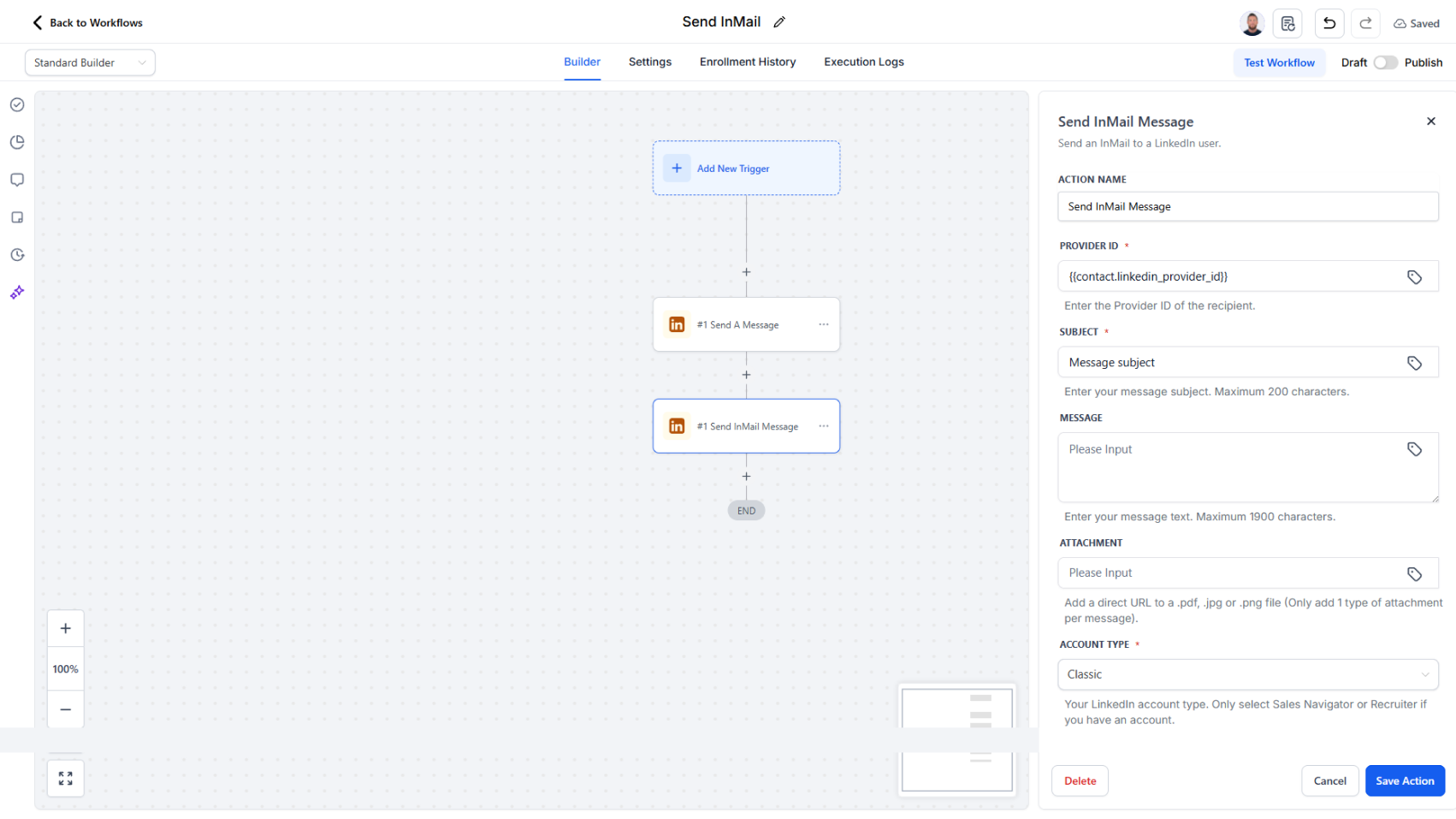
LinkedIn messages and InMail now have their own dedicated actions instead of sharing one.

What changed:

Previously, a single "Send Message" action handled both regular messages and InMail, which made it unclear which fields applied to which communication type. Now each has its own action with a simplified field set.

What each action does:

  • Send A Message — Send direct messages to existing LinkedIn connections. Configure message content and delivery timing.
  • Send InMail Message — Send premium InMail outreach using LinkedIn's InMail feature. Simplified setup with only InMail-relevant fields.

Workflow logs now distinguish between "Message Sent" and "InMail Sent" events, so you can easily track which communication type was executed.

Why it matters:

Reduces configuration errors by hiding irrelevant fields. Makes debugging simpler—you can see exactly which action ran and why. Clearer logs mean better monitoring and reporting.

What you need to do:

If you have existing workflows using InMail, replace the old "Send Message" action with the new "Send InMail Message" action. Search your workflows for InMail to find any that need updating.

Workflow Action - ElevenLabs Voice Generation

Generate realistic voice messages in workflows and send them through LinkedIn chat—perfect for personalized follow-ups and warm introductions.

Convert text into natural-sounding voice messages inside your workflows.

What it does:

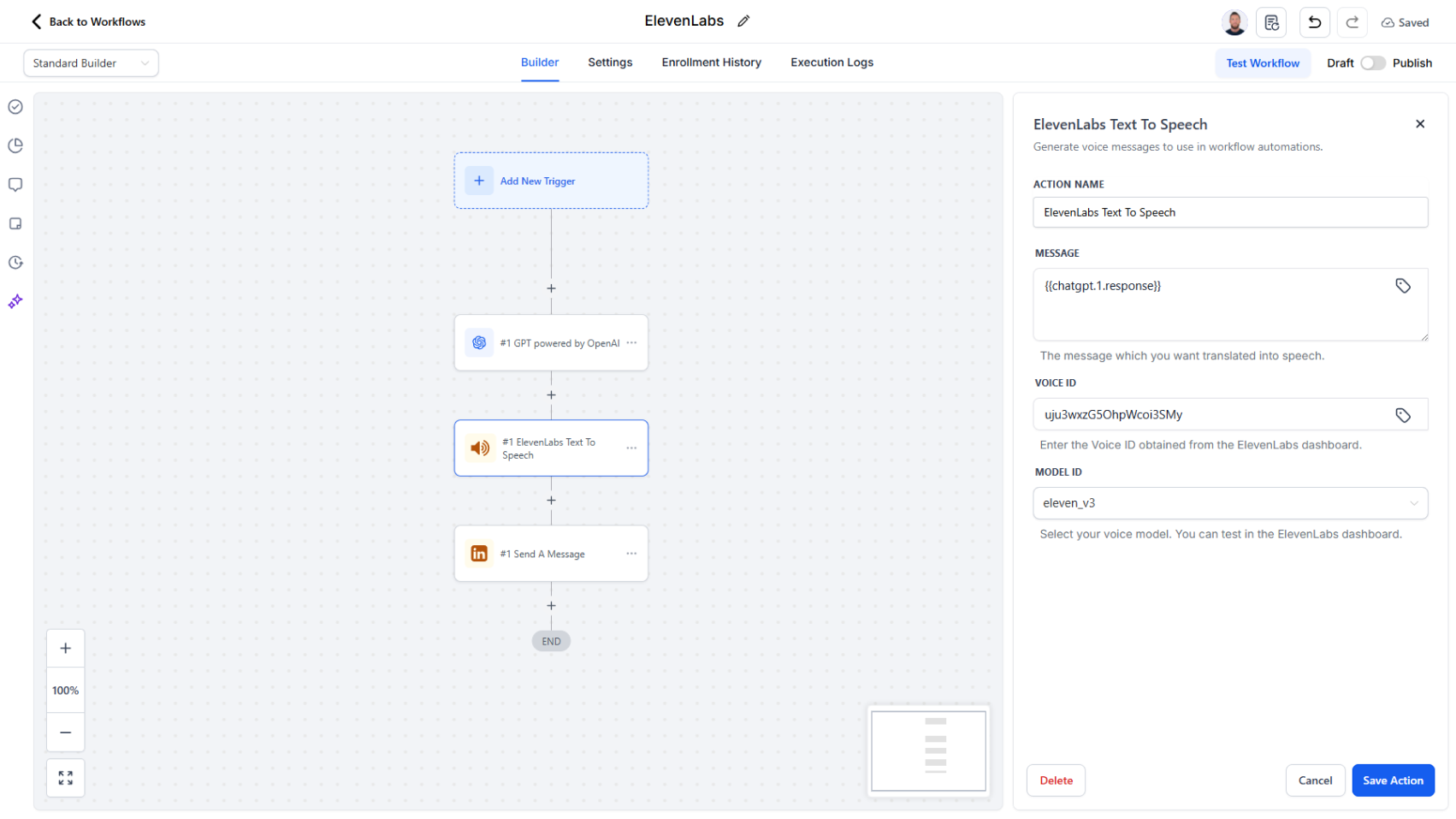
Add the "Generate Voice Message (ElevenLabs)" action to any workflow. Write your message or have AI generate one, select a voice (choose from multiple languages and accents), and the action instantly produces a natural-sounding audio file. Attach the generated audio to a Send Message action to deliver it through LinkedIn chat.

  • Works with any text message (personalized introductions, follow-ups, etc.)
  • Multiple voice options, languages, and accents available
  • Audio generates instantly within the workflow
  • Seamless integration with Send Message action

Why it matters:

Voice messages feel more authentic and personal than text, leading to better engagement and response rates—all at automation speed. Combines the efficiency of workflows with the warmth of human communication.

How to use it:

Add "Generate Voice Message (ElevenLabs)" to your workflow → Provide your text (or use AI to generate it) → Select your voice → Attach the audio URL to a "Send Message" action.

Activity Logs for Failed Actions

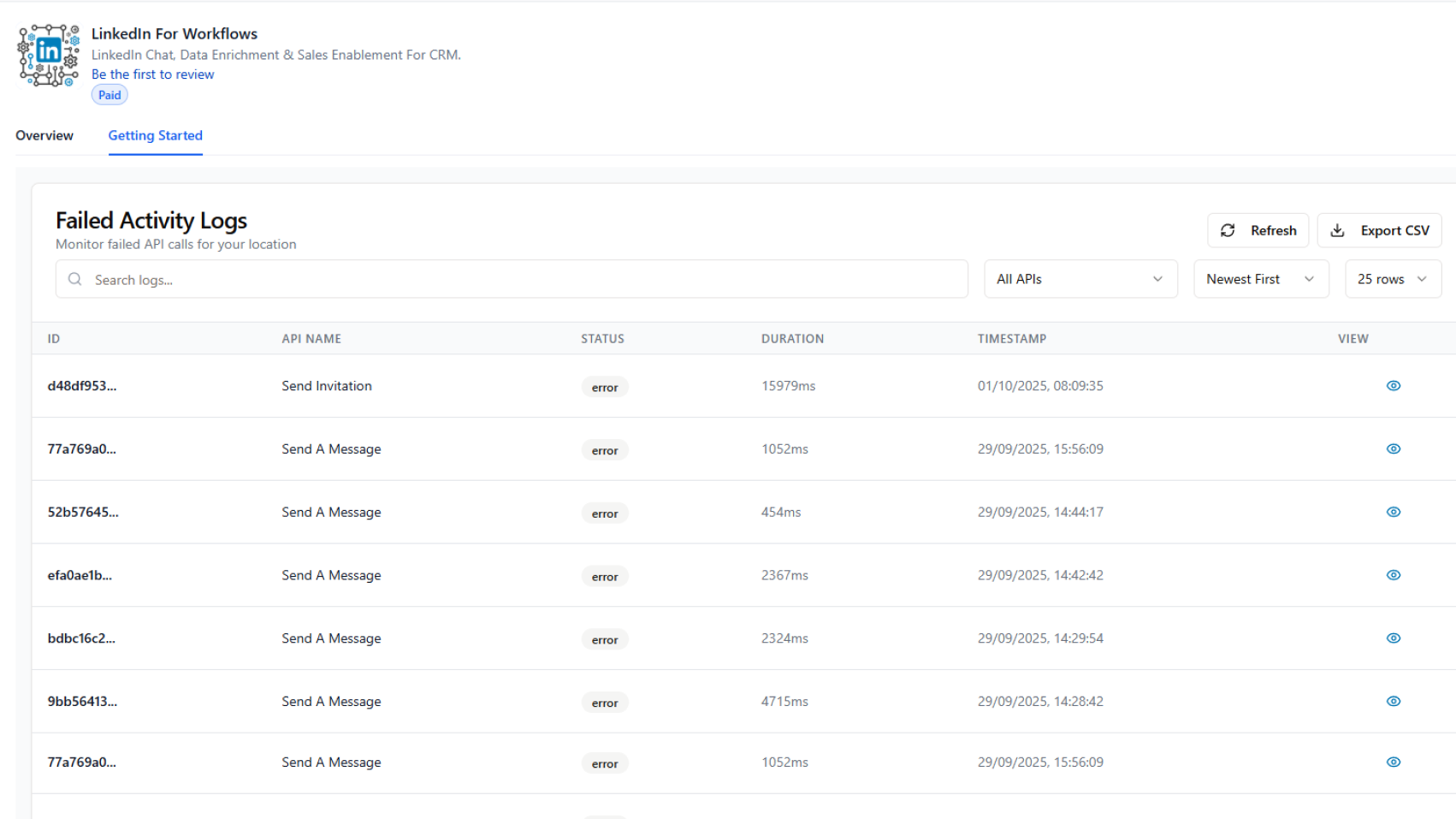
Failed Activity Logs now appear on the Getting Started page, showing exactly why LinkedIn actions failed with full request and response details for faster troubleshooting.

See why LinkedIn actions failed and troubleshoot faster with detailed request and response data.

What changed:

A new Failed Activity Logs section at the bottom of the Getting Started page displays all failed action API calls in one place.

What it does:

Each log entry shows:

  • Action type (e.g., Send Invitation, Send a Message)
  • Error status and timestamp
  • Duration of the call
  • Unique failure ID for reference

Click the View icon to open the full log entry and see both the request data sent and the system's response, giving you actionable context for troubleshooting.

Why it matters:

Quickly identify why an action failed without guesswork. See both sides of the conversation (what you sent vs. what the system replied). When you need support, reference the failure ID and error message for faster resolution.

Workflow Action - Send A Message

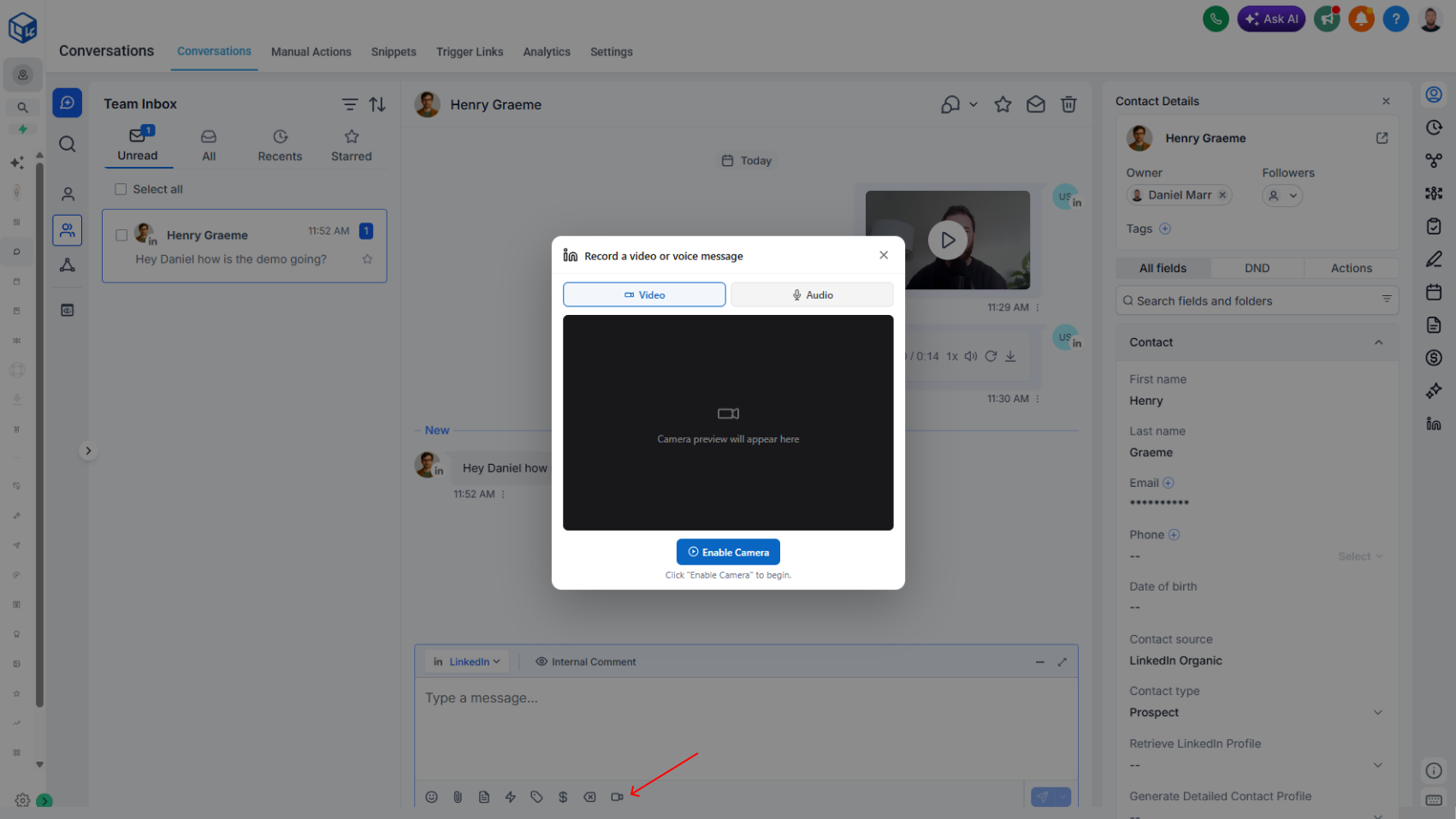
We’ve simplified and enhanced LinkedIn messaging inside your workflows by combining “Start A Chat” and “Send A Message” into one streamlined action. This makes it easier than ever to manage conversations directly from your automation builder.

What’s New

  • One Action for All Messaging: No need to choose between starting a chat or sending a message—everything is now handled through a single, unified action.
  • Rich Media Support: In addition to text messages, you can now send:
    • Attachments (documents, images, files)
    • Voice messages
    • Video messages

Why This Matters

  • Simplifies workflow setup with fewer actions to configure
  • Provides more ways to engage prospects and connections authentically
  • Enhances personalization by supporting voice and video formats, not just text
  • Reduces friction between chat initiation and ongoing messaging

Rate Limit Status Feedback

Rate limit status indicator on Getting Started page shows when your account has reached LinkedIn's rate limits.

Know instantly when your account has hit rate limits.

What it does:

A visual indicator appears on your Getting Started page when your account reaches LinkedIn's rate limits. This gives you immediate visibility into whether your account is temporarily blocked due to exceeding activity thresholds.

  • Visual indicator shows on Getting Started page
  • Appears when rate limits are reached
  • Lets you know your account is temporarily blocked
  • No configuration needed — it's automatic

Why it matters:

When workflows slow down or stop unexpectedly, it's easy to wonder what went wrong. This indicator answers that question immediately: if you see the rate limit warning, you know to pause activity and let your account recover. Without it, you're left guessing whether there's a technical issue or an account block.

Understanding rate limits helps protect your account long-term and keeps the platform stable for everyone.

Authentication Flow Upgrade

A new authentication process streamlines LinkedIn setup, supports bulk installs, and enables agency-managed deployments.

As part of the CRM platform’s migration to a new app distribution method, we’ve rebuilt the authentication flow for LinkedConnector. The new process simplifies setup, improves clarity, and supports both individual and agency installations.

How it works today:

  • Access the new authentication flow from the Connect and Support tab in the app profile.
  • Two new authentication cards are available:
    • Connect LinkedIn: Guides you through the LinkedIn authentication process with live feedback confirming whether your account is connected and active.
    • Connect Chat: Requires a Provider ID custom field key and a Chat ID custom field key to store identifiers used for two-way messaging.
  • Agencies can now complete bulk installations on behalf of their clients. Clients then complete the LinkedIn authentication and maintain it independently.

Why this matters:

Supports scalable bulk installations for faster onboarding

  • Enables agency-led deployments while allowing clients to manage their own authentication
  • Provides live connection status for greater clarity and troubleshooting
  • Ensures smooth setup for two-way LinkedIn messaging through proper field mapping

Workflow Action - Send a Message to a Chat

Continue LinkedIn conversations seamlessly by sending messages and attachments directly into an existing chat thread.

We’ve introduced a new workflow action, Send a Message to a Chat, designed for ongoing LinkedIn conversations. This action makes it simple to engage once a chat has already been started using the Start a Chat action.

How it works today:

  • Provide the Chat ID of the conversation.
  • Enter your message content.
  • Optionally, include an Attachment URL to send a file alongside your message.
  • Attachments must be in a LinkedIn-supported format such as PDF, image, video, audio, CSV, or text file.

Why this matters:

  • Maintain continuity by messaging directly into active conversations
  • Enrich communication with relevant attachments (e.g., case studies, product one-pagers, proposals)
  • Automate both text and file sharing without leaving your CRM
  • Create scalable yet personalized follow-ups for LinkedIn engagement