LinkedIn Contact Card
Link a LinkedIn profile to any CRM contact and display their profile data directly on the Contact and Conversations pages — without leaving the CRM.
Overview
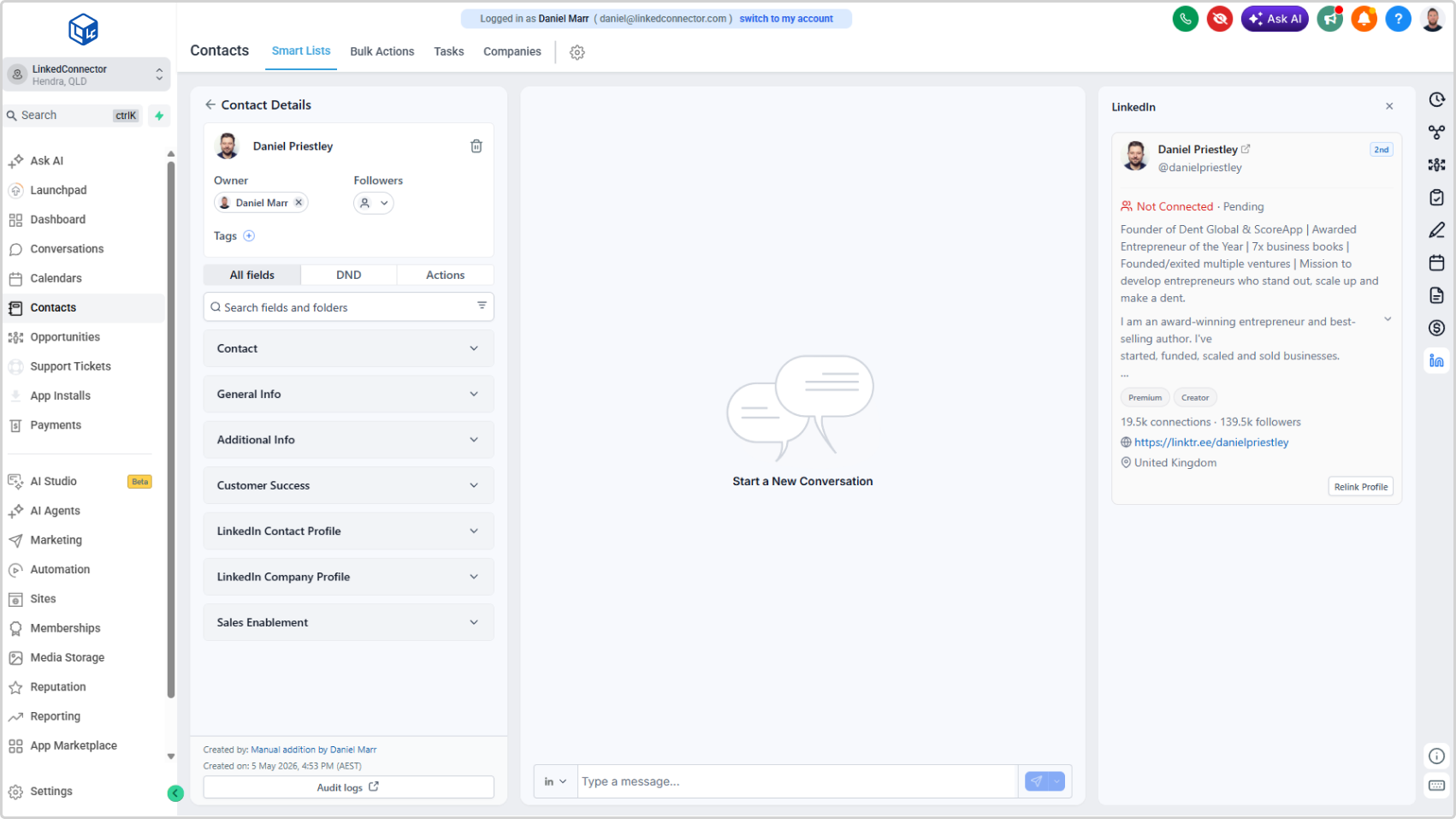
The LinkedIn Contact Card sits in the right sidebar of every Contact and Conversations record. It lets you search for and connect a LinkedIn profile to the CRM contact, retrieve their basic profile data, and keep it visible at a glance while you're working with that contact.
Once a profile is linked, the card shows connection status, profile summary, premium and creator badges, follower and connection counts, website links, and location — all updated each time you relink.
Enabling and Disabling the LinkedIn Contact Card
The LinkedIn Contact Card can be enabled or disabled per sub-account from the agency dashboard.
- Go to your Agency Dashboard
- Click LinkedConnector
- Click on the sub-account to open the Sub Account Details modal
- Under App Configuration, find the LinkedIn Contact Card toggle
- Toggle it on to enable the card for that sub-account, or off to disable it
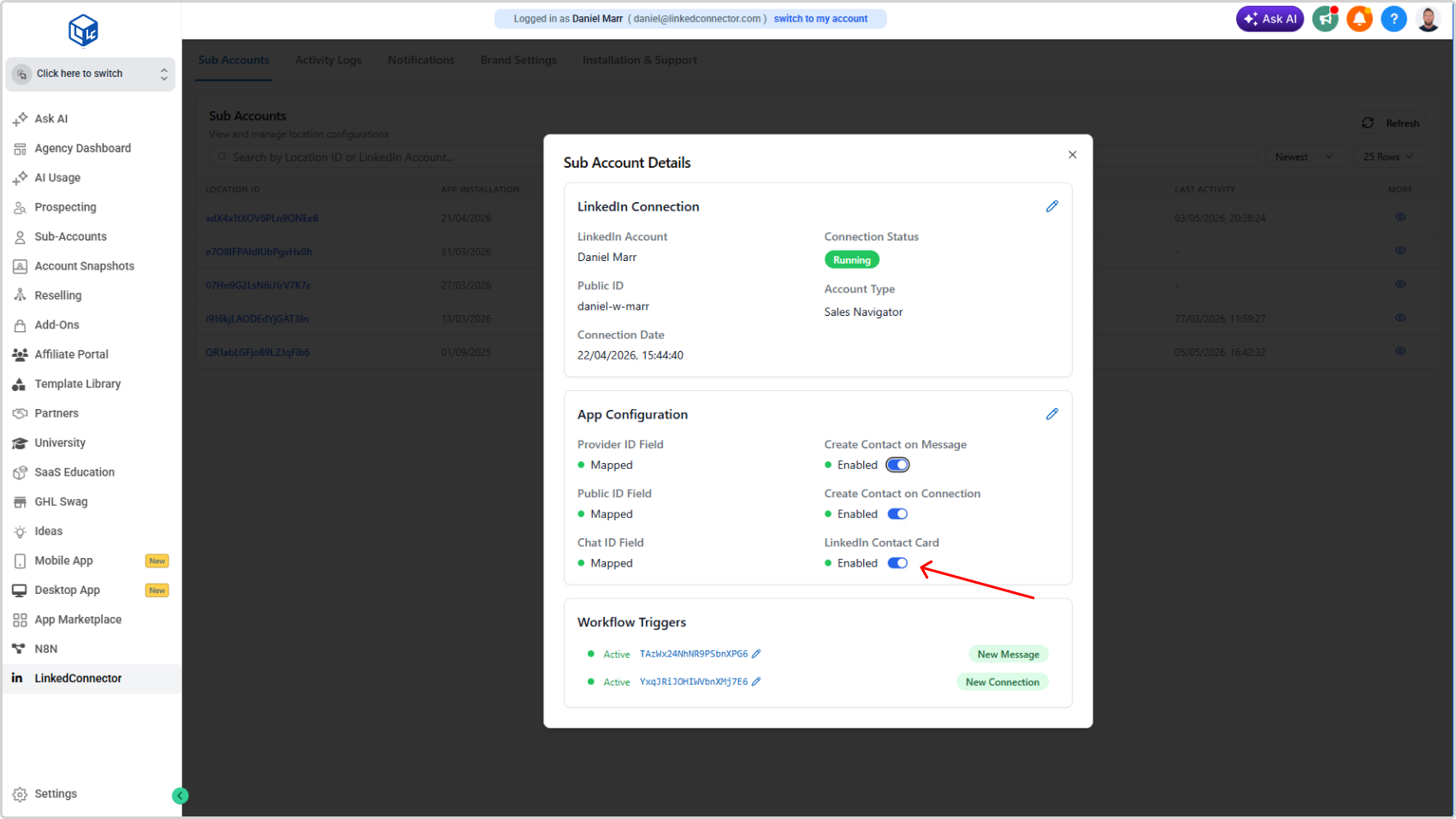
When disabled, the LinkedIn Contact Card will not appear in the sidebar for that sub-account.
Linking a Profile
Step 1: Open the Card
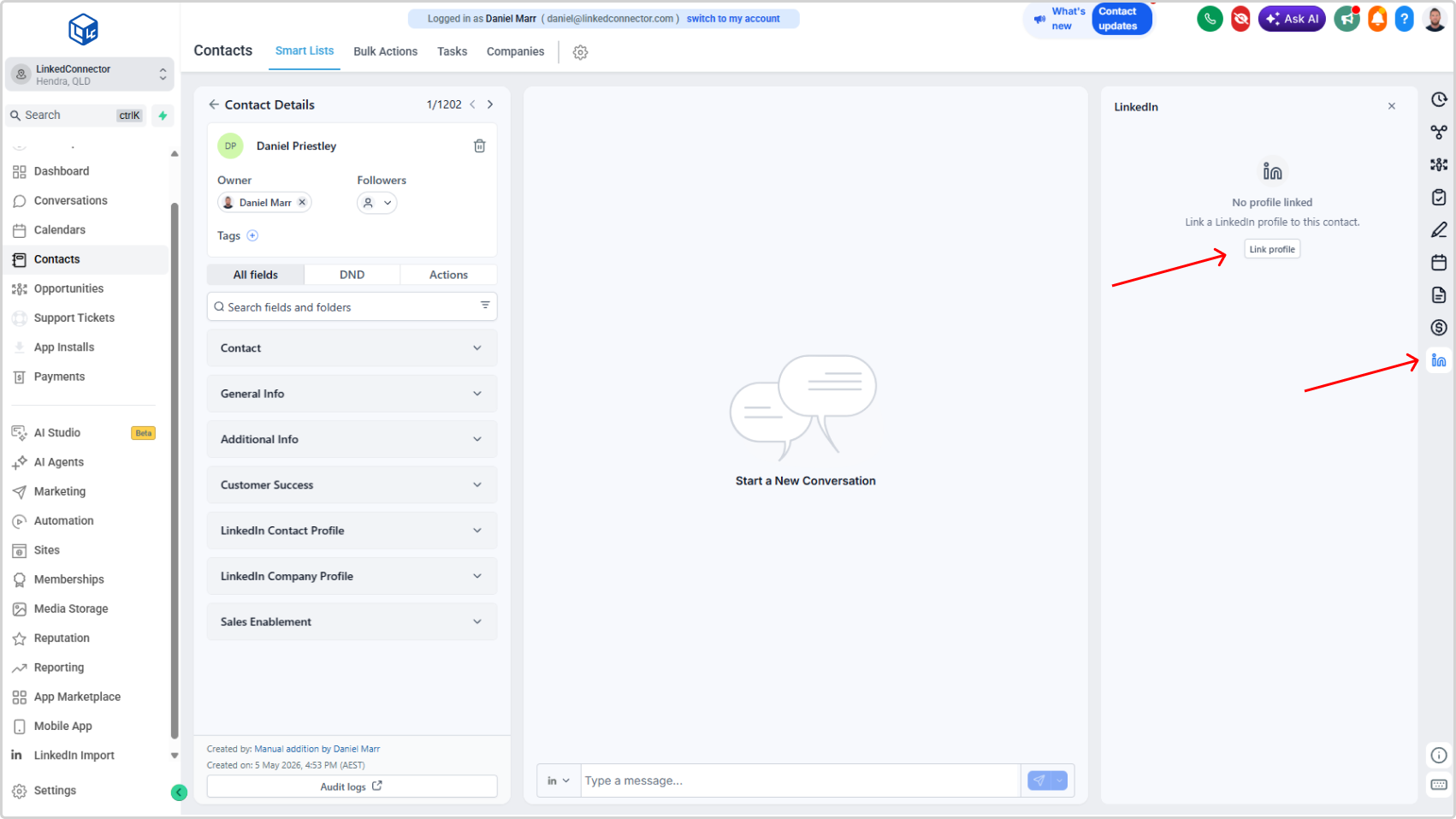
Open a contact or conversation record. In the right sidebar, click the LinkedIn icon to expand the LinkedIn Contact Card.
If no profile has been linked yet, you will see No profile linked with a Link Profile button.
Step 2: Search for the Profile
Click Link Profile. LinkedConnector will automatically search LinkedIn using the contact's first name (required), last name (required), and business (if available in the CRM).
A list of search results will appear. Each result shows:
- Name
- Headline / Summary
- Location
- Public ID (LinkedIn handle)
- Connection degree (1st, 2nd, 3rd)
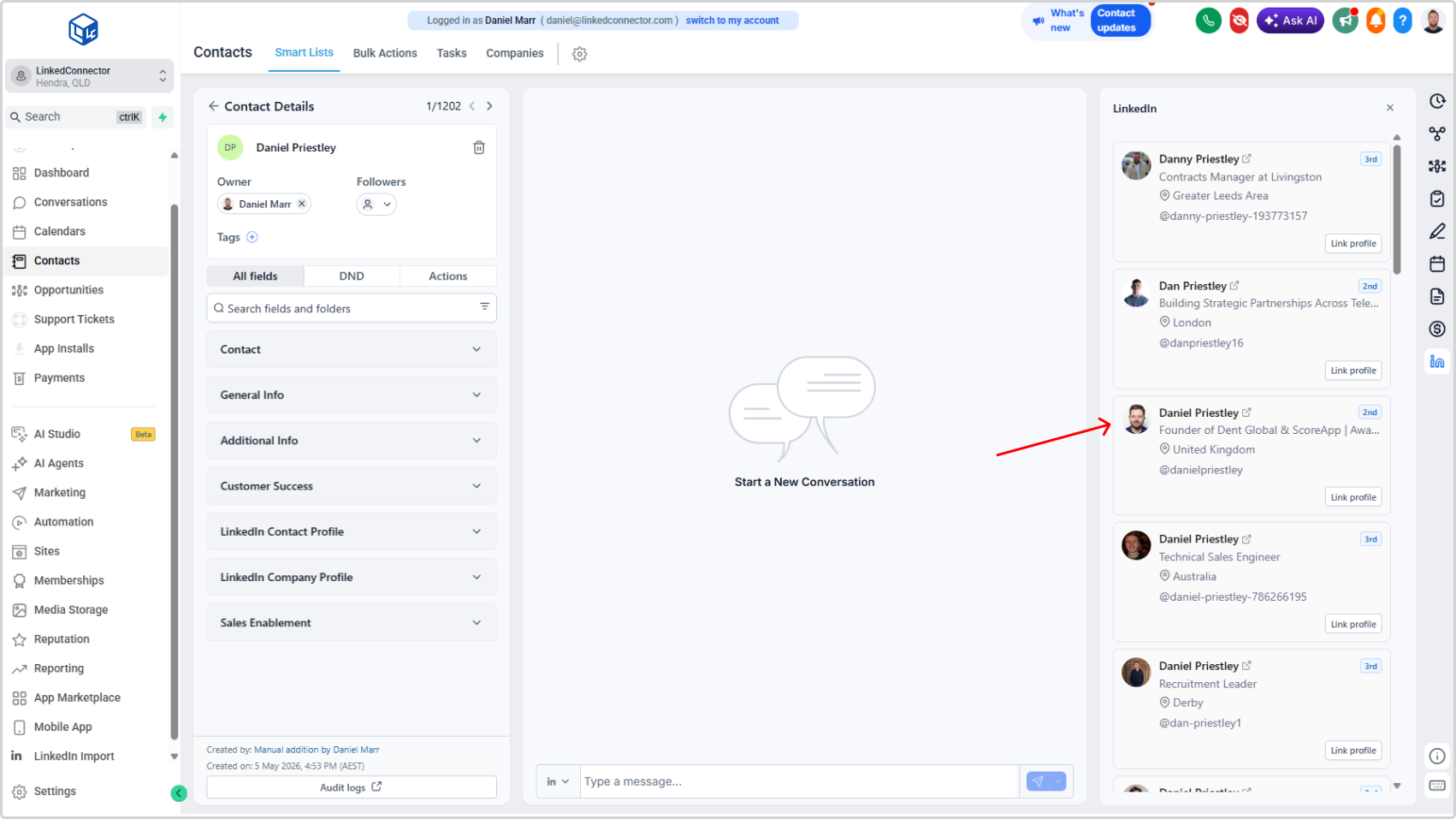
If the person you're looking for isn't in the initial results, scroll down and click Load More to retrieve additional results.
Step 3: Connect the Profile
When you find the correct person, click Link Profile next to their result.
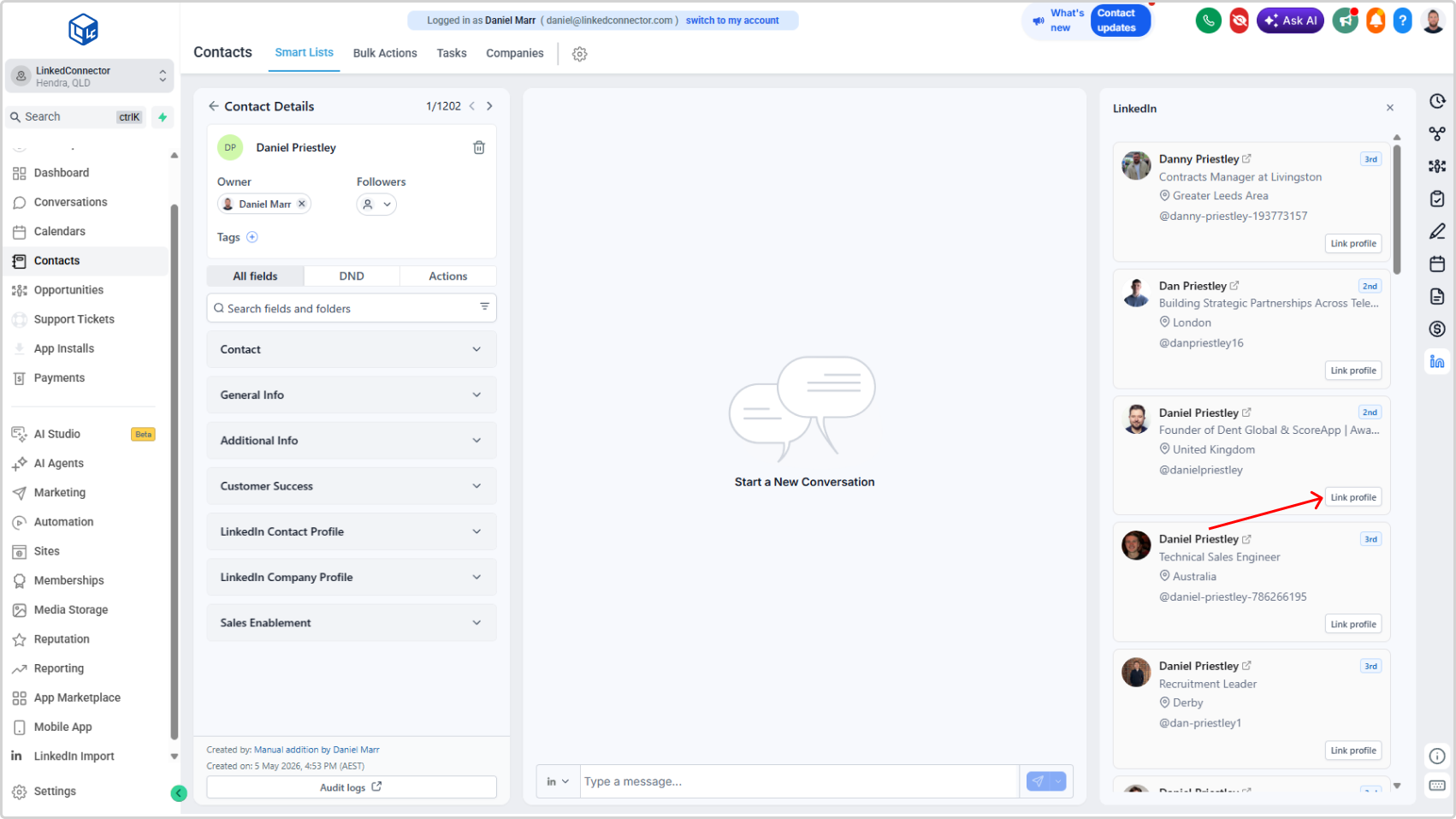
The LinkedIn profile will be connected to the CRM contact. Their basic profile data will be retrieved and stored in the contact's custom fields, and the LinkedIn Contact Card will appear in the sidebar.
What the Card Displays
Once a profile is linked, the card shows:
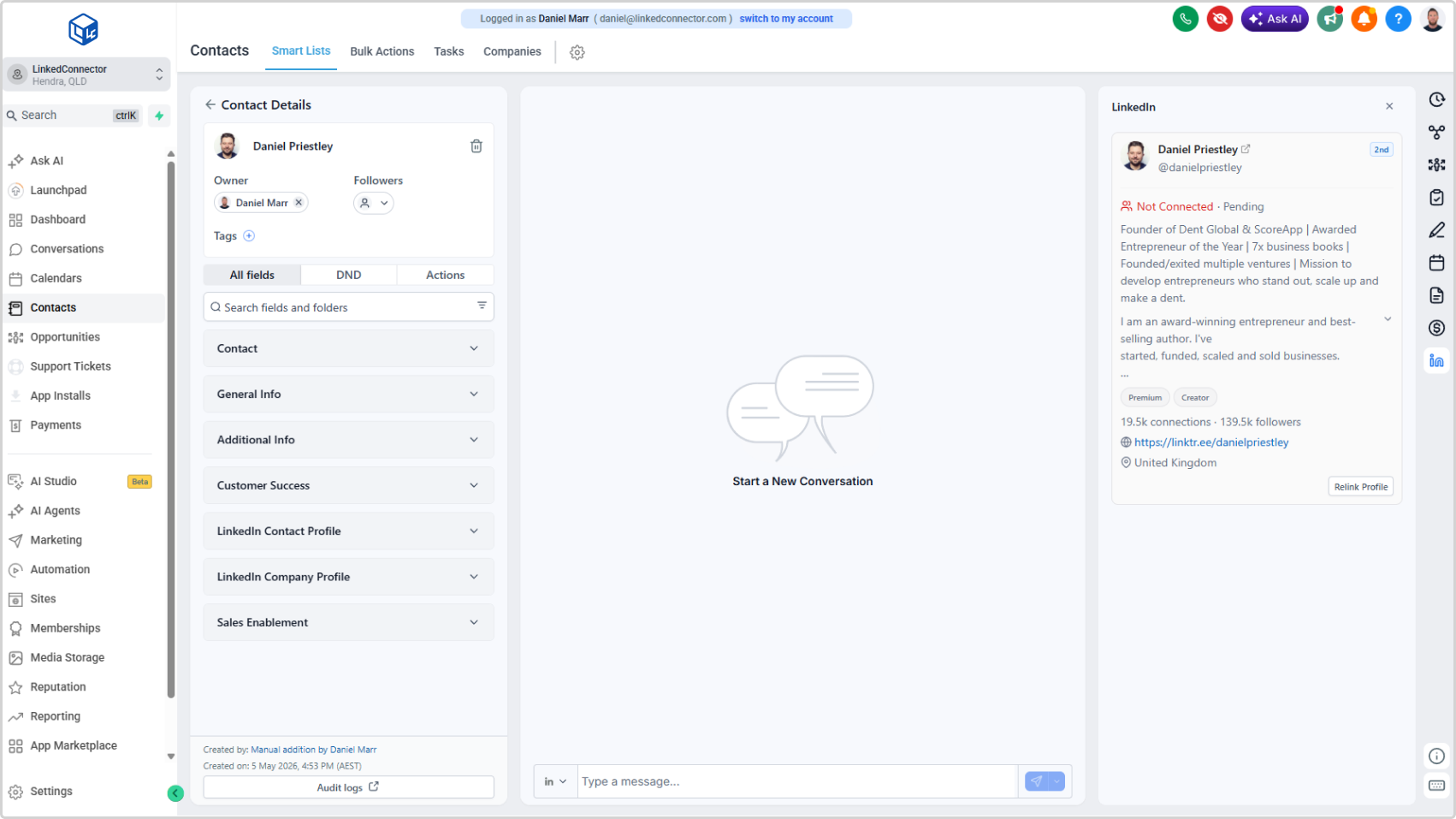
- Profile photo and name
- LinkedIn handle (e.g.,
@danielpriestley) - Connection degree — 1st, 2nd, or 3rd
- Connection status — Connected, Not Connected, Pending, or similar
- Profile badges — Premium, Creator, Open Profile (where applicable)
- Connections and Followers counts
- Website links
- Location
- Headline and summary
The card is visible on both the Contact page and the Conversations page so you have full LinkedIn context while messaging.
Relinking a Profile
Profile data is retrieved at the time of linking. To get updated information — such as a new headline, location, or follower count — click Relink Profile at the bottom of the card.
This runs a fresh profile retrieval and updates the stored data and card display.
Basic vs. Full Profile
The LinkedIn Contact Card retrieves the basic profile only. This includes the contact information shown on the card above.
To retrieve the full profile — including work history, education, skills, volunteering, and more — enrol the contact in a workflow and use the Retrieve User Profile action. The full profile data will be pushed to the contact's custom fields.
See Retrieve User Profile for setup instructions.
Best Practices
- Link profiles early — Connecting a LinkedIn profile as soon as a contact is created gives workflows full access to their LinkedIn data from the start
- Use business name for accuracy — Contacts with a company name in their CRM record return more precise search results
- Relink periodically — Profile data can go stale. Relink contacts you're actively working with to keep information current
- Use Retrieve User Profile for deep data — If you need work history or skills for enrichment or personalisation, run the full profile retrieval via workflow
Troubleshooting
The card is not visible in the sidebar
- Cause: The LinkedIn Contact Card may be disabled for this sub-account.
- Solution: Go to Agency Dashboard > LinkedConnector, open the sub-account, and check that the LinkedIn Contact Card toggle is enabled under App Configuration.
No search results appear after clicking Link Profile
- Cause: The contact may have insufficient name data, or the search returned no matches.
- Solution: Check that the contact has a first name, last name, and ideally a business name in the CRM. If the name is common, results may require scrolling or loading more.
The wrong profile was linked
- Cause: A similarly named profile was selected from the search results.
- Solution: Click Relink Profile, scroll through the results again, and select the correct person.
The card is not showing updated information
- Cause: Profile data was retrieved at the time of the original link and has since changed.
- Solution: Click Relink Profile to run a fresh retrieval.