Link and View LinkedIn Profiles Directly on Contact Records
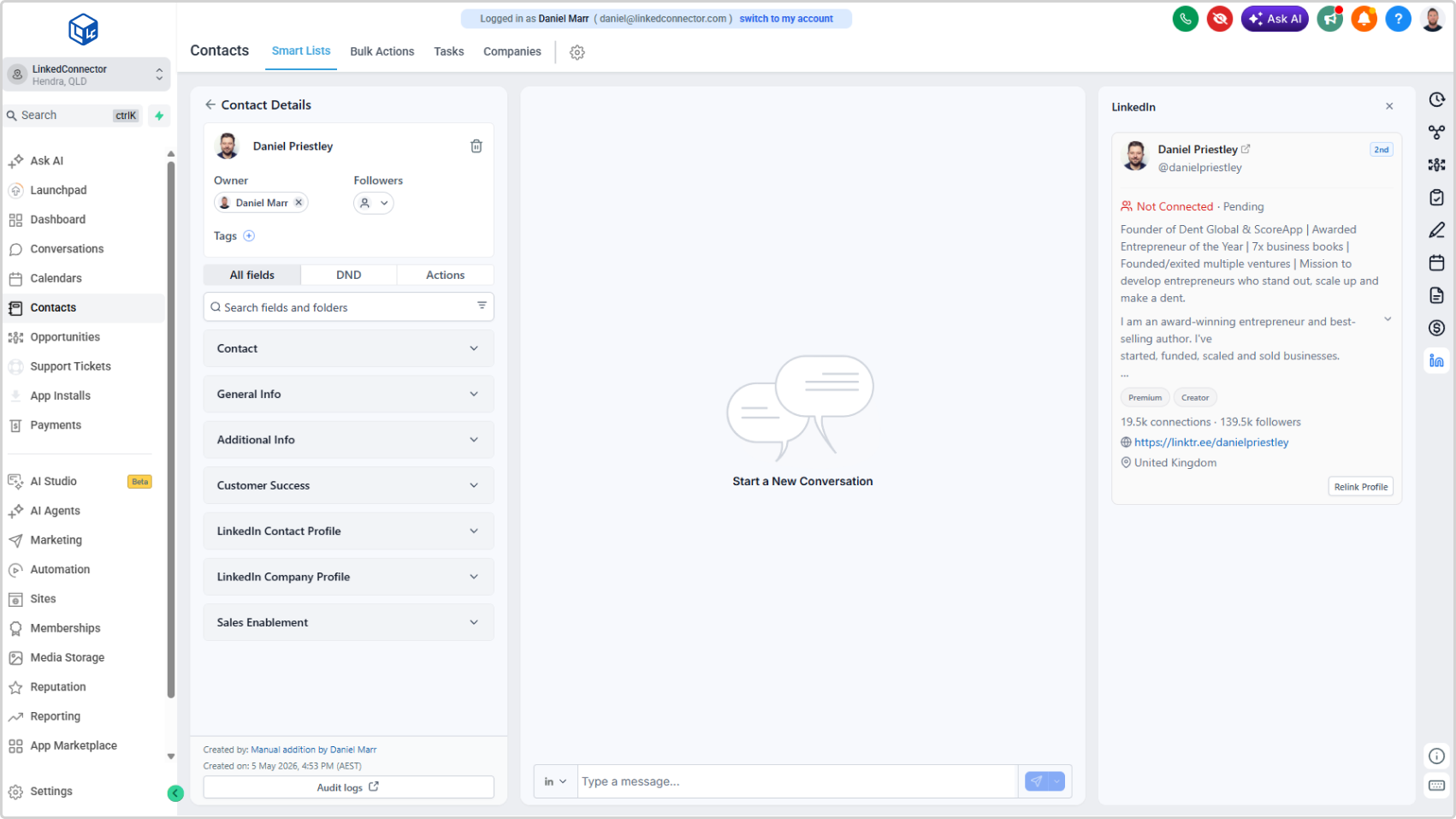
A new LinkedIn Contact Card now sits in the right sidebar of every Contact and Conversations record. Search for a LinkedIn profile, link it to the contact in a few clicks, and see their full profile summary — connection status, followers, premium badges, location, and more — without leaving the CRM.
What's New
- A LinkedIn Contact Card available on every Contact and Conversations record in the right sidebar
- Search for a LinkedIn profile using the contact's name and business — results show name, headline, location, public ID, and connection degree
- Scroll and load more results to find the right person
- Link the profile with one click — basic profile data is retrieved and stored in the contact's custom fields automatically
- The card displays connection status, Premium and Creator badges, connections, followers, website links, location, and profile summary
- Relink Profile button refreshes the data at any time to keep profile information current
- Enable or disable the card per sub-account from the Sub Account Details modal in the agency dashboard
- Available on both the Contact page and the Conversations page for in-context reference while messaging
Why It Matters
Before this, there was no way to see a contact's LinkedIn profile details inside the CRM without switching tabs. You either searched manually on LinkedIn or relied on data that was imported separately.
The LinkedIn Contact Card changes that. Link a profile once and the key details are right there — visible while you're messaging, while you're reviewing a contact, while you're building a workflow. It brings LinkedIn context into the place where you're already working.
For deeper data — work history, education, skills — enrol the contact in a workflow and use the Retrieve User Profile action to pull the full profile into your custom fields.