Agency Management Dashboard
A centralised hub for managing all your LinkedIn-connected sub-accounts, monitoring workflow activity, configuring notifications, and customising your brand — all from a single interface.
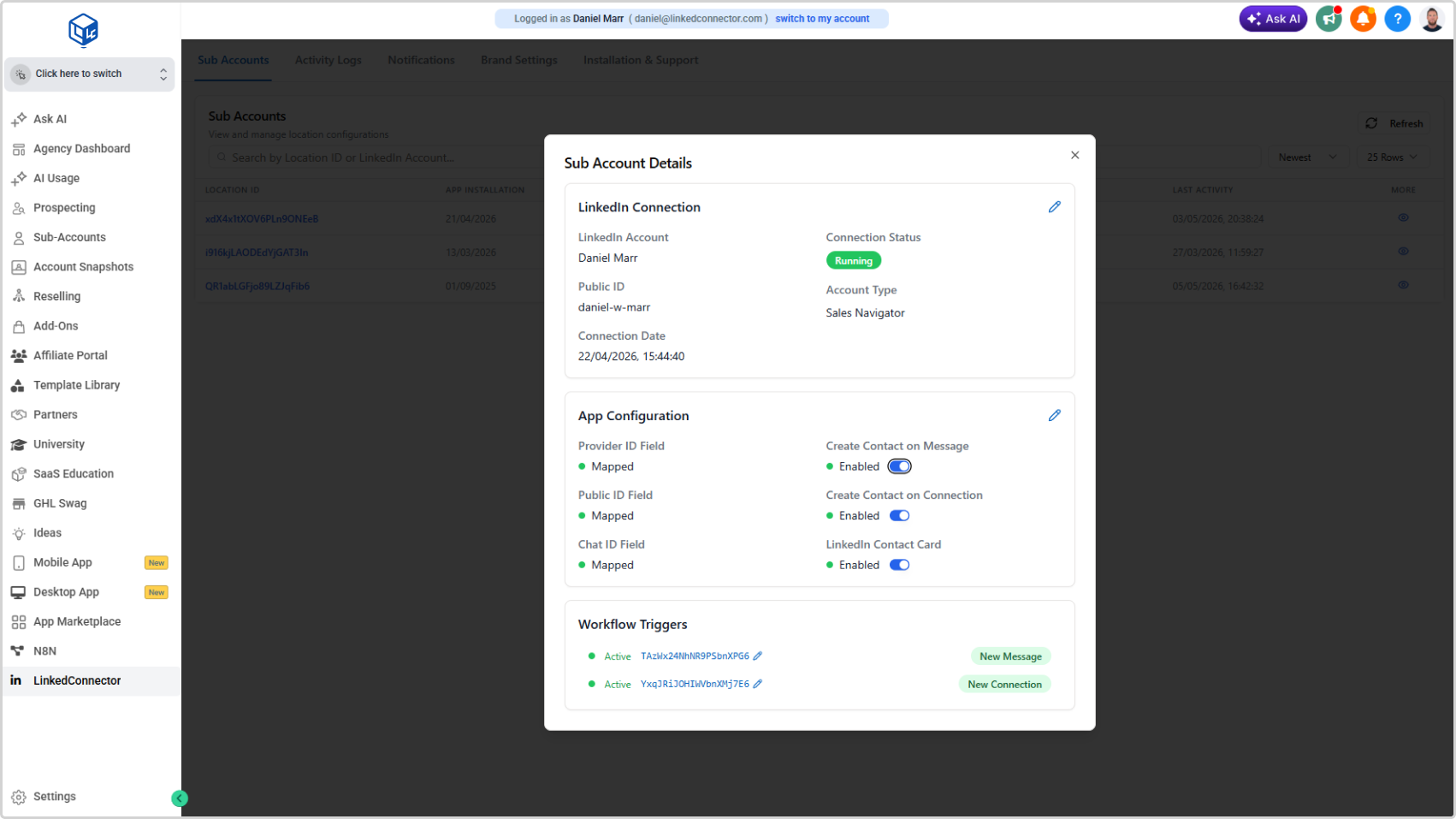
Accessing the Dashboard
The Agency Management Dashboard is accessed via the agency custom menu link. If you haven't set this up yet, see Add Custom Menu Links.
The dashboard has five tabs: Sub Accounts, Activity Logs, Notifications, Brand Settings, and Installation & Support.
Sub Accounts
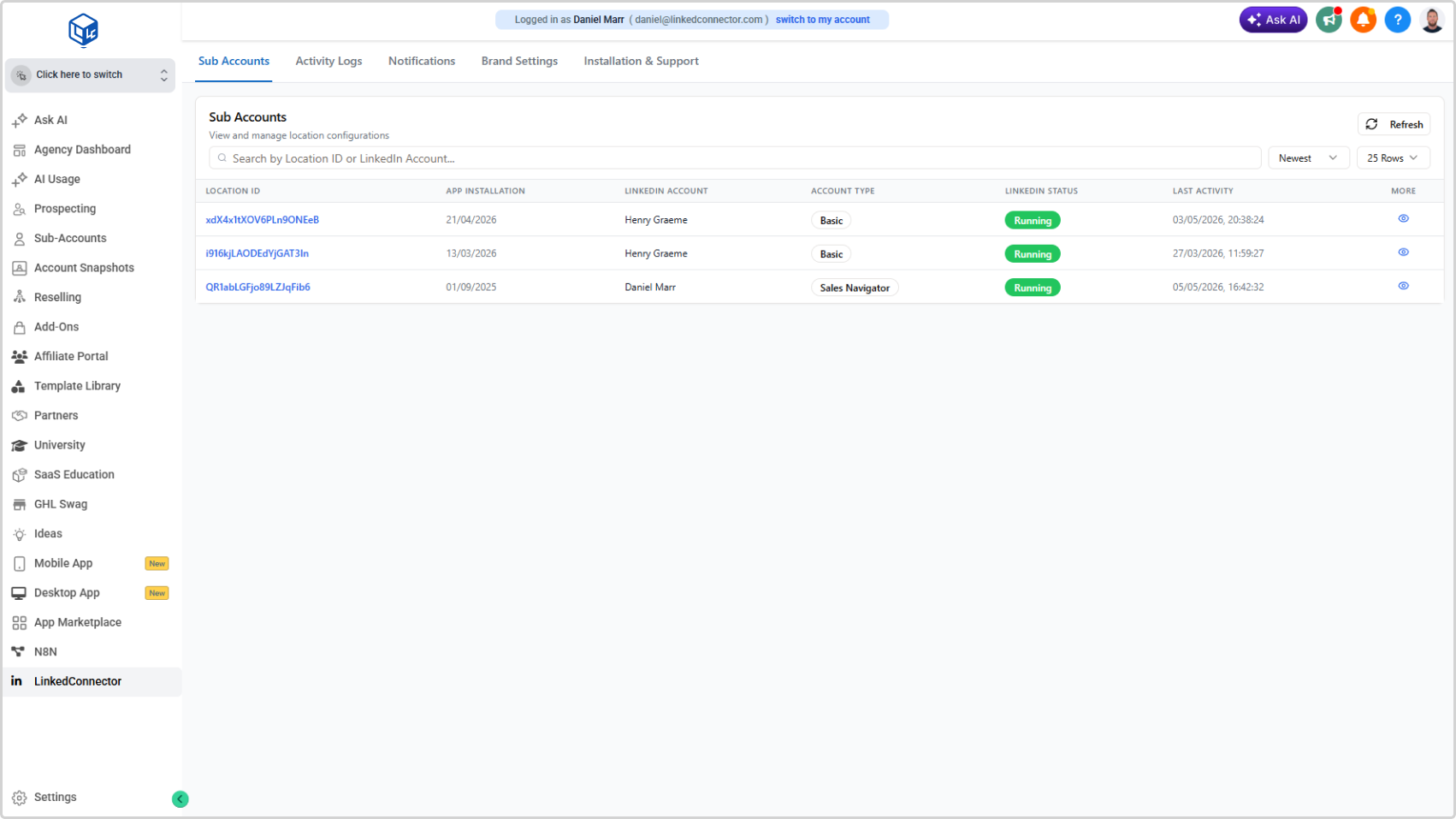
The Sub Accounts tab gives you a live view of every sub-account where LinkedConnector is installed.
The table shows:
| Column | Description |
|---|---|
| Location ID | The sub-account identifier |
| App Installation | Date the app was installed |
| LinkedIn Account | The connected LinkedIn user |
| Account Type | Classic, Sales Navigator, or Recruiter |
| LinkedIn Status | Running, Disconnected, or other status |
| Last Activity | Timestamp of the most recent workflow action |
Use the search bar to filter by Location ID or LinkedIn account name. Use the Newest sort and row count controls to adjust the view. Click Refresh to pull the latest data.
Sub Account Details
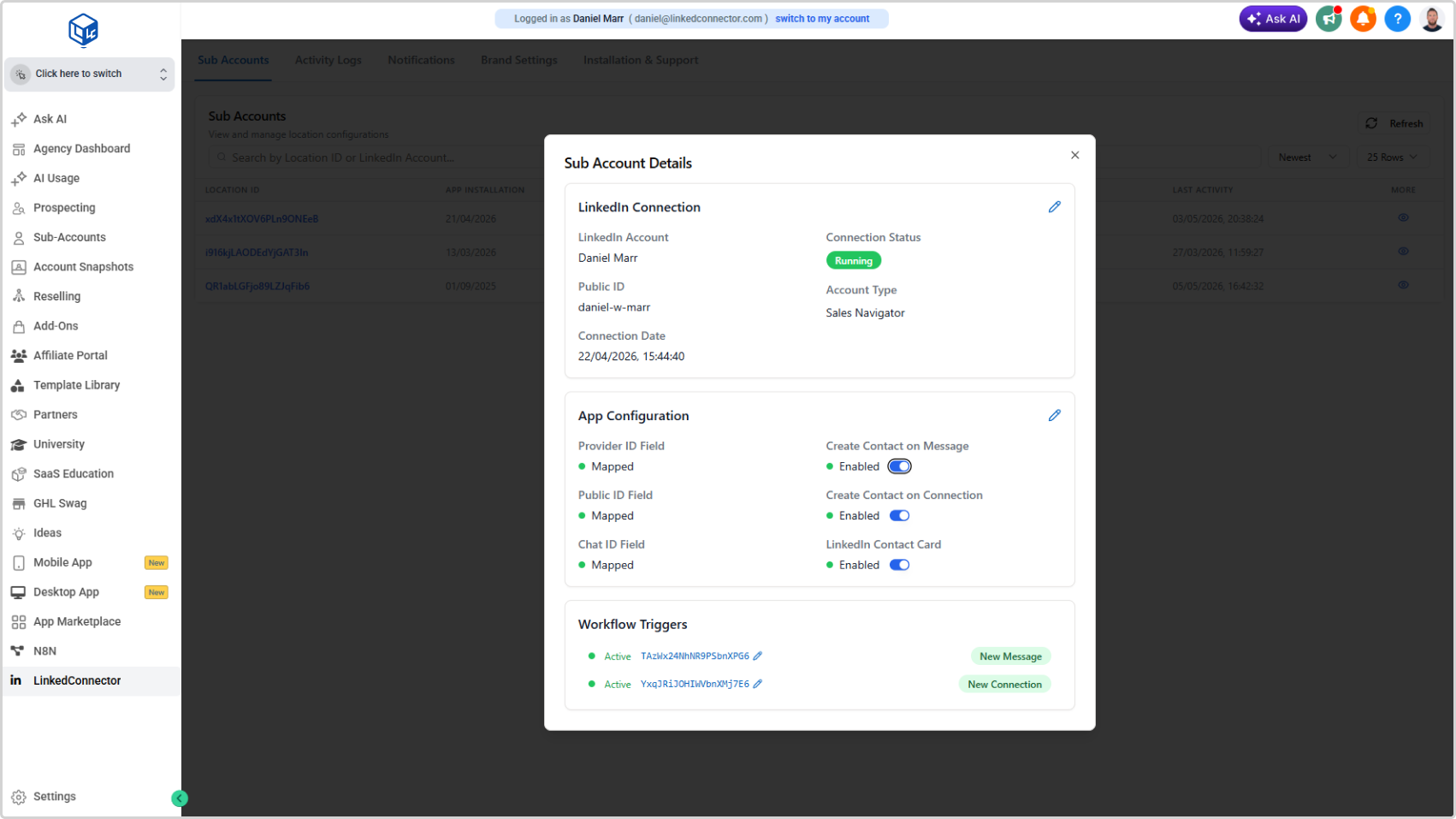
Click any row to open the Sub Account Details modal for that location. This shows:
LinkedIn Connection
- LinkedIn Account name
- Connection Status (Running, Disconnected, etc.)
- Public ID
- Account Type
- Connection Date
App Configuration
- Provider ID Field — Mapped or unmapped
- Public ID Field — Mapped or unmapped
- Chat ID Field — Mapped or unmapped
- Create Contact on Message — enable or disable automatic contact creation from incoming messages
- Create Contact on Connection — enable or disable automatic contact creation from new LinkedIn connections
- LinkedIn Contact Card — enable or disable the LinkedIn Contact Card for this sub-account
Workflow Triggers
- Shows active New Message and New Connection triggers for this sub-account
Activity Logs
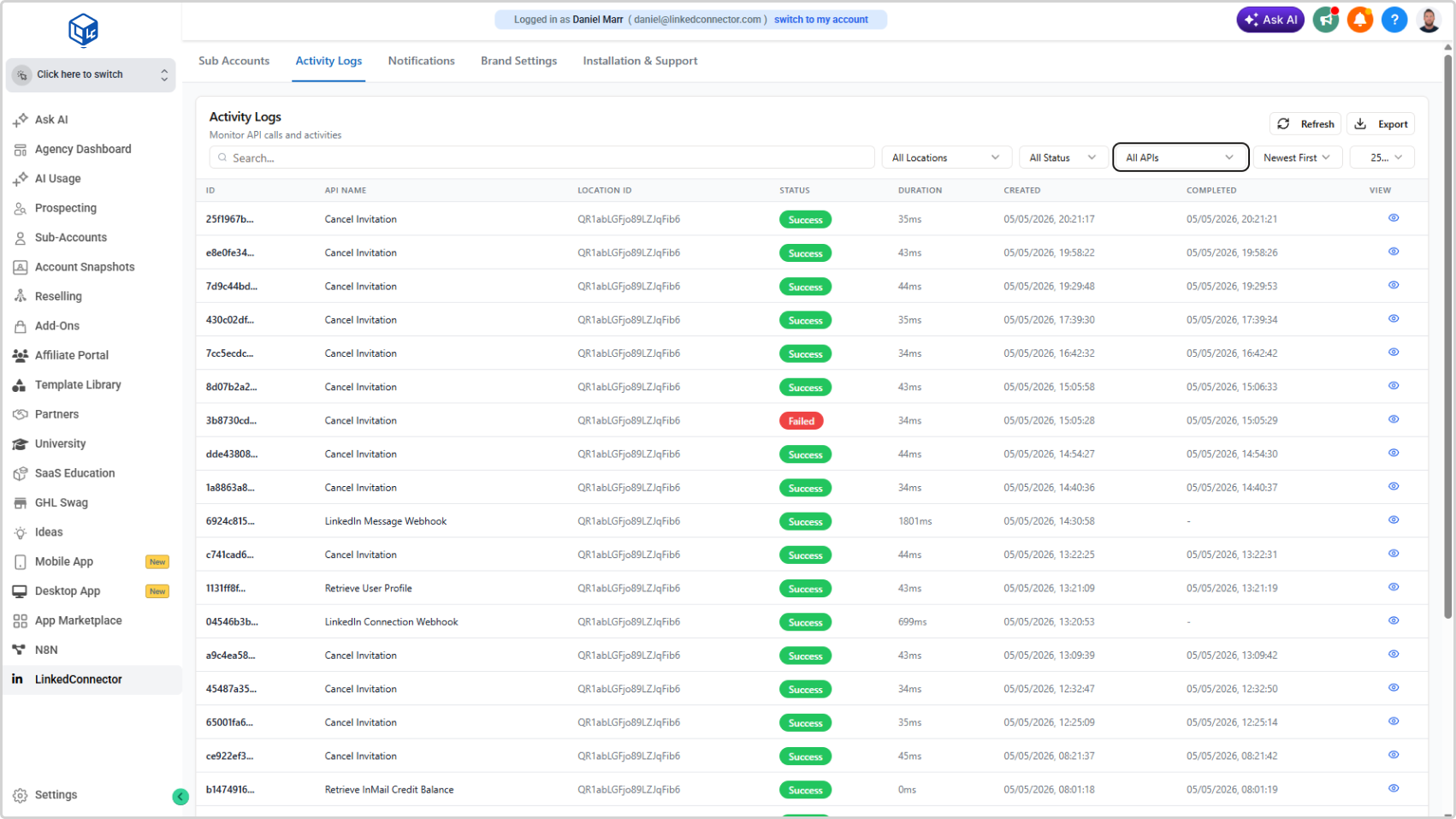
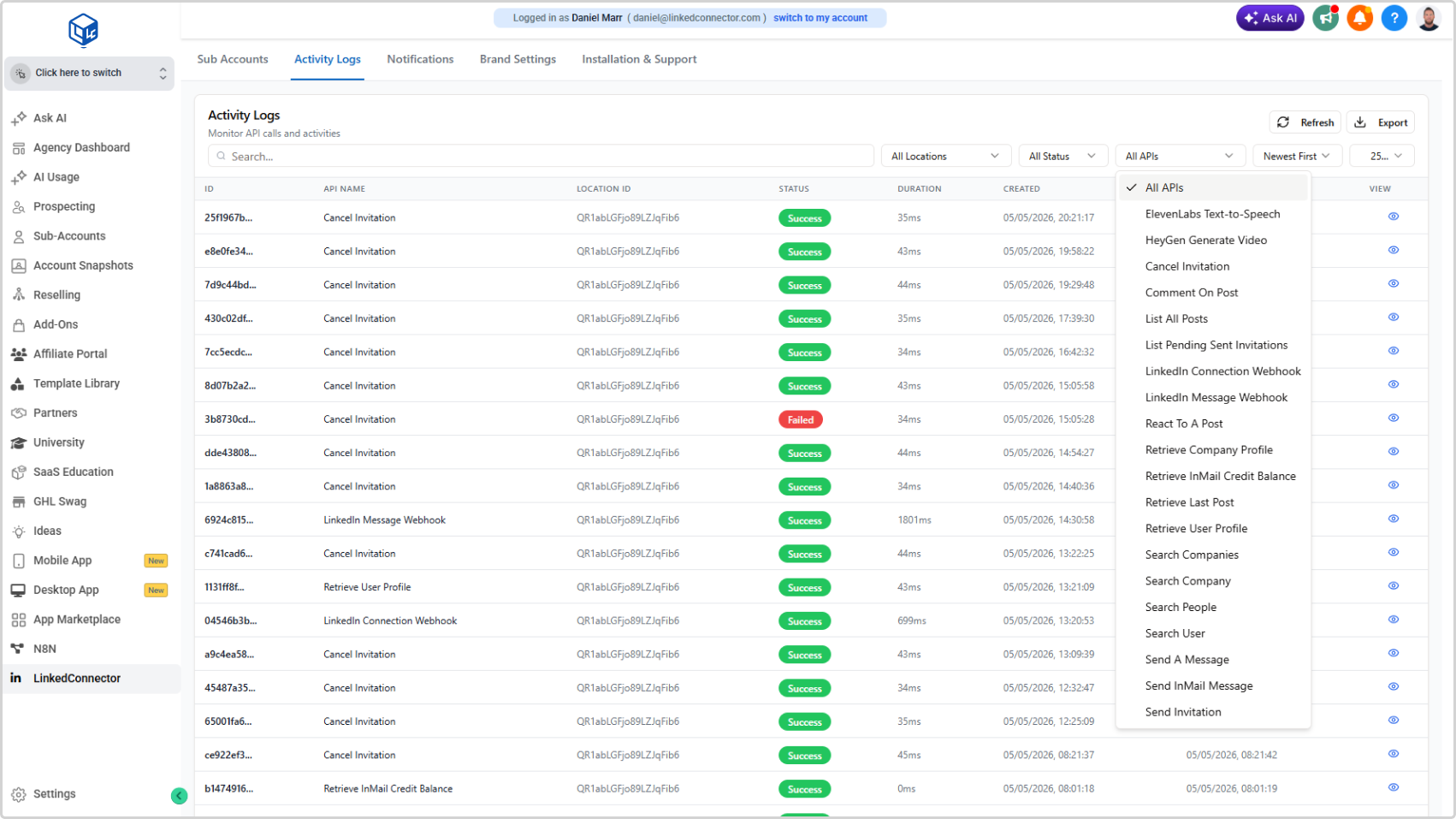
The Activity Logs tab shows a record of every workflow action run across all your sub-accounts — successes and failures — so you can monitor performance and troubleshoot issues without switching between accounts.
Filters
Use the filter controls at the top to narrow the results:
- All Locations — filter to a specific sub-account
- All Status — filter by Success or Failed
- All APIs — filter by workflow action type (e.g., Send A Message, Retrieve User Profile, HeyGen Generate Video)
- Newest First — toggle sort order
Reading a Log Entry
Each row shows the action name, sub-account location, status, and timestamp. Click a row to expand it and view the full request and response payload — including any missing fields or error details.
Use the Log ID and Location ID shown in the expanded view when contacting support about a specific failure.
Export
Click Export to download the current filtered log view as a CSV.
💡 Tip: When a workflow action fails, Activity Logs is your first stop. The request/response view shows exactly what was sent and what came back — making it straightforward to identify whether the issue is a missing Provider ID, an unmapped field, or a workflow configuration error.
Notifications
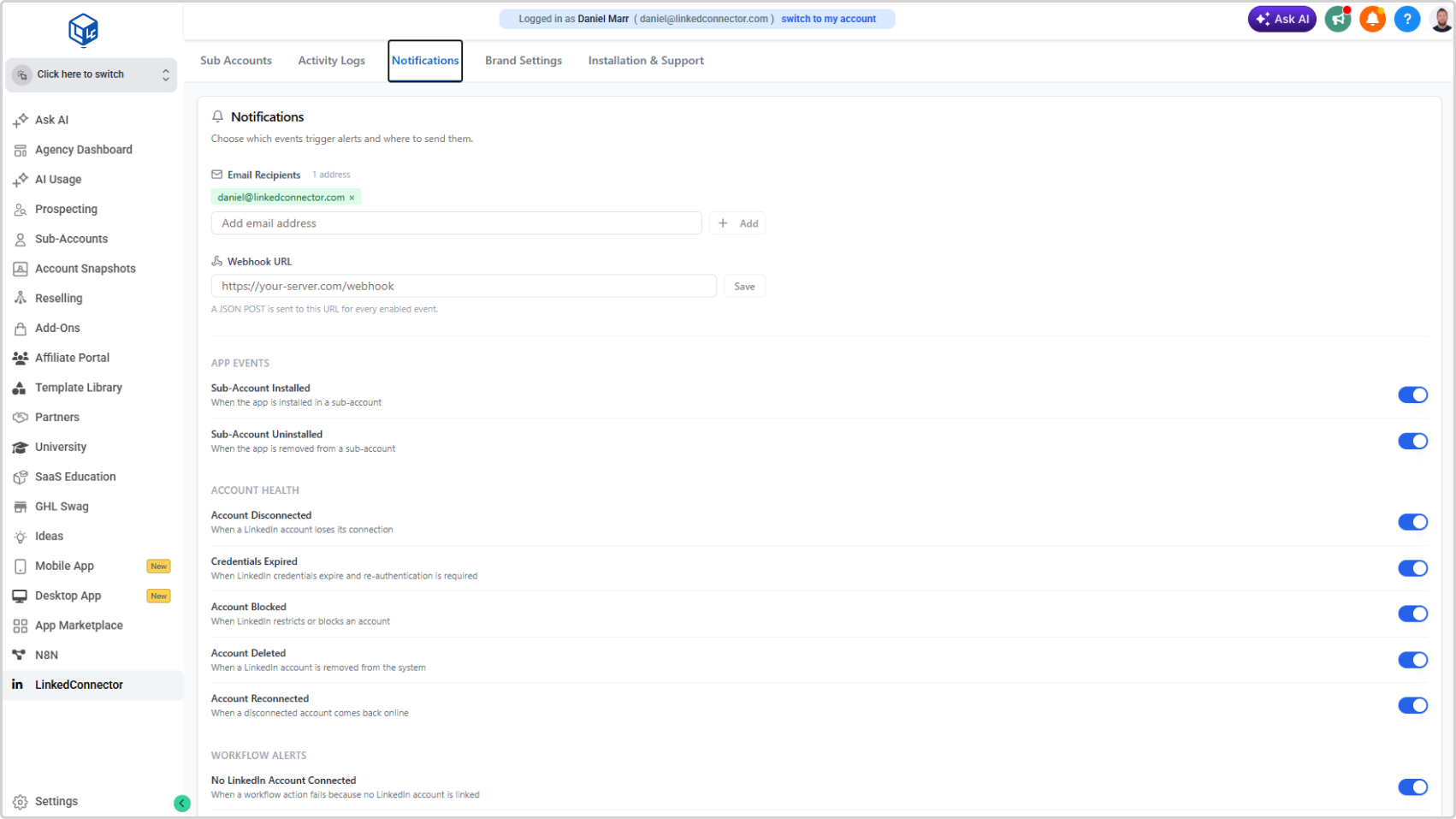
The Notifications tab lets you configure real-time alerts for app lifecycle events and LinkedIn account health events, delivered by email and/or webhook.
Email Recipients
Add one or more email addresses to receive notifications. Click Add after each address.
Webhook URL
Enter a webhook URL to receive a JSON POST for every enabled event. The payload is sent in real time when an event occurs.
Configurable Events
App Events
| Event | Trigger |
|---|---|
| Sub-Account Installed | When the app is installed in a sub-account |
| Sub-Account Uninstalled | When the app is removed from a sub-account |
Account Health
| Event | Trigger |
|---|---|
| Account Disconnected | When a LinkedIn account loses its connection |
| Credentials Expired | When LinkedIn credentials expire and re-authentication is required |
| Account Blocked | When LinkedIn restricts or blocks an account |
| Account Deleted | When a LinkedIn account is removed from the system |
| Account Reconnected | When a disconnected account comes back online |
Workflow Alerts
| Event | Trigger |
|---|---|
| No LinkedIn Account Connected | When a workflow action fails because no LinkedIn account is linked |
| Insufficient Credits | When InMail credits fall below the threshold for an action to run |
Toggle each event on or off independently.
Webhook Payload Reference
All webhook payloads include these required fields:
{
  "event_type": "...",
  "ghl_company_id": "...",
  "timestamp": "..."
}
Additional fields are included where relevant. Examples for each event type:
Install
{
  "event_type": "install",
  "ghl_company_id": "fhRhvcLbntMZs3hVo5L4",
  "ghl_location_id": "tdIePnL9kWCtdO7z6Md5",
  "installer_name": "Daniel Marr",
  "installer_email": "daniel@think3.co",
  "ghl_user_id": "bHclZxQvtmD5wT7SYwsc",
  "timestamp": "2026-03-21T00:22:16.000Z"
}
Uninstall
{
  "event_type": "uninstall",
  "ghl_company_id": "fhRhvcLbntMZs3hVo5L4",
  "ghl_location_id": "tdIePnL9kWCtdO7z6Md5",
  "timestamp": "2026-03-21T00:22:16.000Z"
}
LinkedIn Account Disconnected
{
  "event_type": "linkedin_disconnected",
  "ghl_company_id": "fhRhvcLbntMZs3hVo5L4",
  "ghl_location_id": "tdIePnL9kWCtdO7z6Md5",
  "linkedin_account_name": "John Doe",
  "timestamp": "2026-03-21T00:22:16.000Z"
}
LinkedIn Account Deleted
{
  "event_type": "linkedin_deleted",
  "ghl_company_id": "fhRhvcLbntMZs3hVo5L4",
  "ghl_location_id": "tdIePnL9kWCtdO7z6Md5",
  "linkedin_account_name": "John Doe",
  "timestamp": "2026-03-21T00:22:16.000Z"
}
LinkedIn Account Blocked
{
  "event_type": "linkedin_blocked",
  "ghl_company_id": "fhRhvcLbntMZs3hVo5L4",
  "ghl_location_id": "tdIePnL9kWCtdO7z6Md5",
  "linkedin_account_name": "John Doe",
  "timestamp": "2026-03-21T00:22:16.000Z"
}
LinkedIn Authentication Error
{
  "event_type": "linkedin_auth_error",
  "ghl_company_id": "fhRhvcLbntMZs3hVo5L4",
  "ghl_location_id": "tdIePnL9kWCtdO7z6Md5",
  "linkedin_account_name": "John Doe",
  "error_detail": "Token expired",
  "timestamp": "2026-03-21T00:22:16.000Z"
}
LinkedIn Account Reconnected
{
  "event_type": "linkedin_reconnected",
  "ghl_company_id": "fhRhvcLbntMZs3hVo5L4",
  "ghl_location_id": "tdIePnL9kWCtdO7z6Md5",
  "linkedin_account_name": "John Doe",
  "timestamp": "2026-03-21T00:22:16.000Z"
}
LinkedIn Rate Limit
{
  "event_type": "linkedin_rate_limit",
  "ghl_company_id": "fhRhvcLbntMZs3hVo5L4",
  "ghl_location_id": "tdIePnL9kWCtdO7z6Md5",
  "linkedin_account_name": "John Doe",
  "limit_type": "Daily",
  "api_name": "Search People",
  "resets_at": "2026-03-22T00:00:00.000Z",
  "timestamp": "2026-03-21T00:22:16.000Z"
}
Brand Settings
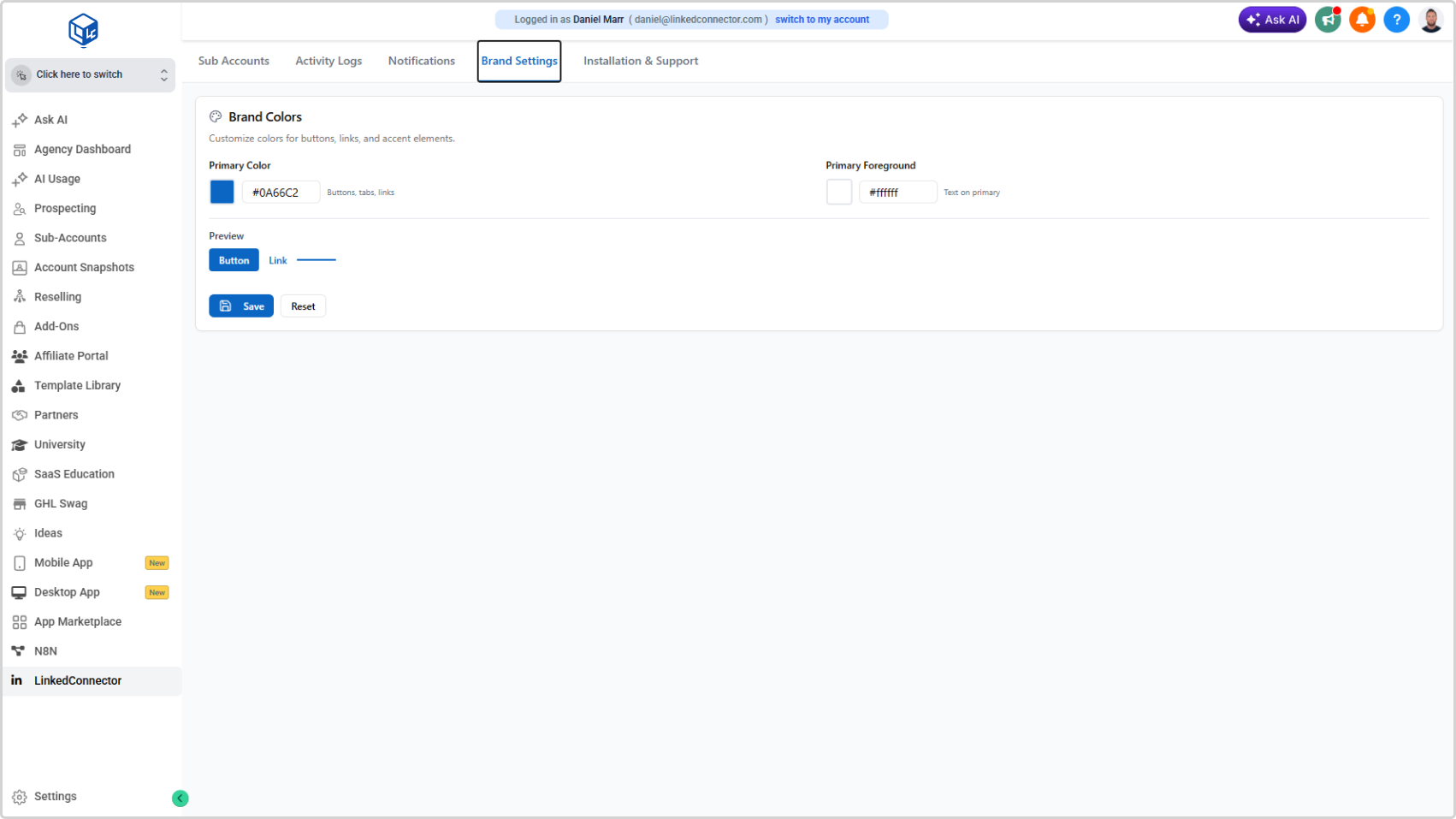
The Brand Settings tab lets you customise the colors used across the LinkedConnector interface — including the Lead Importer and Getting Started Connection page — so the experience matches your agency's brand.
Configuring Brand Colors
- Under Primary Color, click the color swatch or enter a hex code — this controls buttons, tabs, and links
- Under Primary Foreground, enter a hex code — this controls text displayed on top of primary-colored elements
- Check the Preview section to see how your button and link colors will look before saving
- Click Save to apply, or Reset to revert to defaults
Changes take effect immediately on page refresh across all affected pages.
Installation & Support
The Installation & Support tab provides quick access to resources for getting help or onboarding new users.
- Documentation — Opens the full LinkedConnector documentation site
- Contact Support — Raises a support request with the LinkedConnector team
- Getting Started Guide — Direct link to the Getting Started documentation
- Changelog — View recent product updates
- Roadmap — See what's coming next