Add Custom Menu Links (If Required)
Add LinkedConnector menu links to your agency and sub-account dashboards so users can access the LinkedIn dashboard and importer without leaving the CRM.
Custom menu links bring LinkedConnector directly into your CRM. Your agency team gets a centralized dashboard to manage LinkedIn accounts, logs, and sub-accounts. Your sub-accounts get a dedicated tool for searching and importing LinkedIn leads.
What You're Setting Up
You'll add two menu links:
- Agency link — Gives agency staff access to the LinkedIn dashboard (manage accounts, view logs, control sub-accounts)
- Sub-account link — Gives each location access to the LinkedIn lead importer (search, filter, and import prospects)
For new installations, both are created automatically. The agency link requires no further action. The sub-account link needs to be assigned to the sub-accounts where you want the import tool to appear.
Manual Setup
If your menu links were not created automatically (existing installations or if the links need to be recreated), follow the steps below.
Create the Agency Menu Link
This link brings the LinkedIn dashboard into your agency menu.
- Go to your agency dashboard
- Click Settings (bottom left)
- Click Custom Menu Links
- Click Add Custom Menu Link
- Select an appropriate icon.
- In the Link Title field, enter:
LinkedIn - In the URL field, paste:
https://api.linkedconnector.com/agency - Leave the When Clicked to open link within the current window as an embedded iframe.
- For the Sidebar preference check Agency's Sidebar.
- For the Role-Based Visibility select your preferred roles.
- Leave the rest as is and click Save.
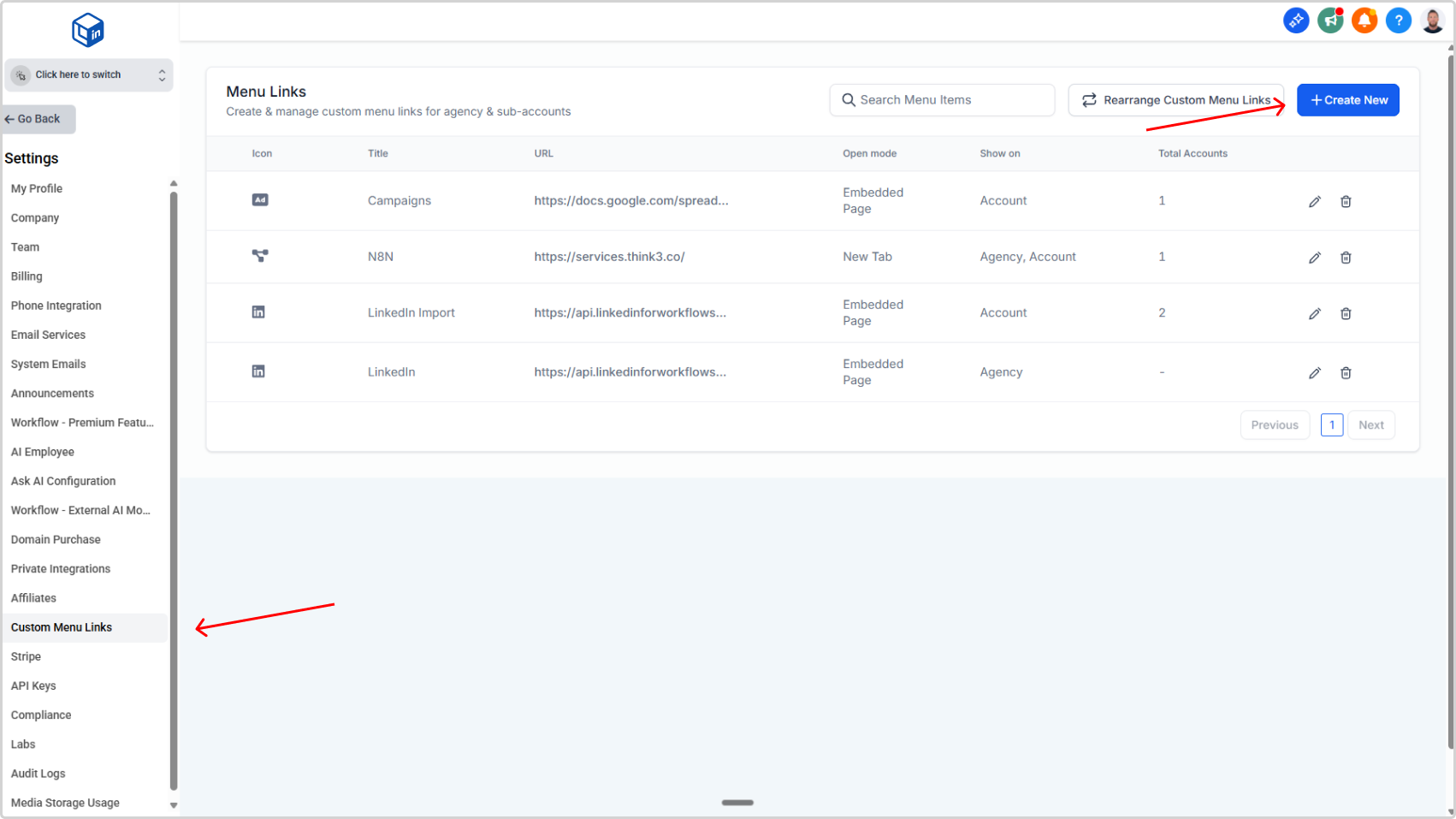
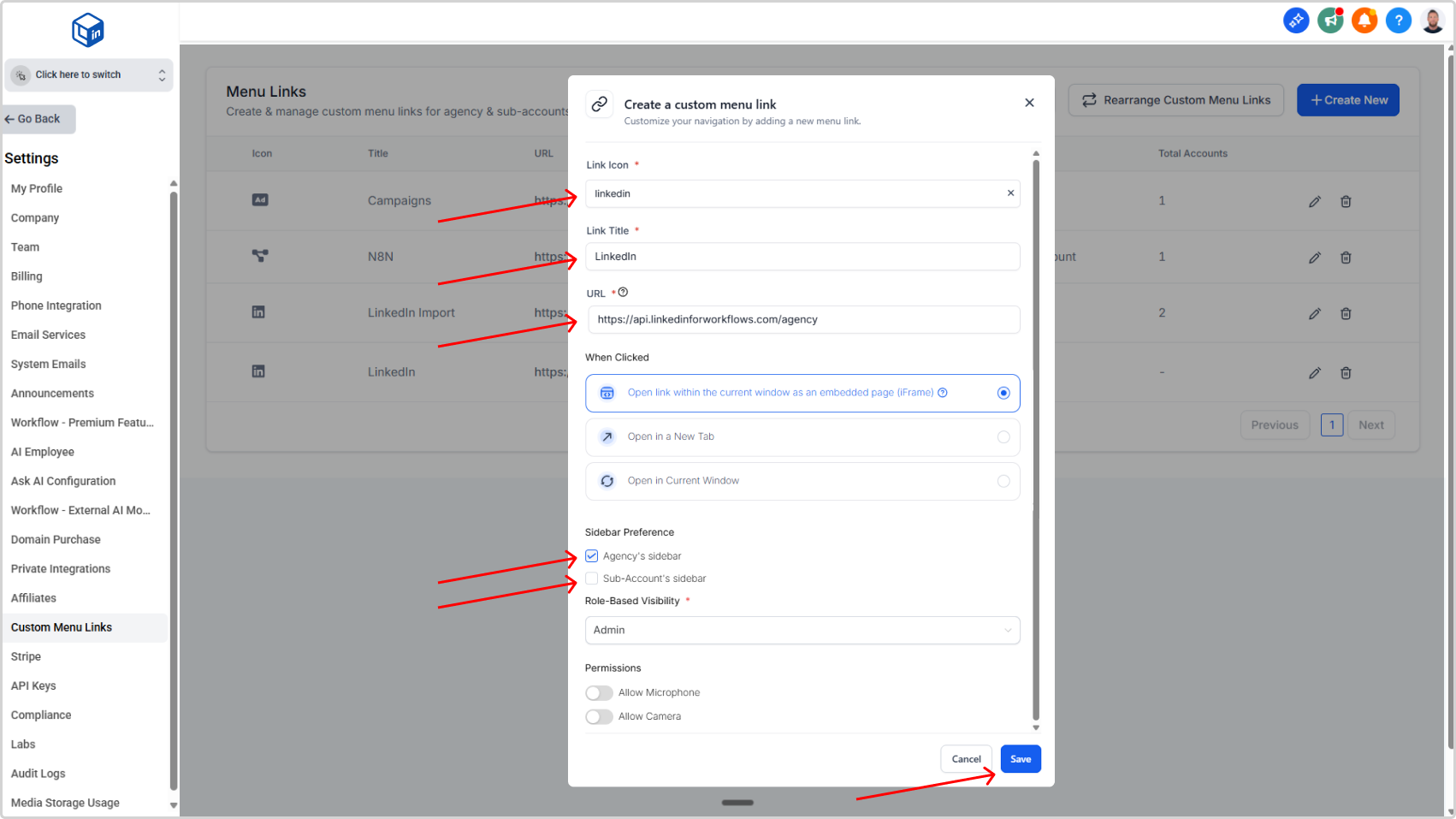
Result: You'll see the new link added to the list. The link now appears in your agency menu.
Create the Sub-Account Menu Link
This link gives each location access to the LinkedIn lead importer.
- Go to your agency dashboard
- Click Settings (bottom left)
- Click Custom Menu Links
- Click Add Custom Menu Link
- Select an appropriate icon.
- In the Link Title field, enter:
LinkedIn Import - In the URL field, paste:
https://api.linkedconnector.com/import?locationid={{location.id}} - Leave the When Clicked to open link within the current window as an embedded iframe.
- For the Sidebar preference check Sub-Account's Sidebar.
- For the Role-Based Visibility select your preferred roles.
- Leave the rest as is and click Save.
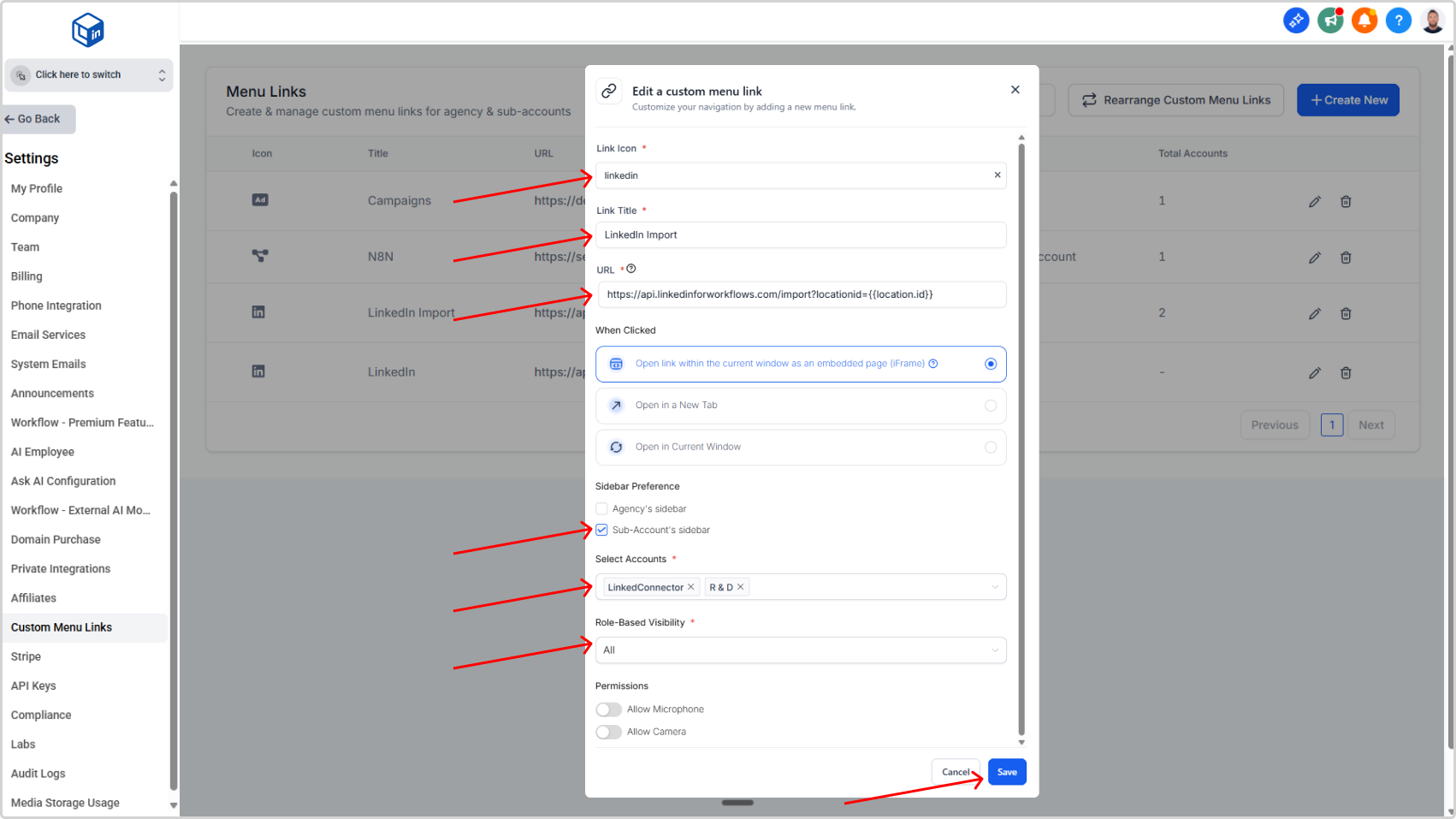
Result: Each selected sub-account now has the "LinkedIn Leads Import" link in their menu.
Assign Sub-Accounts to the LinkedIn Import Link
After installation, navigate to the LinkedIn Import menu link in your agency settings and assign it to the sub-accounts where the import tool should be displayed.
What Happens If You Select the Wrong Sub-Account
If you add the link to a sub-account that doesn't have the LinkedConnector app installed, they'll see a message saying "App is not installed" when they click the link. No harm done — you can update the link selection anytime.
If you add the link to a sub-account that doesn't have the LinkedConnector app installed, they'll see a message saying "App is not installed" when they click the link. No harm done — you can update the link selection anytime.