Map Custom Fields
Connect your CRM's custom fields so LinkedConnector can match LinkedIn activity to the right contacts.
This setup connects the fields in your CRM to the LinkedConnector database so we can match contacts correctly, store profile data, and display LinkedIn context inside the CRM.
The Map Fields page includes two types of mapping:
- Required core matching fields — used for contact matching, messaging, and duplicate detection
- Advanced LinkedIn profile fields — used to push more LinkedIn data onto the contact during import and power the rich LinkedIn card on contact profiles and conversations
Prerequisites
Before mapping fields, make sure:
- The LinkedConnector snapshot has already been installed in the correct sub-account
- The LinkedConnector custom fields are available in your CRM
What This Is Used For
This mapping is used to:
- Match LinkedIn activity to the correct CRM contact
- Improve duplicate detection during imports
- Push more LinkedIn profile data to the contact record
- Display a richer LinkedIn profile card on contact profiles and in conversations
If these fields are not mapped correctly, contact matching can be less reliable and imported LinkedIn data may be incomplete.
Step 1: Open the Map Fields Page
In your sub-account:
- Click App Marketplace
- Click Installed Apps
- Open LinkedConnector
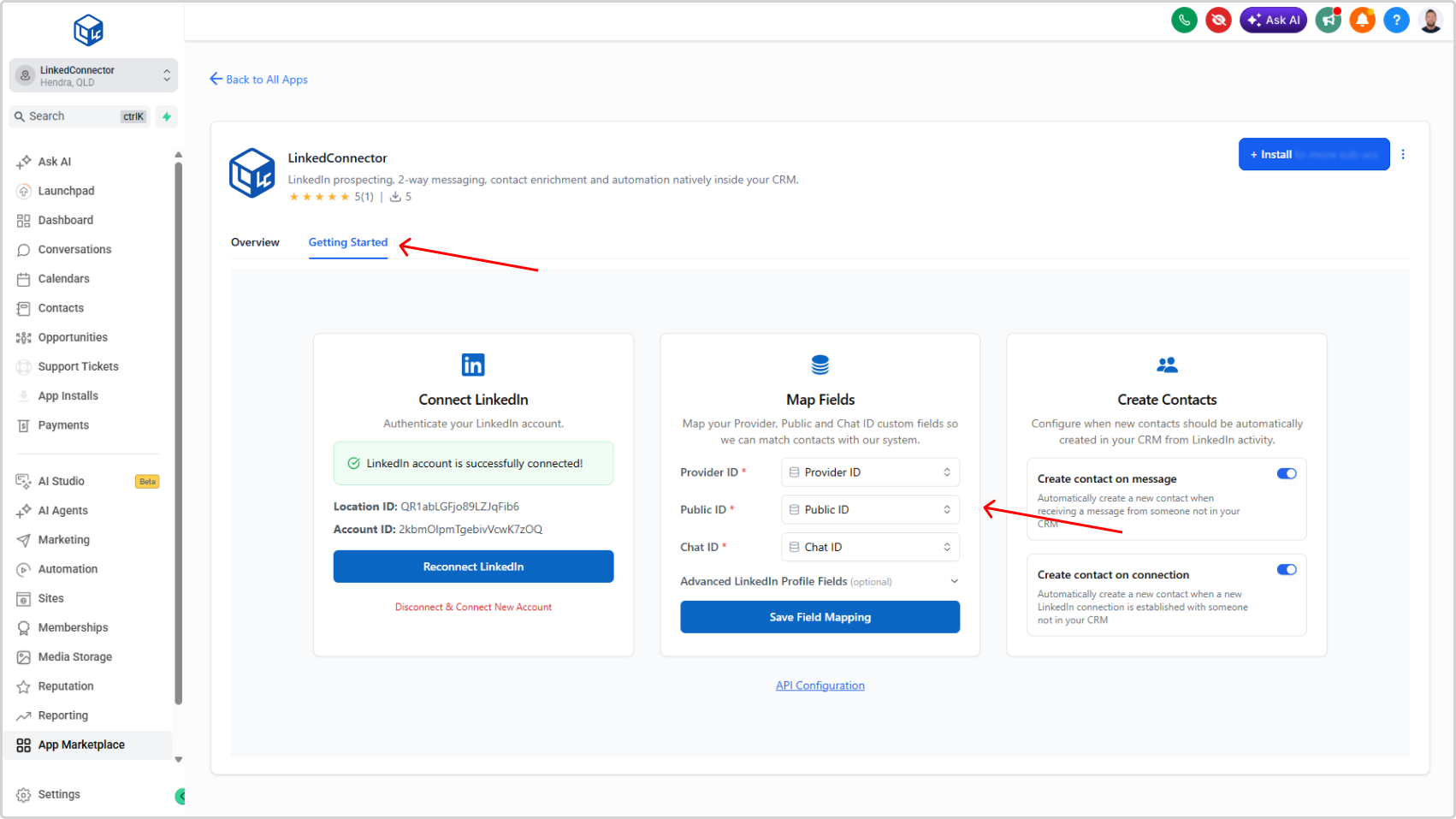
- Click the Getting Started tab
- Find the Map Fields card
Step 2: Map the Core LinkedIn Matching Fields
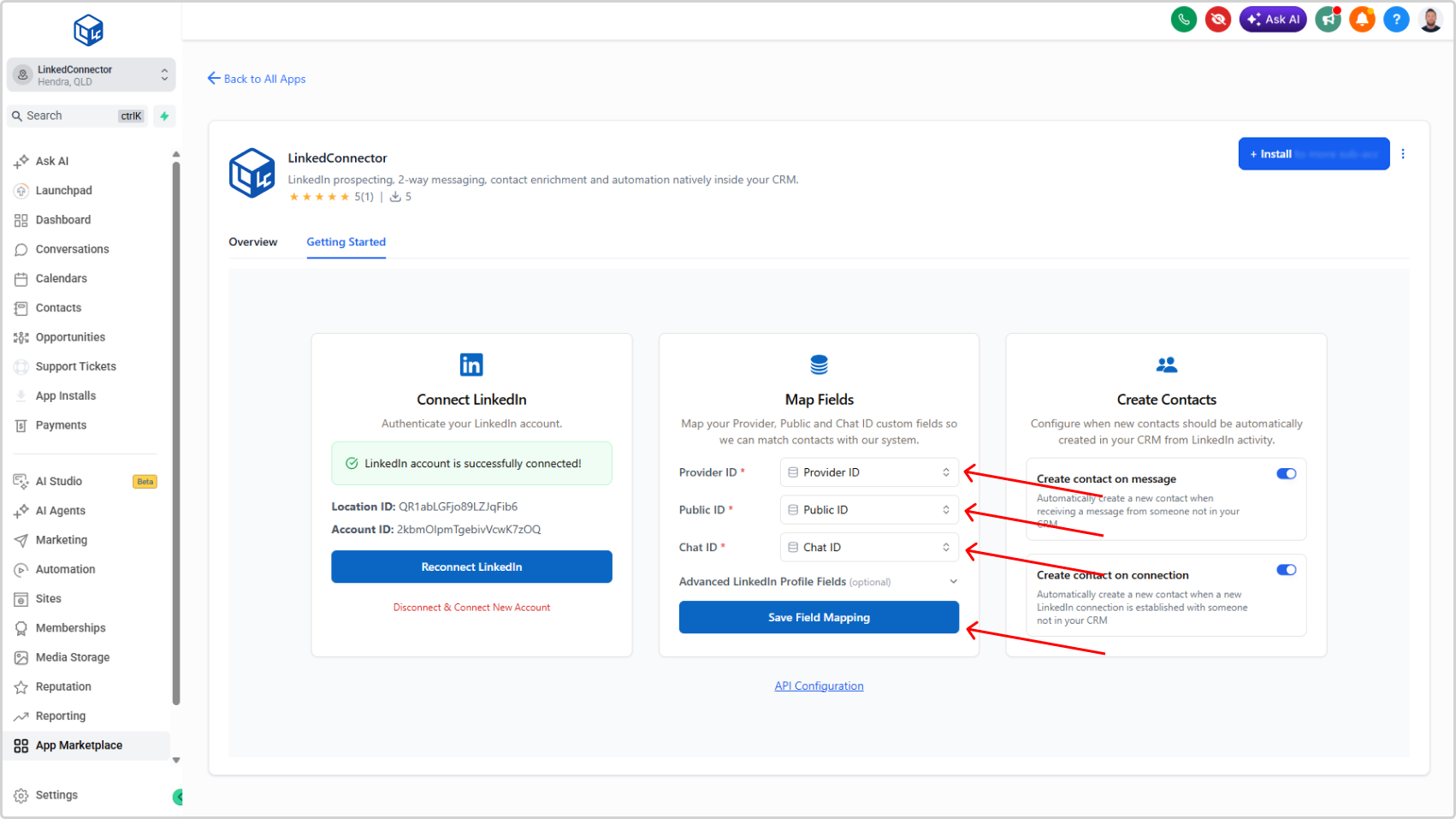
Start with the core fields used for matching records and syncing activity.
For each field:
- Click into the dropdown
- Search by the CRM custom field name
- Select the matching CRM field from the list
Map these core LinkedIn fields first:
- LinkedIn Provider ID
- LinkedIn Public ID
- LinkedIn Chat ID
Step 3: Map the Advanced LinkedIn Profile Fields
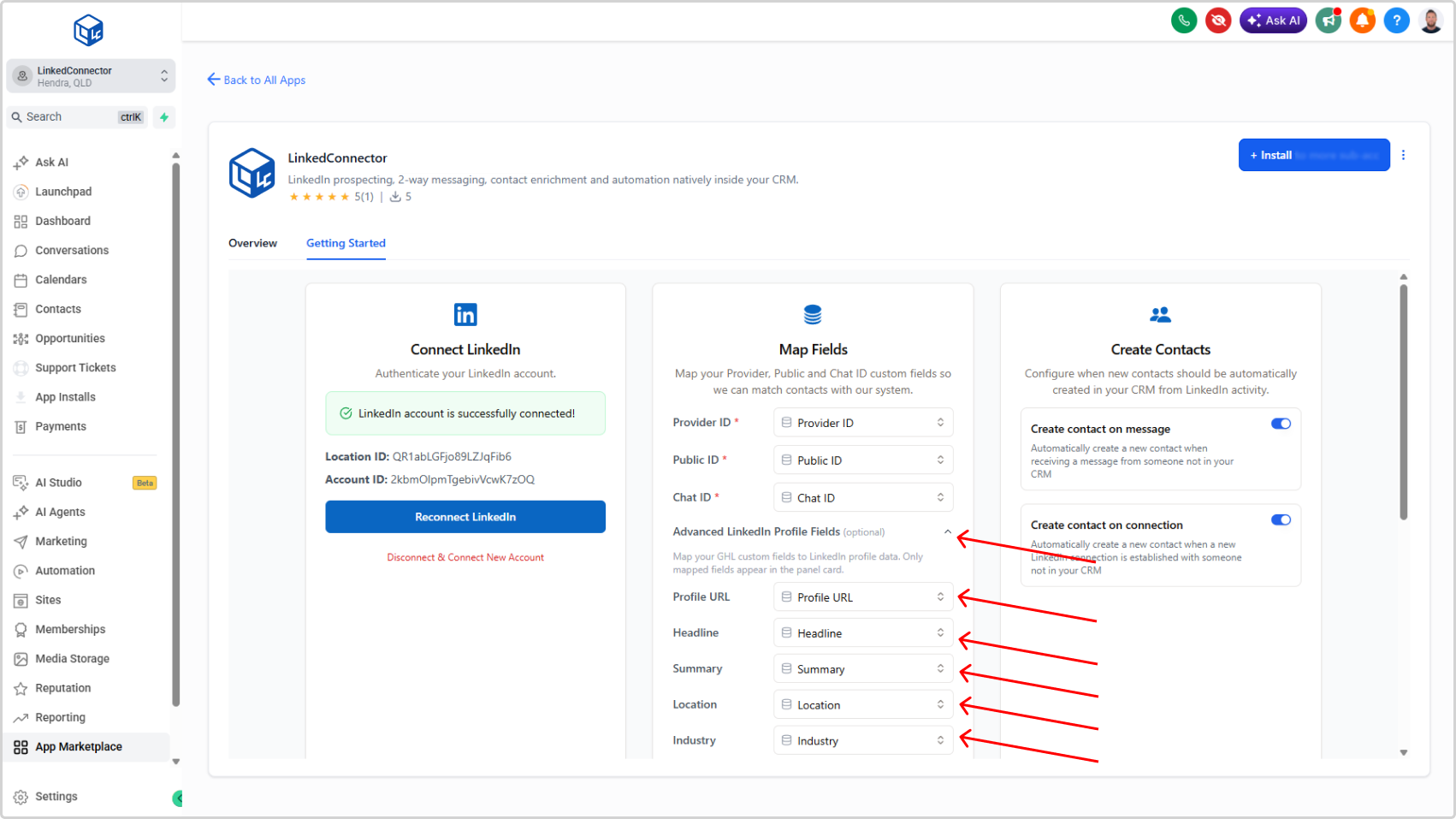
Next, map the advanced LinkedIn profile fields. These fields store additional LinkedIn profile data in your CRM.
These fields are used to:
- push more profile data to the contact during import
- make imported records more complete and useful
- power the rich LinkedIn card shown on the contact profile
- surface richer LinkedIn context inside conversations
Map the advanced fields you want to store and display in the CRM.
When mapping advanced fields, prioritise fields that improve sales context and visibility, such as: Profile URL, Headline, Summary, Location etc...
Step 4: Save the Field Mapping
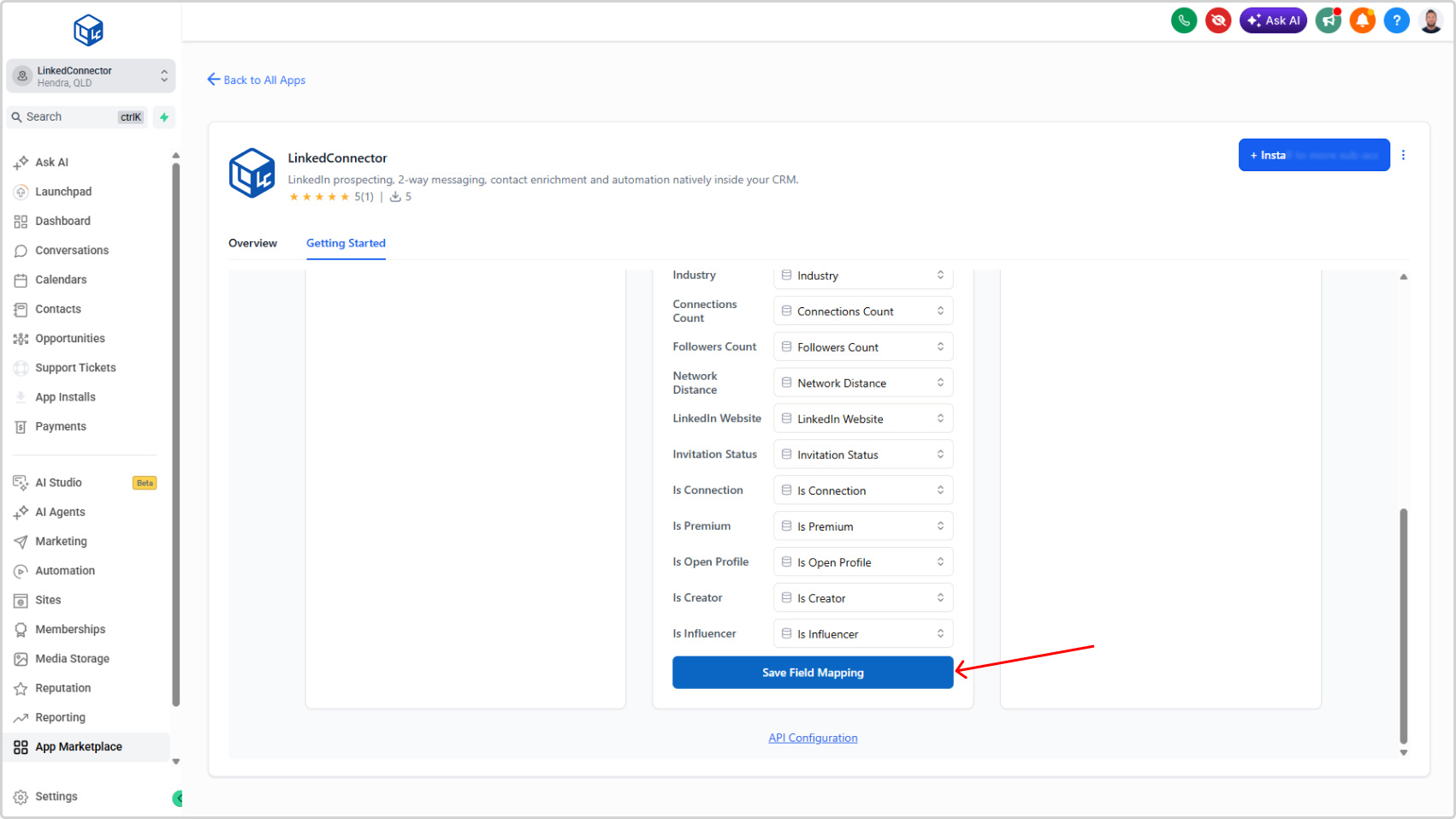
After selecting your core and advanced mappings, click Map Fields to save the configuration.
Confirmation
If the mapping is successful, you’ll see this confirmation message:
Field IDs have been mapped successfully!
Troubleshooting
I can’t find my CRM field in the dropdown
- Cause: The field does not exist in the sub-account yet, or you may be looking in the wrong sub-account.
- Solution: Confirm the snapshot is installed in the correct sub-account and verify the CRM custom field exists before trying again.
The field list looks incomplete
- Cause: The CRM fields may not have been loaded correctly, or required fields were not created yet.
- Solution: Refresh the page, reopen the app, and check that the snapshot is installed and the custom fields are available in the CRM.
The wrong field was mapped
- Cause: A similarly named field was selected from the dropdown.
- Solution: Reopen the dropdown, search again using a more specific field name, and save the mapping again.
No success message appears after clicking Map Fields
- Cause: One or more required fields were not selected, or the mapping was not saved correctly.
- Solution: Recheck the core fields first, then save again.