HeyGen Generate Video
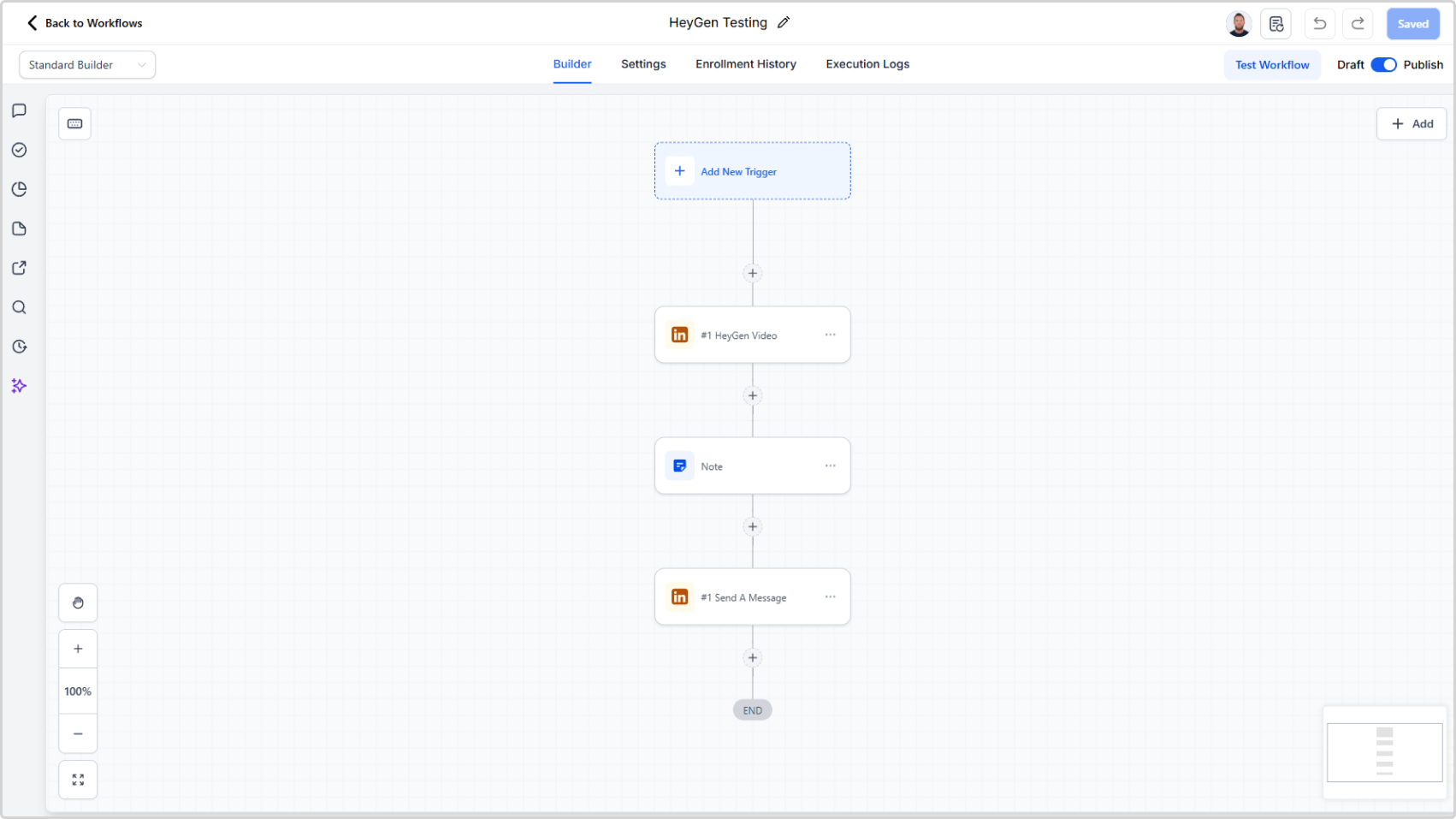
Generate a personalised AI video from a script using a HeyGen avatar and voice, then send it as a video message to a LinkedIn contact.
Prerequisites
You need a HeyGen account with an API key before this action will work.
Step 1: Get your HeyGen API key
- Log in to HeyGen and go to Settings > API
- Generate an API key and copy it
Step 2: Add your API key to LinkedConnector
- In your sub-account, click App Marketplace in the left sidebar
- Click Installed Apps
- Open LinkedConnector
- Click the API Configuration tab
- Find the HeyGen card and paste your API key
- Test the API key
- Save
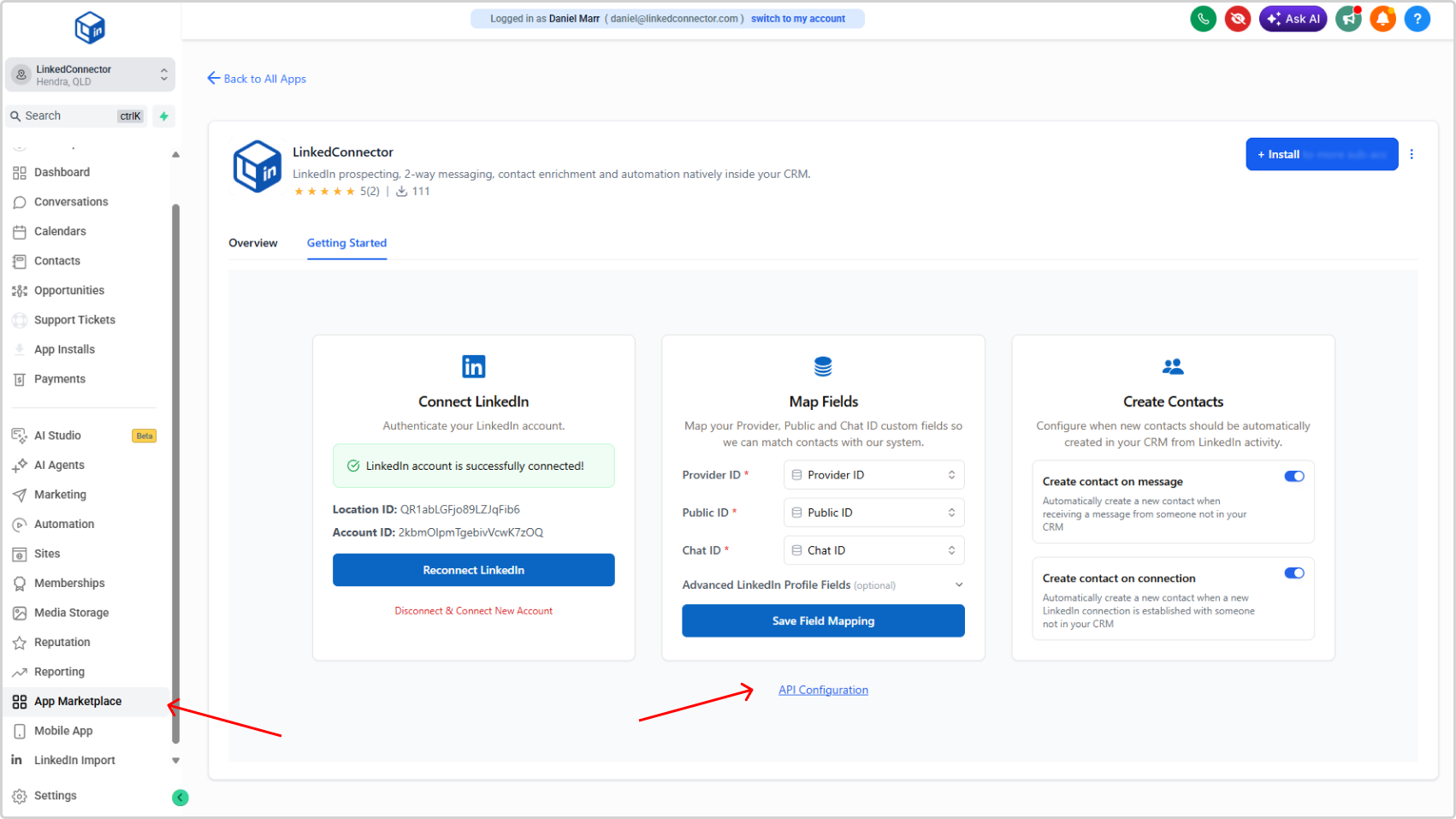
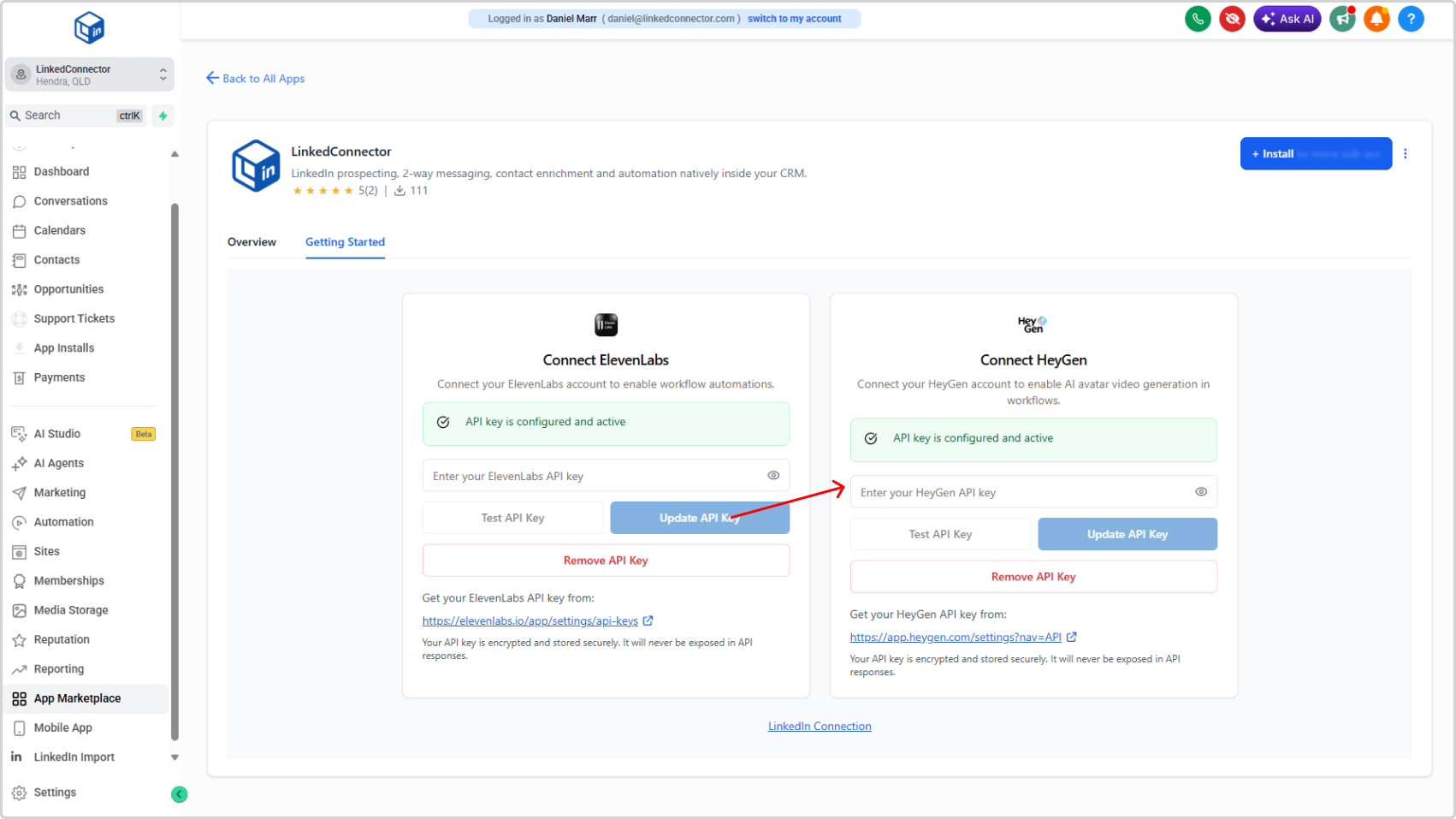
Once your API key is saved, the HeyGen Generate Video action will be usable in your workflows.
How It Works
- Add the Action
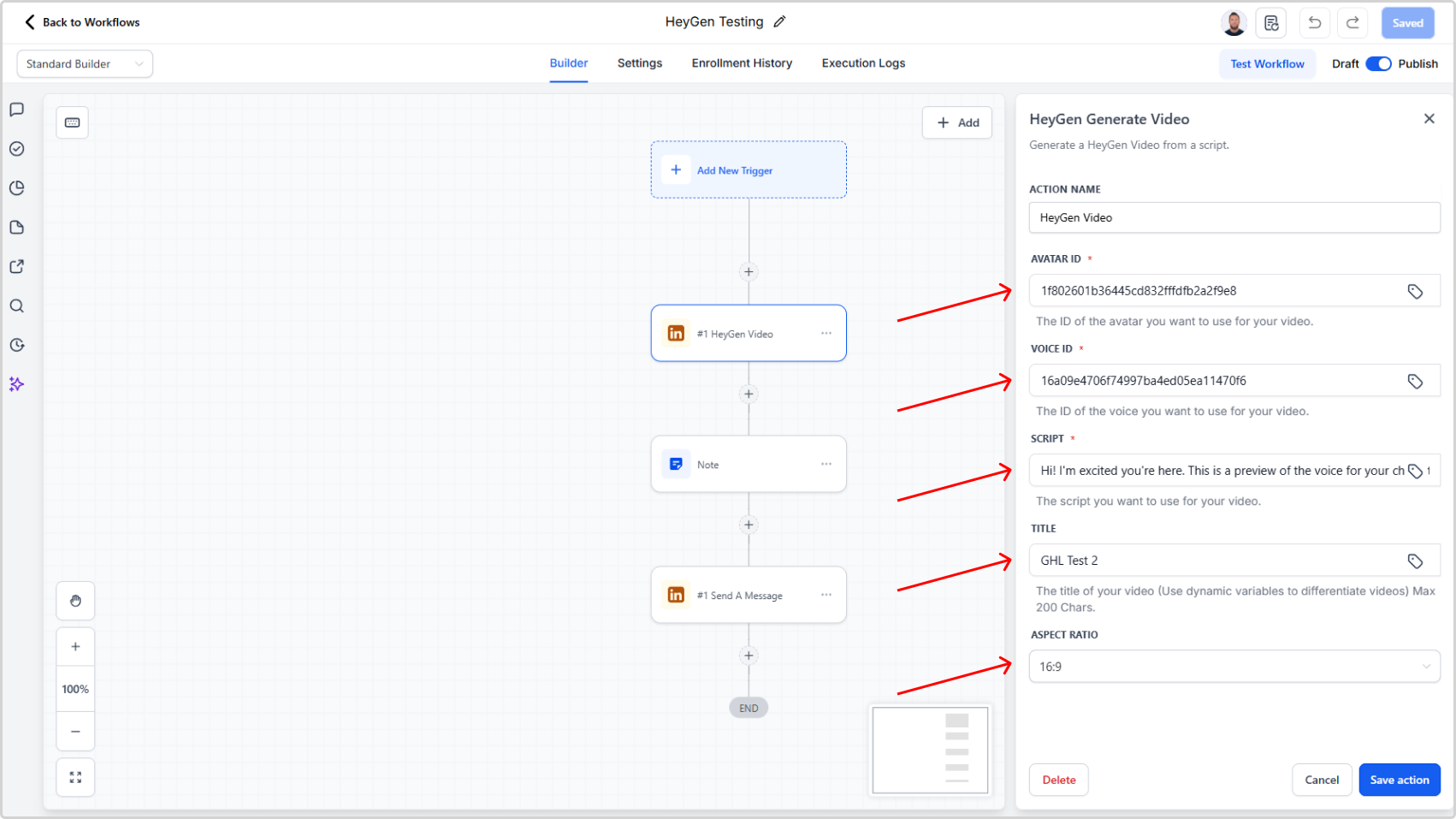
Insert HeyGen Generate Video into any workflow where you want to generate a video. - Set your Avatar
Enter the Avatar ID from your HeyGen account to define which avatar appears in the video. - Set your Voice
Enter the Voice ID to control the voice style and accent used for the delivery. - Write your script
Enter the text you want the avatar to deliver. Supports dynamic variables so you can personalise at scale.
Example:Hi {{contact.first_name}}, I wanted to reach out personally about... - Add a Title (Optional)
Give the video a title. This is used internally for identification. - Set Aspect Ratio
Choose the aspect ratio that suits your use case. Use16:9for landscape or9:16for a portrait/mobile format. - Save
Click the Save Action button at the bottom of the action configuration.
Action Inputs
- Avatar (required) — The Avatar ID from your HeyGen account.
- Voice ID (required) — The Voice ID from your HeyGen account.
- Script (required) — The text the avatar will speak. Supports dynamic variables.
Example:Hi {{contact.first_name}}, just wanted to drop a quick note... - Aspect Ratio (required) — The video dimensions. Common options:
16:9,9:16,1:1. - Title (required) — A label for the generated video.
Returned Variables
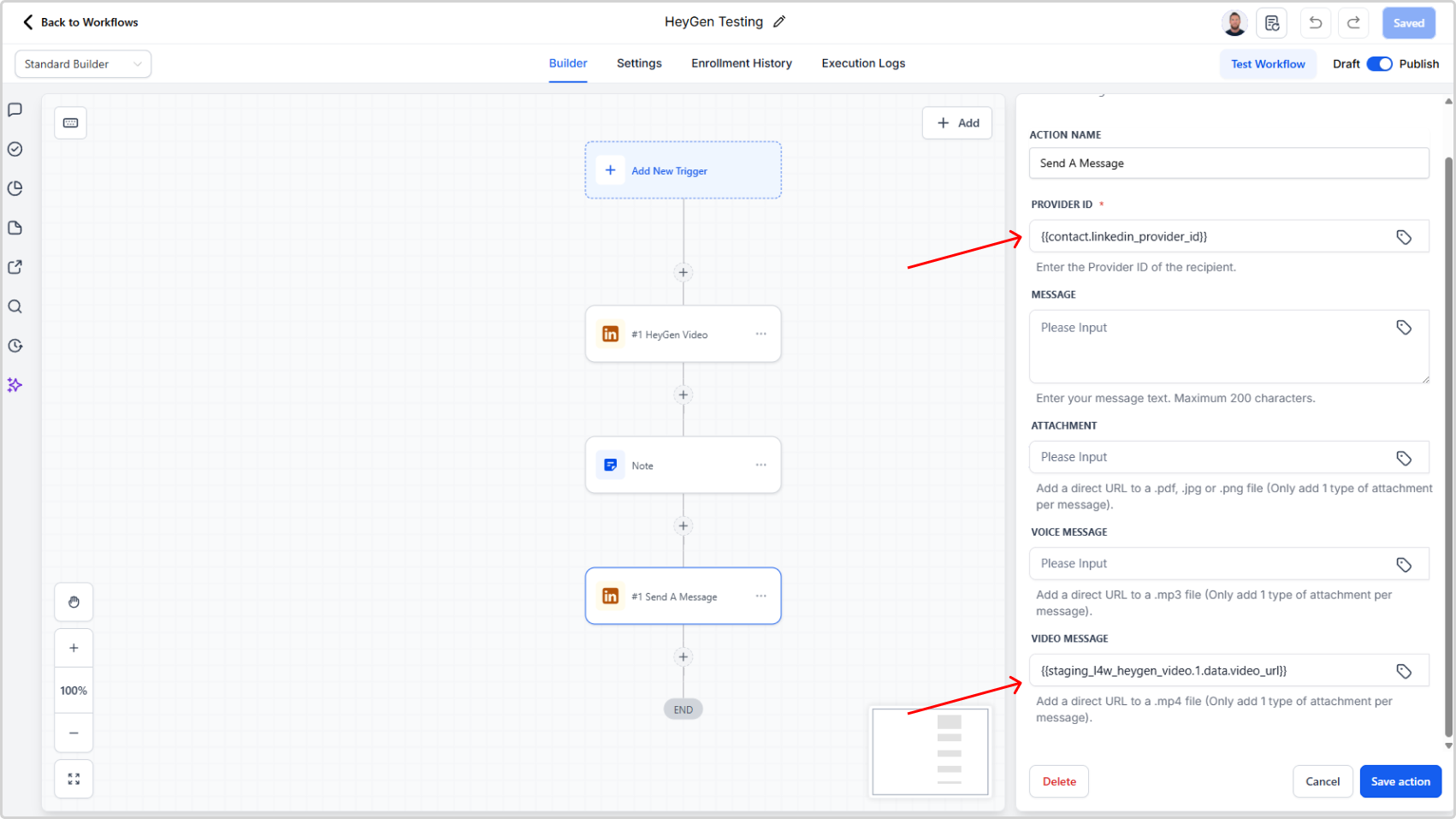
- Video URL — A direct URL to the generated video file. Pass this into the Video Message field in the Send A Message action.
Example Workflow
- Action 1: HeyGen Generate Video — Generate a personalised video using the contact's name in the script
- Action 2: Send A Message — Paste the returned Video URL into the Video Message field to deliver the video via LinkedIn chat
See Send A Message for full details on delivering video messages.
Best Practices
- Keep scripts short and conversational — 30 to 60 seconds is ideal for LinkedIn outreach
- Use dynamic variables to personalise the script with the contact's name or company
- Test first to confirm your API key and avatar are configured correctly before using variables
Troubleshooting
The action fails to generate a video
- Cause: The API key is missing, incorrect, or has expired.
- Solution: Go to App Marketplace > LinkedConnector > API Configuration, verify your HeyGen API key, and re-save.
The Avatar or Voice ID is not recognised
- Cause: The ID entered does not match an avatar or voice in your HeyGen account.
- Solution: Log in to HeyGen, copy the correct Avatar ID or Voice ID, and update the action.
The video is not delivered in the LinkedIn message
- Cause: The Video URL from this action was not correctly mapped to the Video Message field in Send A Message.
- Solution: Check the Send A Message action and confirm the Video URL variable is mapped to the correct field.