LinkedIn Lead Importer
Search LinkedIn, review and refine results, and import prospects directly into your CRM — with tags, duplicate detection, and enrichment data included.
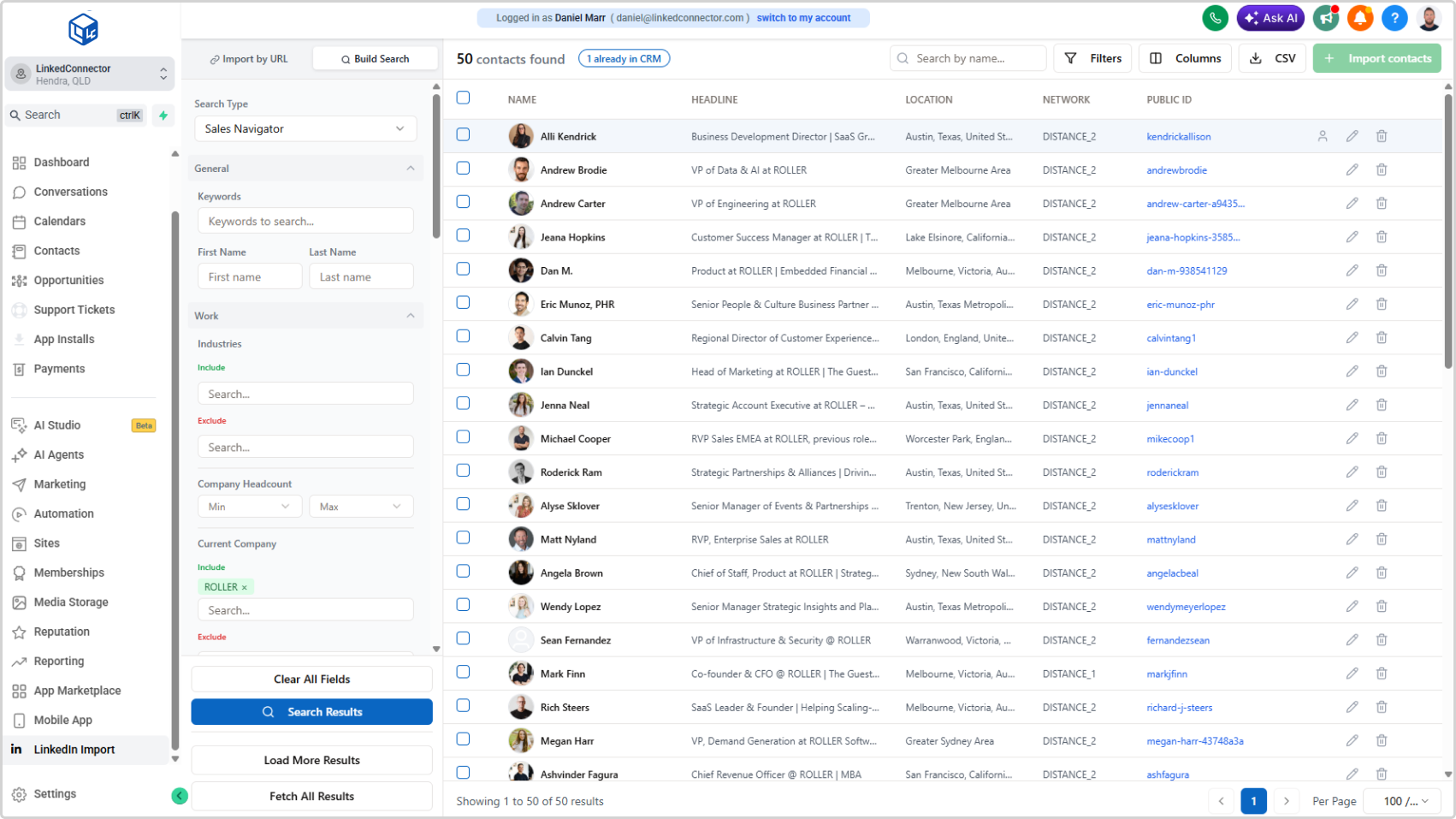
Overview
The LinkedIn Lead Importer gives you a dedicated interface for finding and importing LinkedIn profiles into your CRM at scale. Search using a LinkedIn URL or build a search with filters, preview the results, select the contacts you want, and import them with optional tags to trigger workflows or segment your audience.
Prerequisites
Before using the importer:
- A LinkedIn account must be connected to the sub-account. See Connect Your LinkedIn Account for setup instructions.
- The LinkedIn Import custom menu link must be added to the sub-account. See Add Custom Menu Links for setup instructions.
Once configured, access the importer by clicking LinkedIn Import in the sub-account sidebar.
Step 1: Search for Leads
The importer offers two ways to find LinkedIn profiles: Import by URL and Build Search. Select the tab that matches your source.
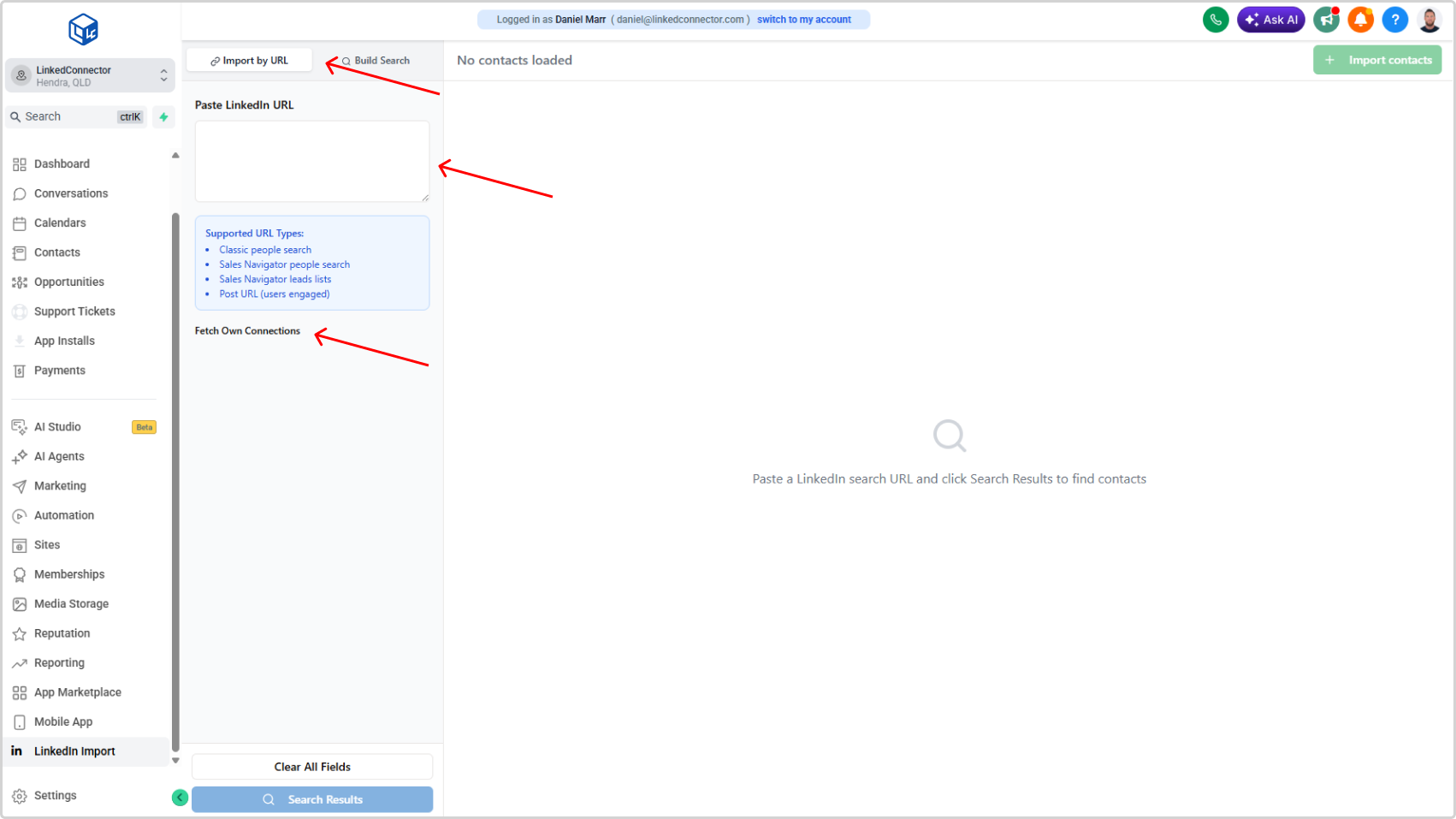
Import by URL
Use this tab to retrieve profiles from an existing LinkedIn search or list.
Paste one of the following into the Paste LinkedIn URL field:
- A Classic LinkedIn people search URL
- A Sales Navigator people search URL — requires an active Sales Navigator subscription
- A Sales Navigator leads list URL — requires an active Sales Navigator subscription
- A LinkedIn post URL — retrieves users who engaged with the post
Then click Search Results to load the matching profiles.
Fetch Own Connections: Click Fetch Own Connections to load your existing LinkedIn connections directly into the results — no URL required.
Build Search
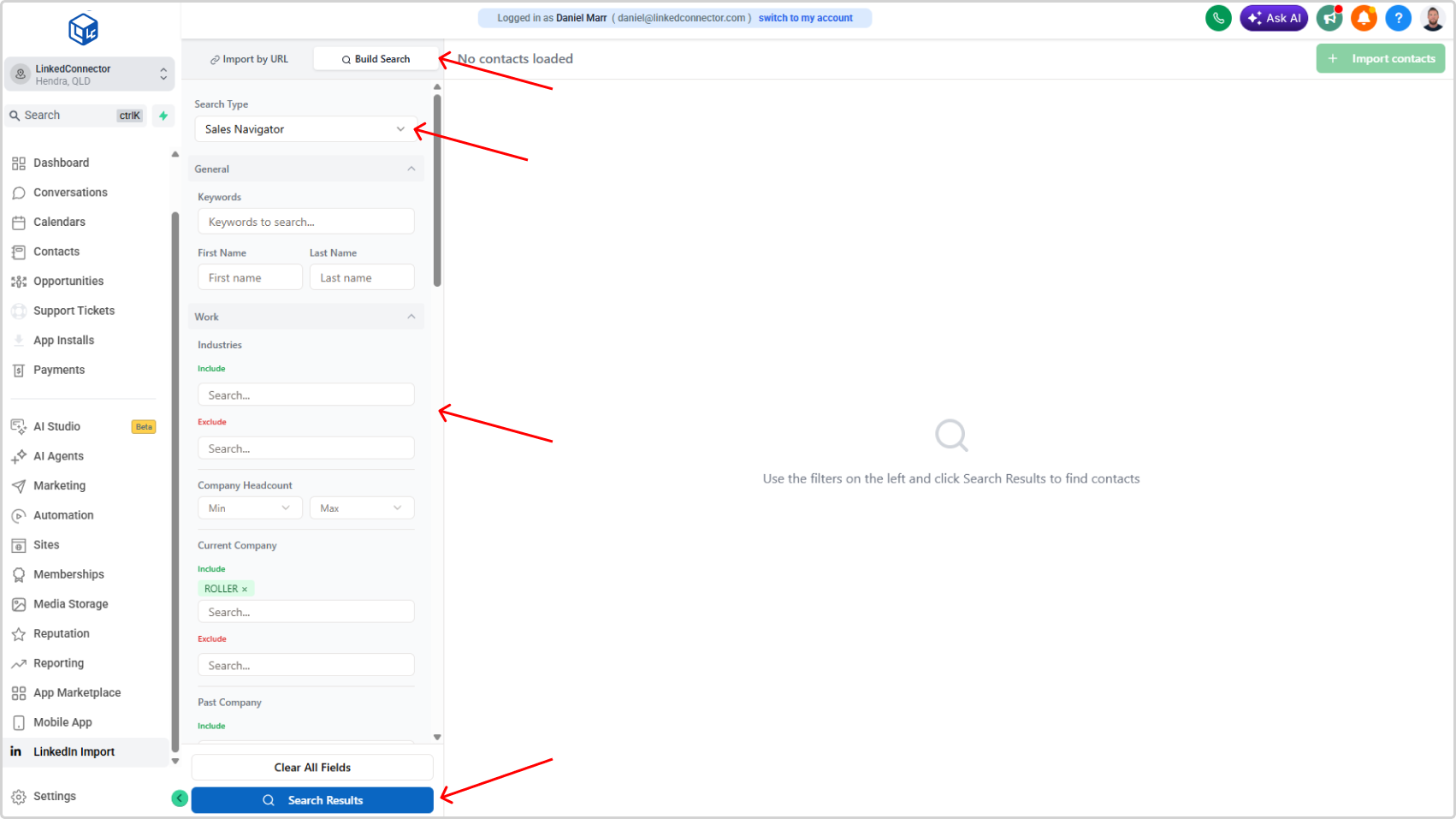
Use this tab to construct a search using filters without leaving the importer.
Step 1: Select your Search Type:
- Classic LinkedIn — Standard LinkedIn search filters
- Sales Navigator — Advanced filtering with include/exclude options and headcount ranges
- Recruiter — Recruiter-specific search (requires Recruiter account)
Step 2: Apply your filters.
Step 3: Click Search Results to retrieve matching profiles.
Step 2: Review Results
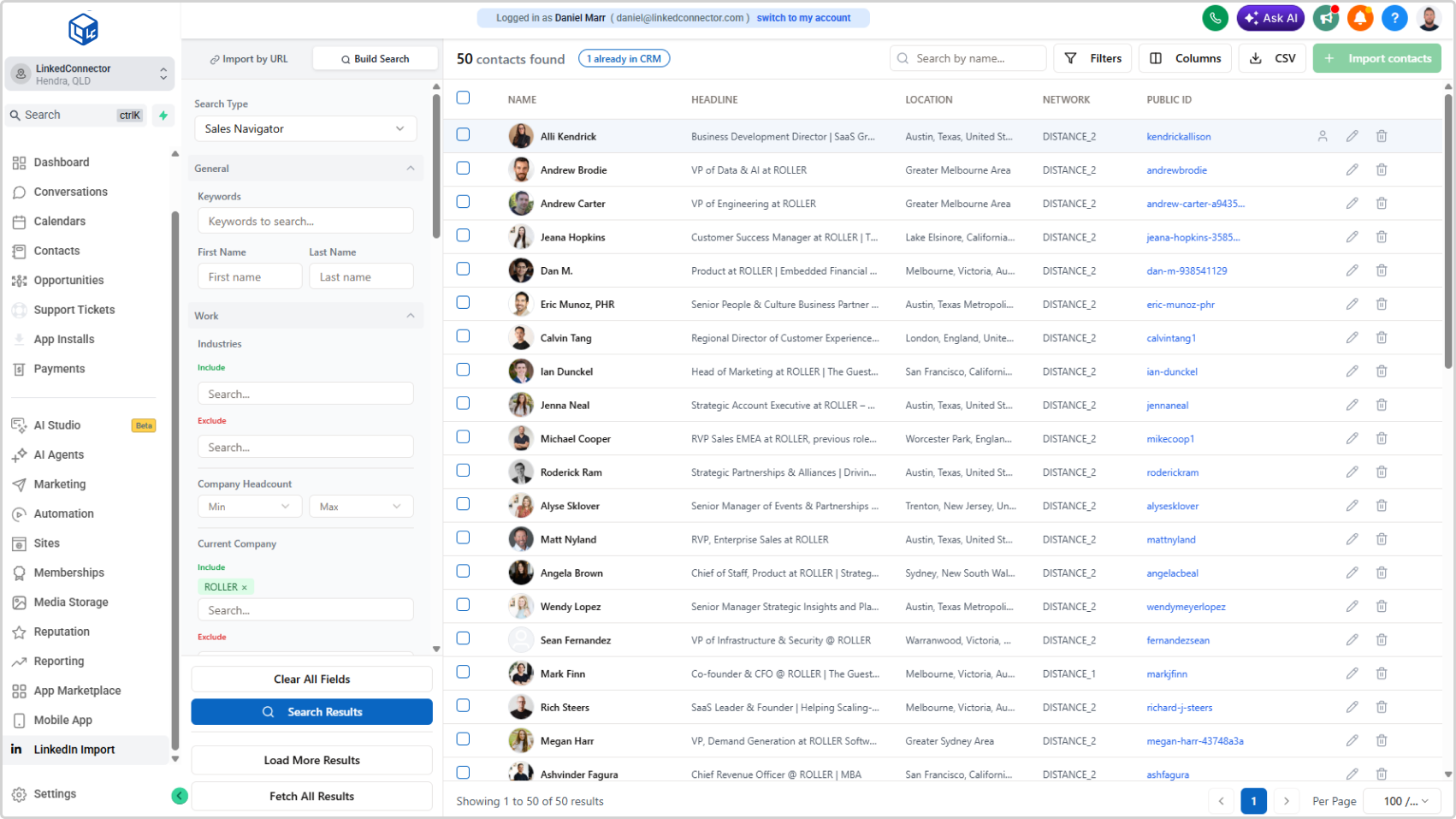
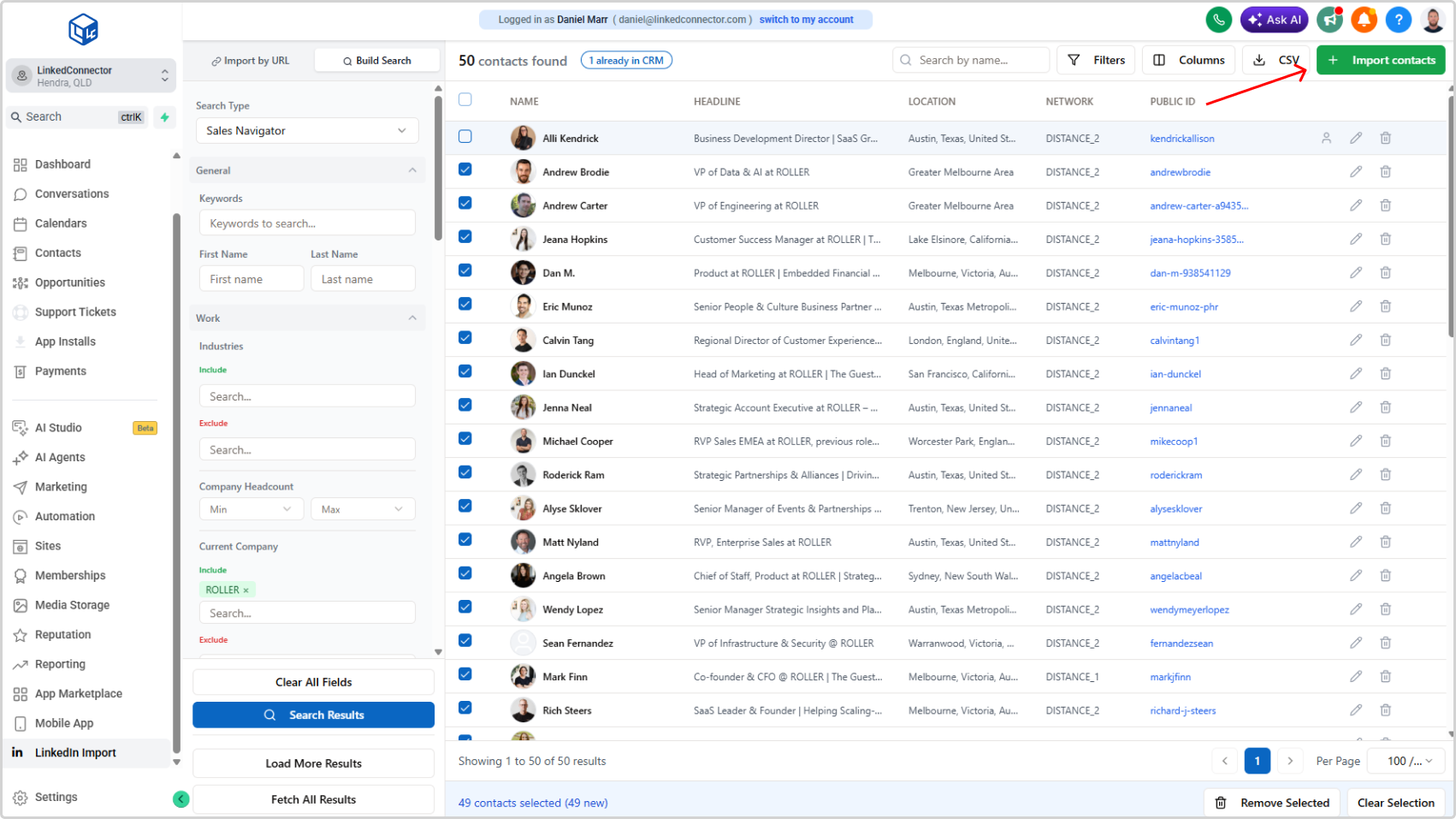
Results appear in the contact table showing Name, Headline, Location, Connection Degree, and Public ID.
The header shows the total contacts found and a duplicate badge (e.g., "1 already in CRM") highlighting how many results already exist in your CRM.
Loading More Results
Search results initially load 25 contacts at a time.
- Click Load More Results to retrieve the next 25 results
- Click Fetch All Results to load the full result set automatically — up to a maximum of 1,000 contacts
Filter Results
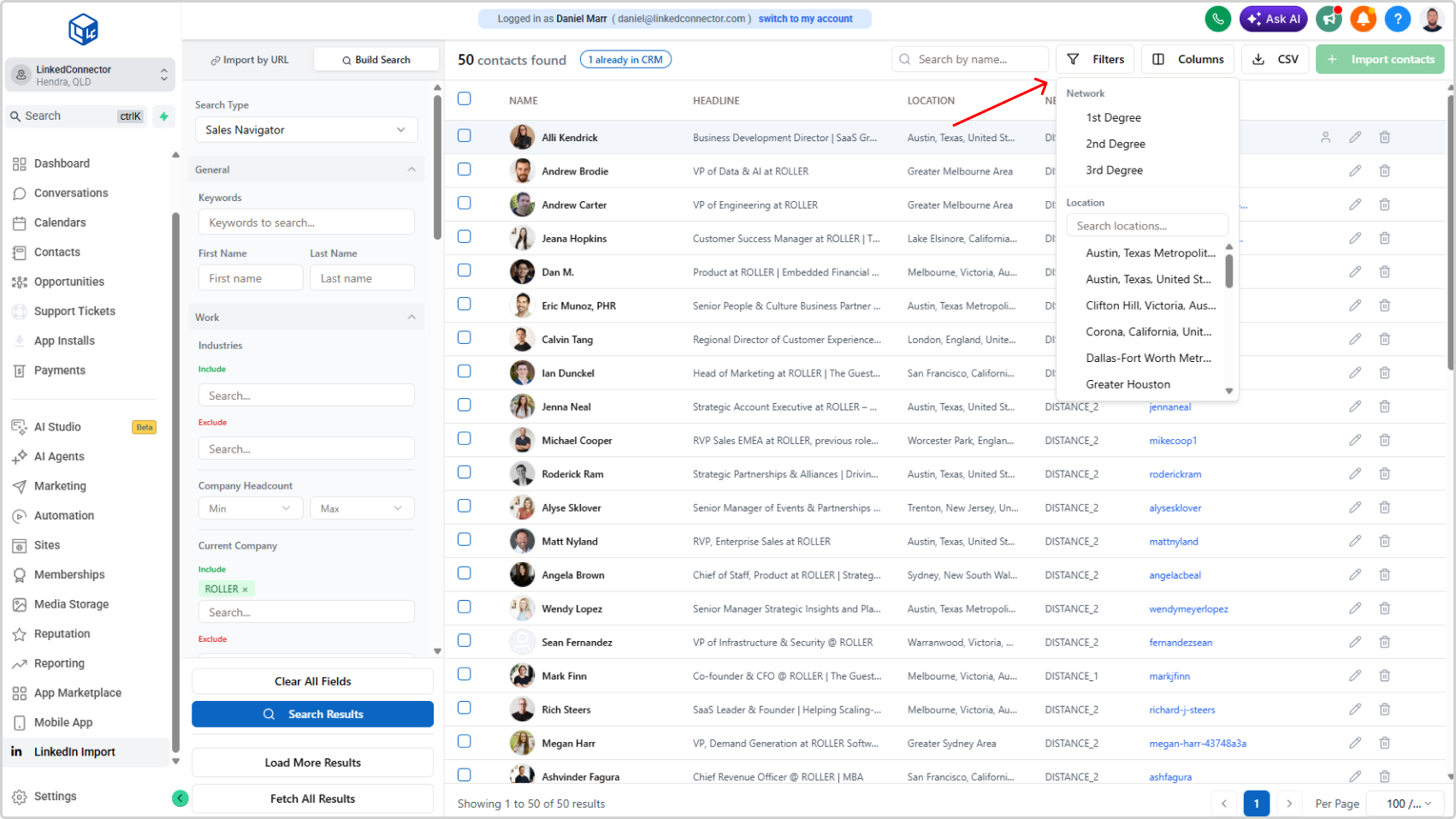
Click Filters to refine the results after searching:
- Connection Degree — 1st, 2nd, or 3rd+
- Location — Search by location name
- Network Distance
- Public ID
- Provider ID
Customise Columns
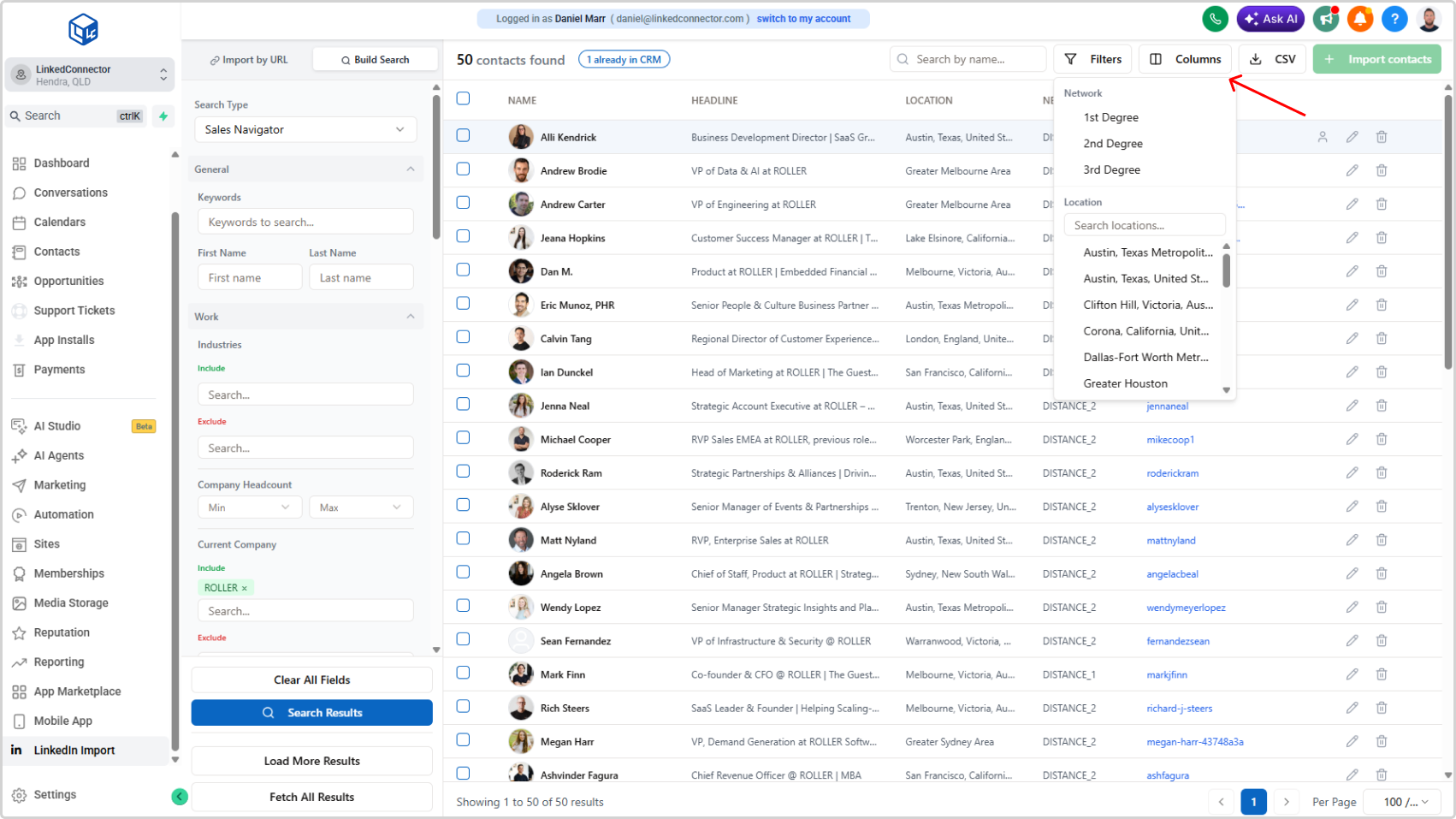
Click Columns to show or hide columns in the results table. Available columns include Headline, Name, Location, Network Distance, and Public ID.
Export as CSV
Click CSV to export the current results to a CSV file.
Step 3: Edit Contacts (Optional)
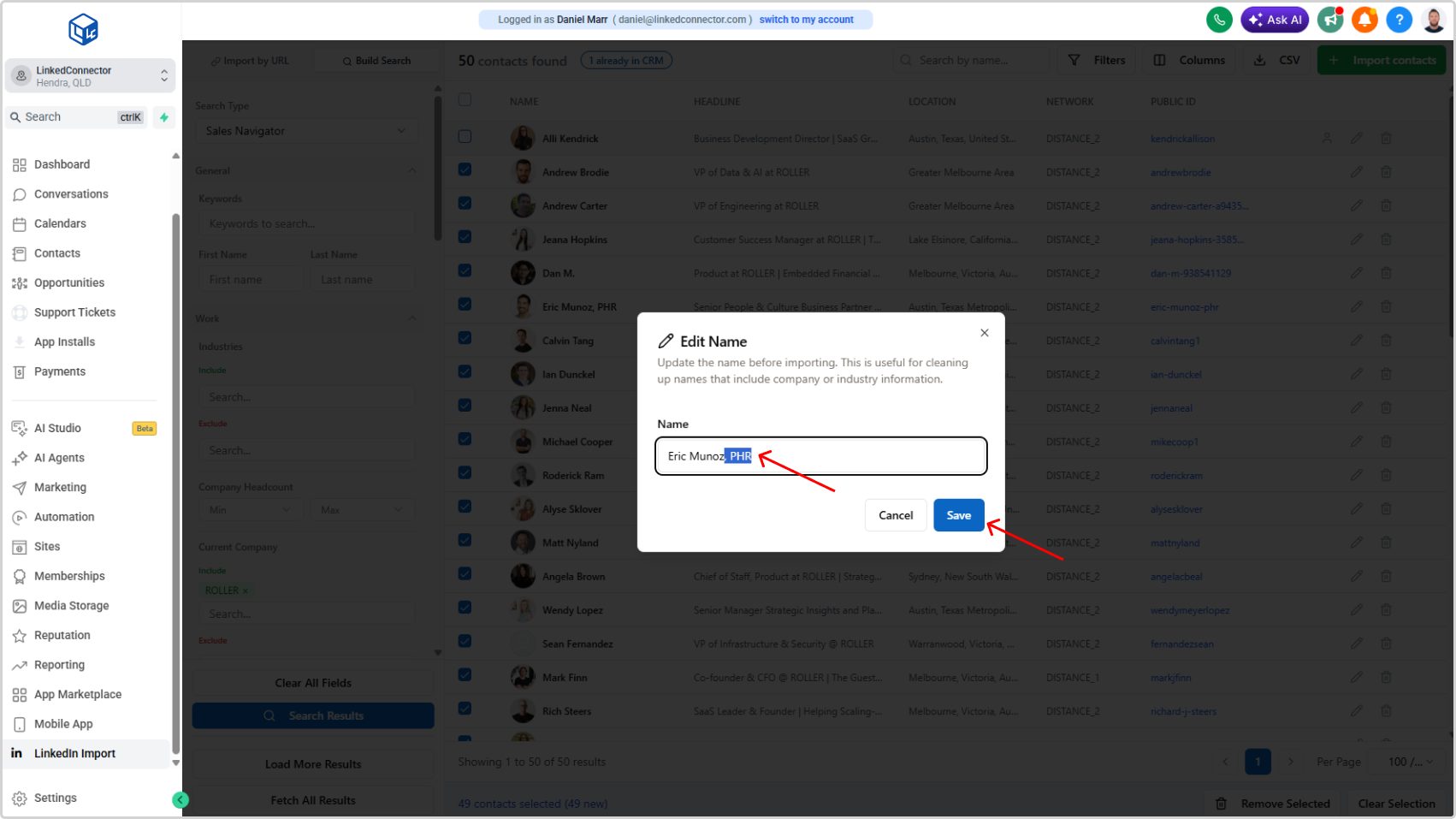
To clean up a contact's name before importing, click the edit icon on any result row.
The Edit Name modal lets you update the name — useful for removing company names, job titles, or other text that LinkedIn sometimes appends to a contact's display name.
Click Save to apply the change.
Step 4: Select Contacts
Use the checkboxes to select the contacts you want to import.
- Select all automatically skips duplicates — only new contacts are selected by default
- The bottom bar shows the current count: e.g., "40 contacts selected (40 new)"
- To manually include a duplicate (e.g., to refresh existing contact data), check it individually
- Use Remove Selected to deselect highlighted contacts, or Clear Selection to start over
Step 5: Import
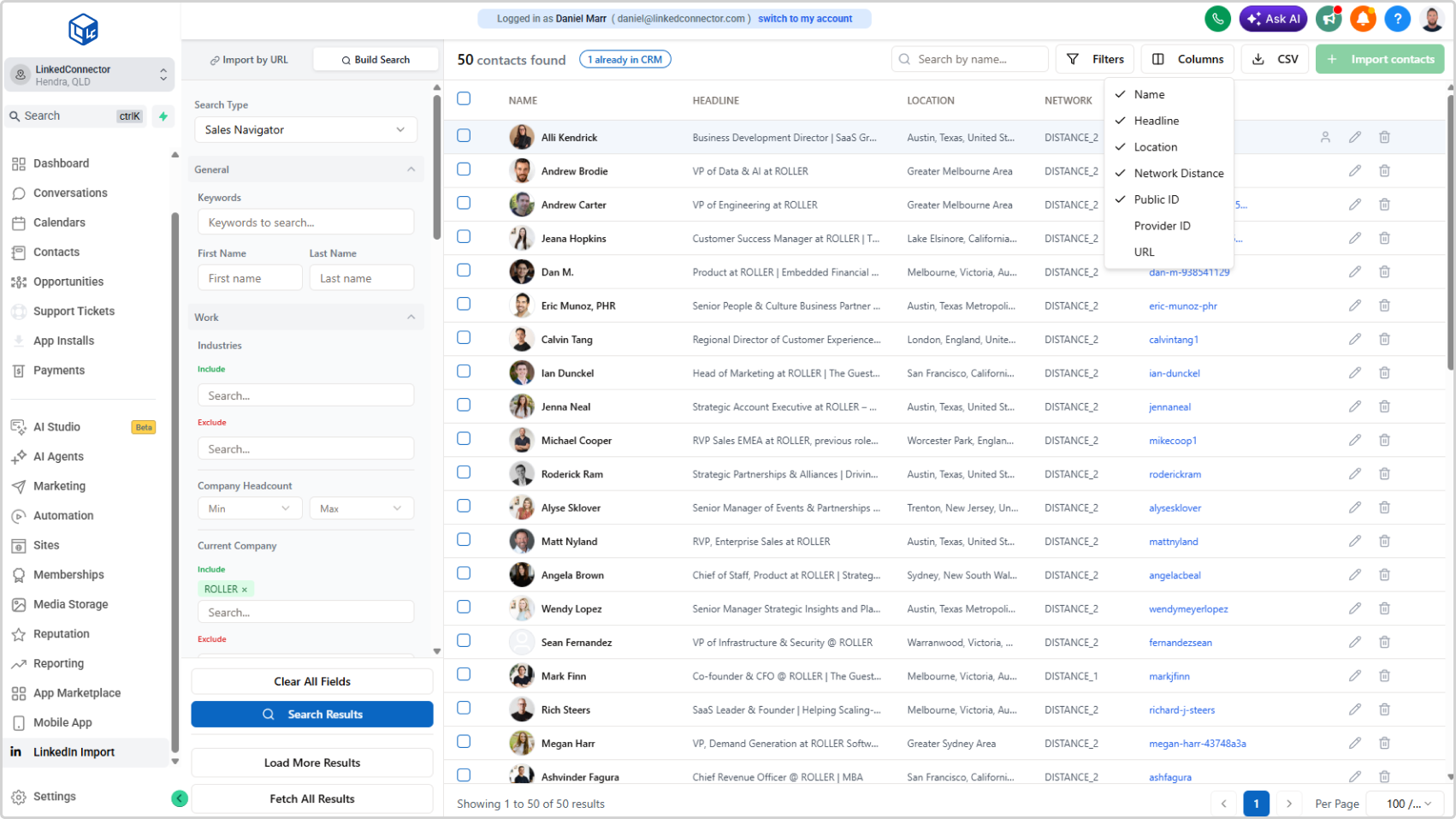
Click the green Import Contacts button in the top-right corner.
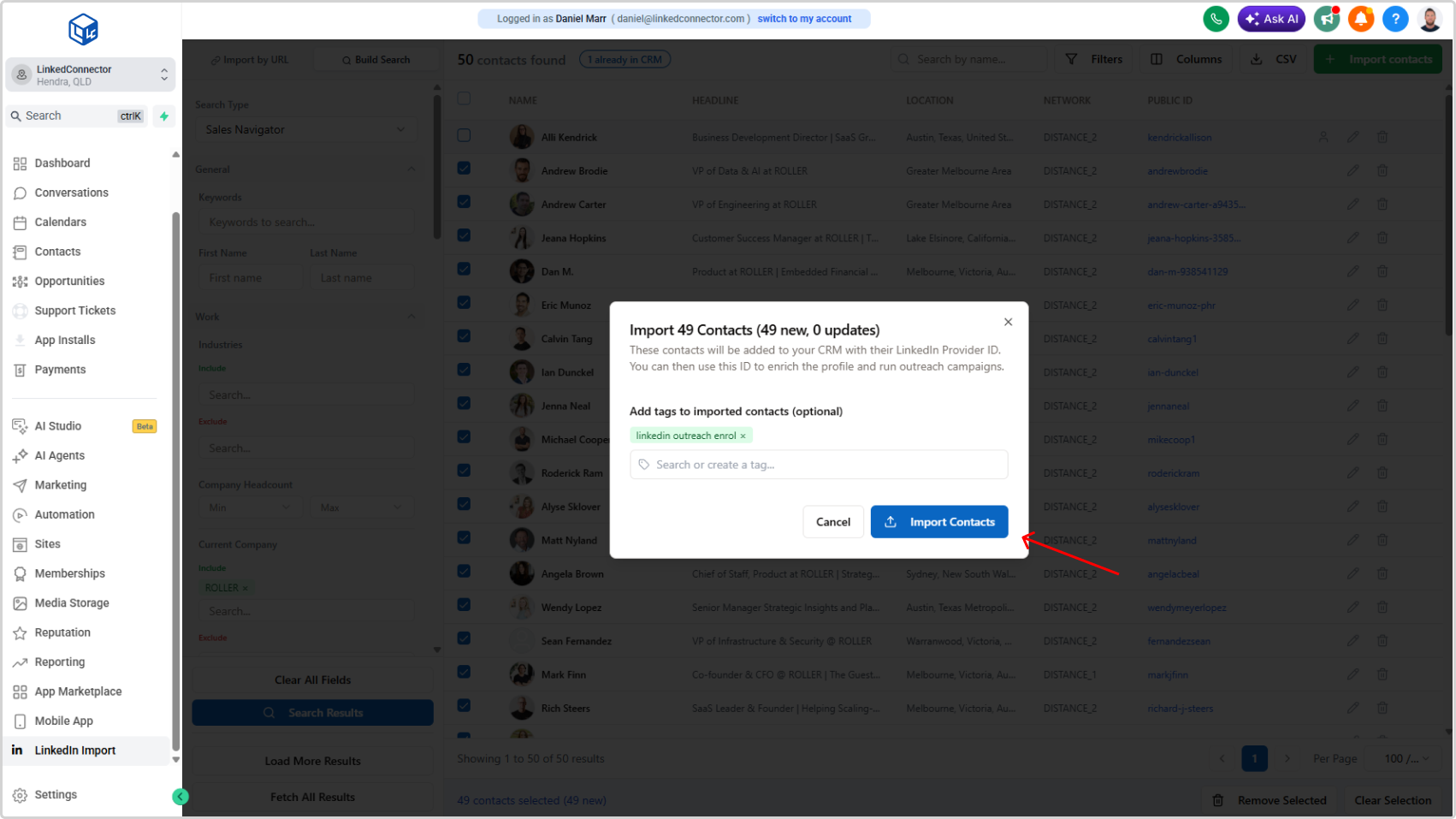
The import modal will appear, confirming the number of contacts to be added and updated:
Import 49 Contacts (49 new, 0 updates)
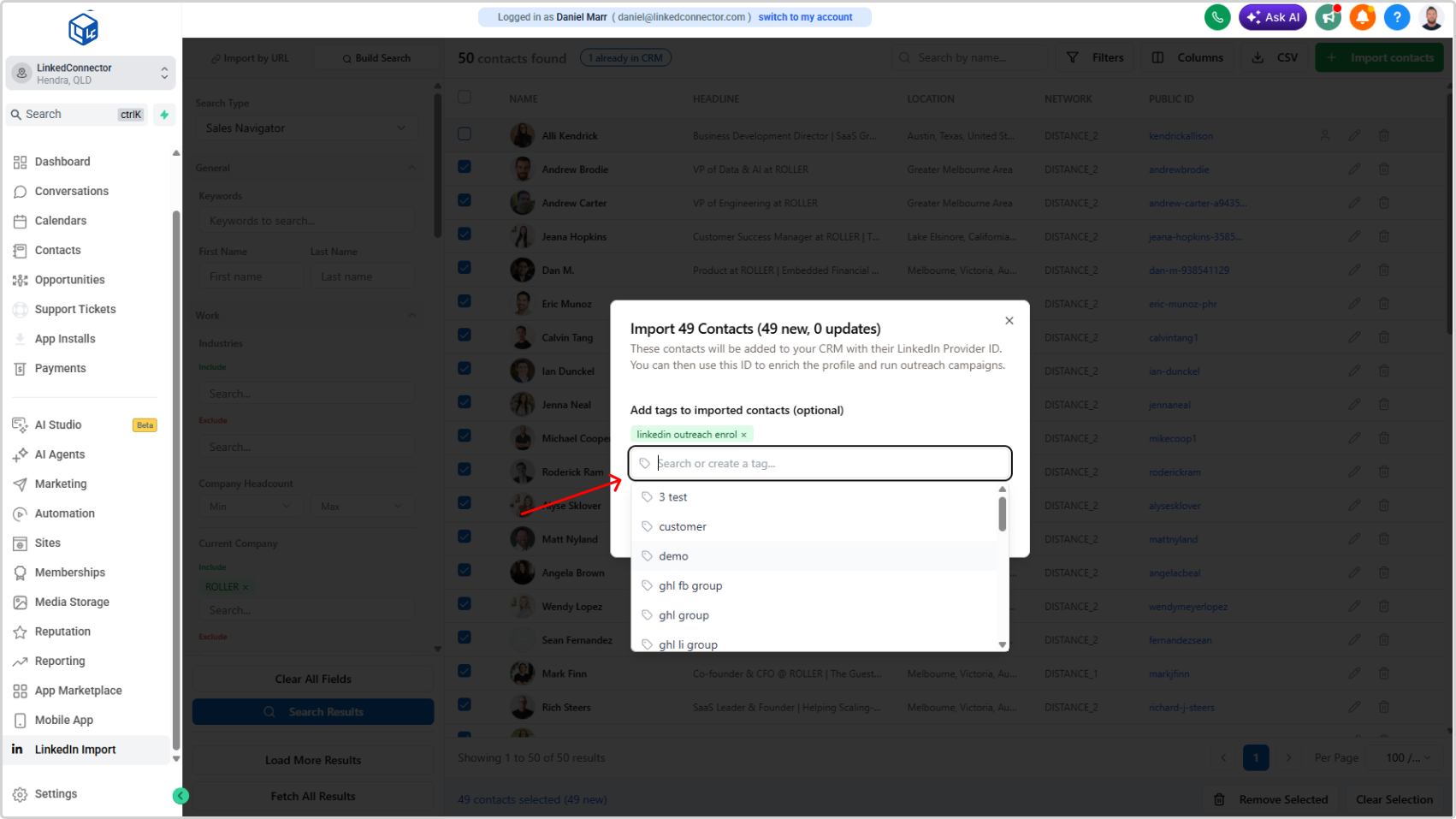
Add Tags (Optional)
Before confirming, you can add one or more tags to all imported contacts. Tags can be used to:
- Trigger workflows — enrol contacts into outreach sequences automatically on import
- Segment your audience — group contacts for targeted messaging campaigns
Search for an existing tag or type a new one to create it. Tags are applied to all contacts in the import batch.
Click Import Contacts to confirm.
After Import
Imported contacts are added to your CRM with their LinkedIn Provider ID, name, profile image and any tags you applied.
From here you can:
- Enrich profiles — Enrol contacts in a workflow using the Retrieve User Profile action to pull in full profile data including work history, education, and skills
- Launch outreach — Use applied tags to trigger automated LinkedIn messaging sequences
Troubleshooting
The LinkedIn Import link is not visible in the sidebar
- Cause: The custom menu link has not been added to this sub-account.
- Solution: See Add Custom Menu Links to set up the sub-account link.
No results appear after searching
- Cause: The URL is unsupported, the search filters returned no matches, or the LinkedIn account is not connected.
- Solution: Confirm your LinkedIn account is connected and active. Check that the URL is a supported type. Try broadening your filters.
Duplicate contacts are being imported
- Cause: Duplicates were manually selected, or the existing contact was not detected.
- Solution: Check the duplicate badge before importing. When using Select All, duplicates are skipped automatically. Deselect any rows showing a duplicate indicator before confirming.
Contacts are missing profile data after import
- Cause: The importer imports basic profile data only.
- Solution: Enrol the contact in a workflow and use the Retrieve User Profile action to pull the full profile into your CRM custom fields.