Snapshot Installation Guide
Install the LinkedConnector snapshot into your agency and push to the appropriate sub-account.
- Enter your location ID in the form below to receive the snapshot link
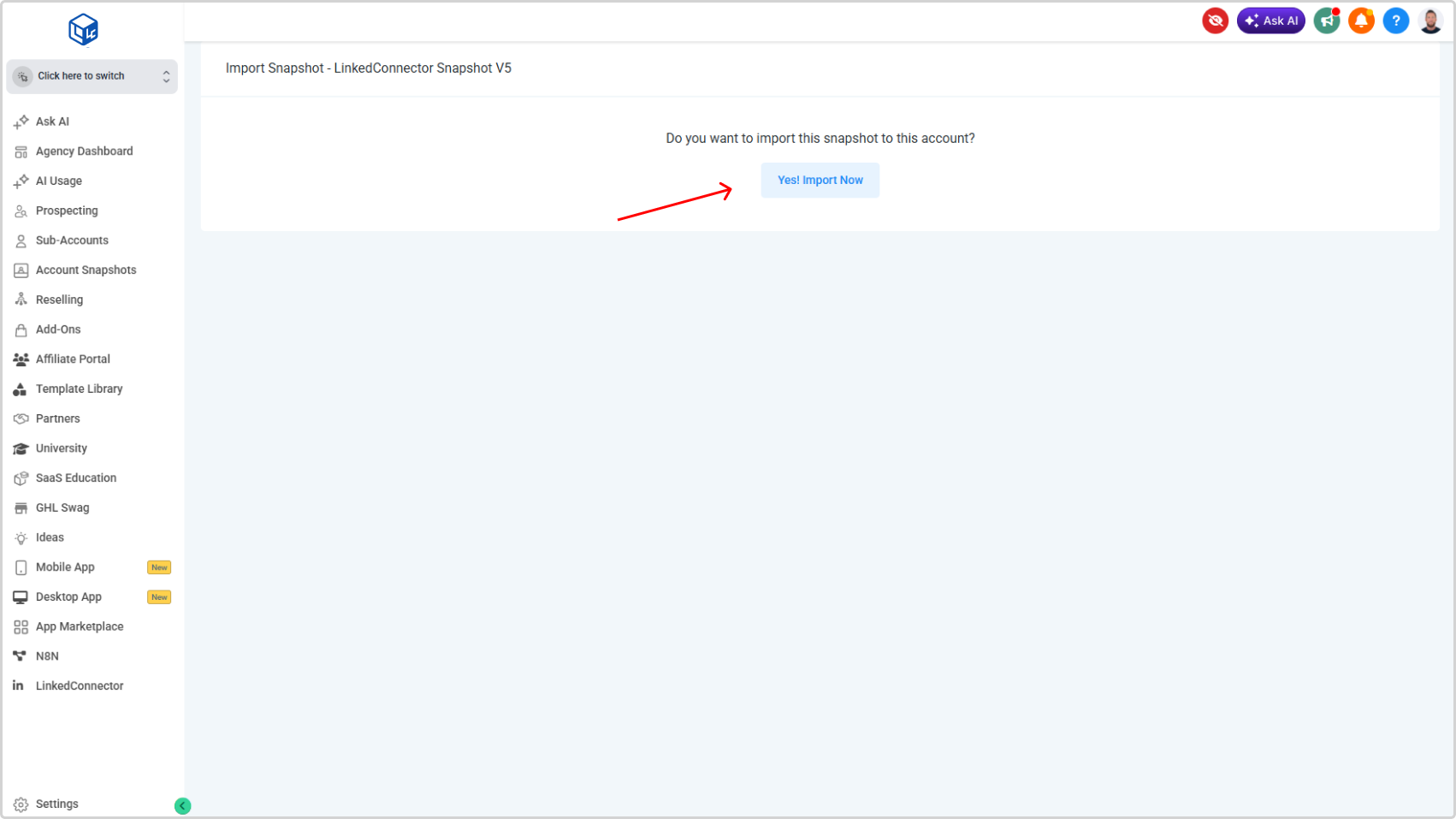
- Click the link and then click the "Yes! Import now" button.
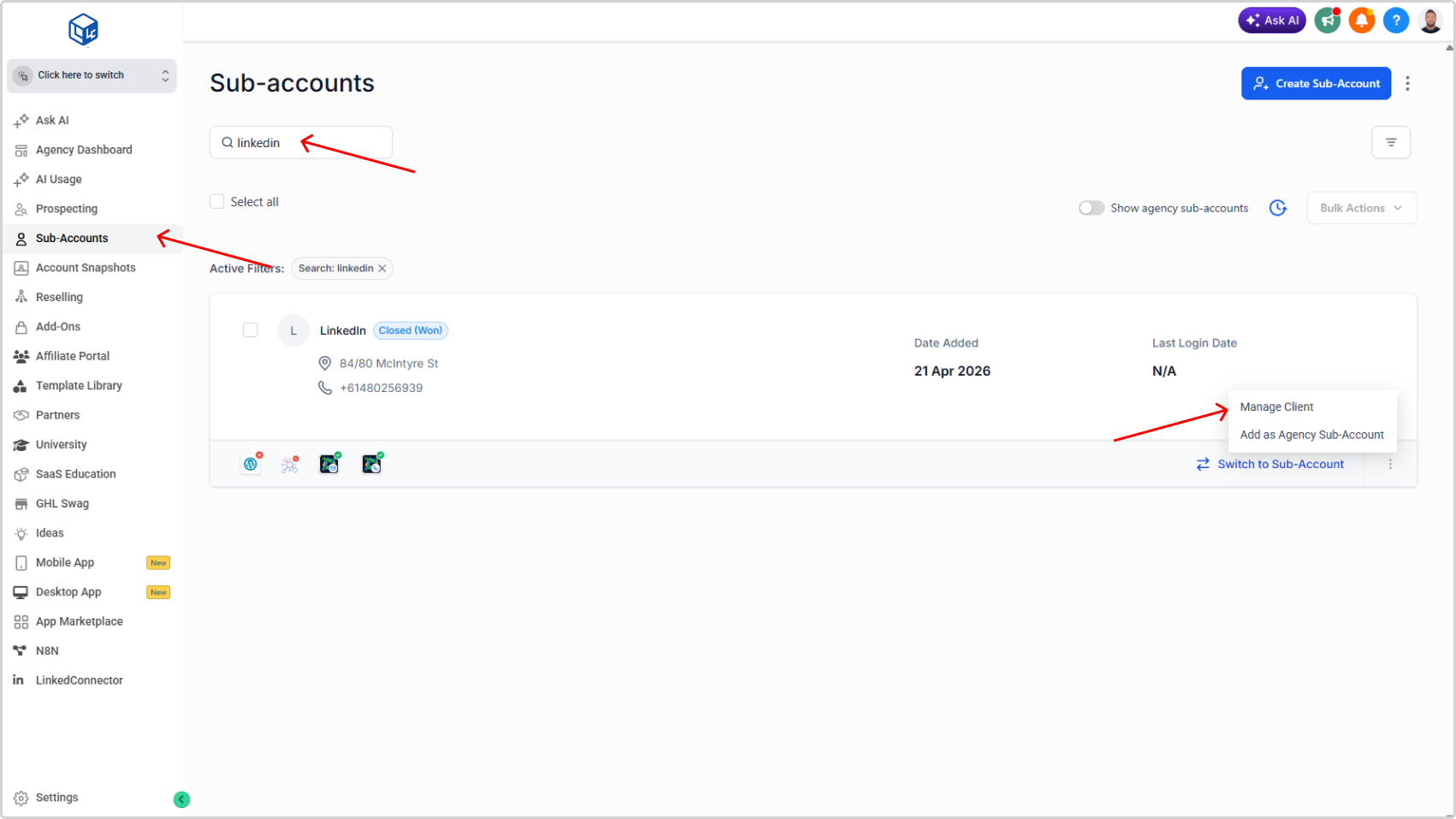
- From the agency menu navigate to Sub-Accounts.
- Search for the sub-account where the app is installed.
- Click the hamburger icon in the bottom right of the account card, then click Manage Client.
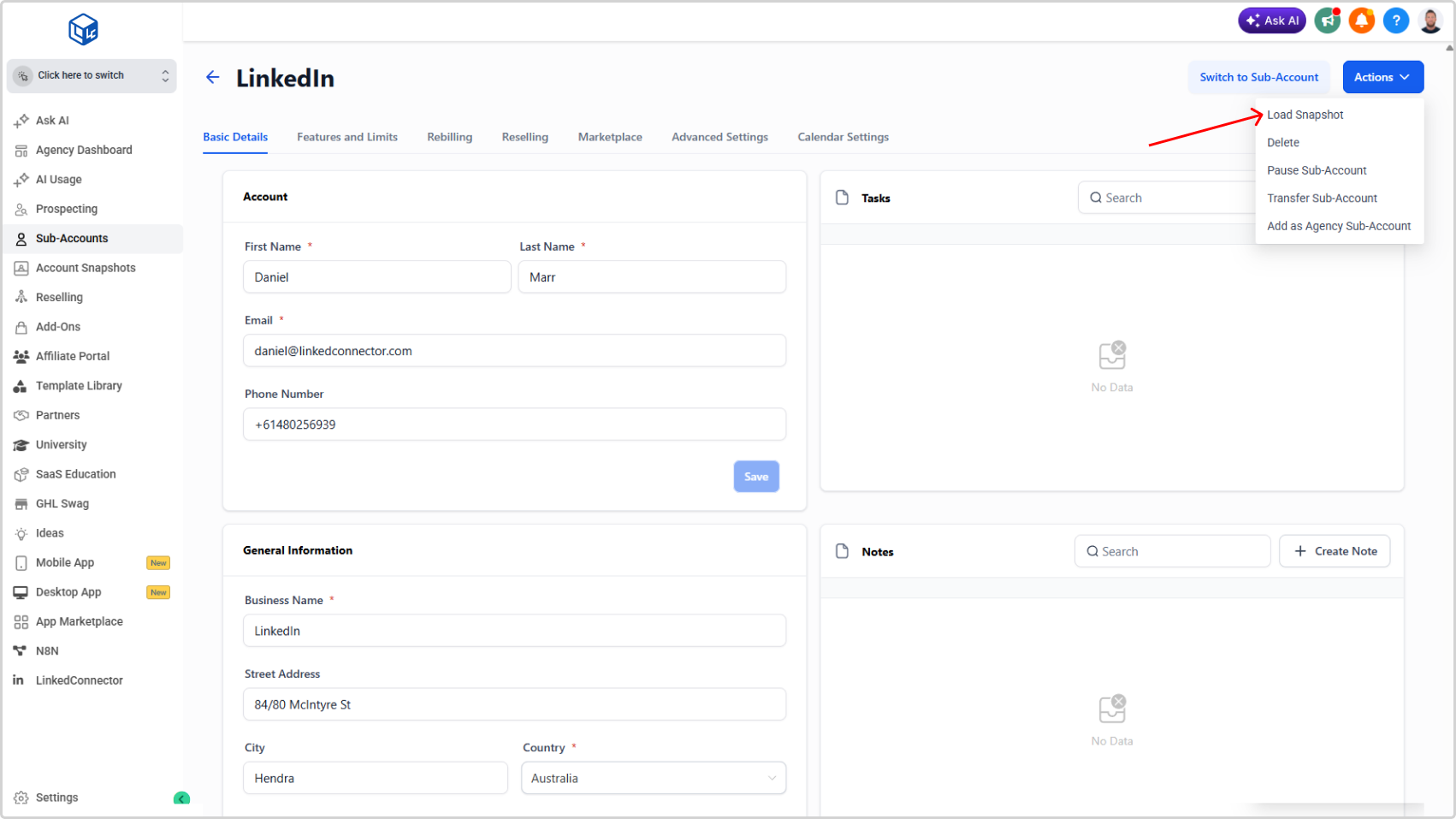
- Click the "Actions" button in the top right then click Load Snapshot.
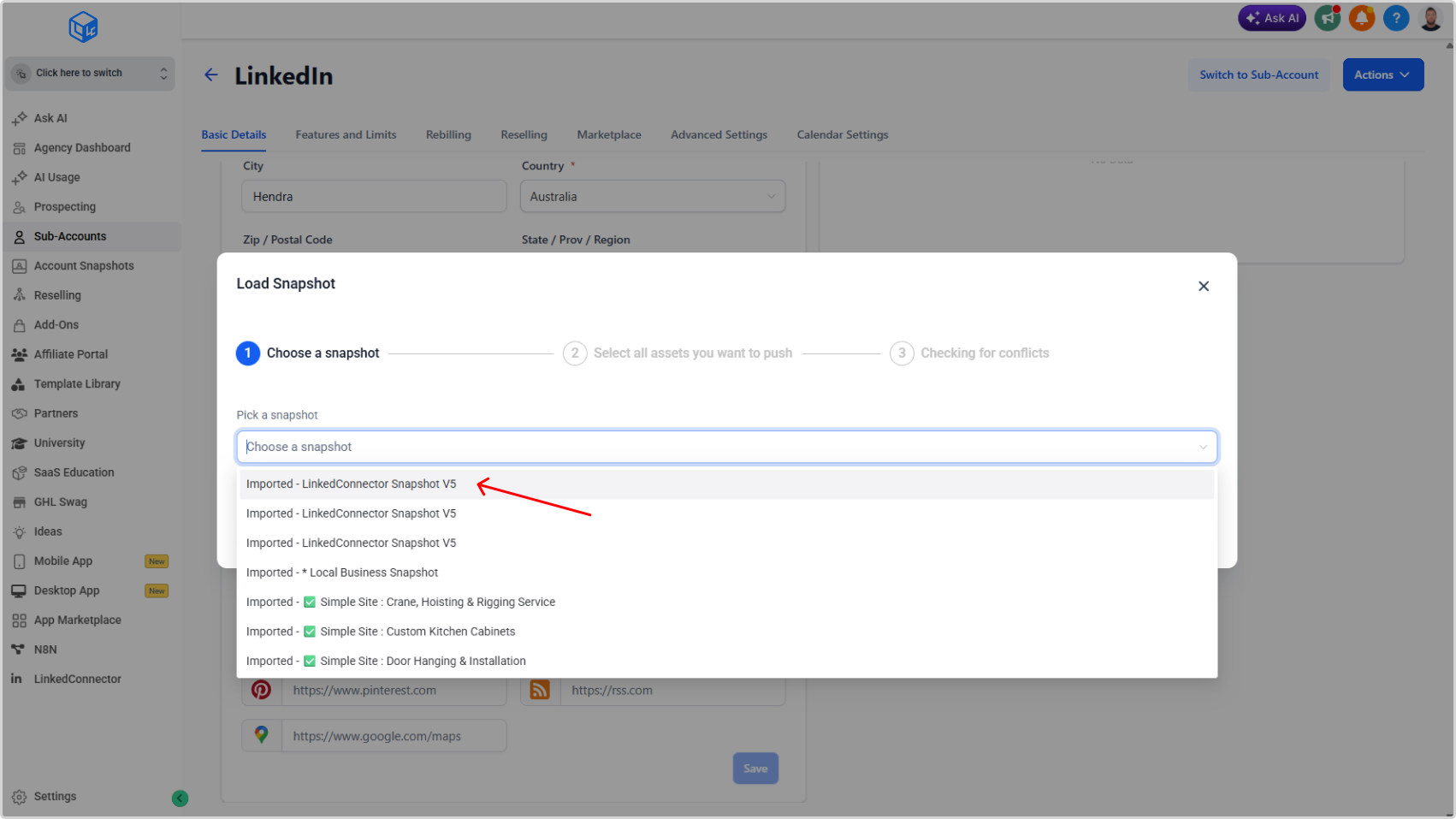
- Choose the LinkedIn Snapshot V[x] you have just imported.
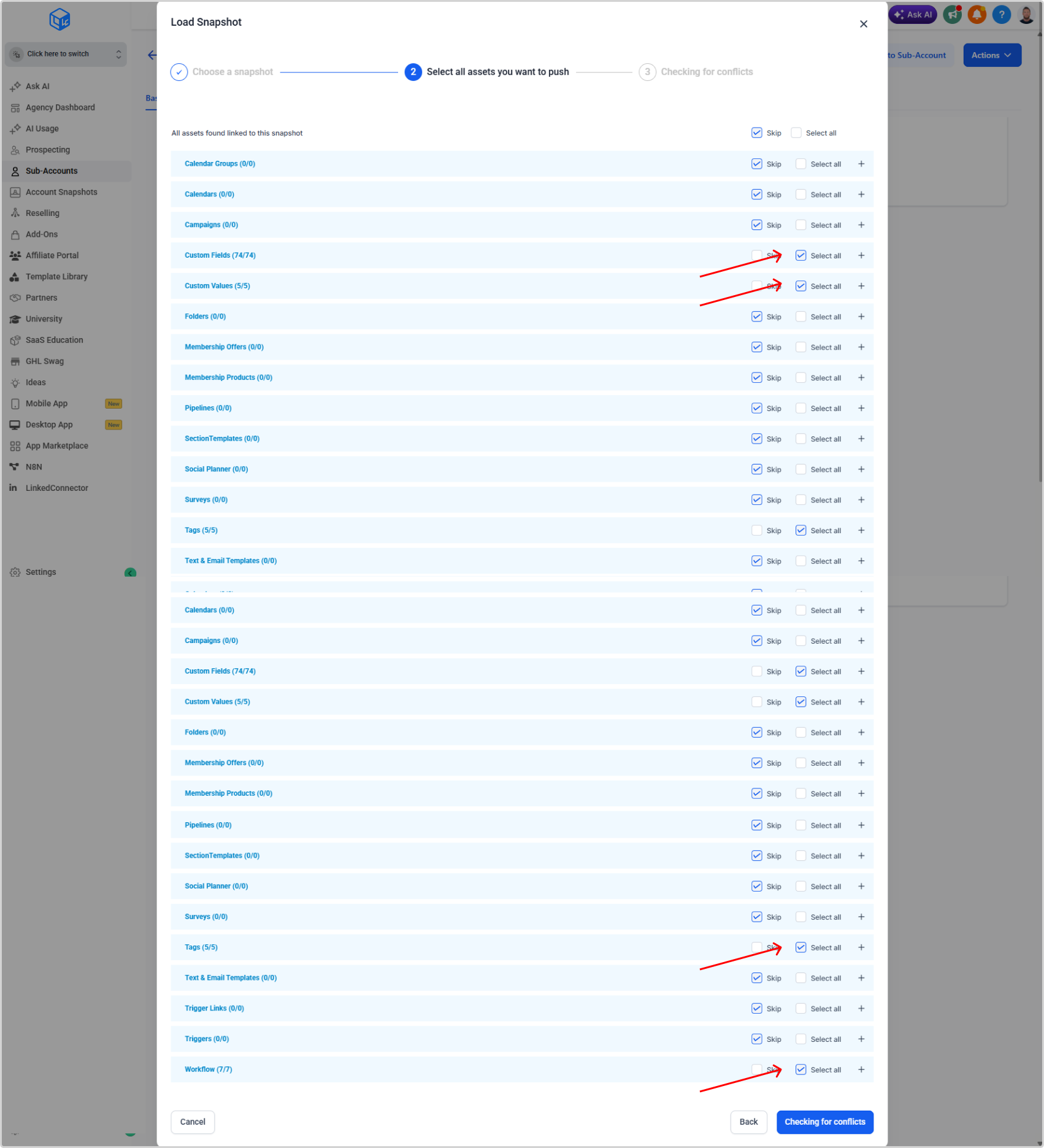
- Select the Custom fields, Custom values, Tags and Workflows, assets.
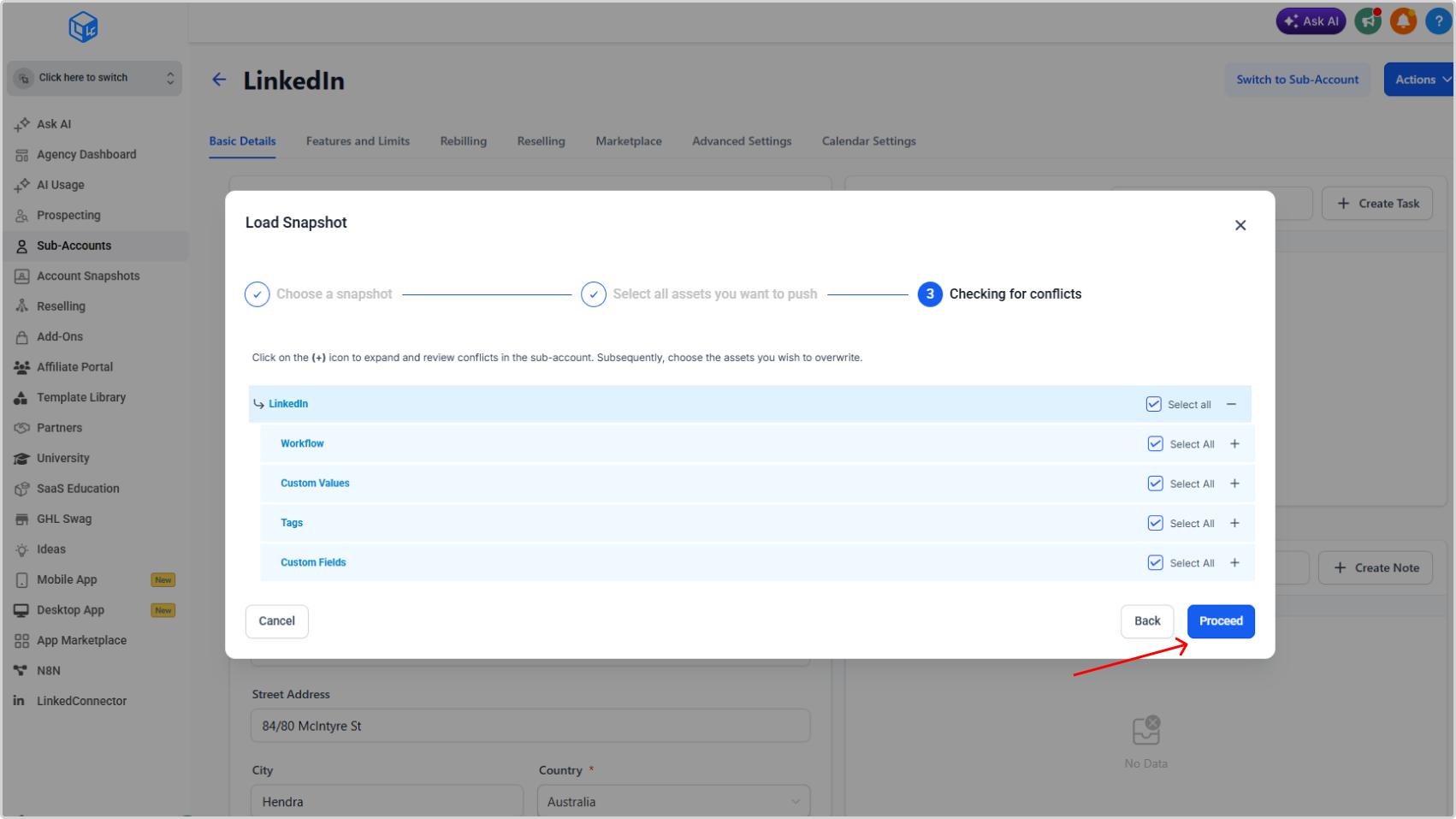
- Check for conflicts, select all then the "Proceed" button to complete the snapshot push to the sub account.
Request Snapshot Link
Enter your location ID and click the get snapshot link button to receive the latest snapshot link.
💡
Once installed, your snapshot includes requires some configuration to make it work for your use case. Please see the rest of the getting started documentation for further instructions.