Connect Your LinkedIn Account
Authenticate your LinkedIn account so LinkedConnector can interact with messages and activity.
You're about to connect your LinkedIn account to LinkedConnector. This is required to utilize your LinkedIn account through the CRM.
Step 1: Navigate to the Getting Started Tab
- In your sub-account, in the left sidebar menu
- Click App Marketplace
- Click Installed Apps
- Click LinkedConnector
- Click the Getting Started tab at the top
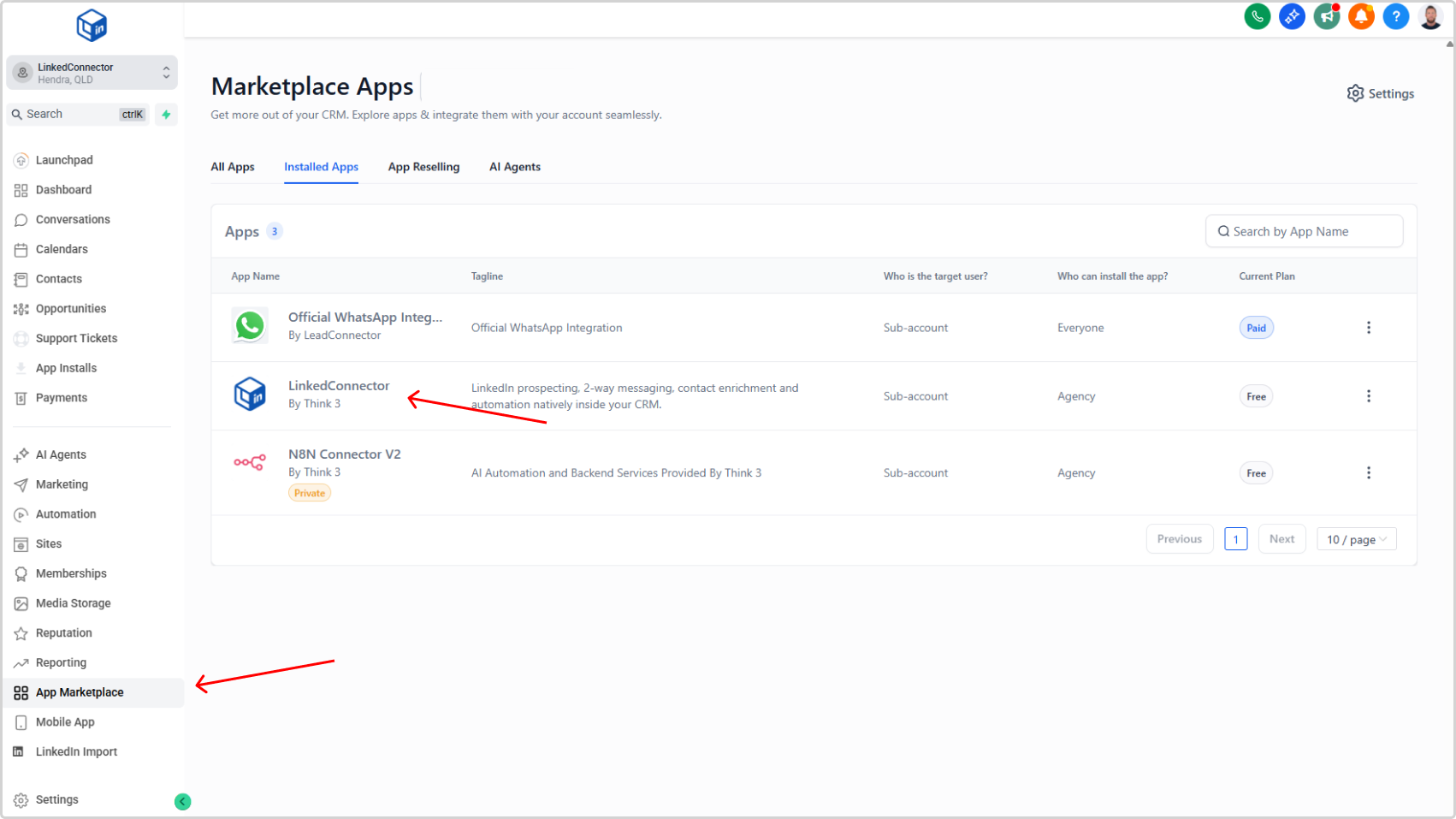
You'll now see several connection cards on this page.
Step 2: Click Connect LinkedIn
- Locate the Connect LinkedIn card
- Click the blue Connect LinkedIn button
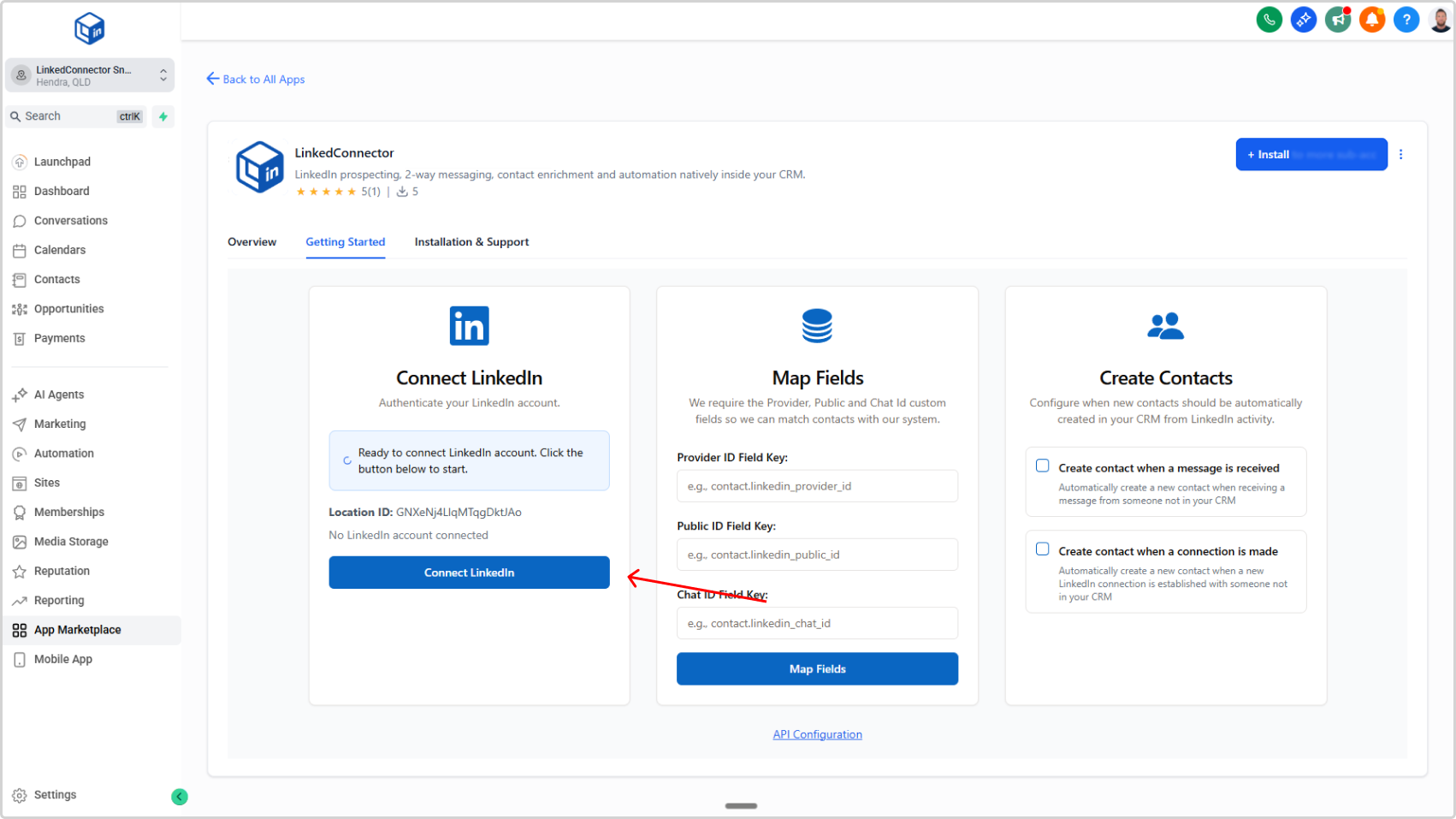
A pop-up window will open with LinkedIn's login screen.
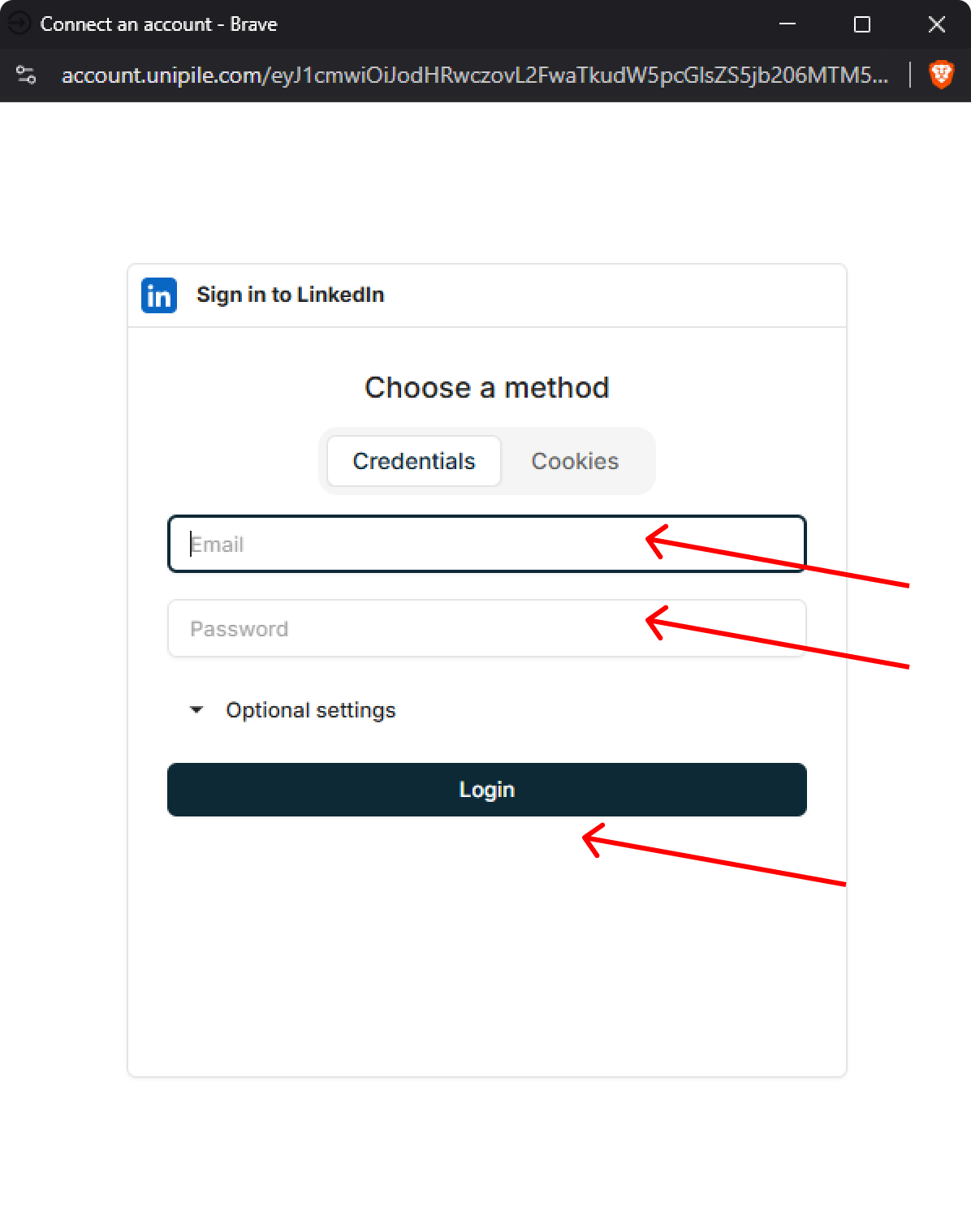
Step 3: Authenticate Your LinkedIn Account
- Enter your LinkedIn email address
- Enter your LinkedIn password
- Complete any additional security steps (CAPTCHA, two-factor authentication, etc.)
- Click Login
Step 4: Wait for the Confirmation
Once you've authenticated, do not close the pop-up window. Wait for a confirmation dialogue to appear.
You'll see: A green dialogue box with a checkmark and the message "Account Successfully Added!"
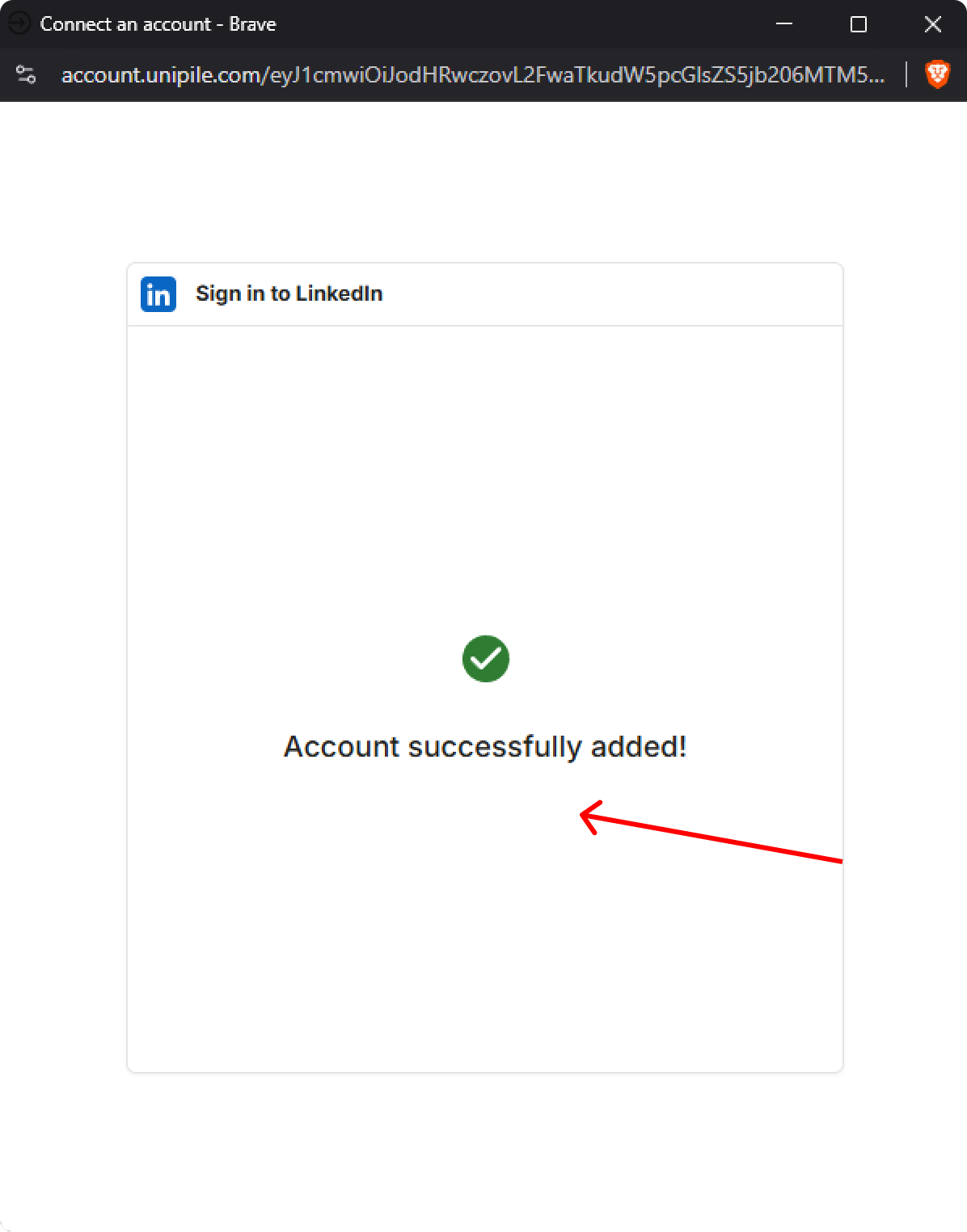
Once you see this confirmation, you can safely close the pop-up window.
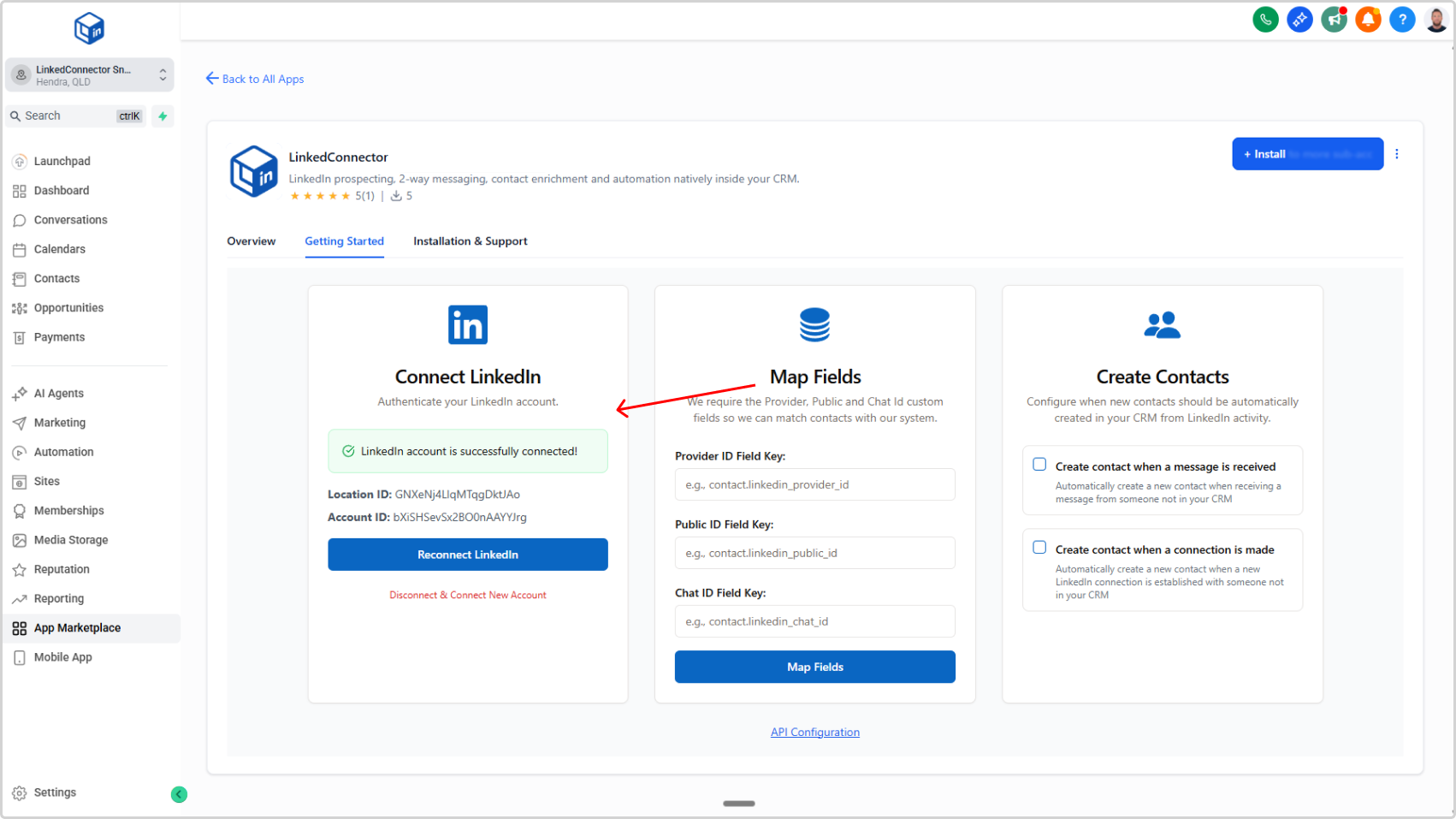
You should see "LinkedIn account is successfully connected".