Configure InMail Workflows (Paid Accounts)
Set up your InMail message content and credit balance retrieval before launching the LinkedIn Outreach InMail workflow.
You're configuring how the LinkedIn Outreach workflow sends InMail messages to contacts who haven't accepted your connection request. This involves setting your InMail subject and body, selecting the correct API type, and ensuring your credit balance retrieval is mapped to the right account type.
Open the InMail Outreach Workflow
- In your subaccount, left sidebar → Automations
- Click LinkedIn folder
- Open 3: Outreach folder
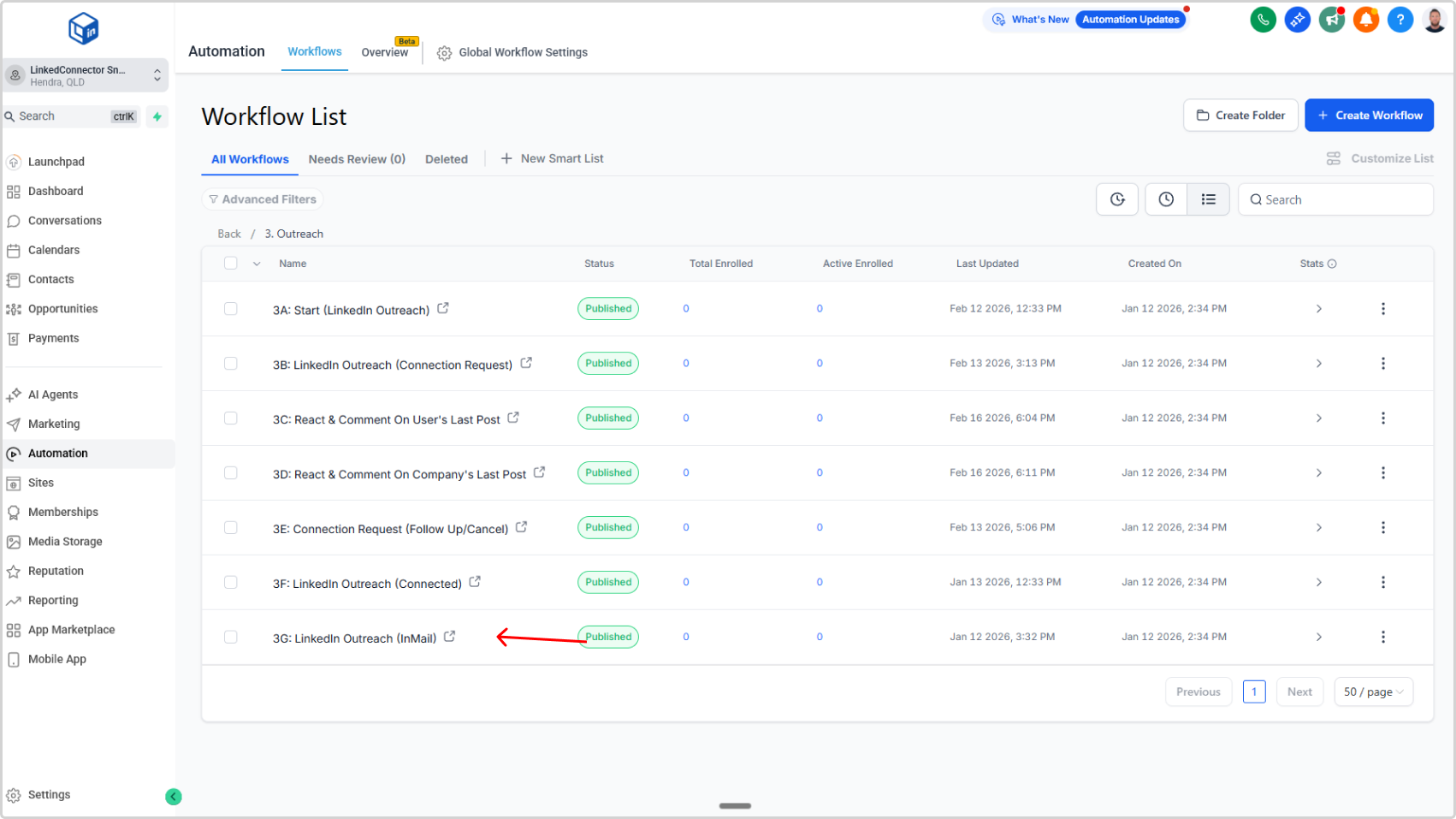
- Select 3G: LinkedIn Outreach (InMail)
Configure Your InMail Message
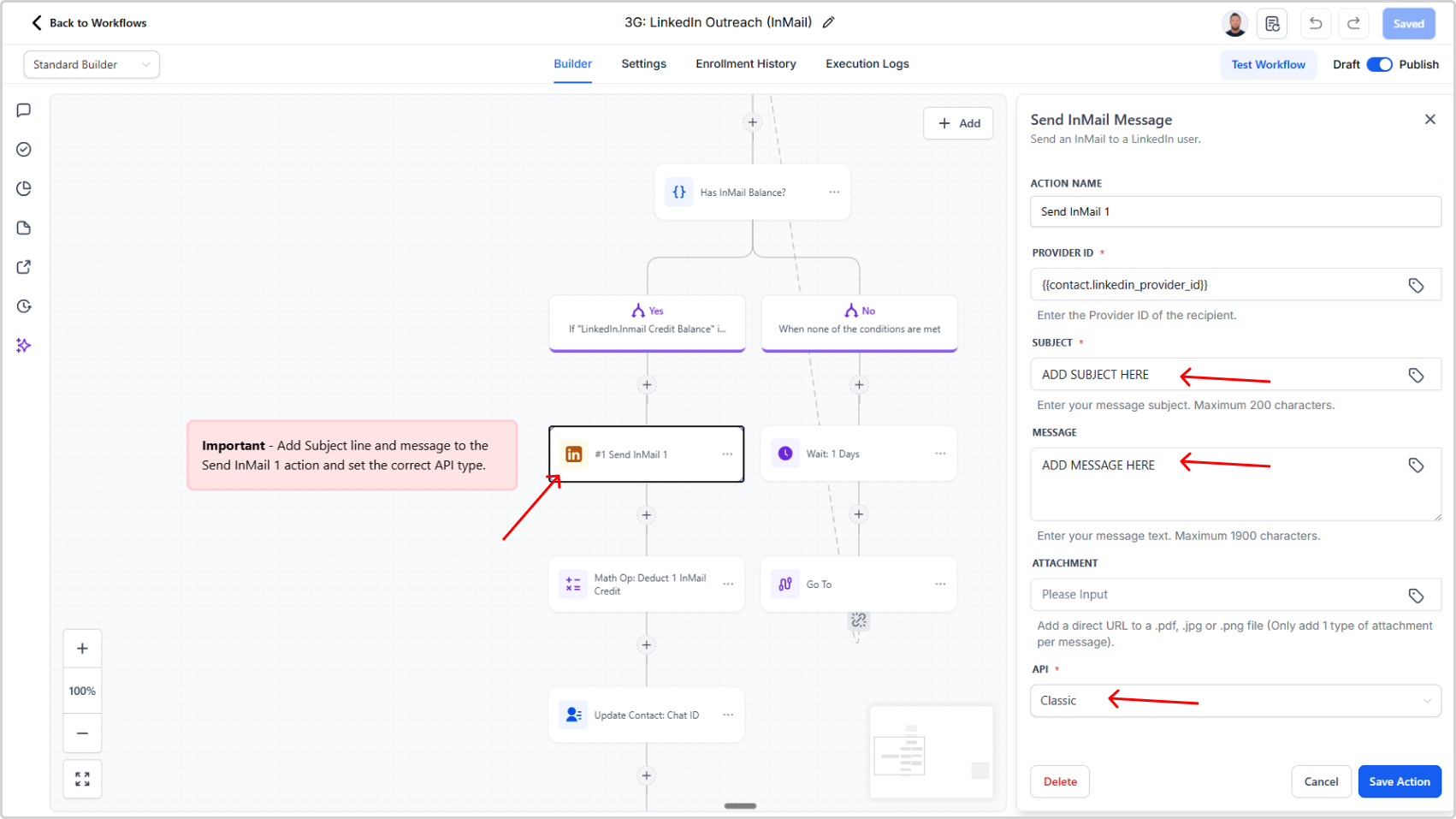
- Locate the action "Send InMail 1" and click it to open configuration
- Enter your InMail subject line
- Enter your InMail message body
- Select the appropriate API type:
- Premium → Classic API
- Sales Navigator → Sales Navigator API
- Recruiter → Recruiter API
⚠️
Selecting the wrong API type will cause InMail delivery to fail. Match this to your LinkedIn account type exactly.
Configure InMail Credit Balance Retrieval
- In your subaccount, left sidebar → Automations
- Click LinkedIn folder
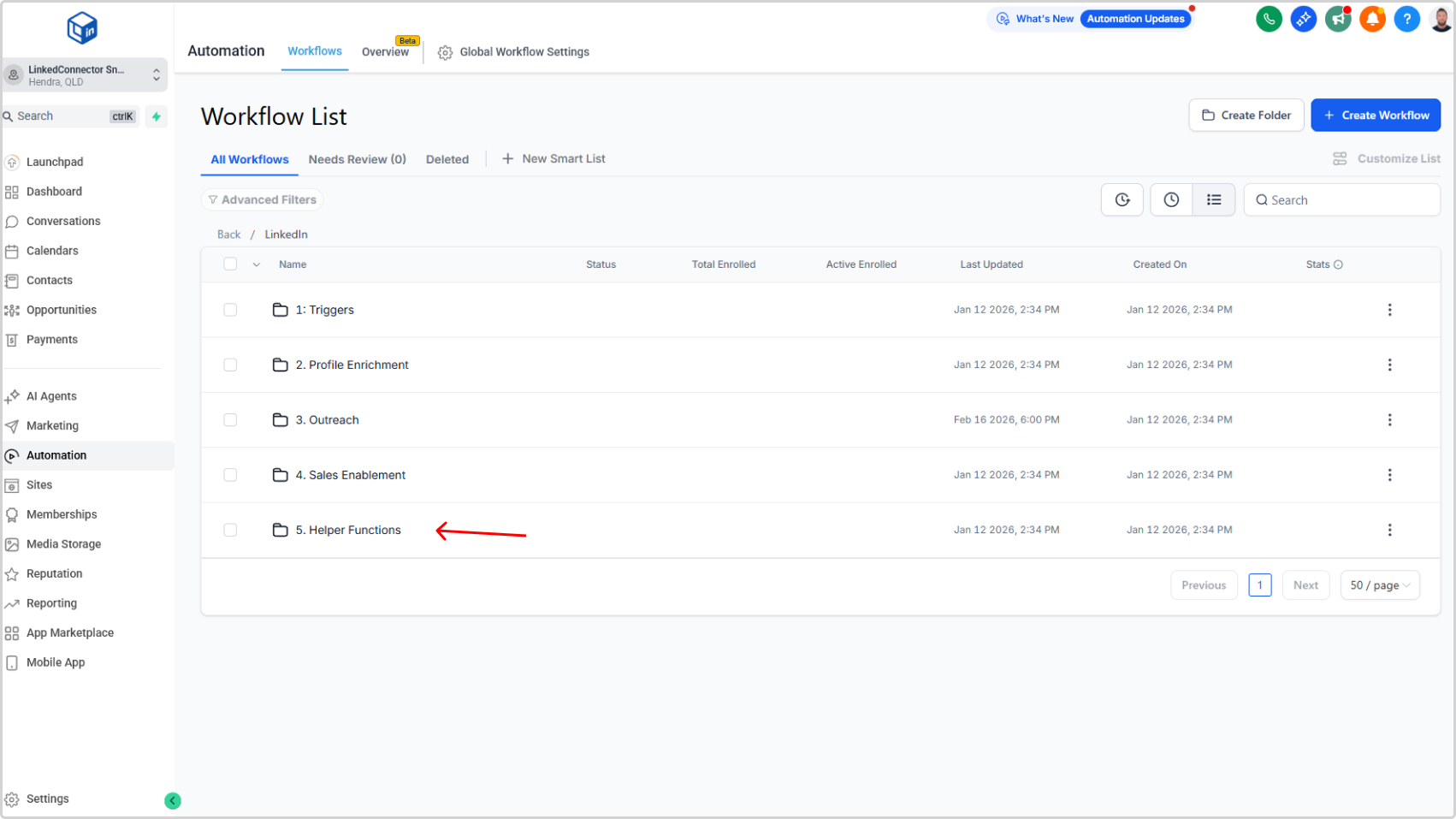
- Open 5: Helper Functions folder
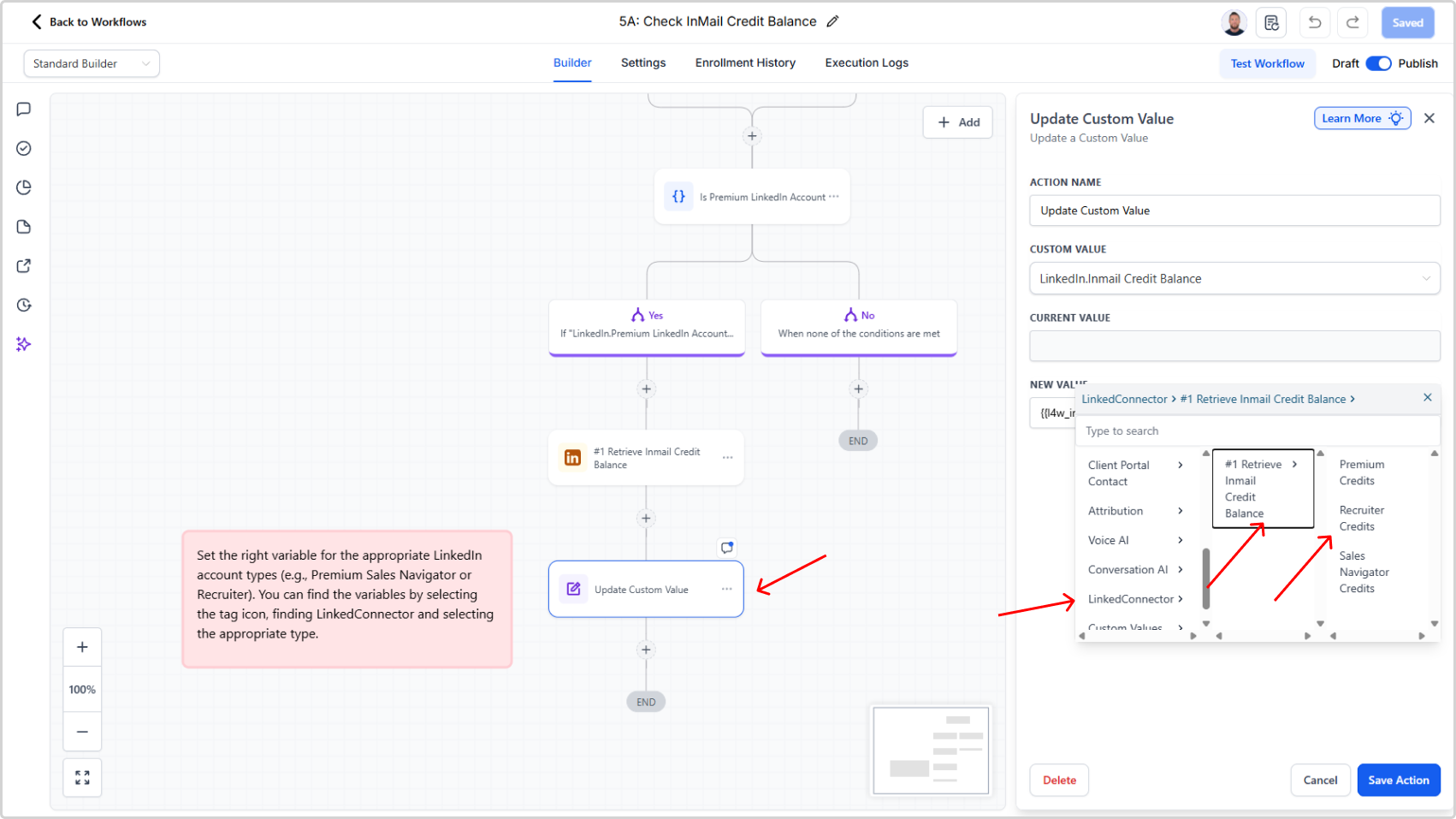
- Select 5A: Check InMail Credit Balance
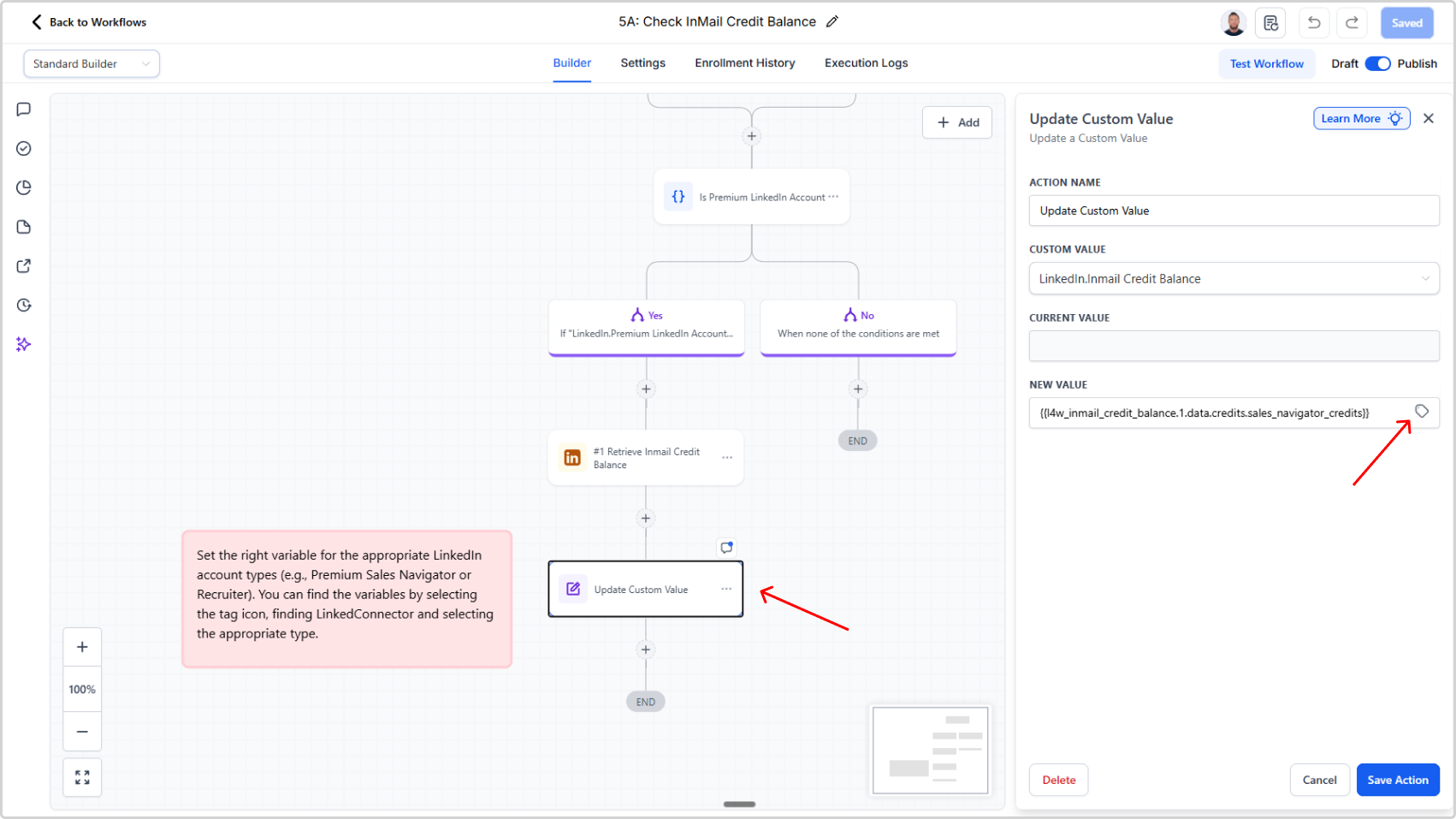
- Locate the Update Custom Value action and click it
- Tap the tag icon and scroll to LinkedConnector → Retrieve InMail Credit Balance
- Select your account type (Premium, Sales Navigator, or Recruiter)
⚠️
Selecting the wrong account type here will cause credit balance retrieval to fail. This must match your actual LinkedIn account type.