Configure Follow-Up Messages
Customize your follow-up messages and timing in the LinkedIn Outreach workflow.
Now that your core outreach workflow is set up, it's time to configure the follow-up messages. This is where you decide what you say in your follow-ups once an invitation has been accepted and how long to wait between messages.
Navigate to Your Follow-Up Workflow
- Go to Automations (left sidebar)
- Click the LinkedIn folder
- Click the 3: Outreach folder
- Find and open workflow 3F: LinkedIn Outreach (Connected)
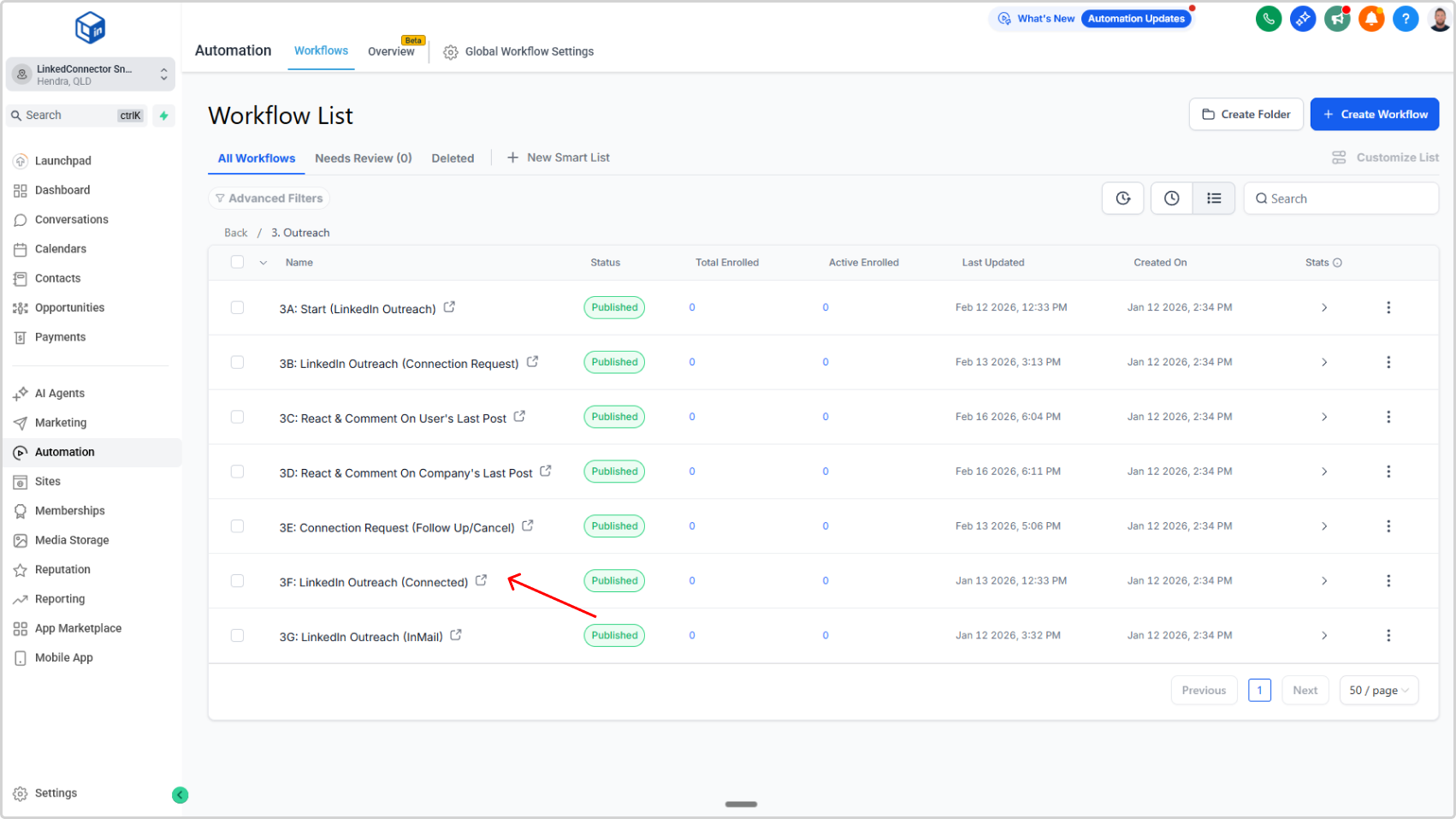
You're now inside the workflow builder. You'll see your workflow steps laid out vertically depending on your view.
Update Your Follow-Up Messages
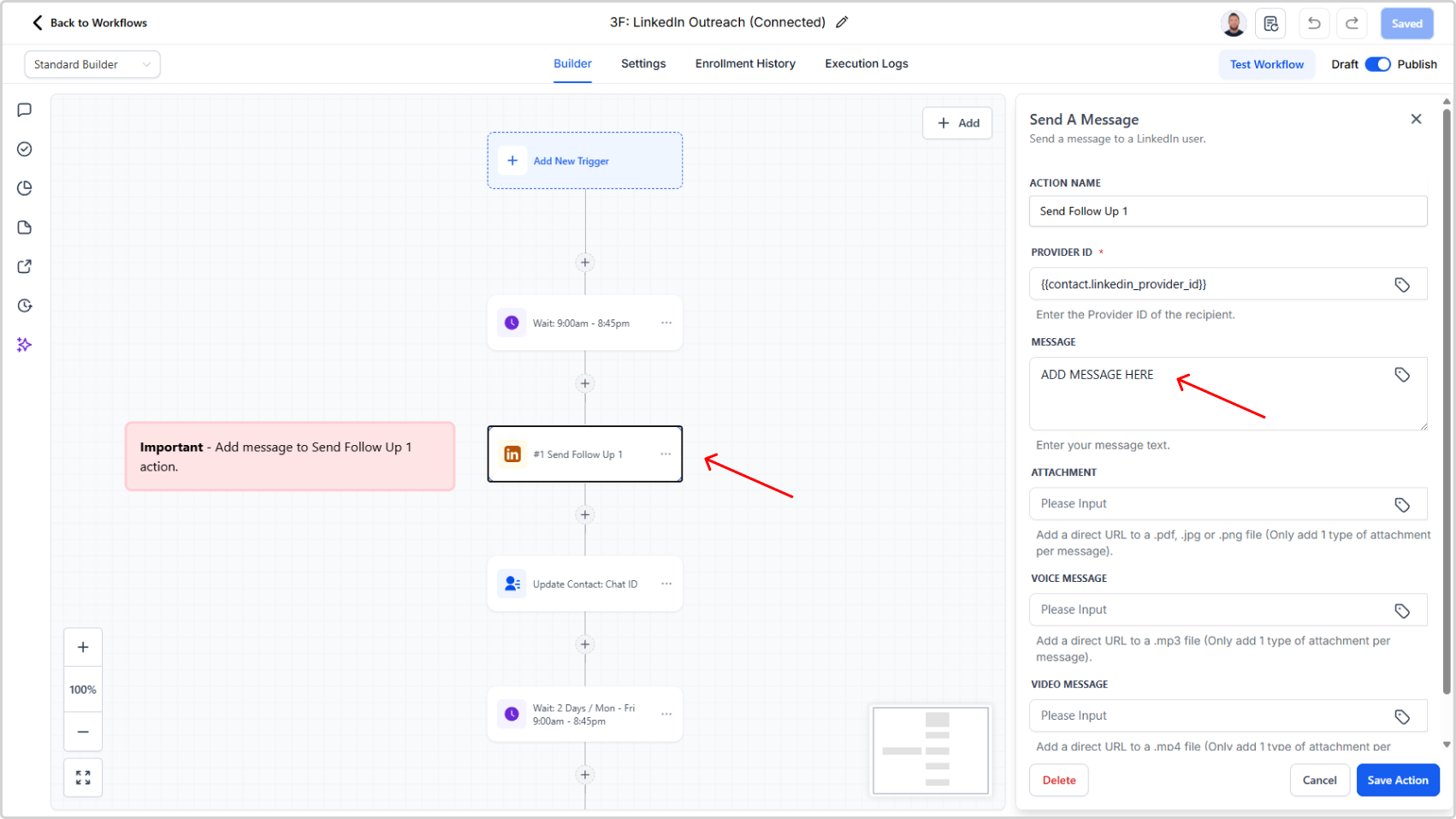
Look for the workflow steps labeled Send Message 1, Send Message 2, etc. These are your follow-up messages.
For each follow-up message:
- Click on the Send Follow Up [X] step
- In the right panel, you'll see a text field with the current message
- Replace the "ADD MESSAGE HERE" with your own follow-up text
Tips for follow-up messages:
- Keep them short (2-3 sentences)
- Reference something from your previous message
- Make it conversational, not salesy