Configure Connection Request Workflow
Set up your connection request message and timing rules before launching the LinkedIn Outreach workflow.
You're configuring how the LinkedIn Outreach workflow sends initial connection requests. This involves setting the post engagement threshold, optionally adding a personalized message (Premium users), and disabling timeouts if needed.
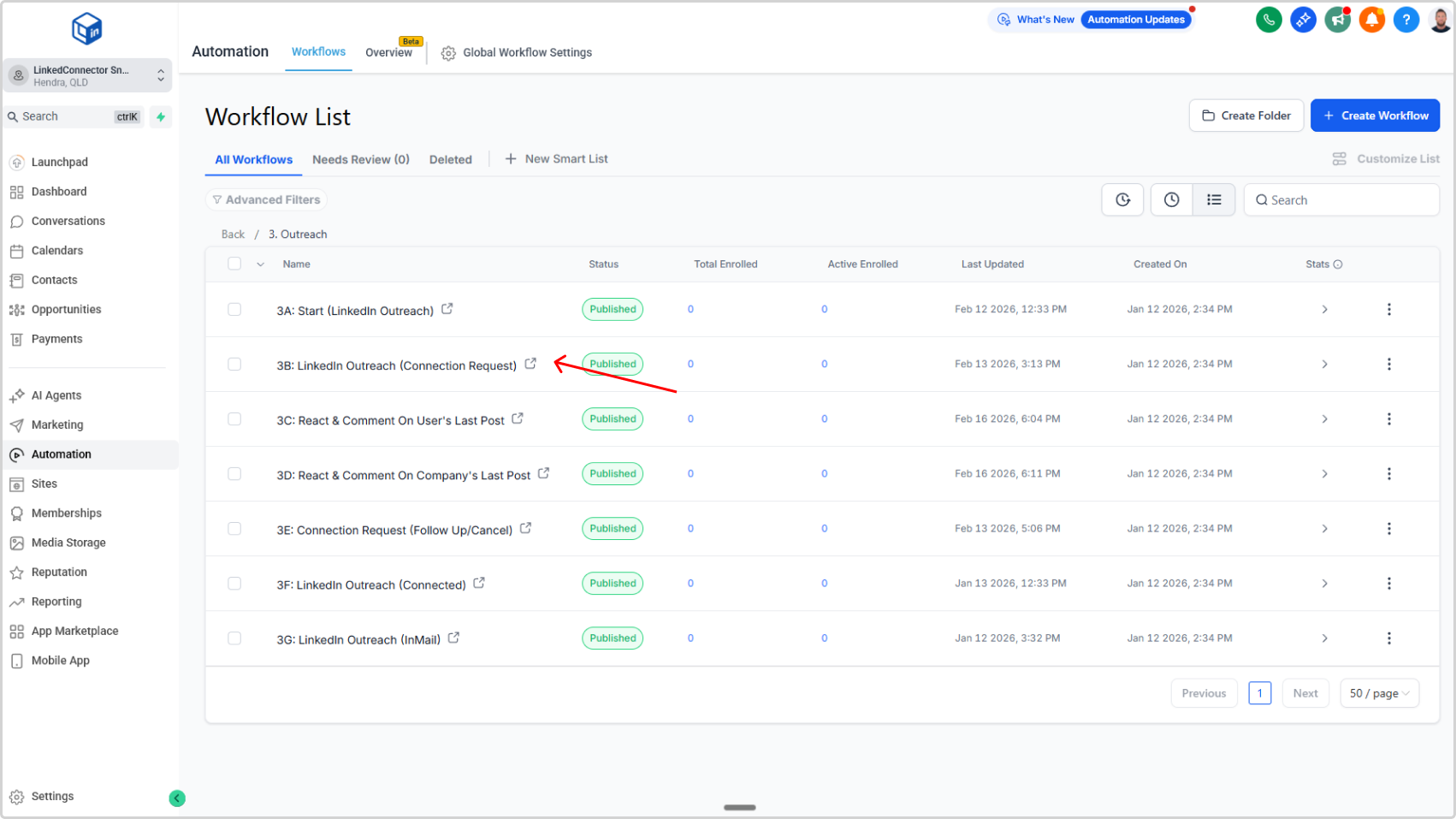
Open the Workflow
- In your subaccount, left sidebar → Automations
- Click LinkedIn folder
- Open 3: Outreach folder
- Select 3B: LinkedIn Outreach (Connection Request)
Set Post Engagement Threshold
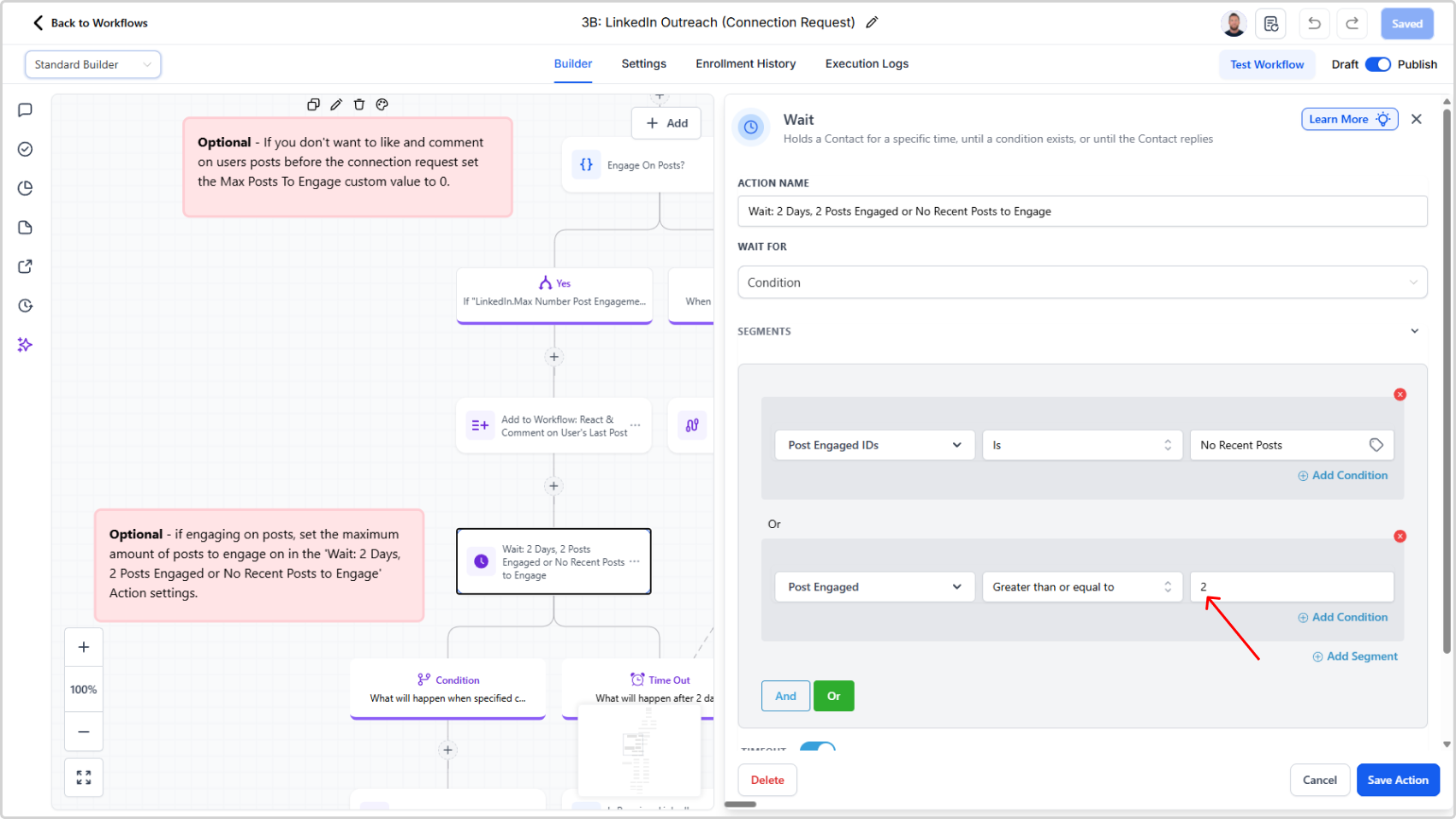
- Locate the wait action "Wait 2 Days to Post Engaged or No Recent Posts to Engage"
- Click it to open configuration
- Set the condition threshold to match your Maximum Posts to Engage custom value (default: 2)
This tells the workflow when to advance the contact based on post engagement activity.
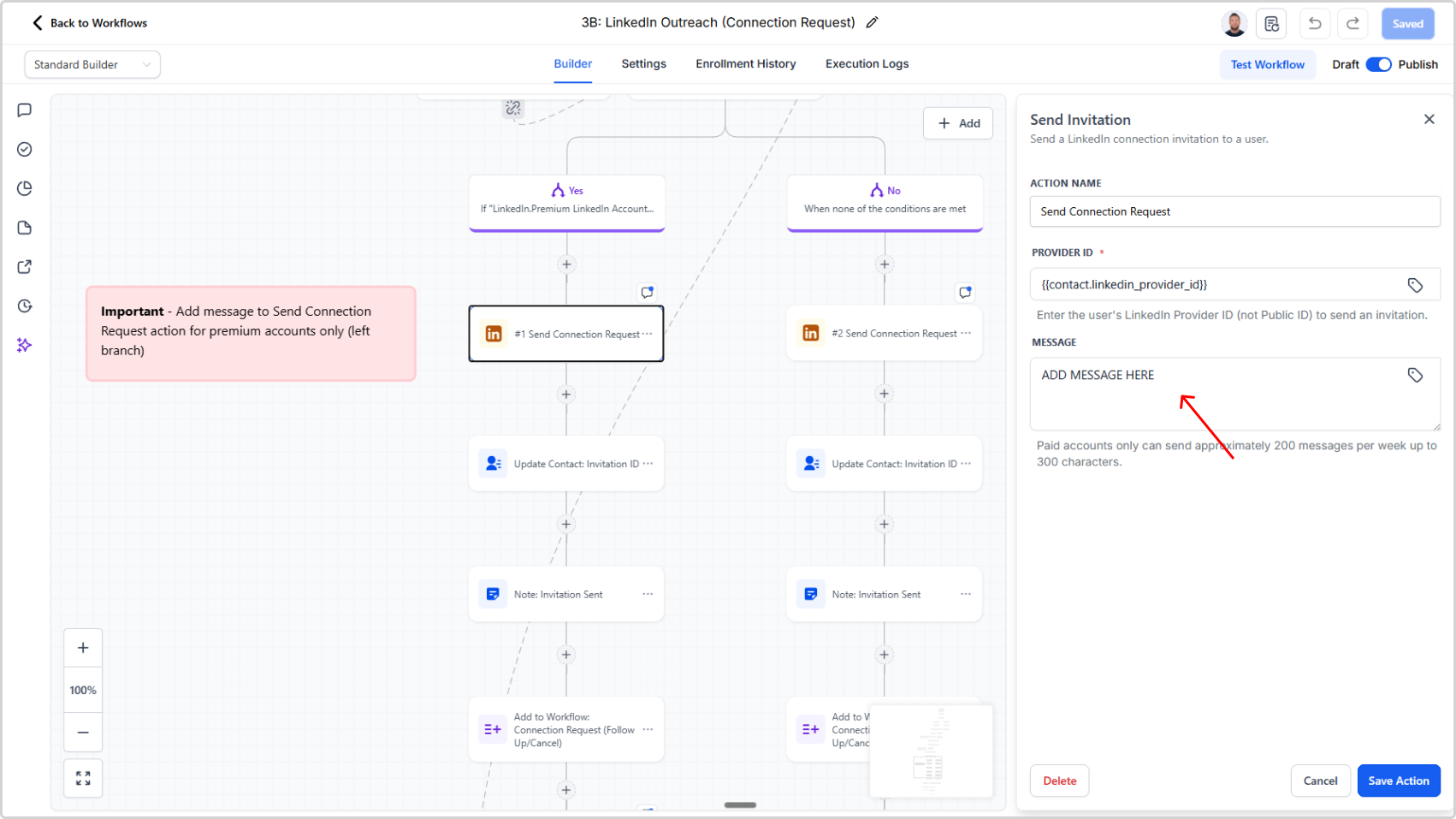
Configure Connection Message (Premium Users Only)
- Set your connection request message
- Keep under 300 characters (hard limit — account for variable expansion like {{firstName}} being replace by the actual value)
The contact will receive this message along with your connection request.
💡
Skip this if you have a standard LinkedIn account and have the "Premium LinkedIn Account" custom value set to "false".
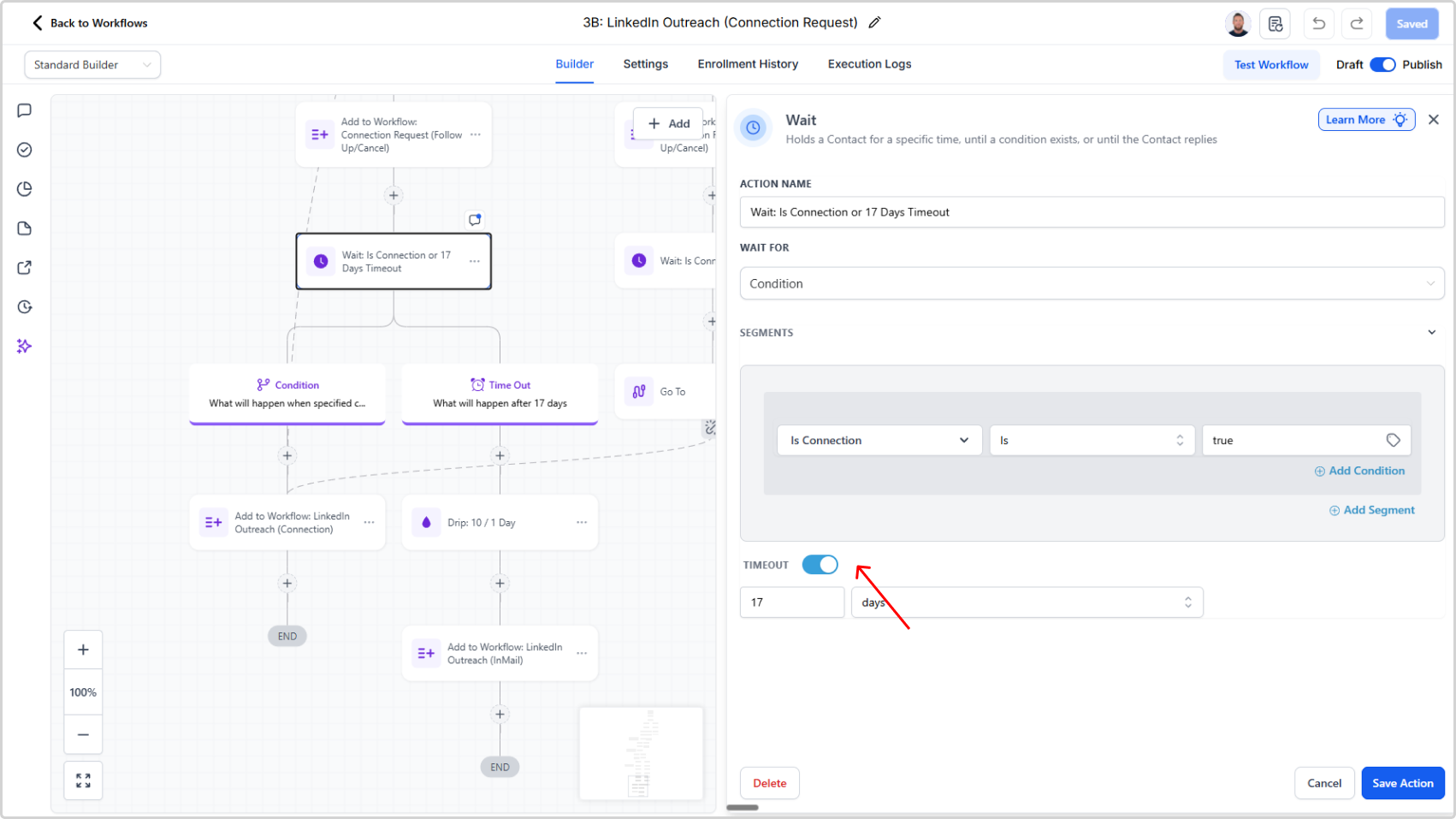
Disable Timeout (Optional For -Premium Users Not Wanting To Send InMail)
- Locate the wait action "Wait for Connection or 17 Days Timeout"
- Click it and disable the timeout
💡
Only if you have "Premium LinkedIn Account" custom value set to "true" and you are not using InMail.