Automatically Create Contacts from LinkedIn Messages and Connections
Automatically add new LinkedIn connections and message senders to your CRM with simple checkboxes—no manual entry needed.
When someone connects with you on LinkedIn or sends you a message, you can automatically create them as a contact in your CRM. This saves you from manually adding them later. You can enable one, both, or neither of these options depending on your workflow.
Navigate to the Create Contacts Card
- In your sub-account, open the left sidebar menu
- Click App Marketplace
- Click Installed Apps
- Click LinkedConnector
- Click the Getting Started tab at the top
You'll see several connection cards on this page. Locate the Create Contacts card.
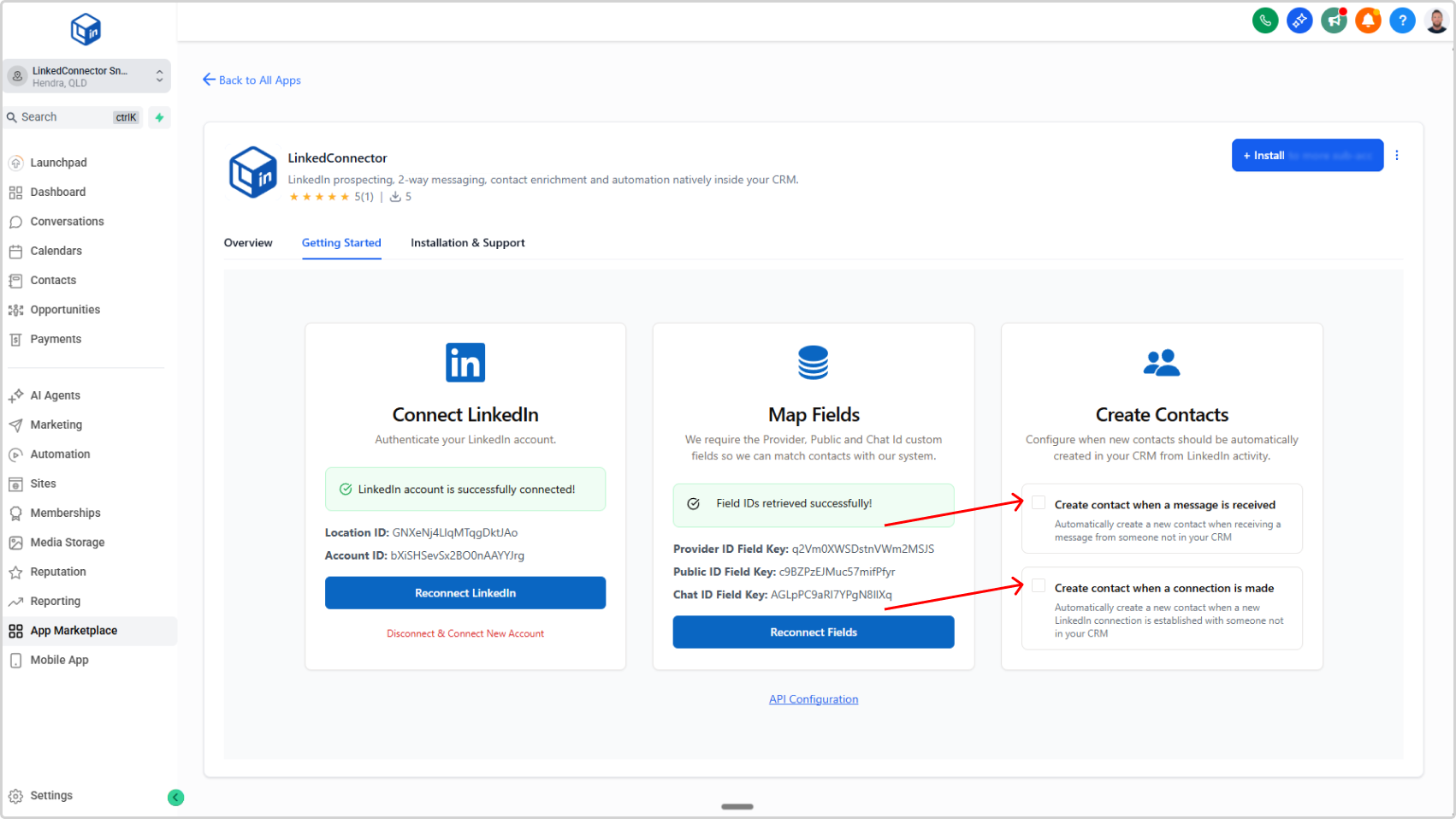
Enable Automatic Contact Creation
The Create Contacts card has two checkboxes:
Checkbox 1: Create Contact When a Message is Received
- When enabled, any new message you receive on LinkedIn automatically creates a contact in your CRM
- Click the checkbox to enable
Checkbox 2: Create Contact When a Connection is Made
- When enabled, any new LinkedIn connection automatically creates a contact in your CRM
- Click the checkbox to enable
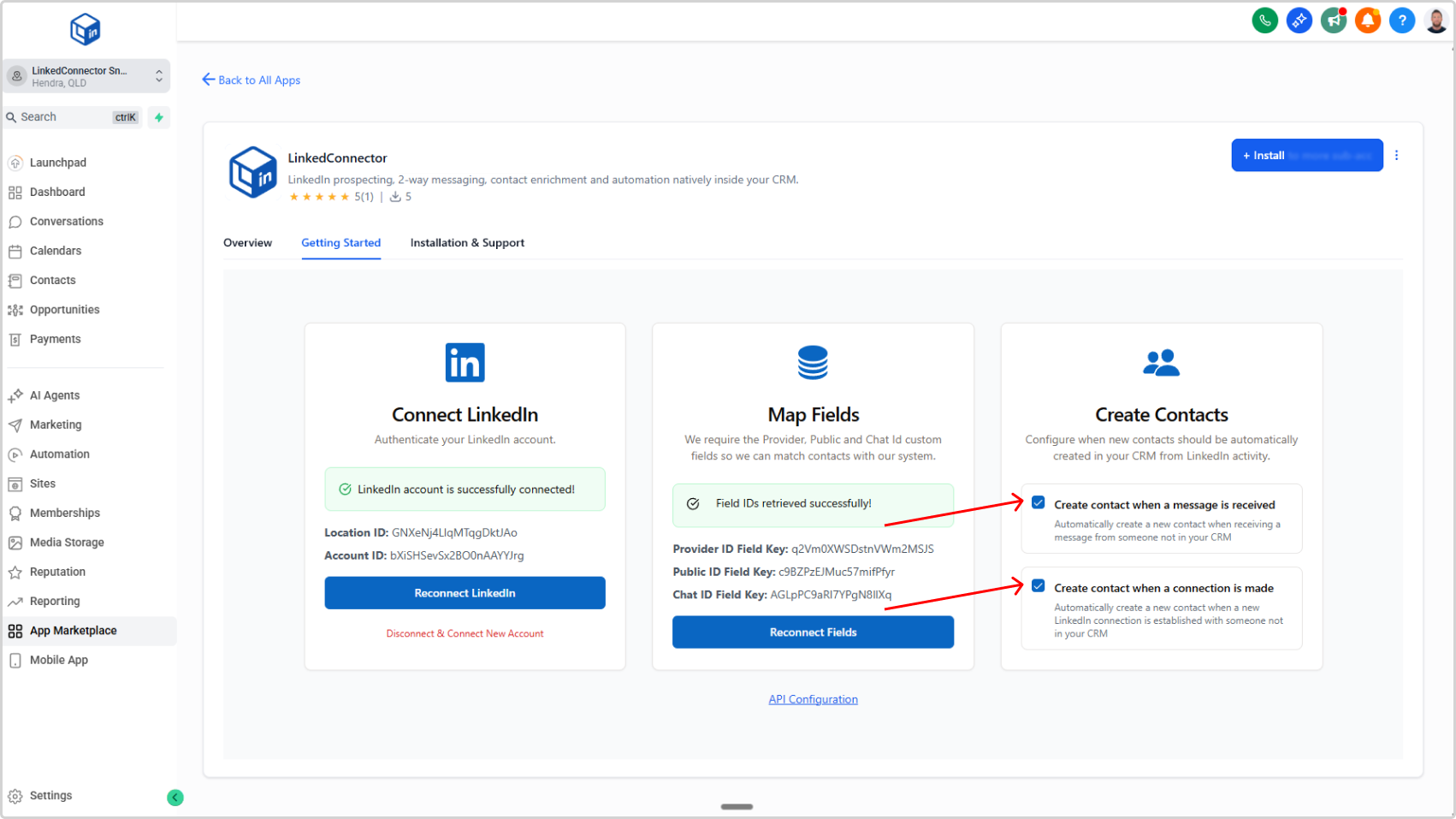
Both are optional. Enable one, both, or neither based on your workflow needs.
What Gets Created
When a contact is auto-created, your CRM receives:
- Name — Contact's LinkedIn name
- Provider ID — LinkedIn's unique identifier for the profile
- Public ID — LinkedIn's public profile ID
💡
If the contact already exists in your CRM, it's skipped