Add Custom Menu Links
Add LinkedConnector menu links to your agency and sub-account dashboards so users can access the LinkedIn dashboard and importer without leaving the CRM.
Custom menu links bring LinkedConnector directly into your CRM. Your agency team gets a centralized dashboard to manage LinkedIn accounts, logs, and sub-accounts. Your sub-accounts get a dedicated tool for searching and importing LinkedIn leads.
What You're Setting Up
You'll add two menu links:
- Agency link — Gives agency staff access to the LinkedIn dashboard (manage accounts, view logs, control sub-accounts)
- Sub-account link — Gives each location access to the LinkedIn lead importer (search, filter, and import prospects)
Create the Agency Menu Link
This link brings the LinkedIn dashboard into your agency menu.
- Go to your agency dashboard
- Click Settings (bottom left)
- Click Custom Menu Links
- Click Add Custom Menu Link
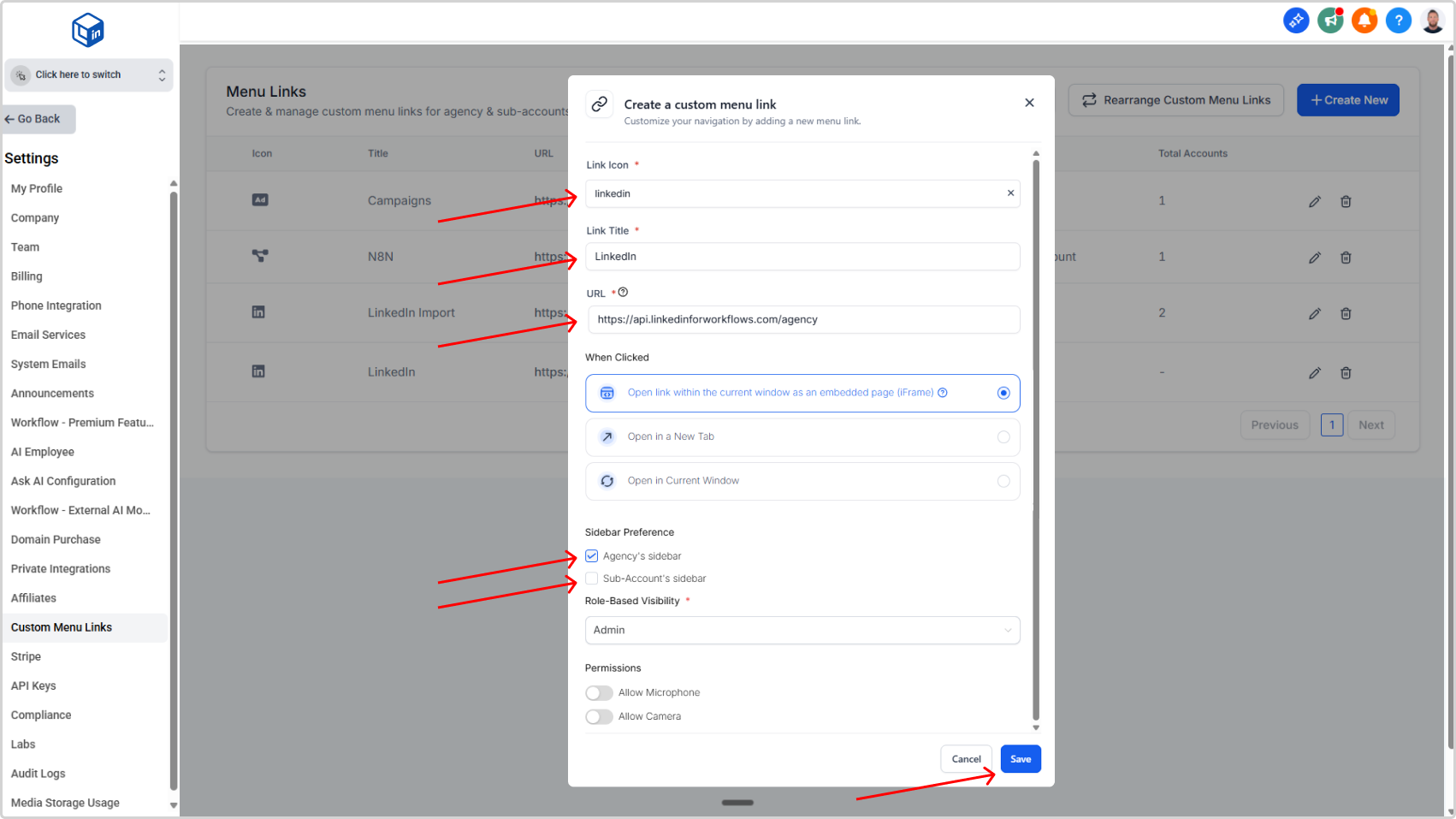
- Select an appropriate icon.
- In the Link Title field, enter:
LinkedIn - In the URL field, paste:
https://api.linkedinforworkflows.com/agency - Leave the When Clicked to open link within the current window as an embedded iframe.
- For the Sidebar preference check Agency's Sidebar.
- For the Role-Based Visibility select your preferred roles.
- Leave the rest as is and click Save.
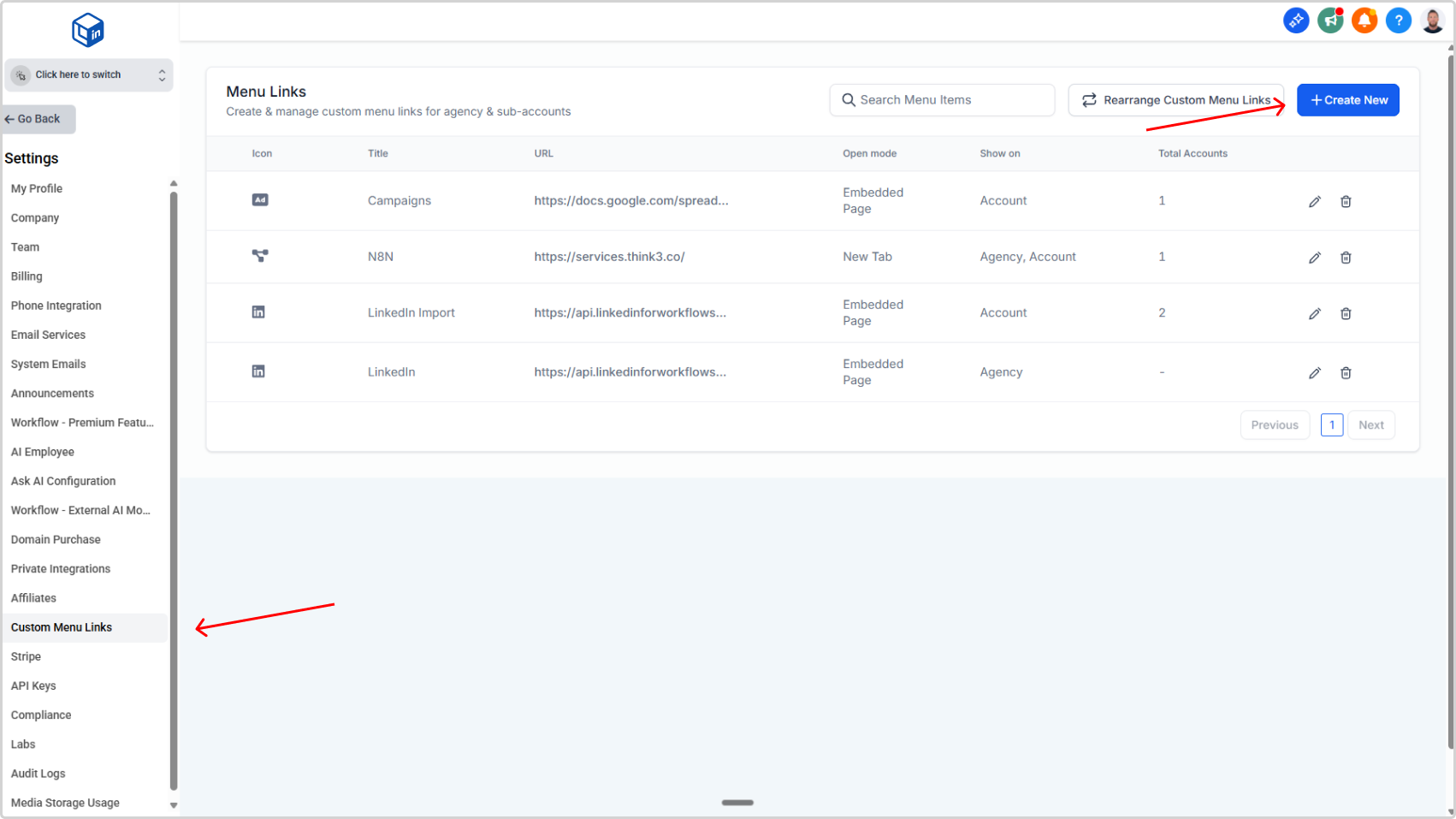
Result: You'll see the new link added to the list. The link now appears in your agency menu.
Create the Sub-Account Menu Link
This link gives each location access to the LinkedIn lead importer.
- Go to your agency dashboard
- Click Settings (bottom left)
- Click Custom Menu Links
- Click Add Custom Menu Link
- Select an appropriate icon.
- In the Link Title field, enter:
LinkedIn Import - In the URL field, paste:
https://api.linkedinforworkflows.com/import?locationid={{location.id}} - Leave the When Clicked to open link within the current window as an embedded iframe.
- For the Sidebar preference check Sub-Account's Sidebar.
- For the Role-Based Visibility select your preferred roles.
- Leave the rest as is and click Save.
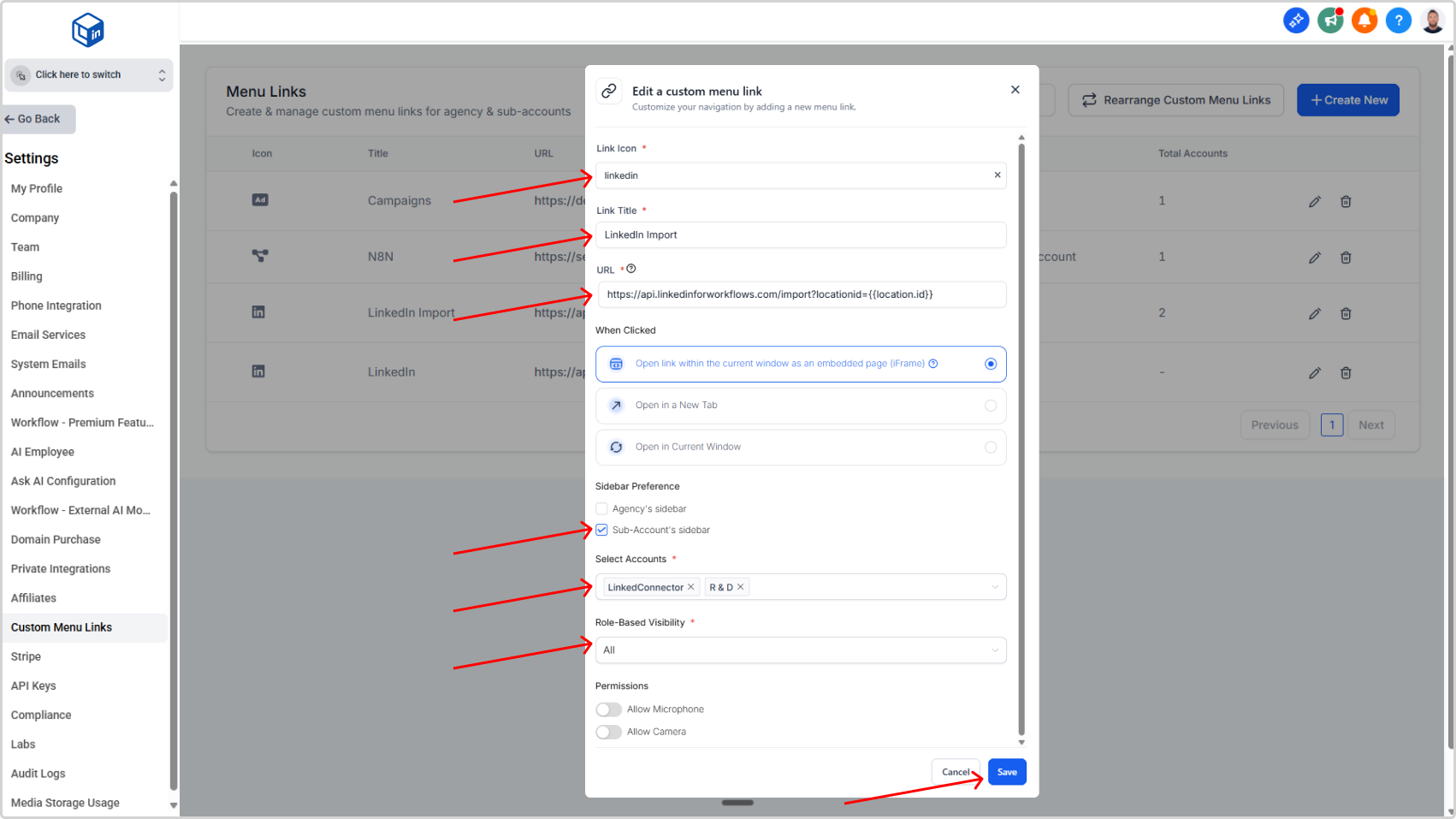
Result: Each selected sub-account now has the "LinkedIn Leads Import" link in their menu.
What Happens If You Select the Wrong Sub-Account
If you add the link to a sub-account that doesn't have the LinkedConnector app installed, they'll see a message saying "App is not installed" when they click the link. No harm done — you can update the link selection anytime.
If you add the link to a sub-account that doesn't have the LinkedConnector app installed, they'll see a message saying "App is not installed" when they click the link. No harm done — you can update the link selection anytime.