Activate Workflow Triggers
Register your LinkedIn workflow triggers with the LinkedConnector backend so your CRM can receive LinkedIn events.
After you've installed the LinkedConnector snapshot, you may need to activate two workflow triggers (New Connection and New Message). This one-time setup registers the triggers with the backend and enables LinkedIn events to flow into your CRM.
What You're Doing
Right now, the triggers exist in your workflows but aren't registered with the LinkedConnector backend yet. Without this step, your CRM won't receive LinkedIn notifications. You'll fix this by removing and re-adding each trigger, which registers them with our backend.
Activate the New Connection Trigger (1A)
Navigate to the trigger:
- In your sub-account, go to Automations (left sidebar)
- Click LinkedIn folder
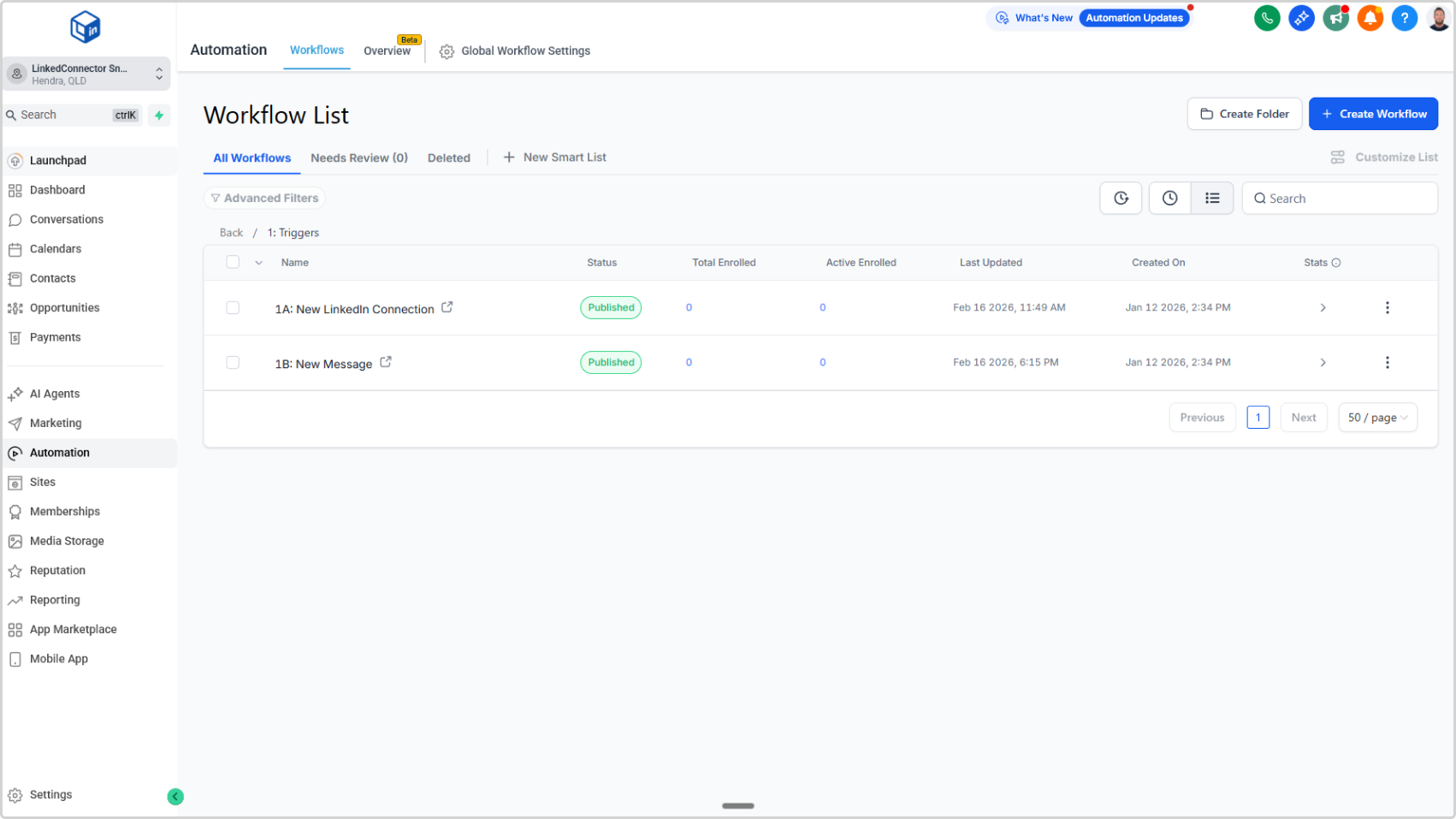
- Click 1: Triggers section
Re-register the trigger:
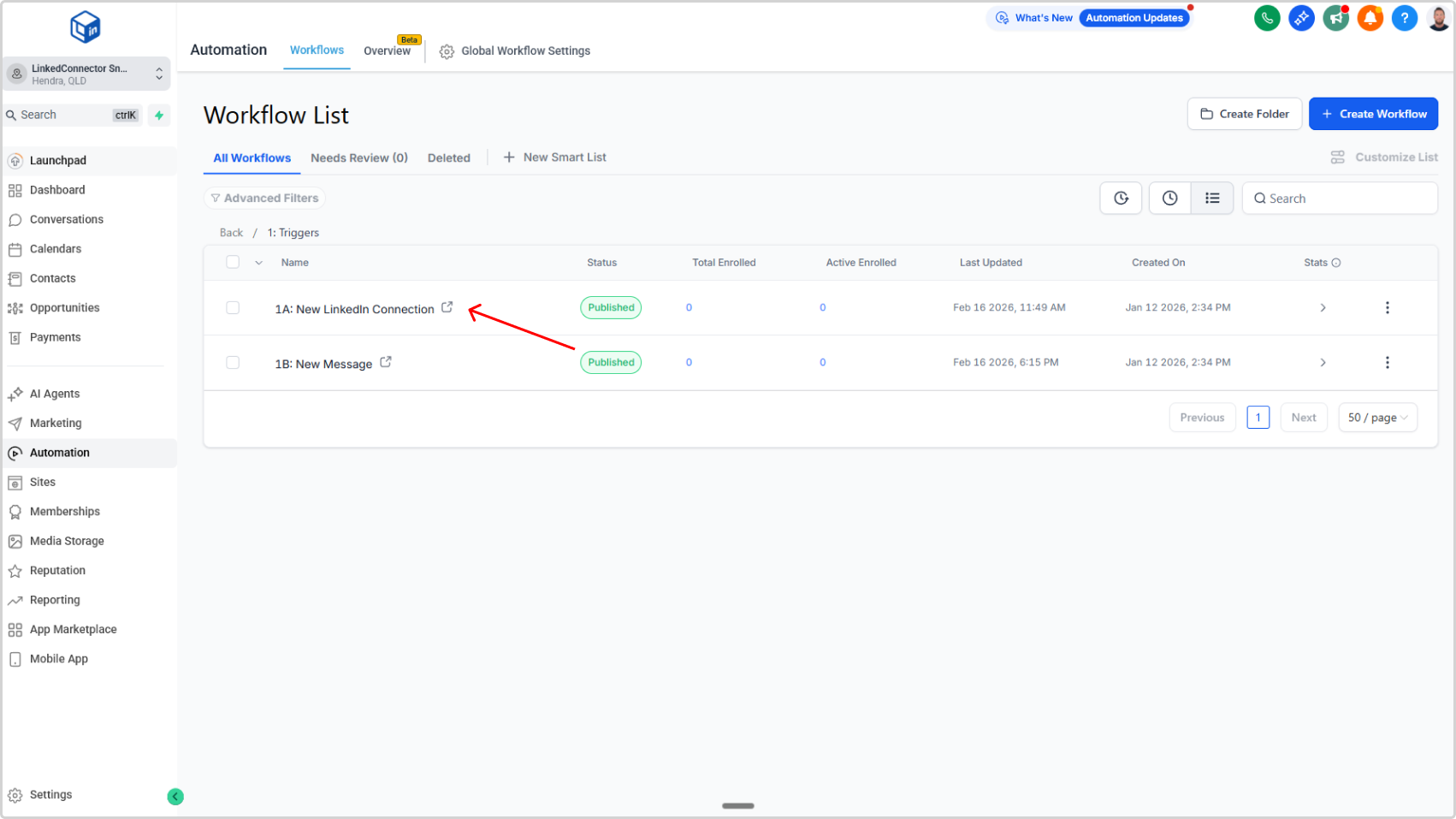
- Select the workflow called 1A: New LinkedIn Connection
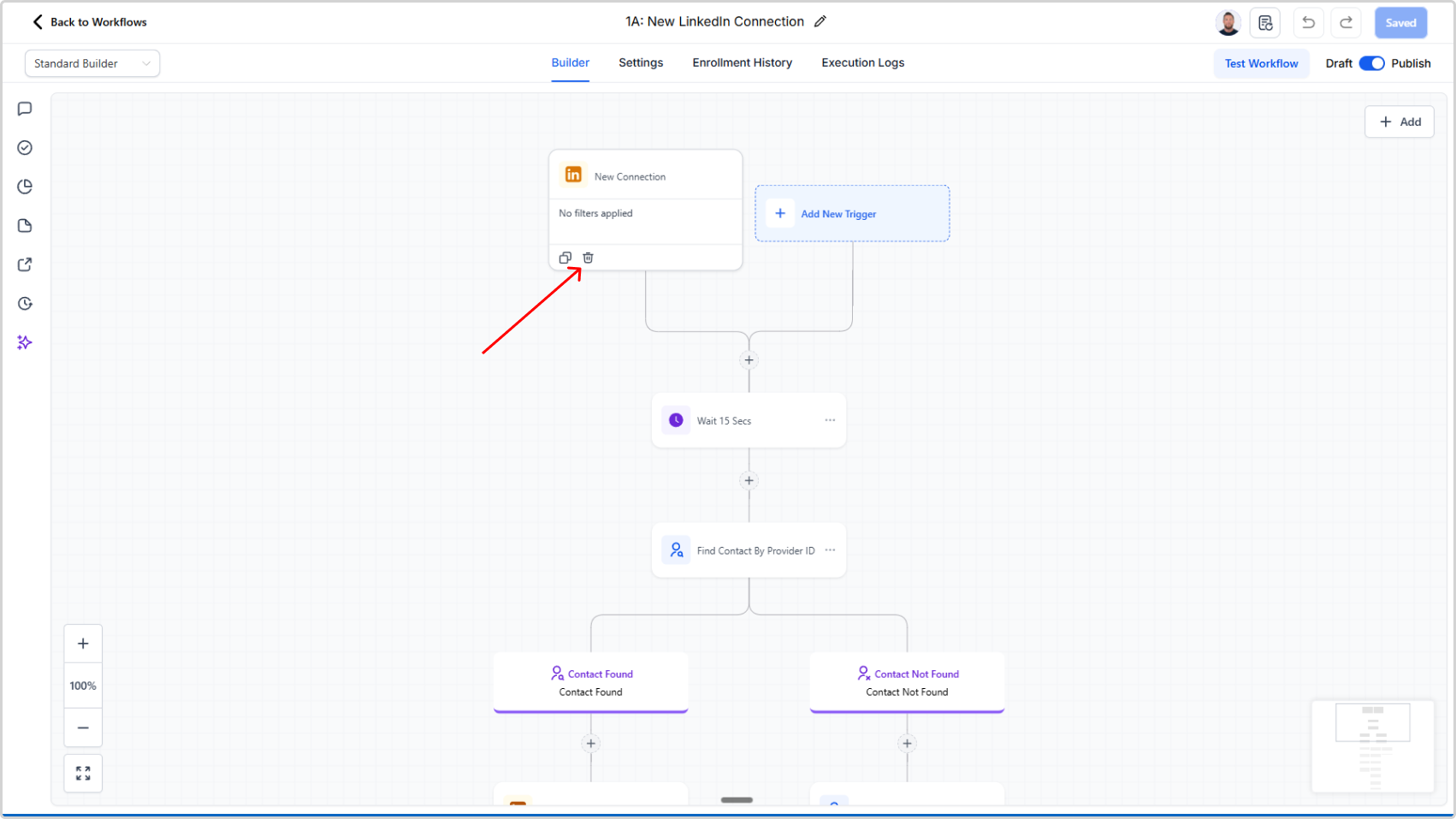
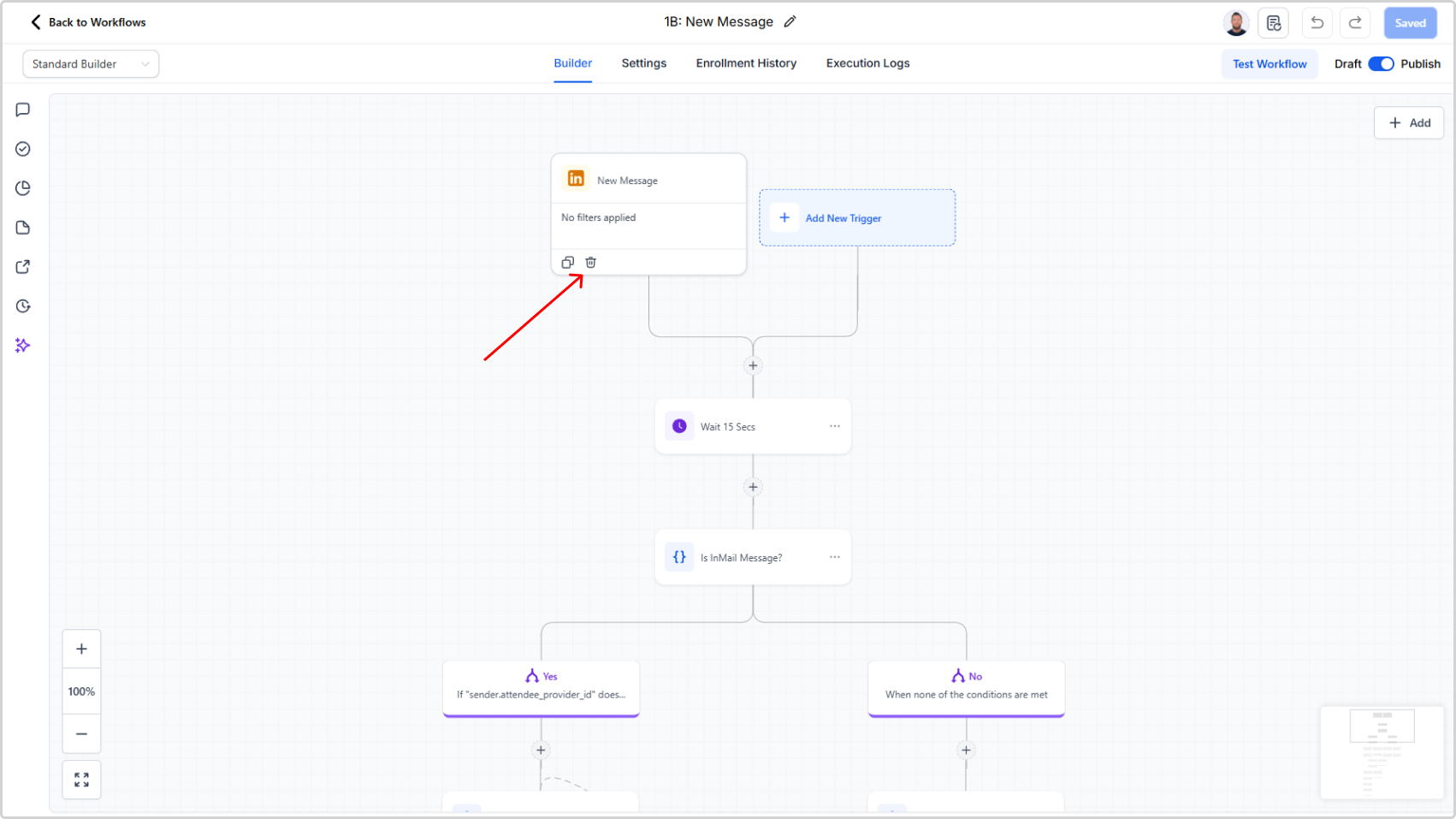
- Delete the trigger — Click the delete (trash) icon on the trigger
- Save the workflow — Click the Save button at the top/bottom of the page
- Refresh the page — Press F5 or use your browser's refresh button
- Re-add the trigger — Click the +Add Trigger button and select New LinkedIn Connection
- Save the workflow again — Click Save
Activate the New Message Trigger (1B)
Navigate to the trigger:
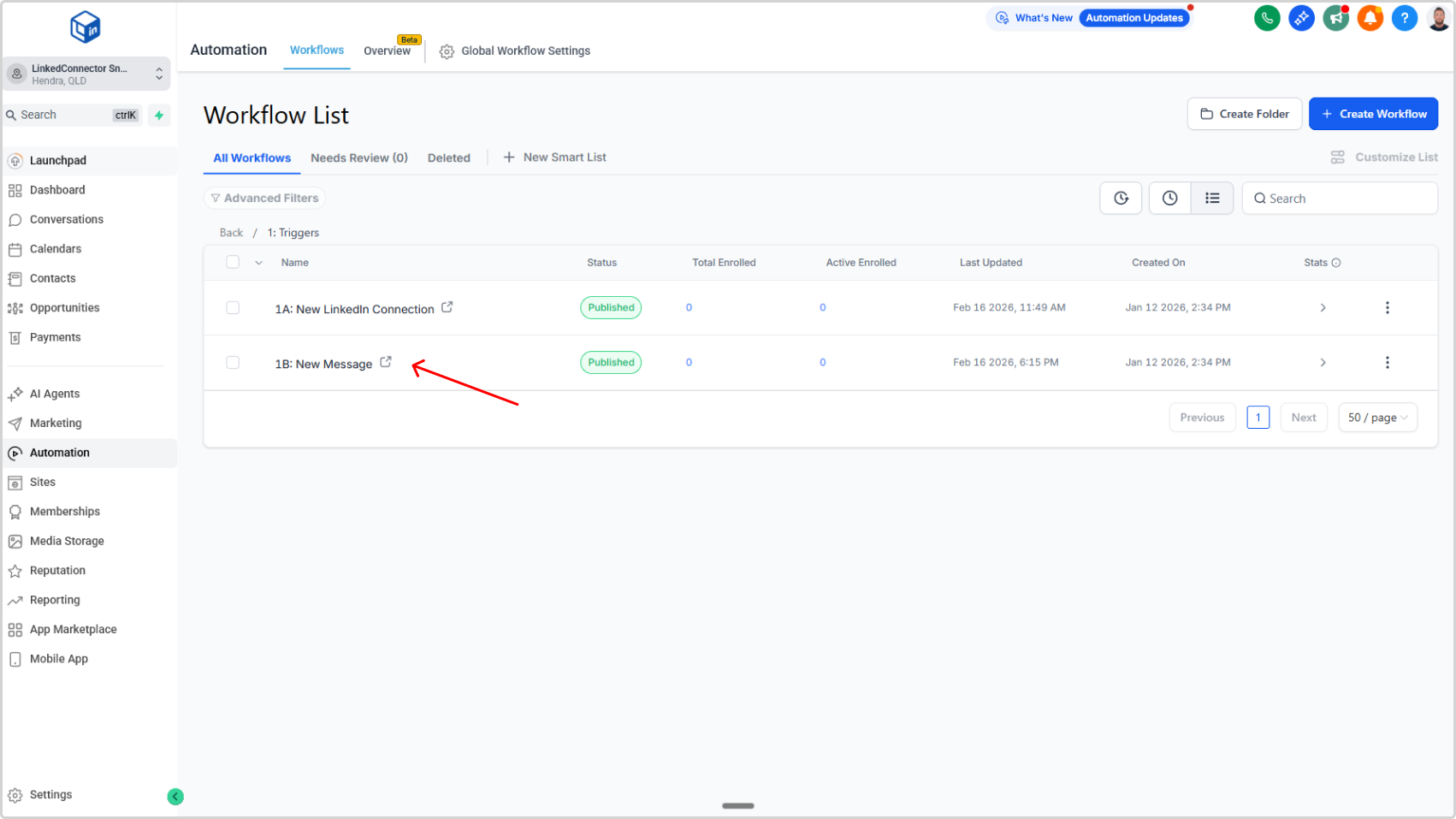
- In Automations → LinkedIn → 1: Triggers, select the workflow called 1B: New Message
Re-register the trigger:
- Delete the trigger — Click the delete (trash) icon
- Save the workflow — Click Save
- Refresh the page — Press F5
- Re-add the trigger — Click +Add Trigger and select New Message
- Save the workflow — Click Save
Verify Both Triggers Are Active
To confirm both triggers are properly registered, you'll check the agency admin panel:
- Go to your Agency Admin dashboard
- Locate the LinkedIn custom menu link (the one you created during setup)
- Find your sub-account in the list
- Click the eye icon to the right of it
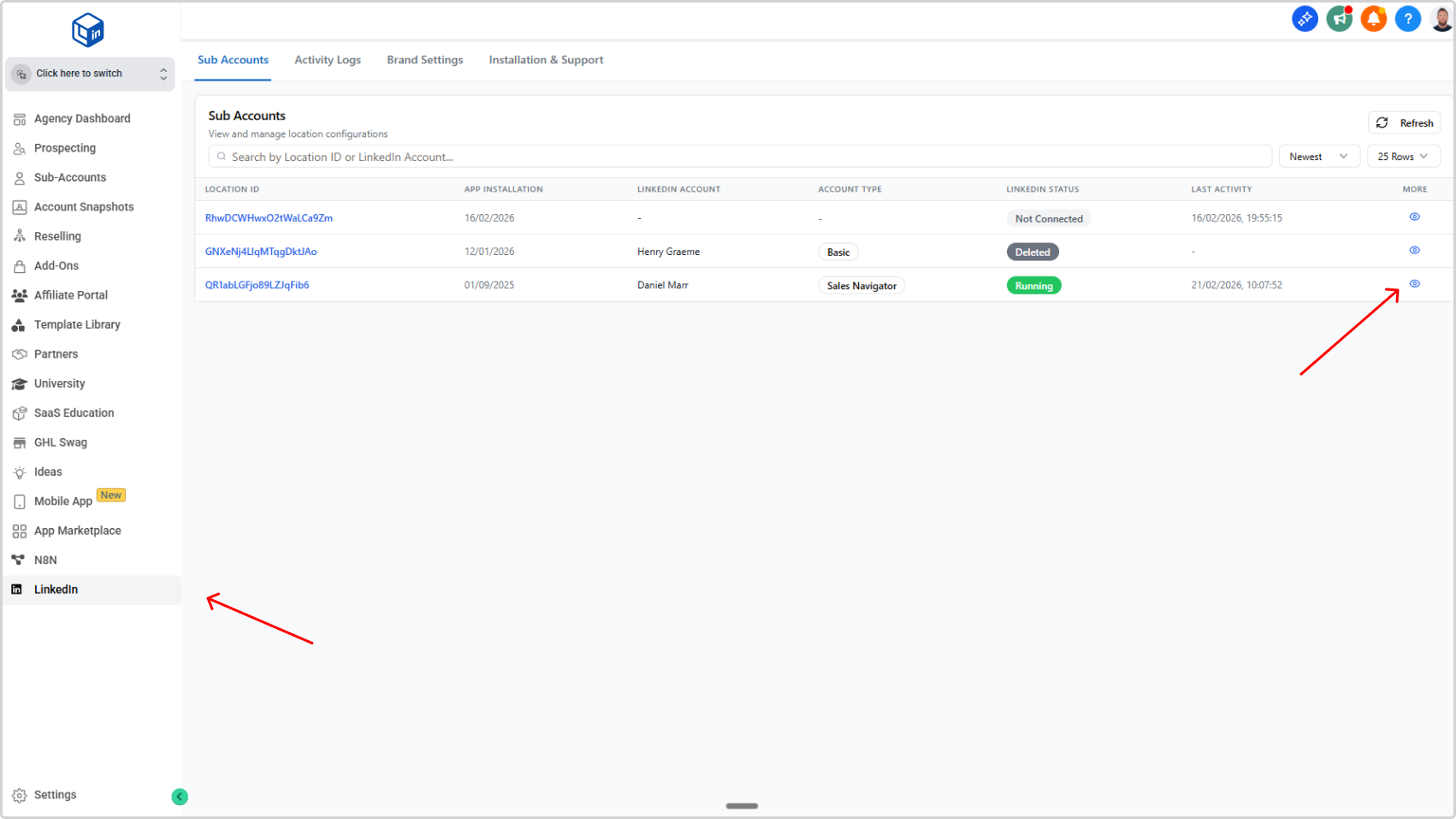
A modal will open showing your sub-account details.
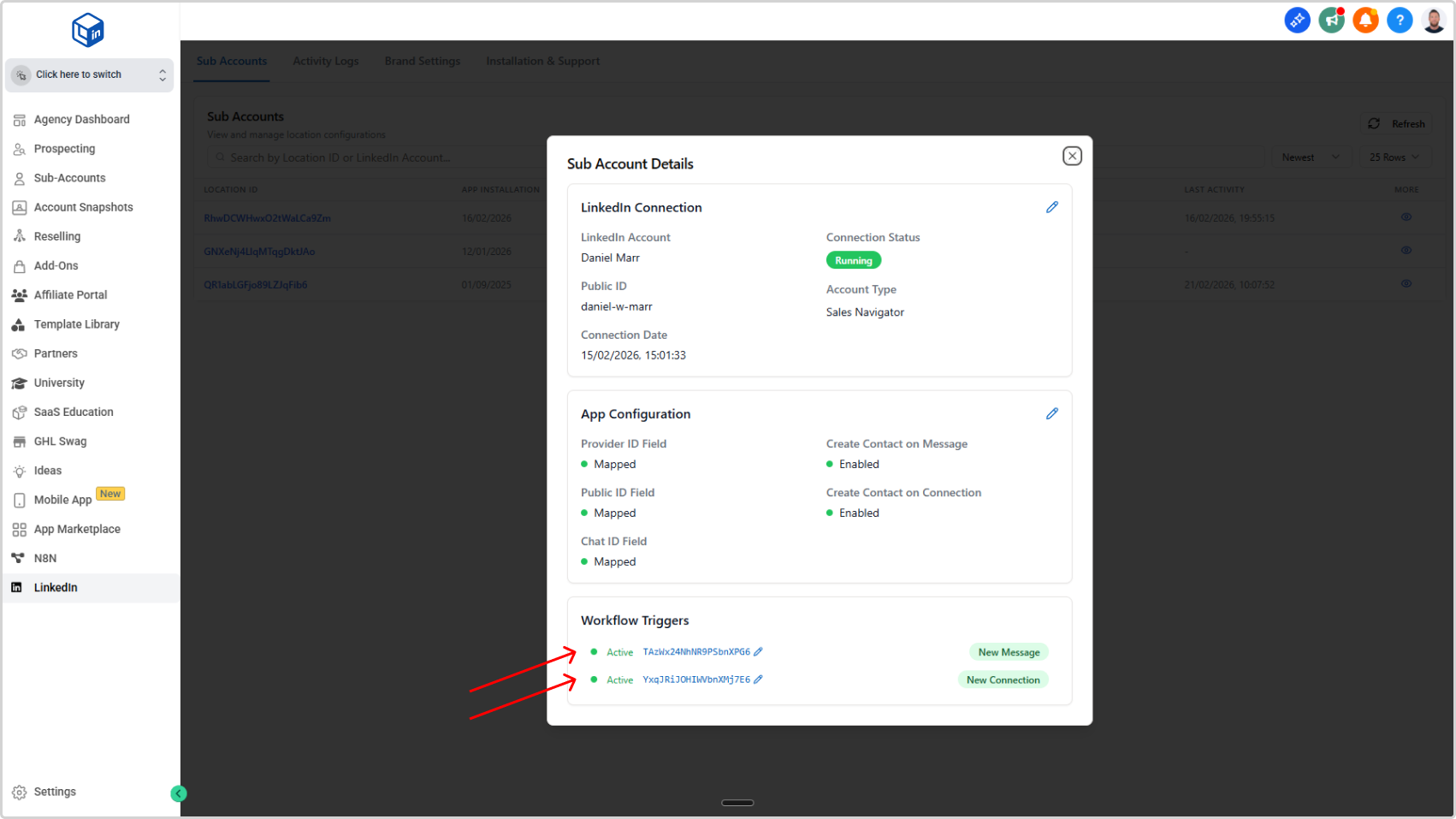
- Scroll down to the Workflow Triggers section
- Look for these two triggers:
- 1A: New Connection
- 1B: New Message
Each should have a green status icon with the label "Active".
Both triggers active? You're done. LinkedIn events will now flow into your CRM.