Map Public ID Field Key for Contact Matching
Map your Public ID field for better contact lookups and duplicate detection. When messages arrive or you import contacts, the system can now match them more accurately by checking the Public ID in your CRM—reducing duplicates and improving data accuracy.
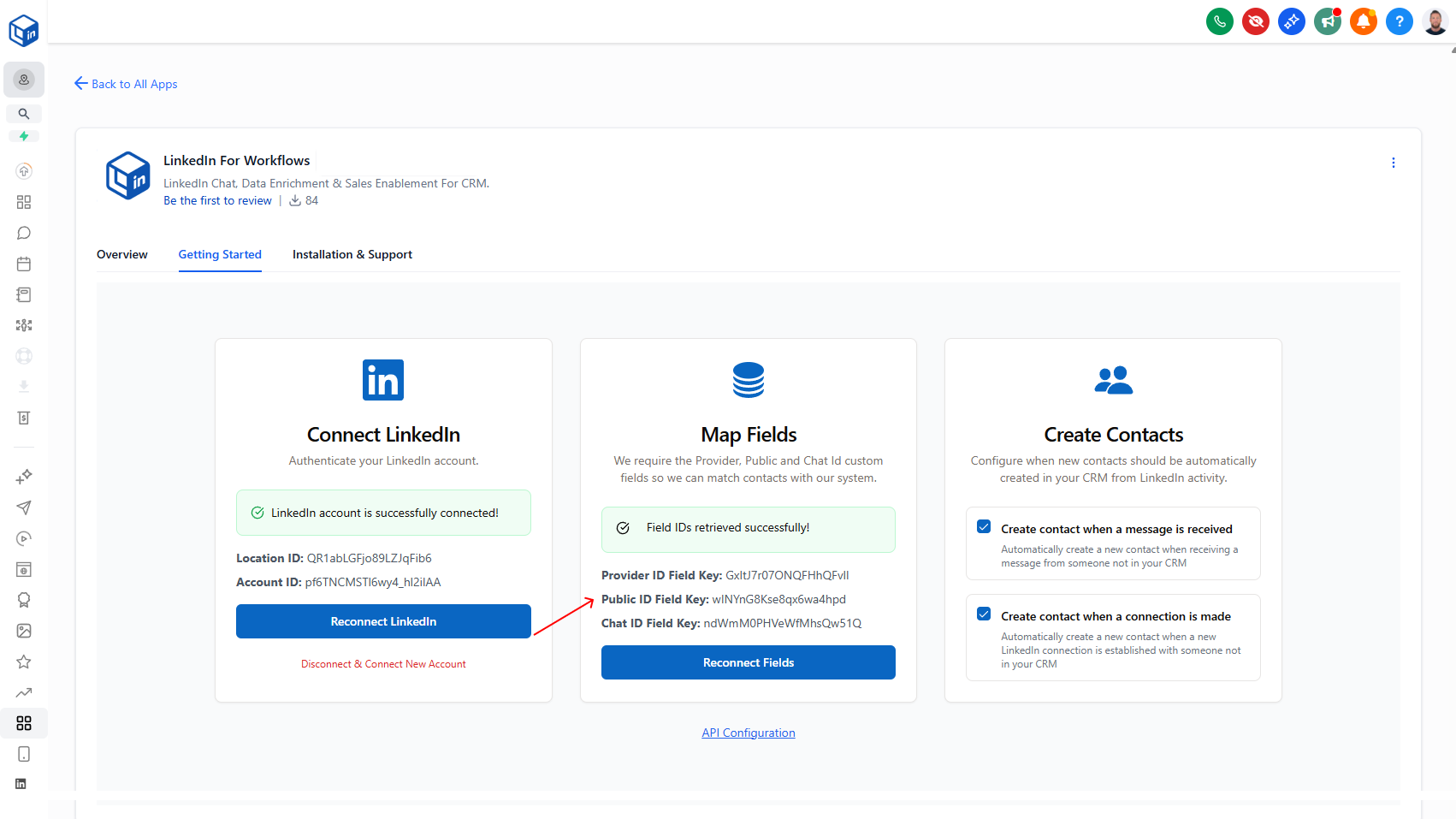
Improve contact lookups and duplicate detection by mapping your Public ID field.
What it does:
You can now map your CRM's Public ID field to LinkedConnector. This gives the system a second way to find and match contacts in your CRM—especially useful when messages come in or you're importing new leads. The system uses this alongside Provider ID, so you get more accurate lookups and better duplicate detection.
- Map your Public ID field key from your CRM custom fields
- Improves accuracy when messages arrive (contacts matched faster)
- Prevents duplicate imports when you're bringing in new leads
- Works across all LinkedIn account types (Classic, Sales Navigator, Recruiter)
Why it matters:
If you switch LinkedIn account types or import contacts across different APIs, the Public ID provides redundancy. Instead of relying on a single identifier that might change, you've got a backup way to match contacts, which means fewer duplicates and more reliable workflows.
How to use it:
Go to Sidebar → Marketplace → Installed Apps → LinkedConnector → Getting Started tab → Map Fields card → Click "Reconnect Fields" and include your Public ID field key.
Note: This is optional but highly recommended, especially if you're importing contacts regularly.