Improved Activity Logs Format
Troubleshoot workflow issues faster. Activity Logs now display request and response data clearly, so you can see exactly what payload was sent and received—including missing fields or identifiers.
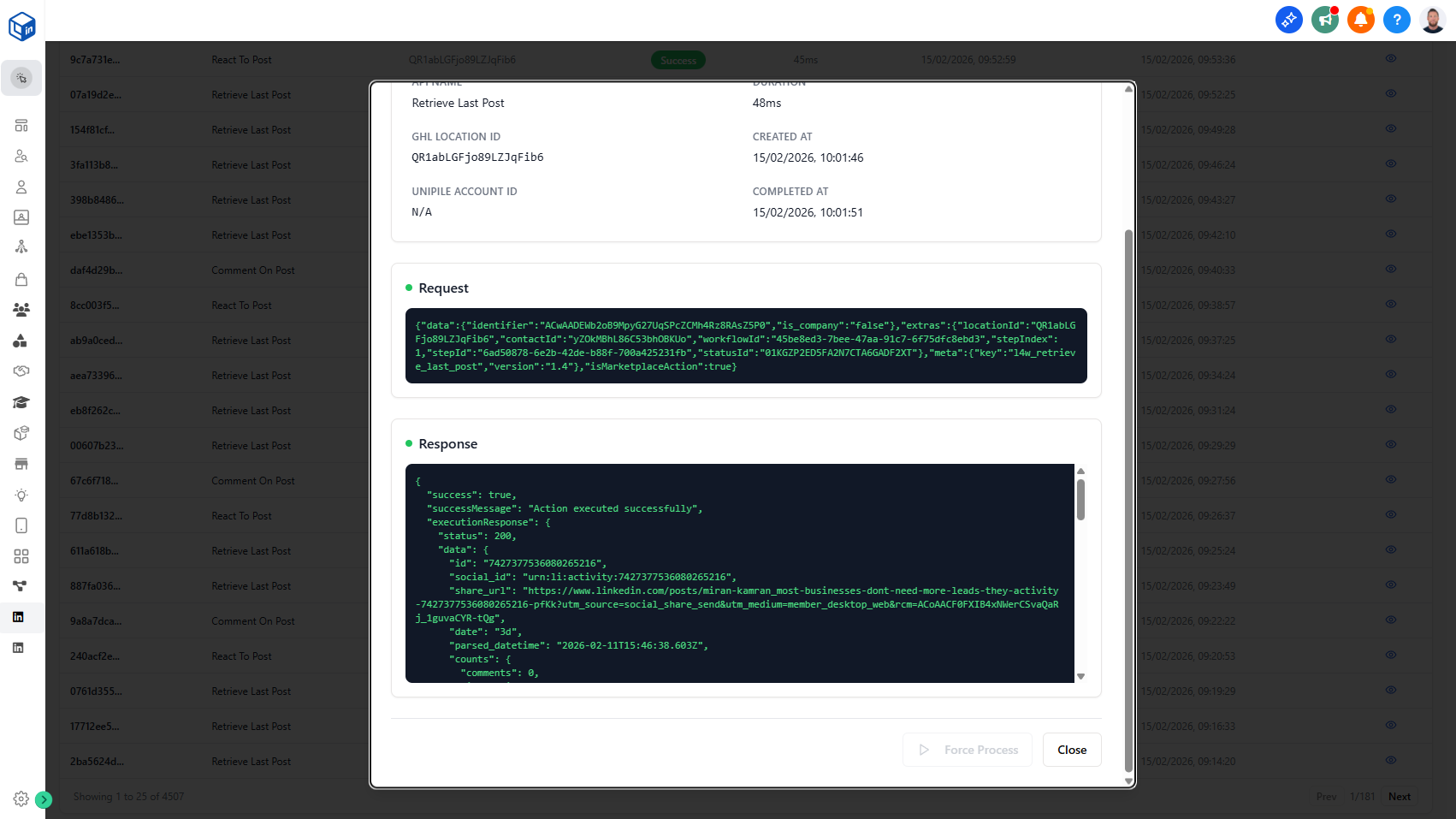
Debug workflow failures faster with clear request and response visibility.
What it does:
When a workflow action fails or behaves unexpectedly, the Activity Logs now show you exactly what happened. You can see the request payload sent to LinkedConnector and the response that came back, making it instantly clear where the breakdown occurred.
- View request data and response data side-by-side
- Spot missing fields in the payload (e.g., required Provider IDs)
- See Log ID and Location ID for reference
- Identify issues in workflow configuration vs. missing contact data
Why it matters:
Instead of guessing why an action failed, you can now see the exact problem. Is a required Provider ID missing? Is a custom field not populated? Is the workflow misconfigured? The logs answer these questions instantly, so you fix issues without contacting support.
How to use it:
Go to Admin Dashboard → Activity Logs tab. When actions fail, this is your first stop for troubleshooting.