Ability to Disconnect & Reconnect LinkedIn Accounts
Switch LinkedIn accounts anytime without contacting support. Disconnect your current account and reconnect with a different account type (Sales Navigator, Recruiter, or Classic) directly from the Getting Started page.
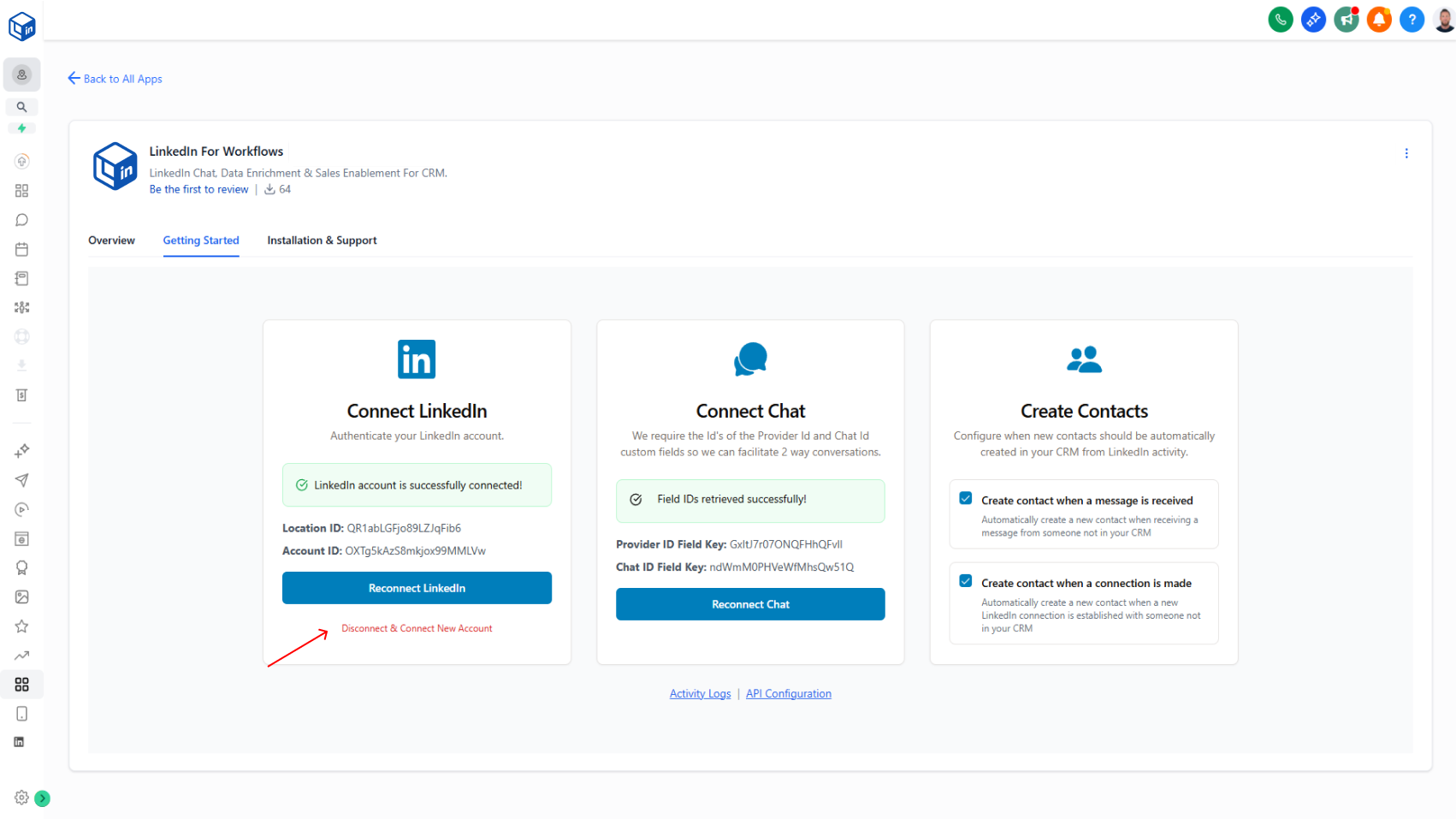
Switch between different LinkedIn accounts or account types without support help.
What it does:
You now have full control over your LinkedIn account connection. If you've upgraded or downgraded to a different LinkedIn account type (Sales Navigator → Classic, Recruiter → Sales Navigator, etc.), you can disconnect your current account and reconnect a new one directly in the app.
- Click Disconnect & Connect New Account (red text below the Reconnect LinkedIn button)
- Follow the same authentication flow as your initial setup
- Re-authenticate with your new LinkedIn account
- Start using the features of your new account type immediately
Why it matters:
No more support tickets for account changes. You get instant autonomy to manage your own account upgrades, downgrades, and switches—keeping your workflow moving without friction.
How to use it:
Navigate to: Sidebar App Marketplace → Installed Apps → LinkedConnector → Getting Started tab → Connect LinkedIn card → Click Disconnect & Connect New Account