Changelog

Keep track of all new product updates, fixes, and improvements.

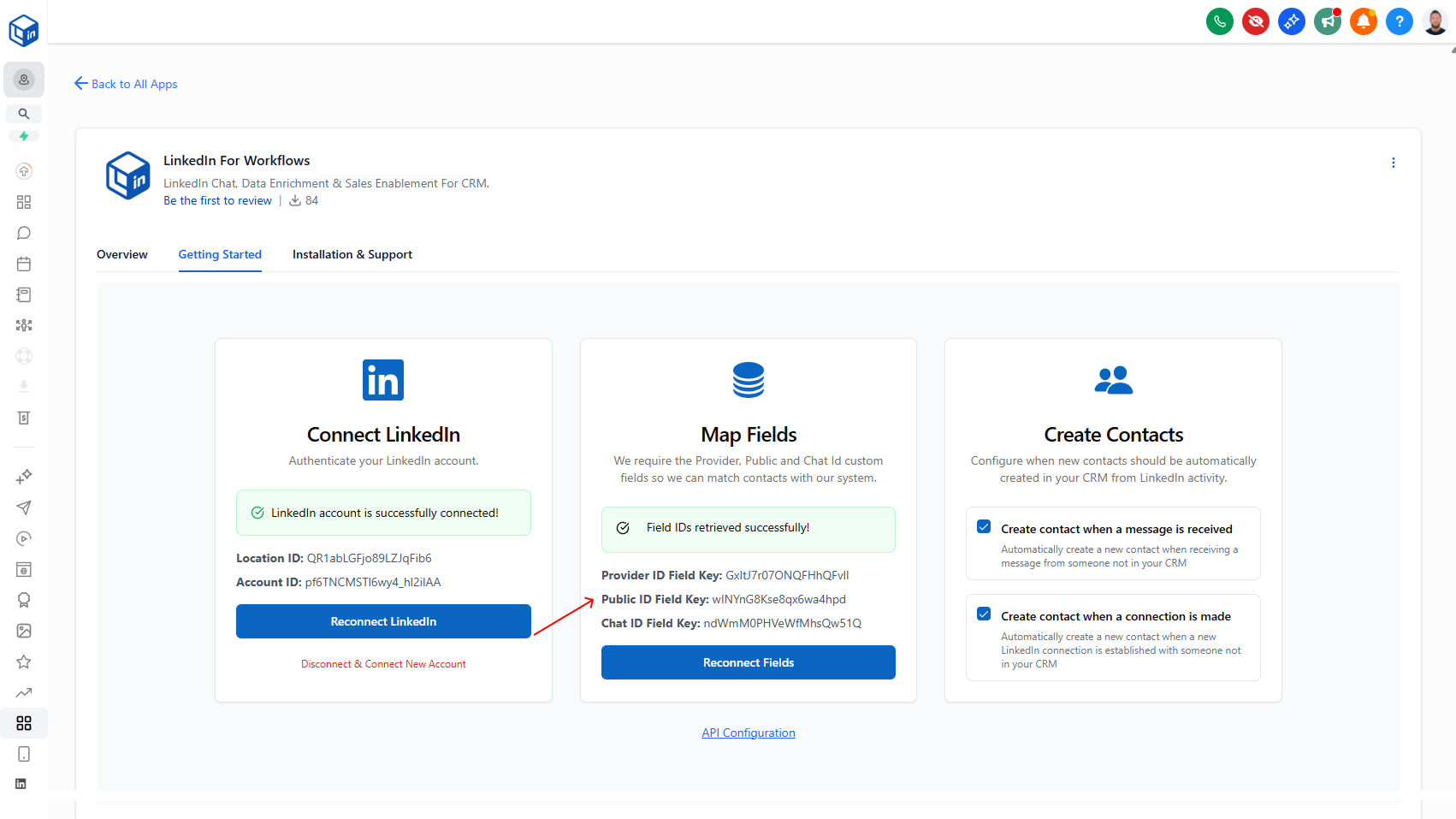
Automatic Contact Creation Settings

We're introducing Automatic Contact Creation Settings, giving you direct control over when LinkedIn activity automatically creates new contacts in your CRM—without needing to build workflows.

Overview

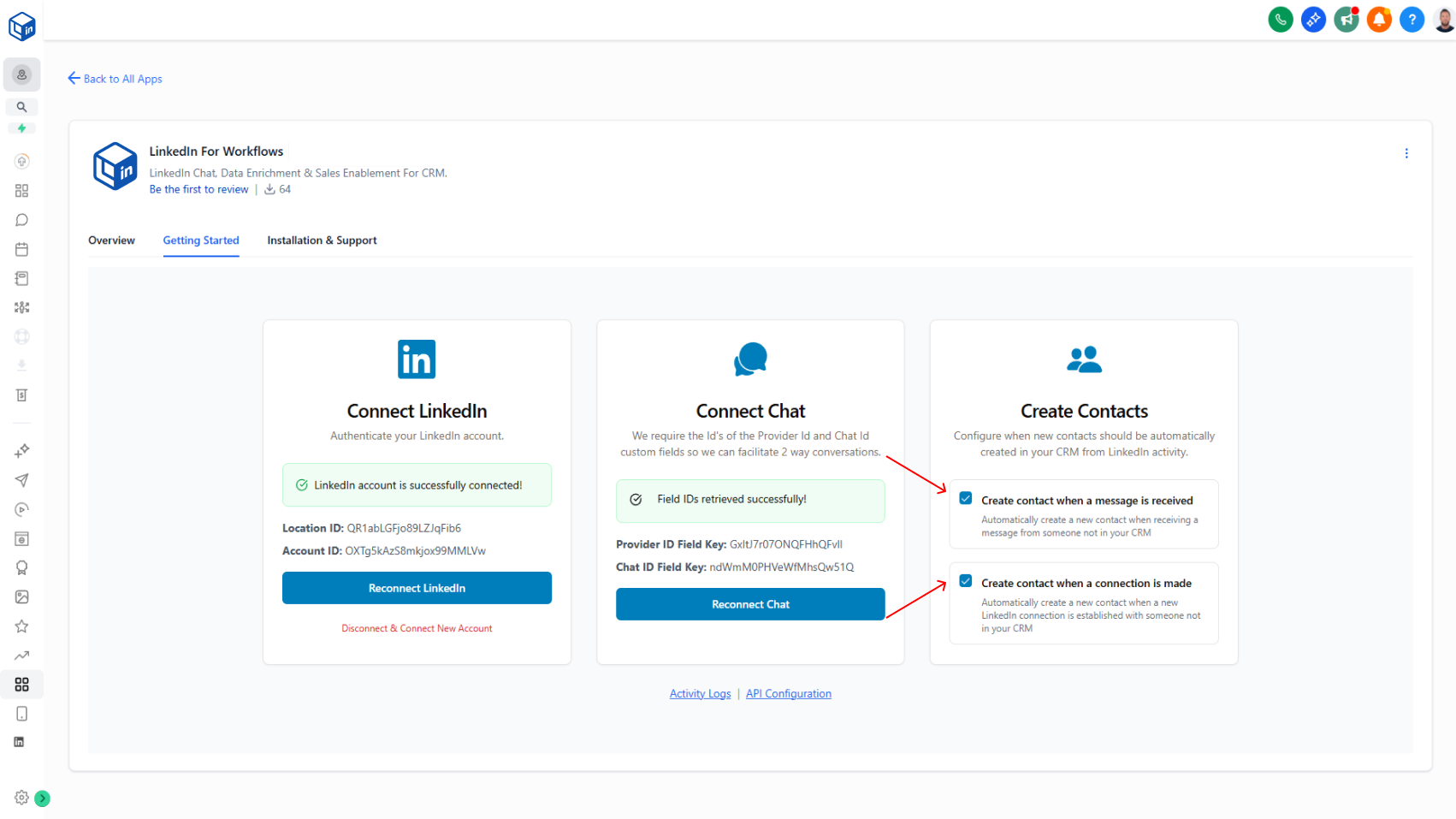
Previously, automatically creating CRM contacts from LinkedIn messages and new connections required setting up workflow actions in the "1A: New Connection" and "1B: New Message" workflows. Now, you can enable automatic contact creation with simple checkboxes directly in the Getting Started page, streamlining setup and giving you intuitive control over contact creation behavior.

How It Works

Navigate to the Getting Started page in LinkedIn for Workflows to find two new contact creation options:

Create contact when a message is received

  • Automatically creates a new contact when you receive a message from someone not already in your CRM
  • Captures: Name, Provider ID, and Chat ID
  • Only creates contacts for new conversations with people not in your system

Create contact when a connection is made

  • Automatically creates a new contact when a new LinkedIn connection is established with someone not in your CRM
  • Captures: Name and Provider ID
  • Only creates contacts for new connections with people not in your system

Migrating from Workflow-Based Contact Creation

If you're currently using the "Create Contact" actions in your workflows, you can now simplify your setup:

  1. Enable the appropriate checkboxes in the Getting Started page
  2. Remove the "Create Contact" actions from your 1A: New Connection and 1B: New Message workflows
  3. Your contacts will now be created automatically based on your checkbox settings

Detailed migration instructions are available in our documentation.

Why This Matters

  • Simpler Setup: No need to configure workflow actions just to create contacts from LinkedIn activity
  • Intuitive Control: Enable or disable automatic contact creation with a single checkbox
  • Cleaner Workflows: Remove unnecessary "Create Contact" steps from your New Connection and New Message workflows
  • Flexible Options: Choose to auto-create contacts from messages only, connections only, both, or neither
  • Instant Configuration: Changes take effect immediately—no workflow editing required

Getting Started

Automatic Contact Creation Settings are available to all users today. Simply navigate to the Getting Started page in LinkedIn for Workflows to configure your preferences.

Note: These settings are disabled by default. If you're currently using workflow-based contact creation, review our documentation for guidance on transitioning to the new checkbox method.

Agency Management Dashboard

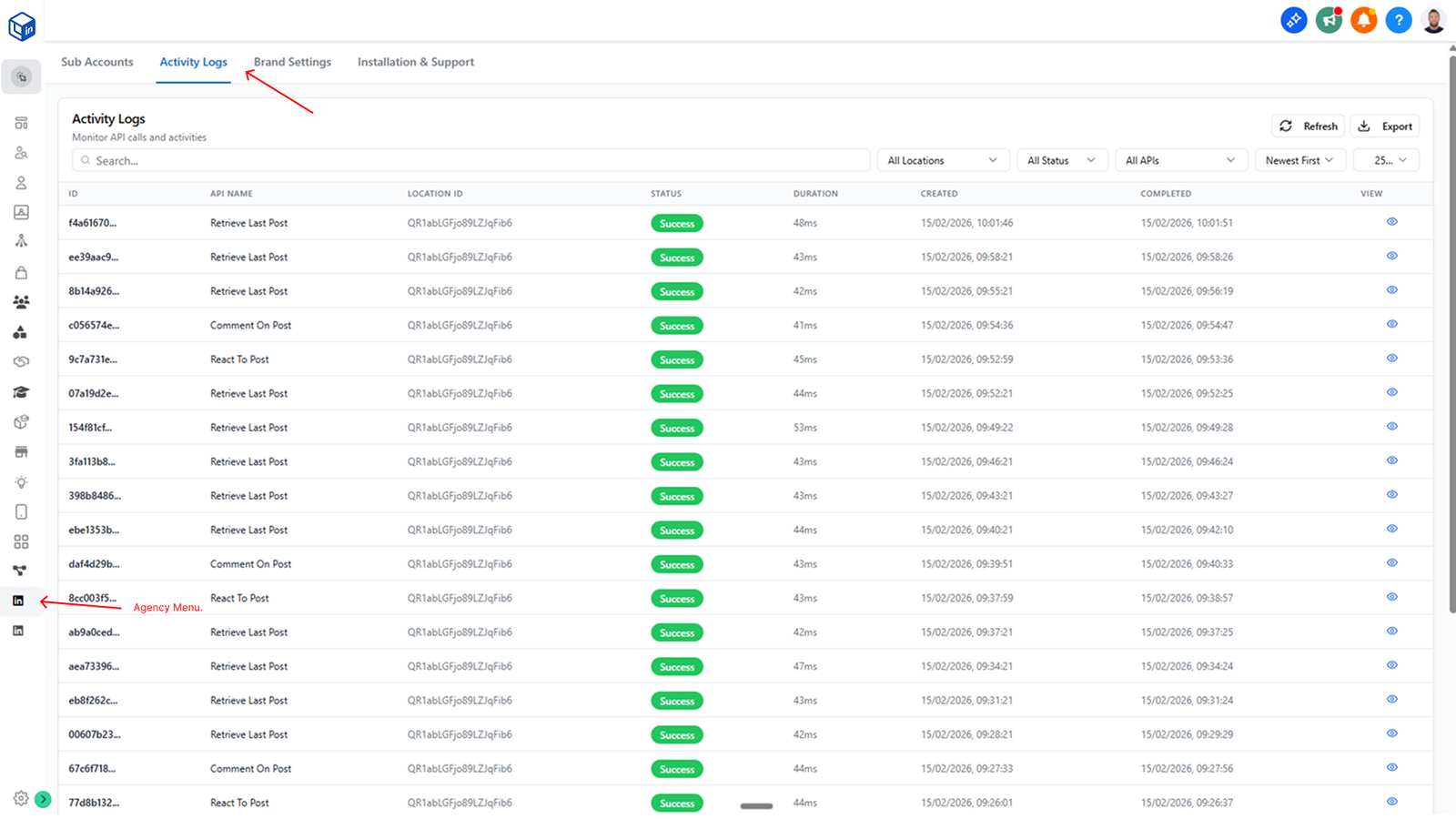
We're thrilled to introduce the Agency Management Dashboard, a centralized command center that gives agencies complete visibility and control over all their subaccounts' LinkedIn integrations from a single interface.

Overview

Managing LinkedIn for Workflows across multiple subaccounts just got significantly easier. The Agency Management Dashboard eliminates the need to log in and out of individual subaccounts by consolidating critical information, activity monitoring, configuration checks, and support resources into one comprehensive view.

How It Works

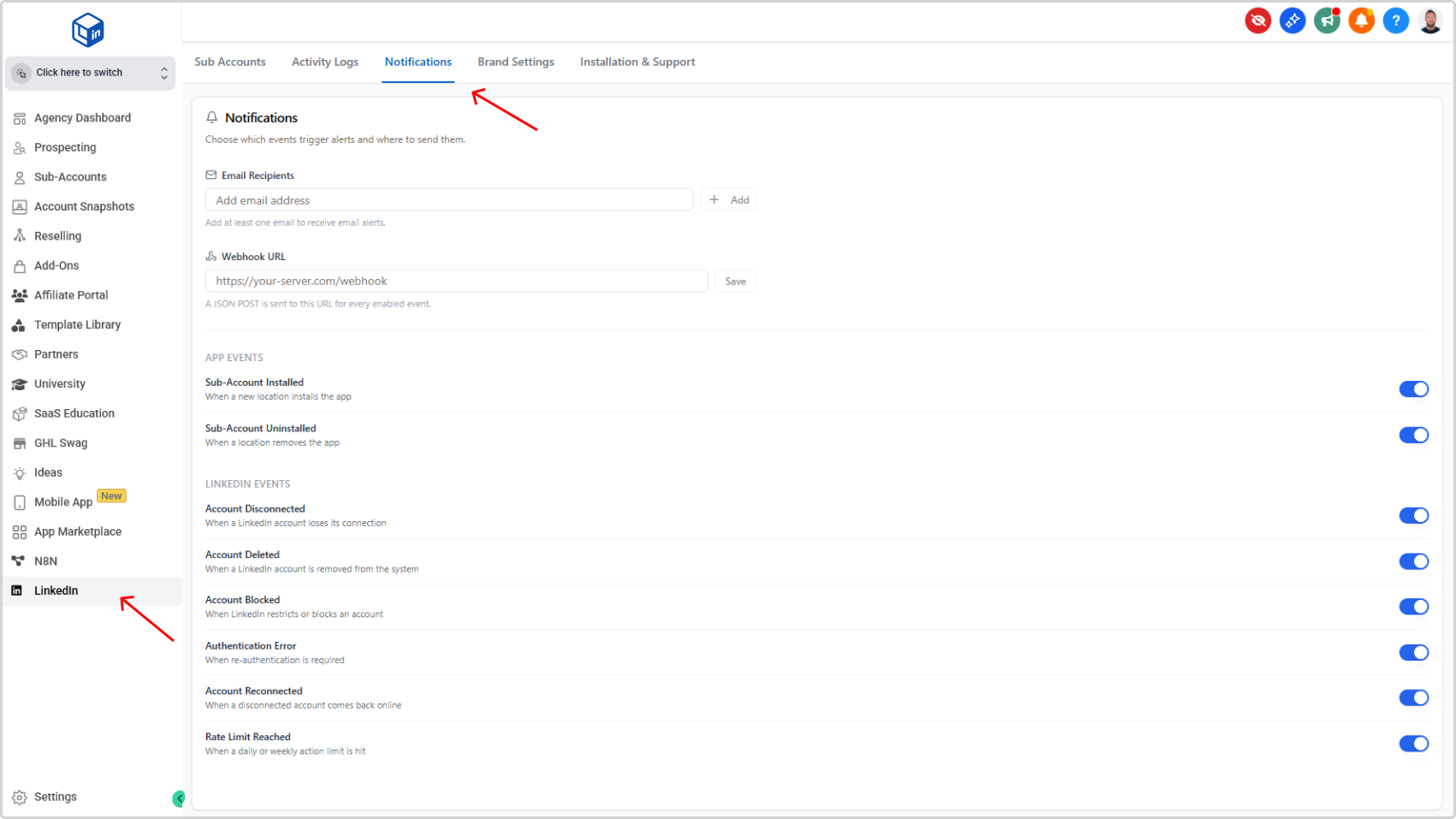
The dashboard is organized into four key tabs:

1. Subaccounts

View all your installed subaccounts at a glance with essential details including:

  • Installation date
  • Connected LinkedIn account
  • LinkedIn account type (Premium, Sales Navigator, Recruiter, etc.)
  • LinkedIn connection status
  • Last activity timestamp

Click on any subaccount to navigate directly to its LinkedIn for Workflows settings, or open a detailed modal to see:

  • LinkedIn connection details
  • App configuration status (Provider ID and Chat ID field mappings)
  • Visibility settings (Create Contact on Message Received, Create Contact on New Connection)
  • Trigger activation status with direct links to workflow configurations

2. Activity Logs

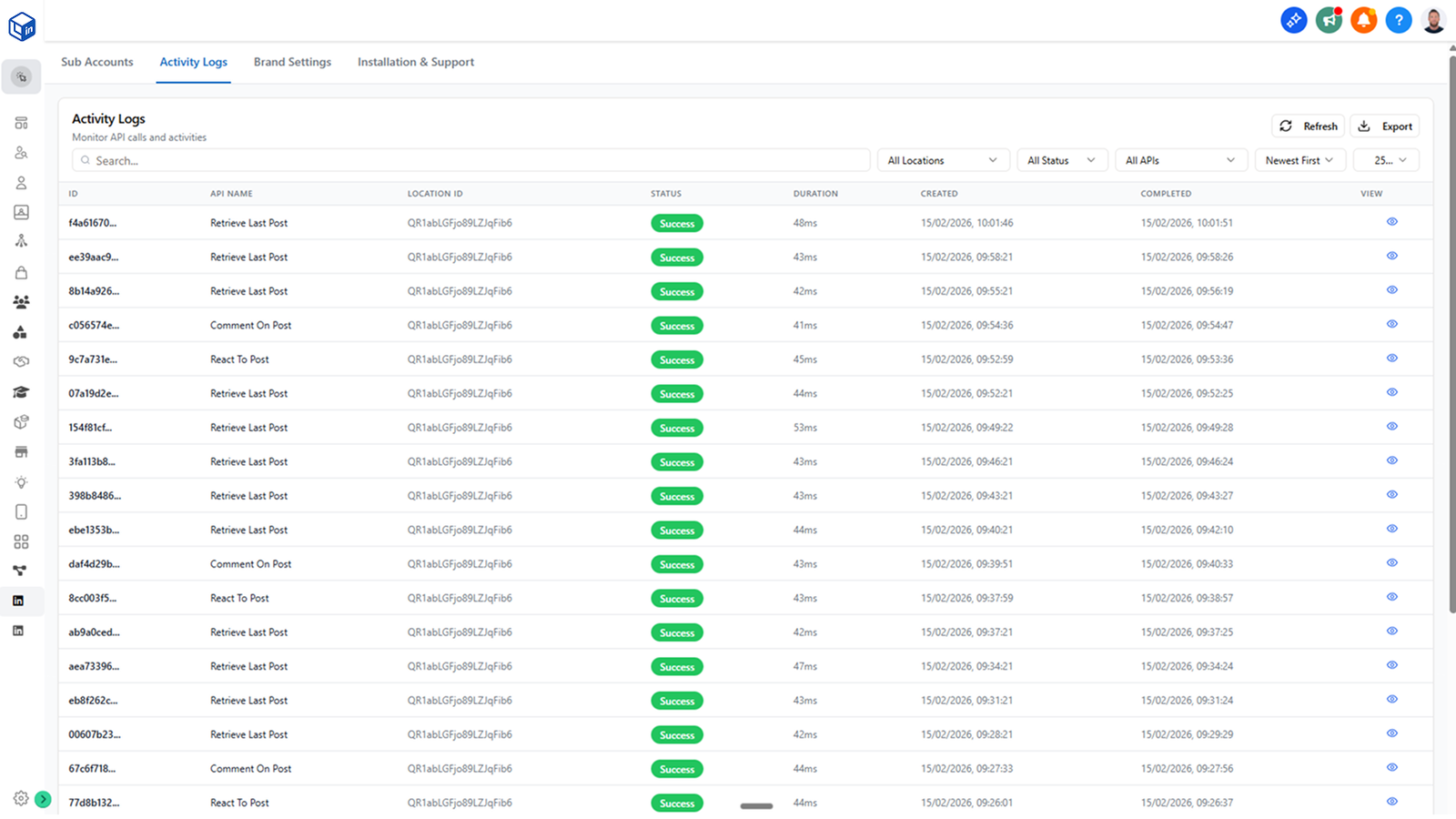
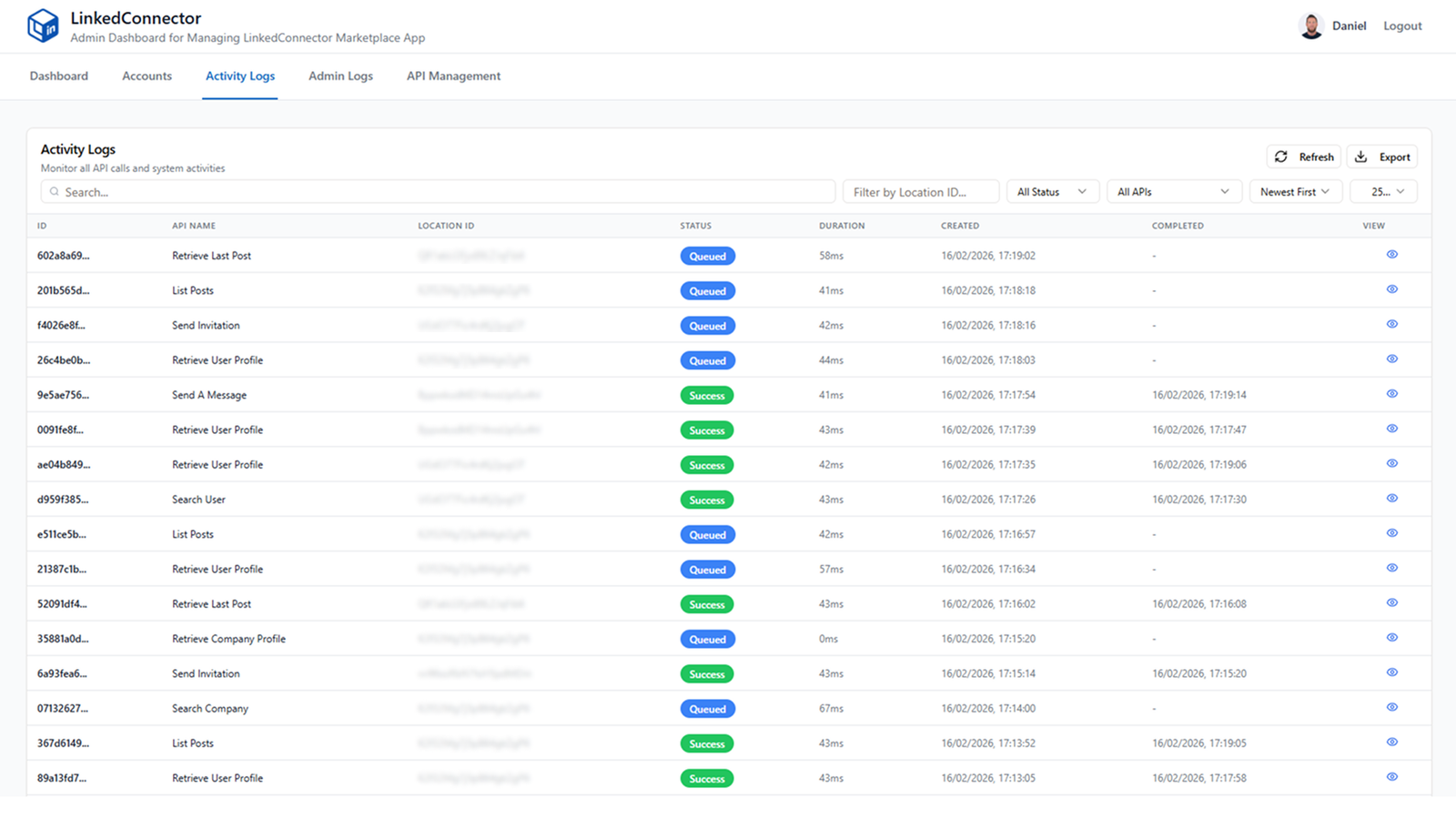
Monitor workflow activity across all subaccounts with powerful filtering options:

  • Filter by specific subaccount location
  • View all workflow actions (Send Message, Send Connection Request, Retrieve User Profile, etc.)
  • Filter by status: Success, Failed, Queued, or Rate Limited
  • Filter by specific API workflow actions
  • View 30 days of activity history
  • Export activity logs for reporting and analysis
  • Quickly identify failures and understand why workflows aren't executing as expected

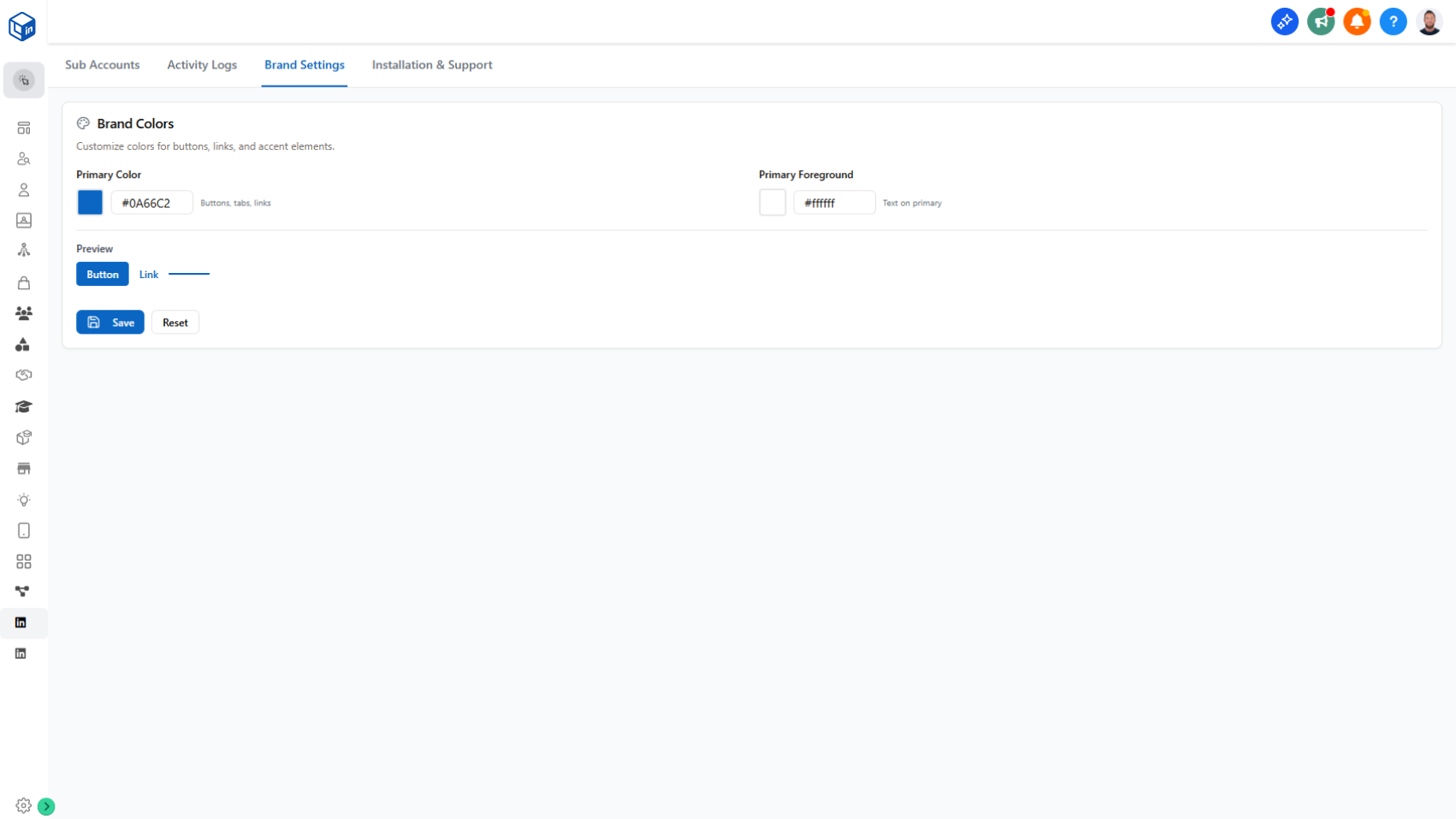
3. Brand Settings

Customize the LinkedIn for Workflows interface with basic white label branding:

  • Set your brand's primary color
  • Customize button colors
  • Update text and branding elements
  • Applies to all LinkedIn for Workflows pages across your agency

4. Installation and Support

Access all the resources you need in one place:

  • Getting started video
  • Links to the getting started guide
  • Configuration video tutorials
  • Complete documentation
  • Direct contact support access

Why This Matters

  • Save Time: Manage all subaccounts from one centralized dashboard instead of logging in and out of individual locations
  • Ensure Consistency: Quickly verify that all subaccounts have LinkedIn accounts connected and properly configured
  • Prevent Issues: Check that Provider ID and Chat ID fields are correctly mapped across all subaccounts
  • Troubleshoot Faster: Identify workflow failures across your entire agency portfolio and understand why actions are failing
  • Monitor Activity: Track LinkedIn automation activity, rate limits, and usage patterns across all subaccounts
  • Maintain Compliance: Export activity logs for reporting and ensure your agency stays within LinkedIn's usage guidelines
  • Brand Your Solution: Apply your agency's branding to create a more cohesive white label experience

Getting Started

The Agency Management Dashboard is available to all agency-level accounts today. Simply add the custom menu link to your agency dashboard to get started.

https://api.linkedinforworkflows.com/agency

Note: This feature requires a white label domain. If you're not currently on a white label domain, contact support for a unique menu link for setup.

LinkedIn Lead Importer

We're excited to introduce the LinkedIn Lead Importer, a powerful new interface that streamlines the process of finding, organizing, and importing LinkedIn prospects directly into your CRM in just a few clicks.

Overview

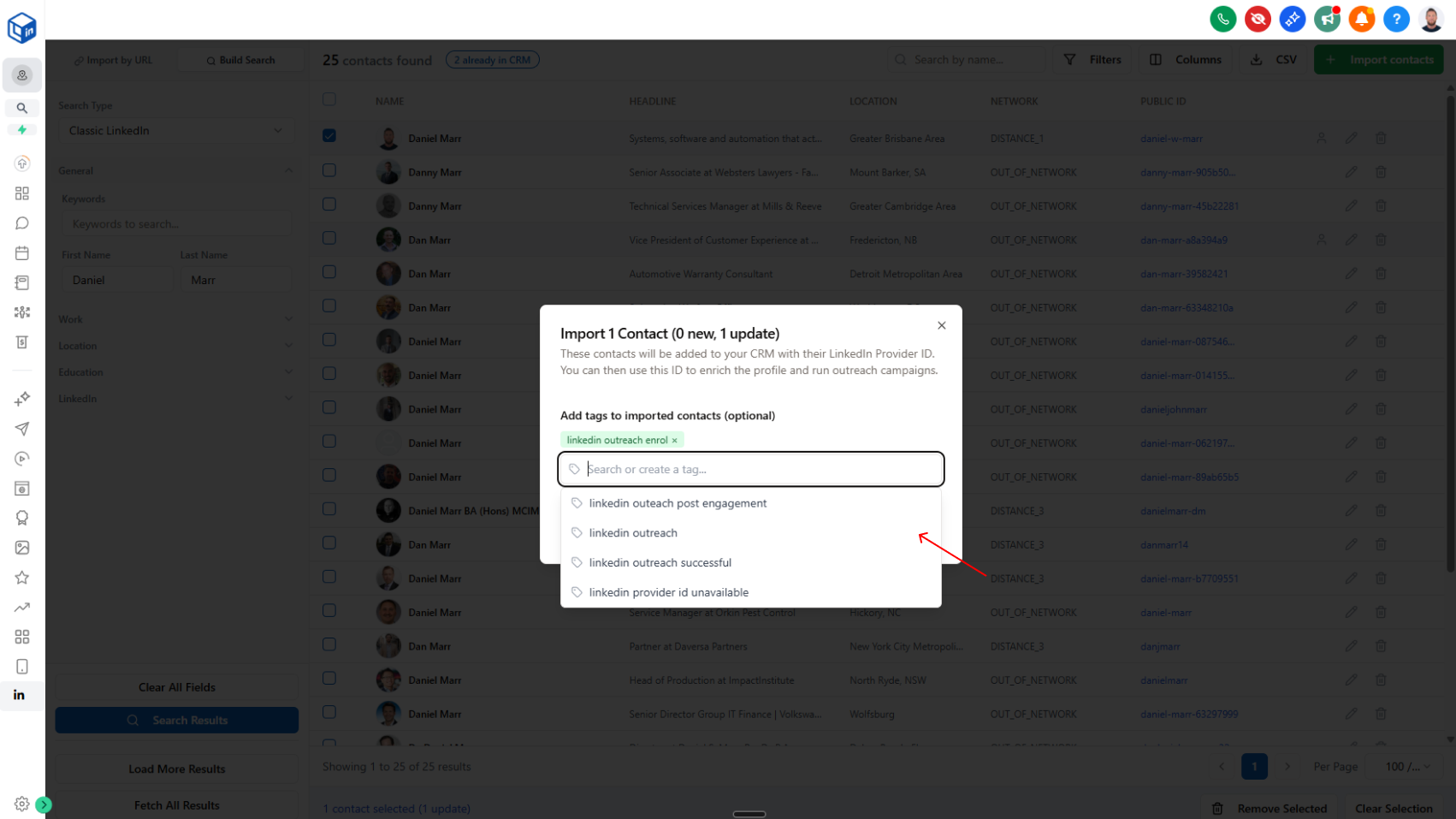
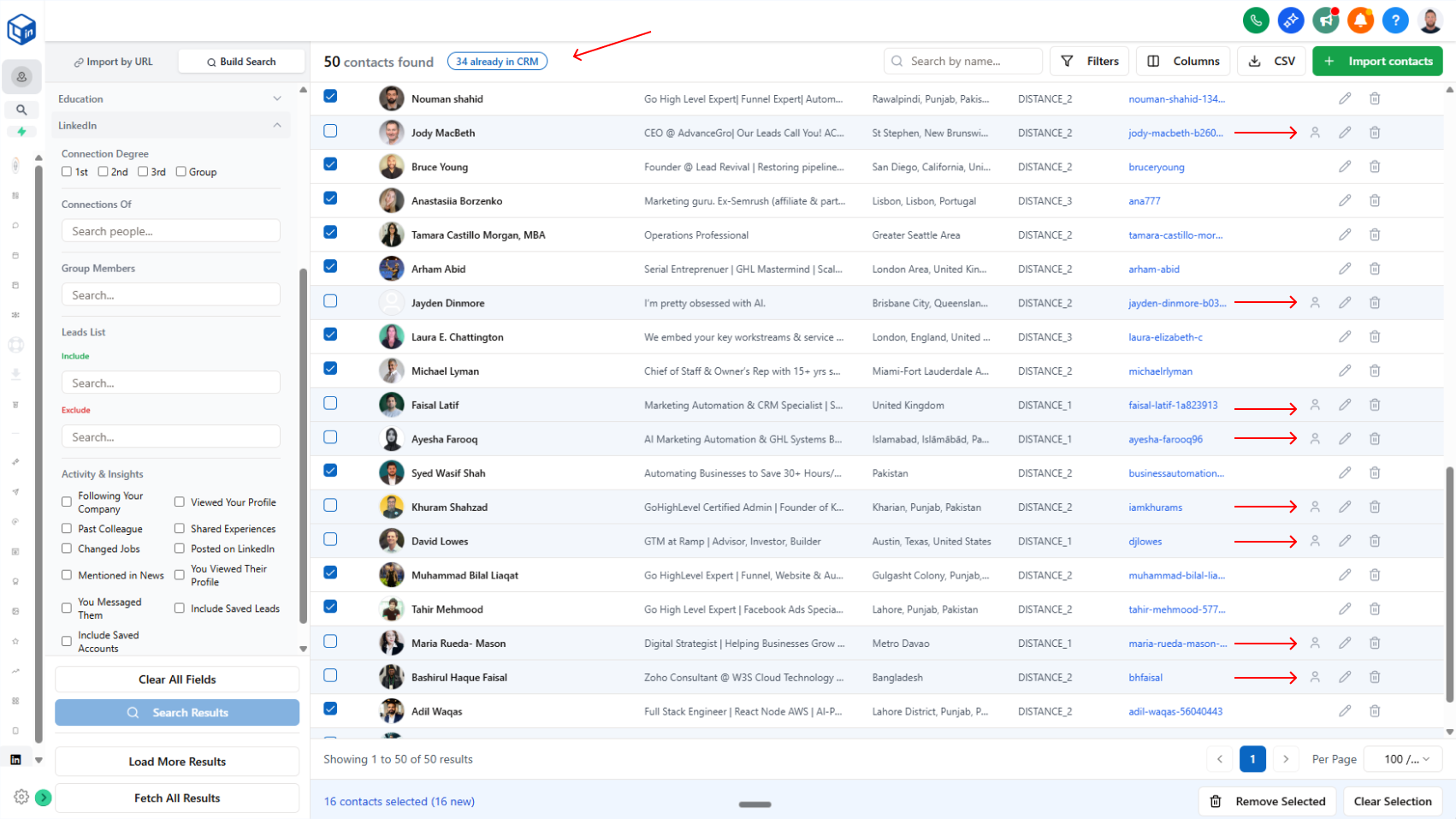
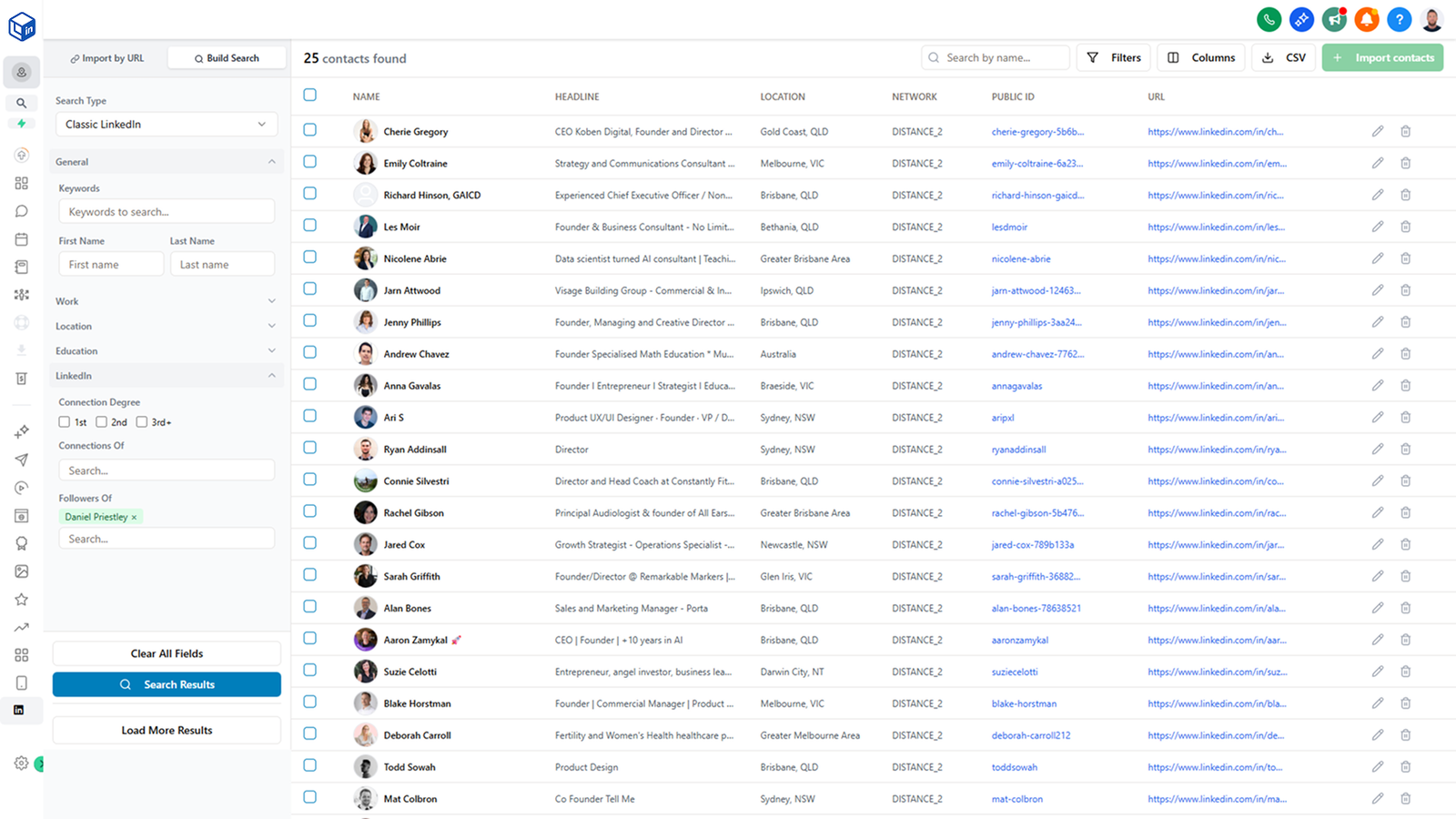
The LinkedIn Lead Importer eliminates the manual work of transferring LinkedIn prospects into your CRM. Simply paste a LinkedIn search URL, post URL, or Sales Navigator leads list into the interface, organize and filter your results, and import contacts directly into your CRM with full enrichment data ready for outbound campaigns.

How It Works

1. Paste Your LinkedIn Search

  • Copy any LinkedIn search URL (Classic LinkedIn, Sales Navigator, or Recruiter)
  • Paste the URL into the LinkedIn Lead Importer interface
  • Works with standard searches, post engagement lists, and Sales Navigator saved leads

2. Filter and Organize Your Leads

  • Use built-in filters to refine your import list including:
    • Location
    • Industry
    • Company
    • Job title
    • Education
    • Groups
    • Connections of
    • Followers of
    • And many more advanced criteria
  • Preview your leads before importing
  • Select exactly which contacts you want to add to your CRM

3. Import with One Click

  • Automatically populates key CRM fields:
    • First Name
    • Last Name
    • Full Name
    • Profile Photo
    • Provider ID (LinkedIn identifier for future enrichment)
  • Smart duplicate handling: if a contact already exists, the system updates the existing record instead of creating a duplicate
  • Optionally add tags during import to trigger automated workflows

4. Launch Outbound Campaigns

  • Imported contacts include all the data needed for further profile enrichment
  • Add tags during import to automatically enroll contacts into outbound campaigns
  • Configure tag-based triggers in your workflows to start engagement sequences immediately

Why This Matters

  • Save Hours of Manual Work: No more copying and pasting individual profiles from LinkedIn into your CRM
  • Maintain Data Quality: Automatic duplicate detection ensures your CRM stays clean
  • Faster Campaign Launches: Import leads with enrichment-ready data and optional tags for instant campaign enrollment
  • Flexible Search Options: Works with LinkedIn Classic, Sales Navigator, and Recruiter advanced searches
  • Precision Targeting: Filter and organize leads before importing to ensure you're only adding qualified prospects

Getting Started

The LinkedIn Lead Importer is available to all users today. Simply add the custom menu link below to the sub accounts you want to access the interface and start importing your LinkedIn prospects directly into your CRM.

https://api.linkedinforworkflows.com/import?locationid={{location.id}}

Rate Limit & Action Queue System

We’ve introduced intelligent rate limits to keep your LinkedIn workflows safe, compliant, and reliable.

Overview

We’re introducing a new backend rate-limiting system designed to protect your LinkedIn account, maintain compliance, and ensure long-term workflow reliability inside LinkedIn for Workflows.

This update applies structured pacing and intelligent queuing to all LinkedIn actions, based on best-practice recommendations from our API provider. It is a foundational improvement focused on account safety, platform stability, and consistent automation performance .

The rollout will take under ten minutes, occur during a low-activity period, and is not expected to cause any downtime.

How It Works Today

1. Automatic Action Queuing

  • When a contact reaches a LinkedIn action in a workflow, that action is placed into a processing queue.
  • Actions are executed sequentially using a first-in, first-out model.
  • Each action runs with a randomized delay of 60–90 seconds to simulate natural, human-like activity.
  • If an action cannot run due to a daily or weekly limit, it is temporarily skipped while other eligible actions continue processing.
  • Skipped actions automatically resume once limits refresh.

2. Built-In Daily and Weekly Safeguards

  • Each LinkedIn account now enforces daily and weekly usage limits automatically.
  • When limits are reached:
    • Affected actions pause safely
    • No workflow steps are lost
    • Actions resume automatically when limits reset
  • This prevents accidental over-activity and protects account health.

3. Per-Action Rate Limits

  • Core LinkedIn actions follow defined, action-specific limits.
  • All other LinkedIn actions are currently capped at approximately 100 per day.
  • Limits and pacing intervals may be adjusted in the future if required by our API provider or LinkedIn guidelines.

Why This Matters

  • Prevents high-volume API bursts when multiple workflow actions trigger simultaneously
  • Enforces natural pacing aligned with real human behavior
  • Protects LinkedIn accounts from overuse or compliance issues
  • Ensures consistent and predictable workflow execution
  • Provides a scalable foundation for long-term platform reliability

No Action Required

This upgrade is fully automatic. There are no settings to change and no workflow updates required. All existing workflows will continue running seamlessly under the new rate-limit system.

V3 Snapshot Release

The new V3 Snapshot introduces a cleaner, more streamlined outreach system with simplified setup and powerful features.

Overview

We are excited to introduce the V3 Snapshot, a cleaner and more streamlined version of our automation framework designed to simplify setup while delivering a more powerful LinkedIn outreach system. This new release reduces configuration complexity, improves clarity, and provides a more intuitive structure for managing outreach, engagement, and follow-up across LinkedIn.

The V3 Snapshot is built to help teams launch faster, stay organized, and run consistent, personalised outreach inside the CRM.

What’s New

Outreach System

The new outreach system now includes a fully reworked structure for managing multi-step outreach and engagement sequences. It brings improved flexibility while keeping the setup simple and predictable.

Key capabilities include:

Post Engagement

Engage with prospects by automatically commenting or reacting to recent posts to warm up outreach efforts.
This helps increase visibility and build early rapport before direct contact takes place.

Connection Requests

Set up connection requests with optional personalised messaging.
The system simplifies how connection steps are configured, helping ensure consistent execution within LinkedIn’s acceptable use guidelines.

Follow-Up Messaging Sequences

Create structured follow-up messages that trigger automatically after a connection is accepted.
The new layout is cleaner, easier to edit, and designed to reduce failed message steps or routing confusion.

InMail Fallback

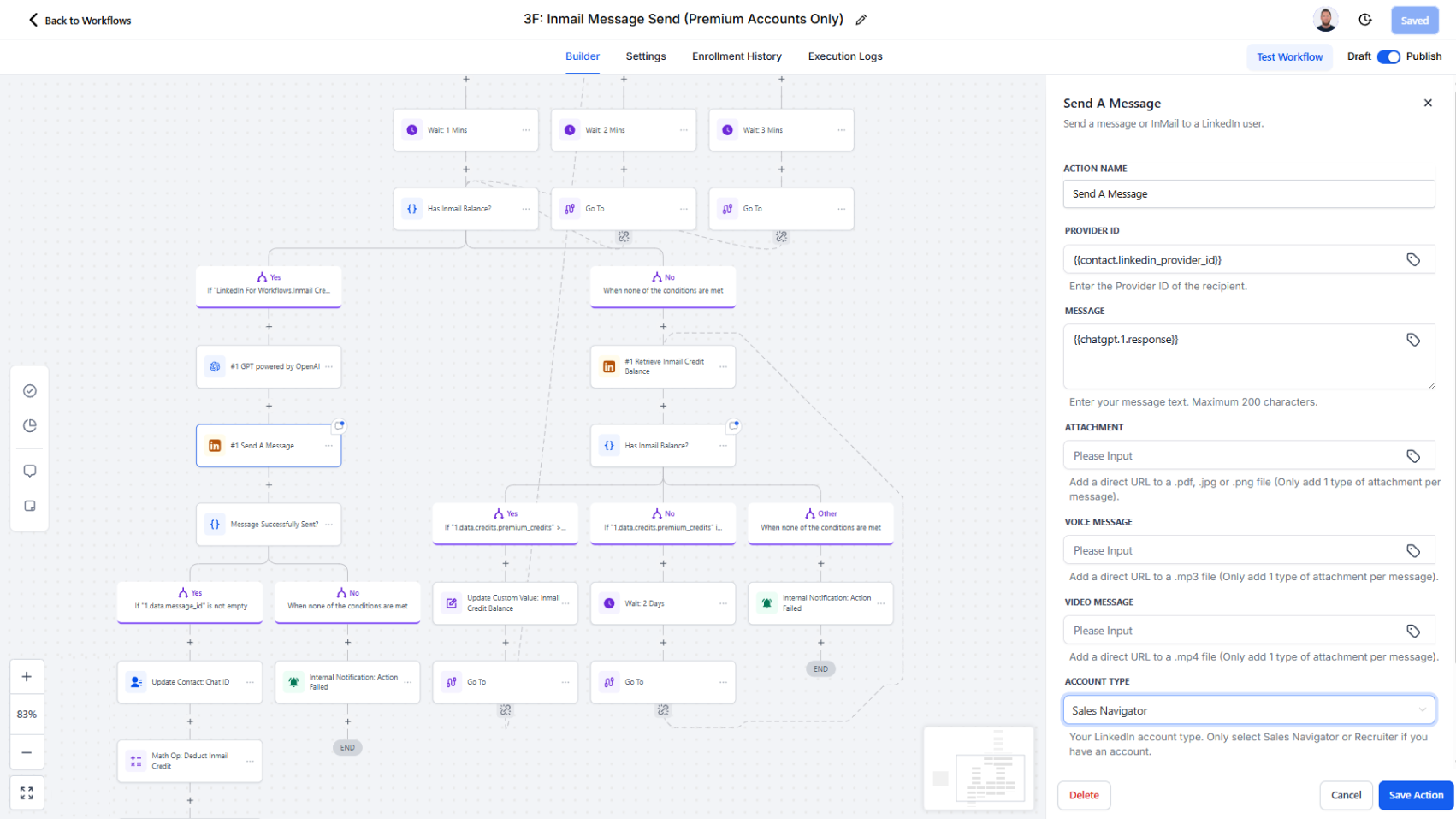
If a user cannot be reached through standard messaging, an optional InMail fallback step ensures your outreach continues without hitting dead ends.
This provides better overall delivery and improves your ability to reach high-value prospects.

Connection Request Handling

Built-in logic now manages accepted, pending, or rejected connection requests with improved reliability.
This ensures follow-ups only run when the right conditions are met, reducing unnecessary steps or workflow errors.

Why This Matters

  • Simpler setup
    The V3 Snapshot reduces layers, fields, and branching, making it easier to customize and deploy outreach sequences.
  • More predictable automation
    Fewer moving parts means fewer workflow errors and smoother execution across all LinkedIn actions.
  • Higher engagement quality
    Warm-up activities like post engagement create stronger context before messaging.
  • Improved deliverability
    With InMail fallback and more reliable connection handling, more of your outreach reaches its intended recipient.
  • Faster onboarding
    New users can launch sequences quickly without needing to interpret complex routing or nested logic.

Backend Migration to Lead Connectors SDK

We’ve officially upgraded the backend of LinkedIn for Workflows to the new Lead Connectors SDK, bringing a major boost in reliability, performance, and long-term scalability.

Overview

We have fully revamped the backend of LinkedIn for Workflows to use the new Lead Connectors SDK. This modernization replaces our previous OAuth handling and token management logic with a cleaner, more reliable, and fully automated SDK architecture.

This update is foundational and sets the stage for deeper stability, faster feature development, and improved performance across all LinkedIn workflow actions and chat capabilities.

What’s Improved

Backend Authentication & Token Management

We now rely on the Lead Connectors SDK to automate and standardize OAuth 2.0 processes. This includes:

  • Automated app installation across all account types
  • Automated daily token refresh
  • Automated uninstallation detection and cleanup
  • Database-agnostic token storage
  • Improved error handling and resilience
  • Fully aligned session management following industry standards

This implementation mirrors modern SDK patterns and brings the reliability benefits of the API Center of Excellence’s PHP, Python, and JS/TS SDKs into our platform.

How It Works Today

  • When a user connects LinkedIn inside the CRM, the SDK now manages the entire OAuth lifecycle automatically.
  • Token storage integrates with our infrastructure without forcing a specific database requirement.
  • If a token expires or an account disconnects, the SDK retries, refreshes, or gracefully handles cleanup without interrupting workflow execution.
  • All LinkedIn automation actions (search, chat, messaging, profile enrichment, reactions, invitations, etc.) now execute on top of a more stable and unified authentication layer.

Why This Matters

Key Benefits

  • Greater Reliability
    Ensures workflows run consistently without unexpected Lead Connector disconnects.
  • Reduced Authentication Errors
    Automated refresh flows dramatically lower expired-token failures.
  • Stronger Infrastructure for Growth
    A stable authentication core makes it easier to ship new LinkedIn features faster.
  • Improved Developer Velocity
    We can focus on feature improvements rather than token maintenance logic.
  • Better User Experience
    Reconnect prompts decrease, workflows run more smoothly, and messaging actions succeed more consistently.
  • Future-Proof Architecture
    Because the SDK evolves automatically as APIs evolve, we stay aligned with the latest standards without service interruptions.

What This Means for Users

  • Your existing workflows continue to function normally, but with higher reliability.
  • CRM connections remain authenticated longer with fewer interruptions.
  • Messaging, profile retrieval, search, and chat actions now execute with improved consistency.
  • Any future LinkedIn automation features will be built on top of this stronger foundation.

No action is required from users.

Workflow Action - Separate Messages and InMail Actions

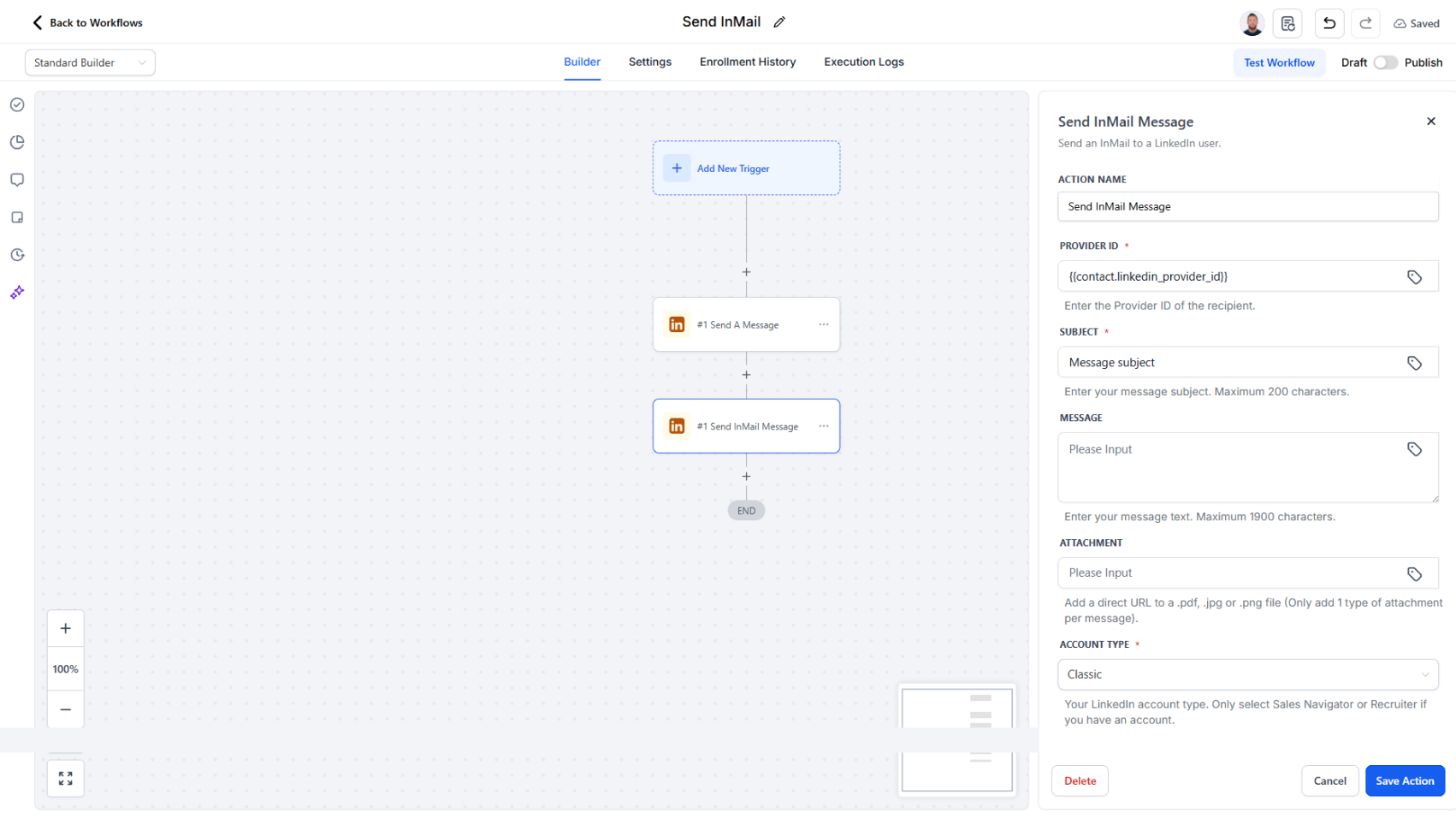
We’ve refined how LinkedIn communications are handled by splitting InMail from Messages into distinct workflow actions.

Overview

Previously, Messages and InMail were combined in a single action, which sometimes made it unclear which fields applied to which communication type. With this update, each now has its own dedicated action, providing greater clarity, control, and observability.

How It Works

  • Send Message now handles standard LinkedIn messages sent to existing connections.
  • Send InMail is exclusively for InMail outreach using LinkedIn’s premium features.
  • Each action now includes its own simplified field set, making configuration faster and reducing setup errors.
  • Workflow logs now clearly distinguish between Message Sent and InMail Sent events for better tracking and analytics.

Benefits

  • Simplifies workflow configuration by showing only the fields relevant to each message type.
  • Reduces confusion about required fields and sending conditions.
  • Improves transparency—InMail and Message activities are now separately logged for easy monitoring and reporting.
  • Enhances debugging and support by clearly identifying which communication type was executed.

Workflow Action - ElevenLabs Voice Generation

Instantly convert text into realistic voice messages that can be sent through LinkedIn chat—perfect for personalized follow-ups, warm introductions, and authentic engagement at scale.

Overview

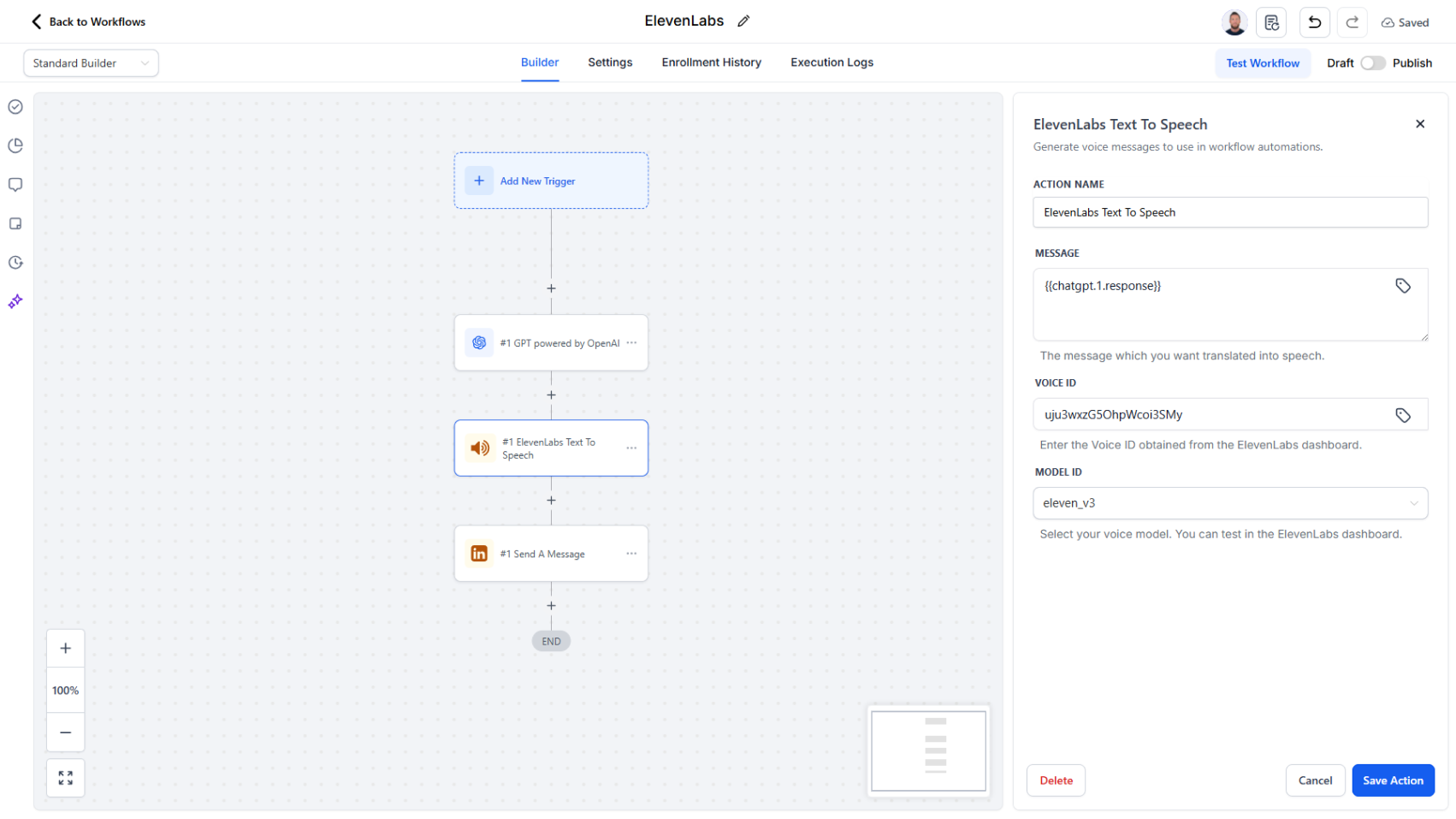
We’ve introduced a new workflow action powered by ElevenLabs Voice Generation, designed to bring human sounding voice messages to your automated LinkedIn outreach. This new action lets users automatically generate realistic voice messages directly within their CRM workflows, transforming how teams communicate with prospects and connections.

How It Works

Add the Generate Voice Message (ElevenLabs) action to any workflow.

  1. Provide a text prompt (or have AI generate one), such as a personalized introduction or follow-up message.
  2. The action uses ElevenLabs’ AI voice engine with your selected voice to instantly produce a natural-sounding audio file.
  3. Attach the generated audio URL in the Send a Message action to deliver it through LinkedIn chat.

Why It Matters

This update enhances how you engage your audience, blending the efficiency of automation with authentic, voice-based communication.

Key Benefits:

  • Personalized Engagement: Add warmth and authenticity to automated LinkedIn interactions.
  • Automation + Human Touch: Combine workflow speed with natural-sounding delivery.
  • Localized Messaging: Generate voices in multiple languages and accents to match regional audiences.
  • Seamless Integration: Create, attach, and send—all inside your CRM workflow builder.

Removed Automatic Contact Creation on Message Received

Based on valuable feedback from users, the automatic contact creation feature upon message receipt has been removed. This change ensures greater control over how and when contacts are created in your CRM.

How It Works Now

When a new LinkedIn message is received:

  1. The system will attempt to link the message to an existing contact.
  2. If no matching contact exists, the system will retry after two minutes.
  3. During this time, users can automatically create a new contact through a workflow triggered by the “New Message” event. Once the contact is created, the message will then be associated with it automatically on the retry.

Why This Matters

This update gives users full control over contact creation, addressing a common concern about unnecessary or unintended contacts being added to the CRM.

Key Benefits:

  • Prevents unwanted or duplicate contacts in the CRM
  • Gives users full control over when and how contacts are created
  • Maintains accurate, high-quality CRM data
  • Ensures seamless message linkage even when contacts are created through automation

Activity Logs for Failed Actions

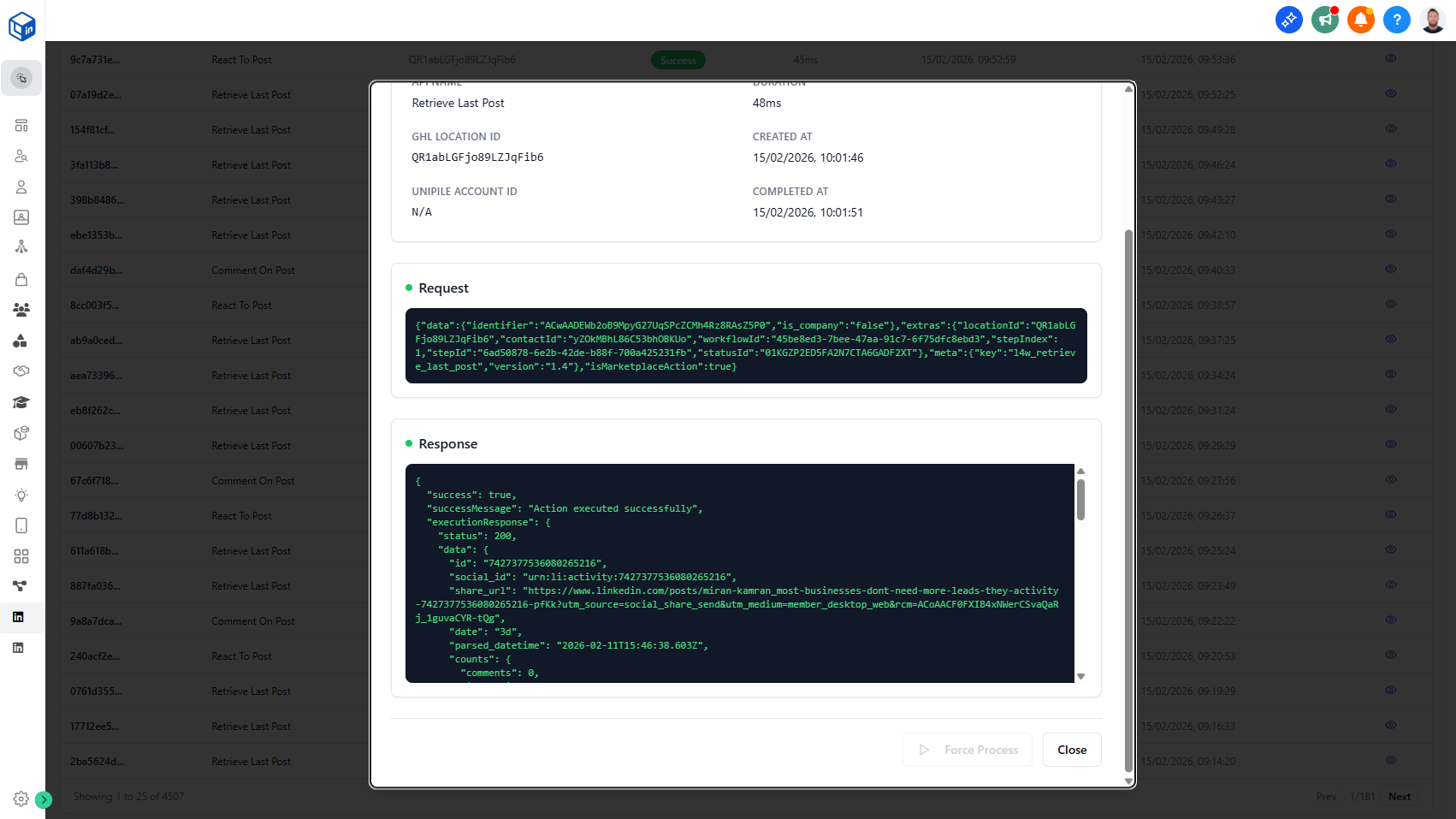
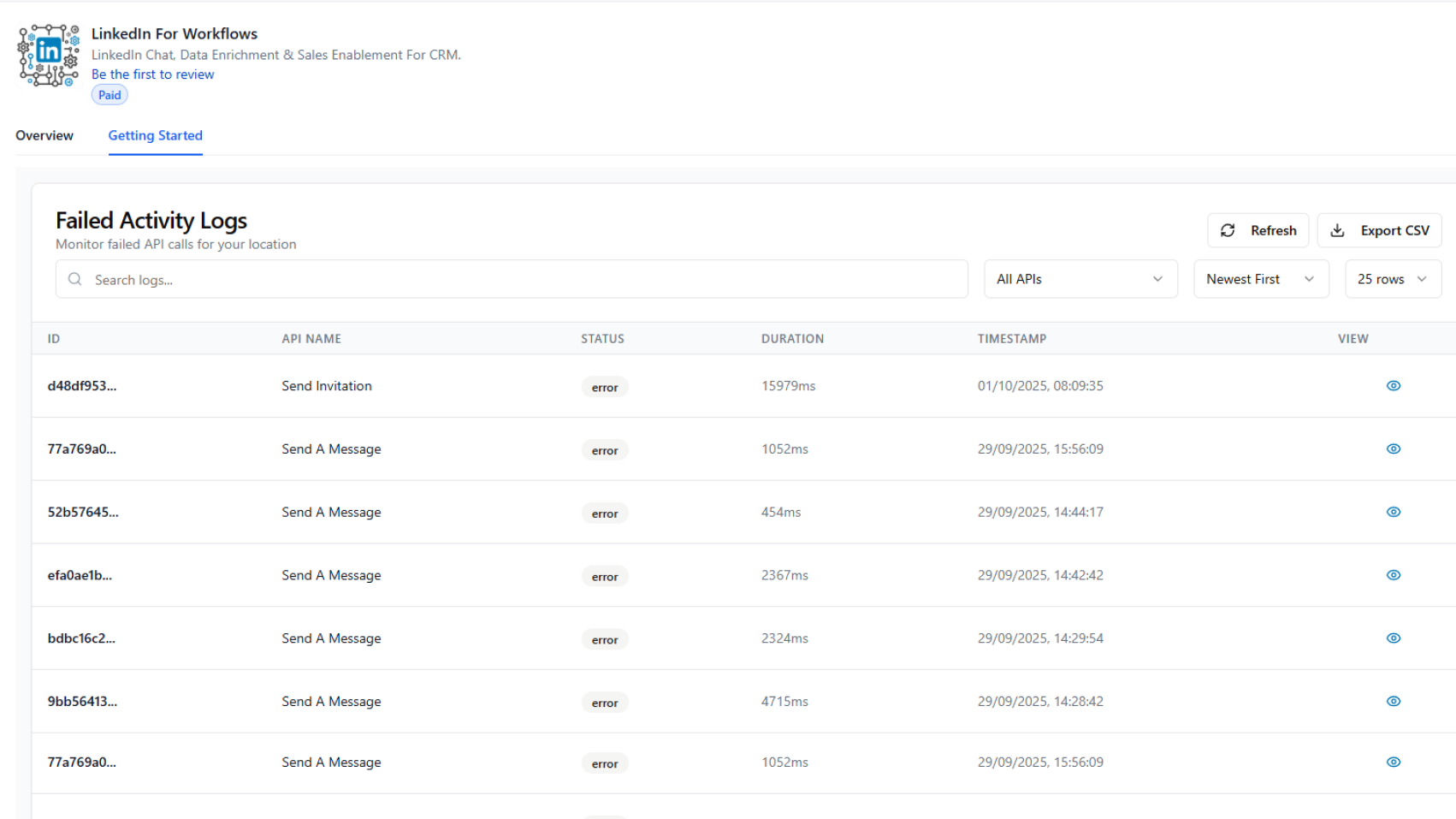
We’ve added a Failed Activity Logs section to the bottom of the Getting Started page to give users more visibility into why certain LinkedIn actions may fail.

Overview

The Activity Logs display all failed action API calls in one place. Each log includes key details such as:

  • Action type (e.g., Send Invitation, Send a Message)
  • Error status and timestamp
  • Duration of the call
  • A unique failure ID for reference

Users can click the View icon to open a detailed log entry, which shows both the request data sent and the response data received. This provides actionable context for troubleshooting issues.

Why It Matters

  • Improved troubleshooting: Quickly identify why an action failed.
  • Transparency: See both the request and the system’s response.
  • Support-ready: Reference log IDs and error messages when contacting support for faster resolution.
  • Efficiency: Reduce downtime by diagnosing issues directly without guesswork.

Workflow Action - Send A Message

We’ve simplified and enhanced LinkedIn messaging inside your workflows by combining “Start A Chat” and “Send A Message” into one streamlined action. This makes it easier than ever to manage conversations directly from your automation builder.

What’s New

  • One Action for All Messaging: No need to choose between starting a chat or sending a message—everything is now handled through a single, unified action.
  • Rich Media Support: In addition to text messages, you can now send:
    • Attachments (documents, images, files)
    • Voice messages
    • Video messages

Why This Matters

  • Simplifies workflow setup with fewer actions to configure
  • Provides more ways to engage prospects and connections authentically
  • Enhances personalization by supporting voice and video formats, not just text
  • Reduces friction between chat initiation and ongoing messaging

Snapshot With Pre-Configured Workflows

Accelerate setup with a prebuilt snapshot that speeds up implementation and requires only minor configuration.

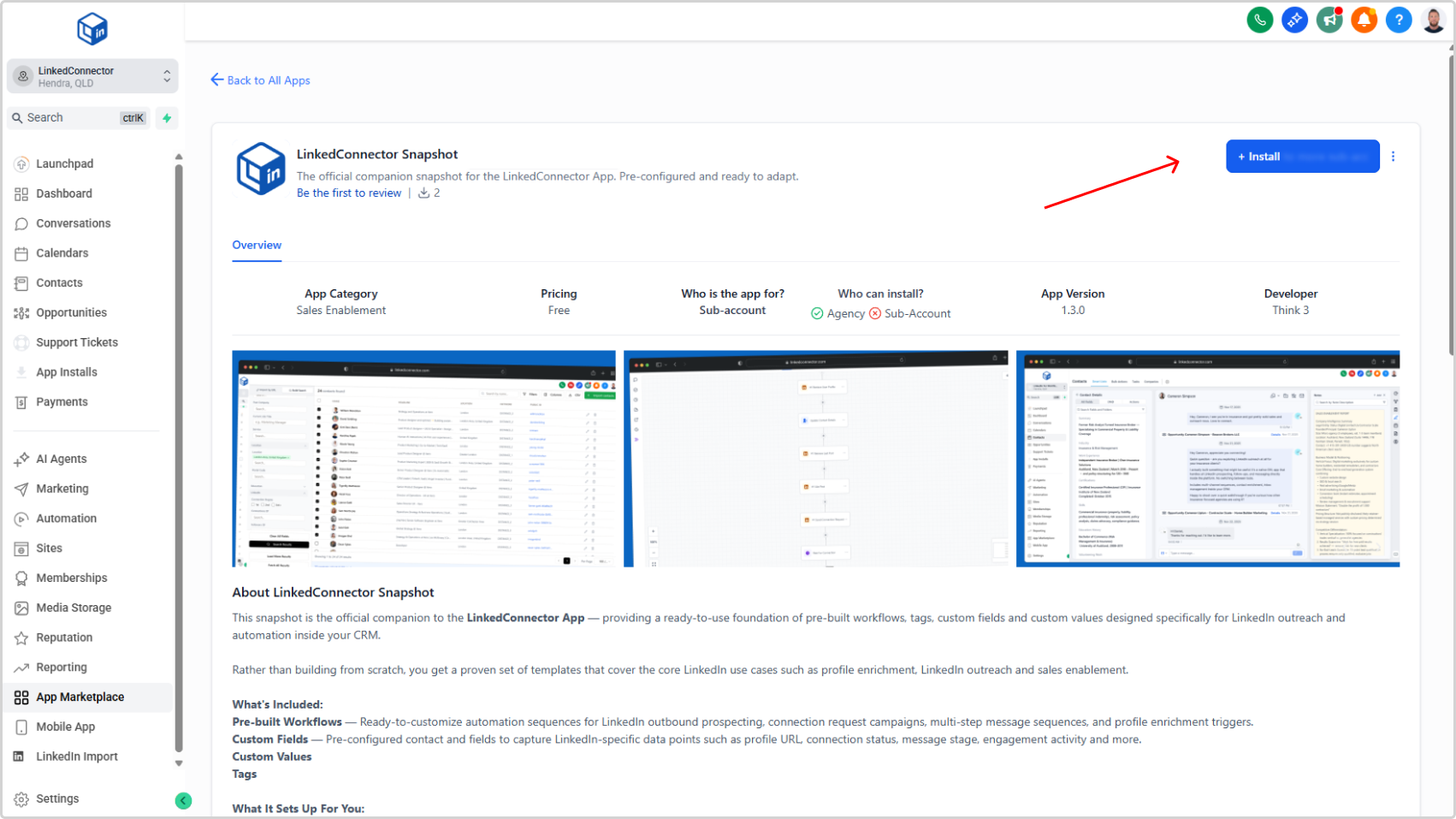
We’ve released a new snapshot to help agencies build quality systems more quickly while staying aligned with best practices and API rate limits. The snapshot provides a strong foundation that significantly reduces setup time, requiring only minor adjustments and configuration to get fully operational.

How it works:

The snapshot includes:

  • Example workflows that demonstrate common use cases
  • Pre-configured custom fields
  • A sample form and funnel
  • Trigger links and tags for organization
  • Built-in safeguards aligned with API rate limits and platform guidelines

A Quick Start Guide will also be released to walk agencies step by step through customizing and setting up the snapshot for their clients.

Why this matters:

  • Speeds up the build process by providing a strong starting point
  • Requires only minor setup to adapt for client needs
  • Provides structure and best practices for building scalable, compliant workflows
  • Supports faster client onboarding with guided resources
💡
The snapshot will be sent via email to the installer after installation is complete.

Rate Limit Status Feedback

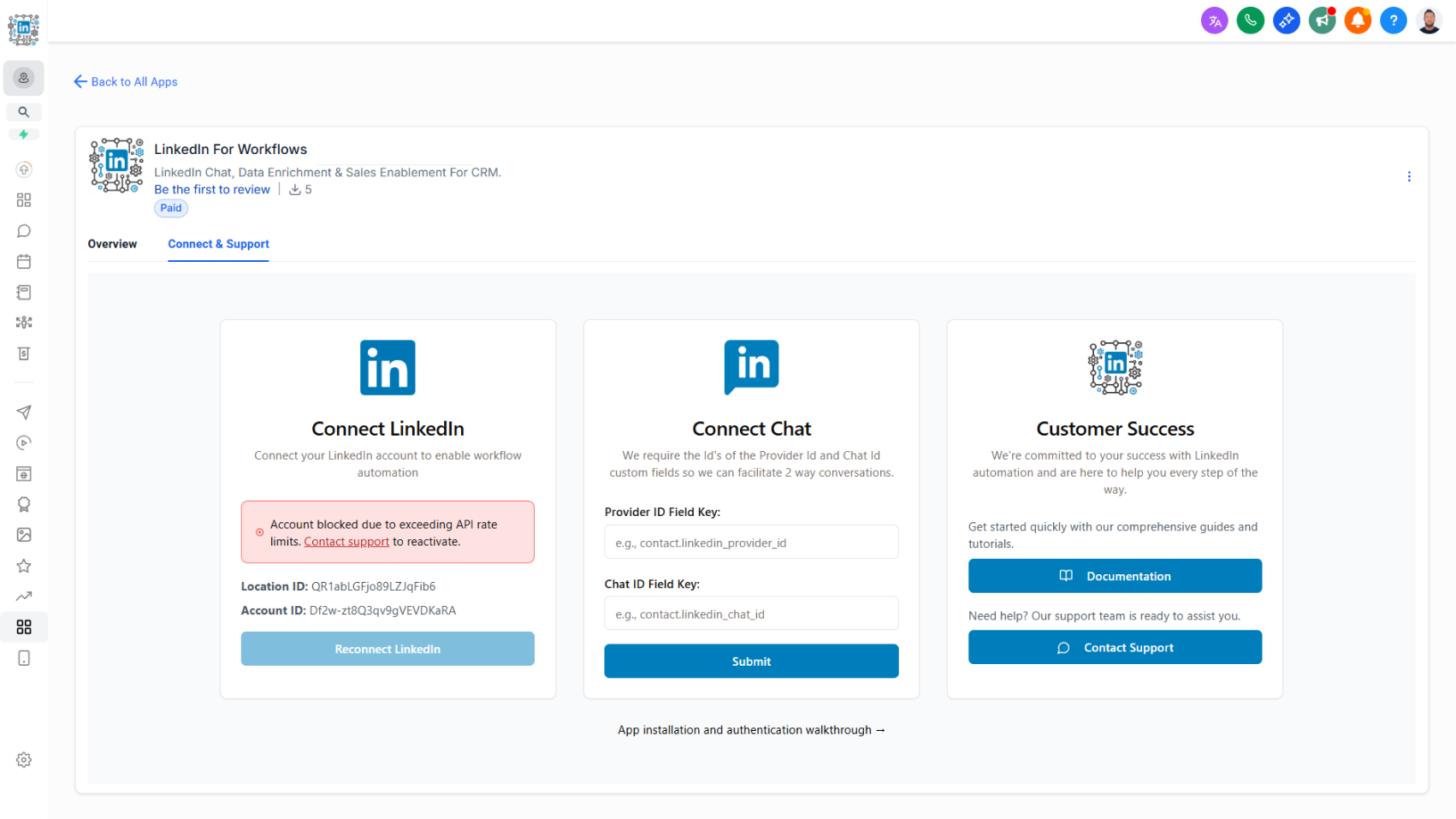
Stay informed with real-time account status indicators directly on the Connect & Support page.

We’ve introduced live feedback on account status within the Connect and Support page. This update helps users immediately understand if their account is active or has been temporarily blocked due to exceeding rate limits.

How it works today:

  • The Connect LinkedIn card now shows an indicator if your account has been blocked.
  • Accounts are blocked when activity exceeds established rate limits.
  • If blocked, you’ll be prompted to contact support to discuss reactivating your account.

Why this matters:

  • Promotes compliance with rate limits to protect account integrity
  • Ensures the platform remains in good standing with API providers
  • Prevents abuse and safeguards performance for all users
  • Provides immediate, visible feedback so issues can be resolved quickly

Additional safeguards:

  • We’ve created workflow snapshots and templates to help users build automations that respect rate limits.
  • These guidelines ensure fair usage and prevent platform abuse that can negatively impact performance.

Authentication Flow Upgrade

A new authentication process streamlines LinkedIn setup, supports bulk installs, and enables agency-managed deployments.

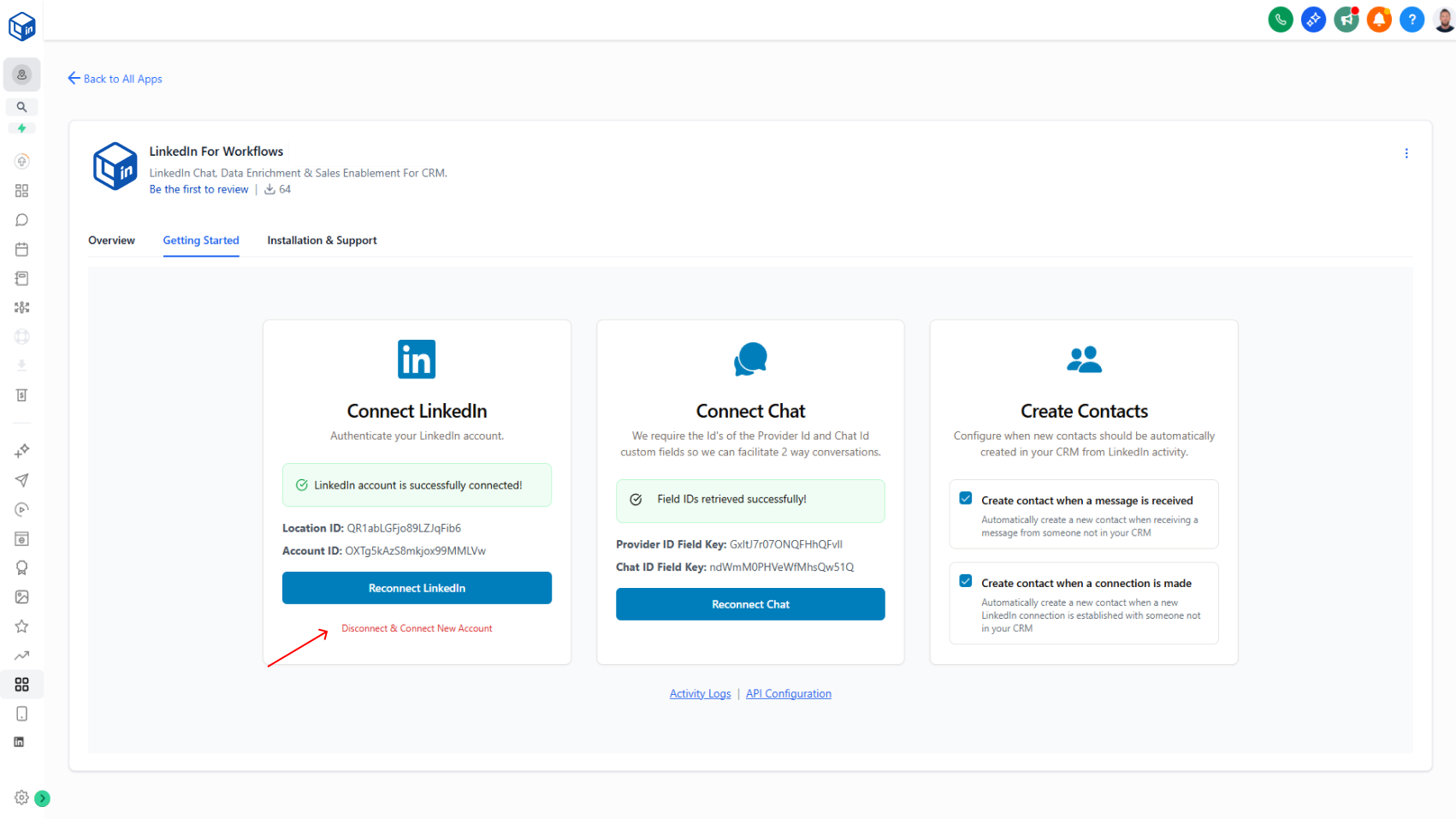
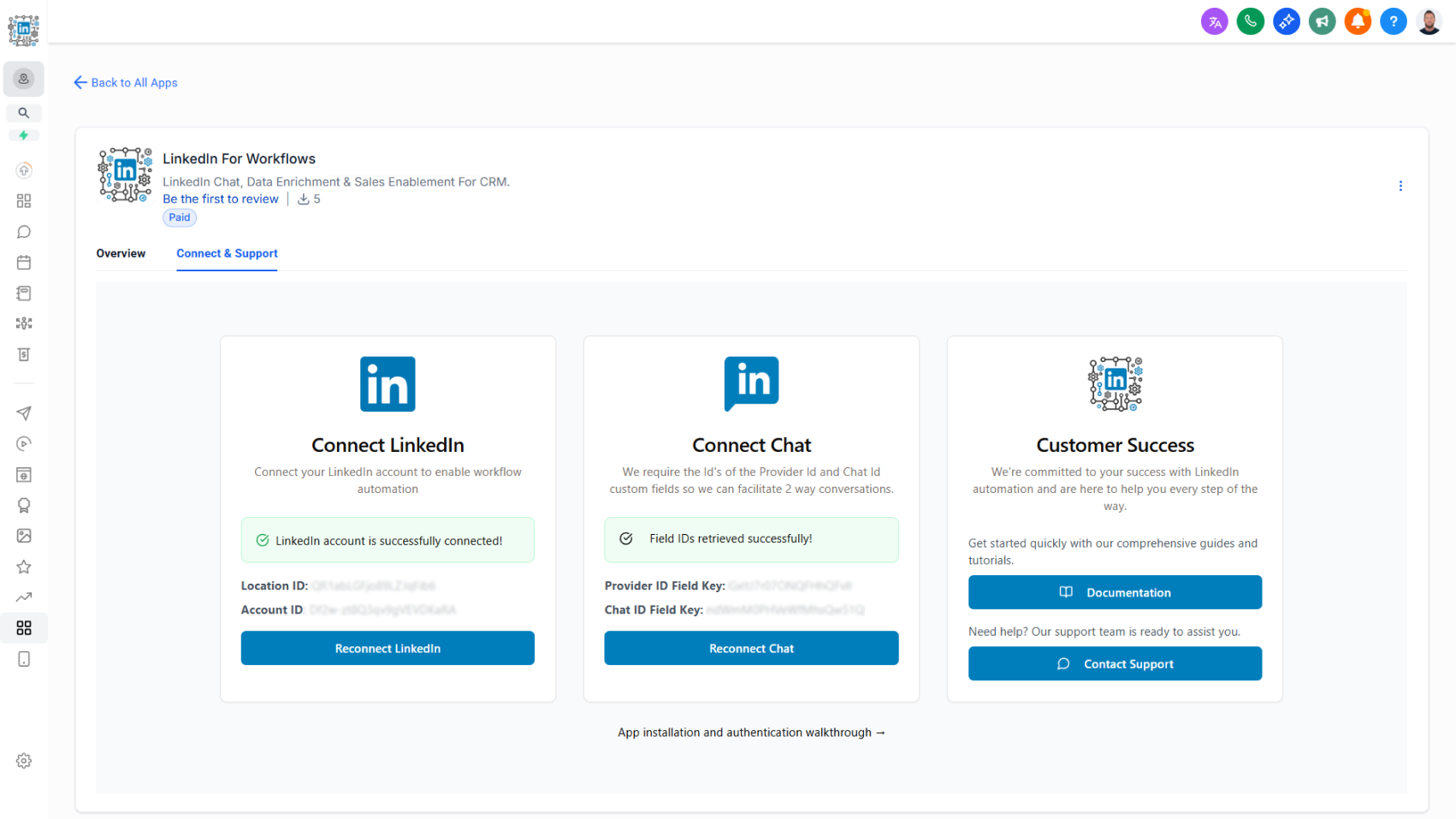
As part of the CRM platform’s migration to a new app distribution method, we’ve rebuilt the authentication flow for LinkedIn for Workflows. The new process simplifies setup, improves clarity, and supports both individual and agency installations.

How it works today:

  • Access the new authentication flow from the Connect and Support tab in the app profile.
  • Two new authentication cards are available:
    • Connect LinkedIn: Guides you through the LinkedIn authentication process with live feedback confirming whether your account is connected and active.
    • Connect Chat: Requires a Provider ID custom field key and a Chat ID custom field key to store identifiers used for two-way messaging.
  • Agencies can now complete bulk installations on behalf of their clients. Clients then complete the LinkedIn authentication and maintain it independently.

Why this matters:

  • Supports scalable bulk installations for faster onboarding
  • Enables agency-led deployments while allowing clients to manage their own authentication
  • Provides live connection status for greater clarity and troubleshooting
  • Ensures smooth setup for two-way LinkedIn messaging through proper field mapping

Workflow Action - Send a Message to a Chat

Continue LinkedIn conversations seamlessly by sending messages and attachments directly into an existing chat thread.

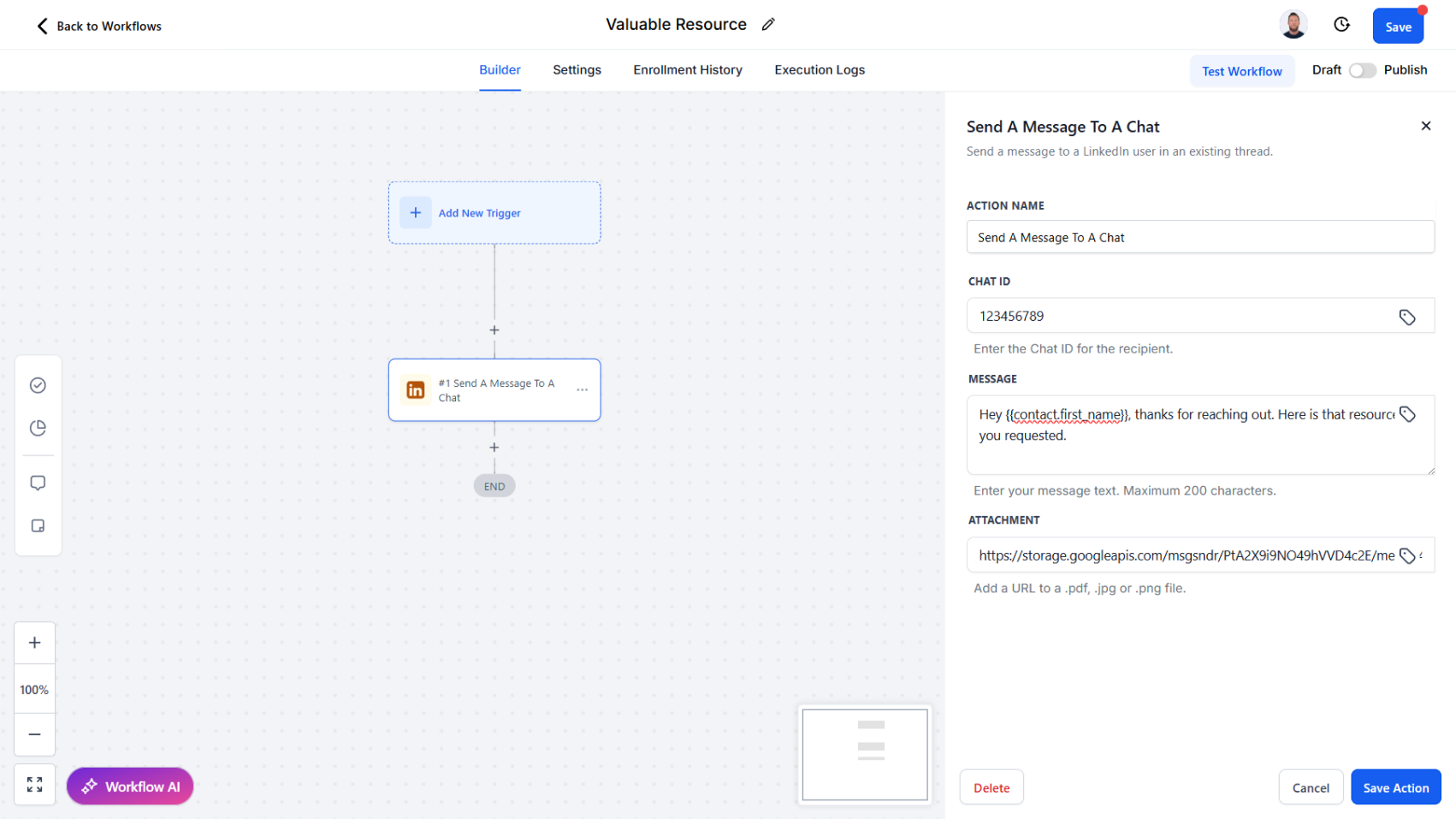
We’ve introduced a new workflow action, Send a Message to a Chat, designed for ongoing LinkedIn conversations. This action makes it simple to engage once a chat has already been started using the Start a Chat action.

How it works today:

  • Provide the Chat ID of the conversation.
  • Enter your message content.
  • Optionally, include an Attachment URL to send a file alongside your message.
  • Attachments must be in a LinkedIn-supported format such as PDF, image, video, audio, CSV, or text file.

Why this matters:

  • Maintain continuity by messaging directly into active conversations
  • Enrich communication with relevant attachments (e.g., case studies, product one-pagers, proposals)
  • Automate both text and file sharing without leaving your CRM
  • Create scalable yet personalized follow-ups for LinkedIn engagement

Workflow Action - Start a Chat

Initiate new LinkedIn conversations with InMail or direct messages, returning a chat ID for ongoing communication.

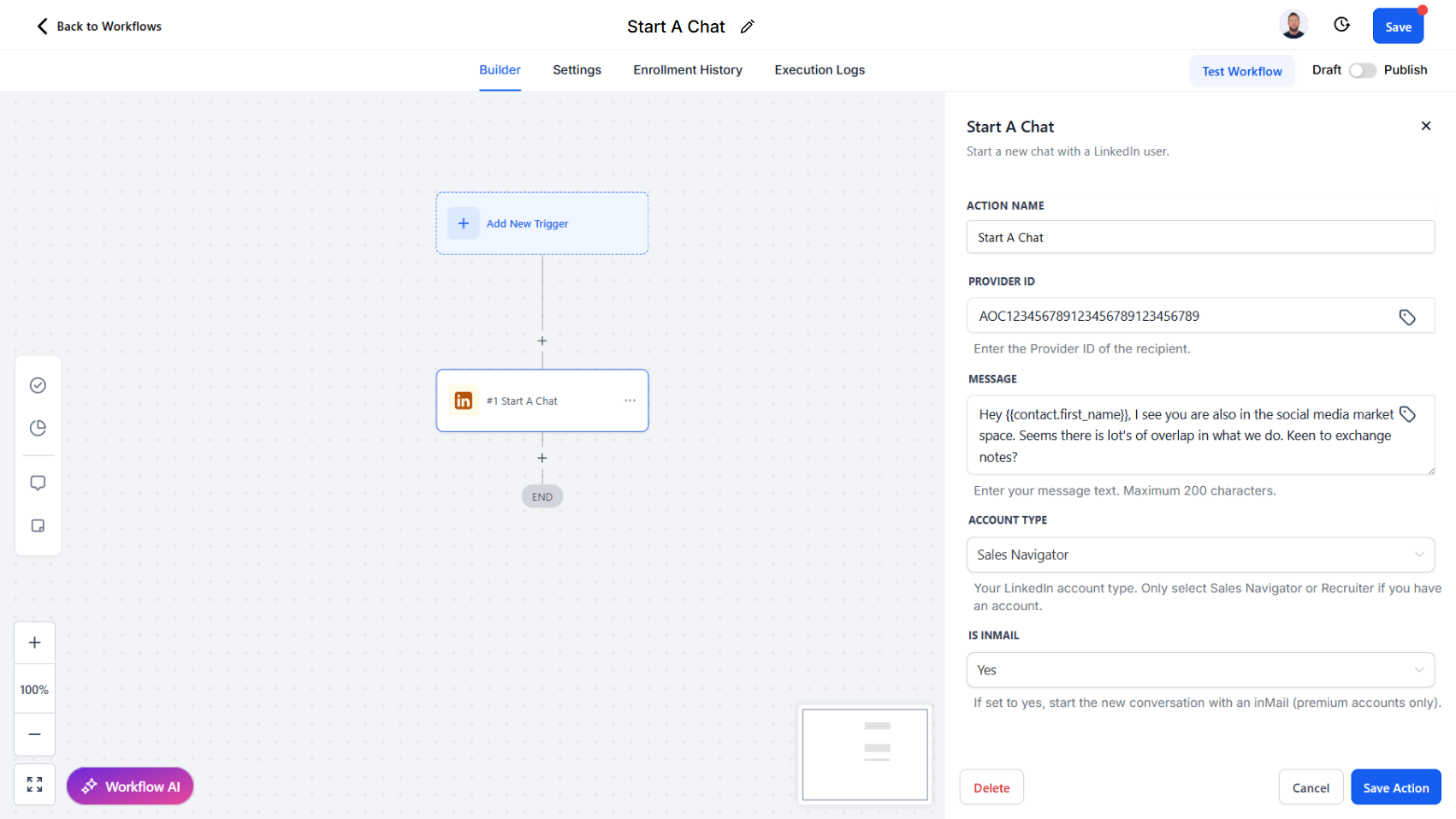
We’ve updated the Send a Message action to Start a Chat. This action is now the dedicated way to send the very first message to a LinkedIn user when no existing chat thread exists.

How it works today:

  • Provide a Provider ID of the recipient.
  • Enter your message content.
  • Select your account type and indicate whether the message is an InMail.
  • The action initiates a new conversation and returns a Chat ID, which can then be stored and used for sending subsequent messages within the same thread.

Why this matters:

  • Establish clear workflows for starting new conversations versus continuing existing ones
  • Ensure accurate tracking by always receiving a chat ID for ongoing engagement
  • Enable streamlined use of InMail for outreach when no prior chat history exists
  • Provide a cleaner separation between conversation initiation and follow-up messaging actions

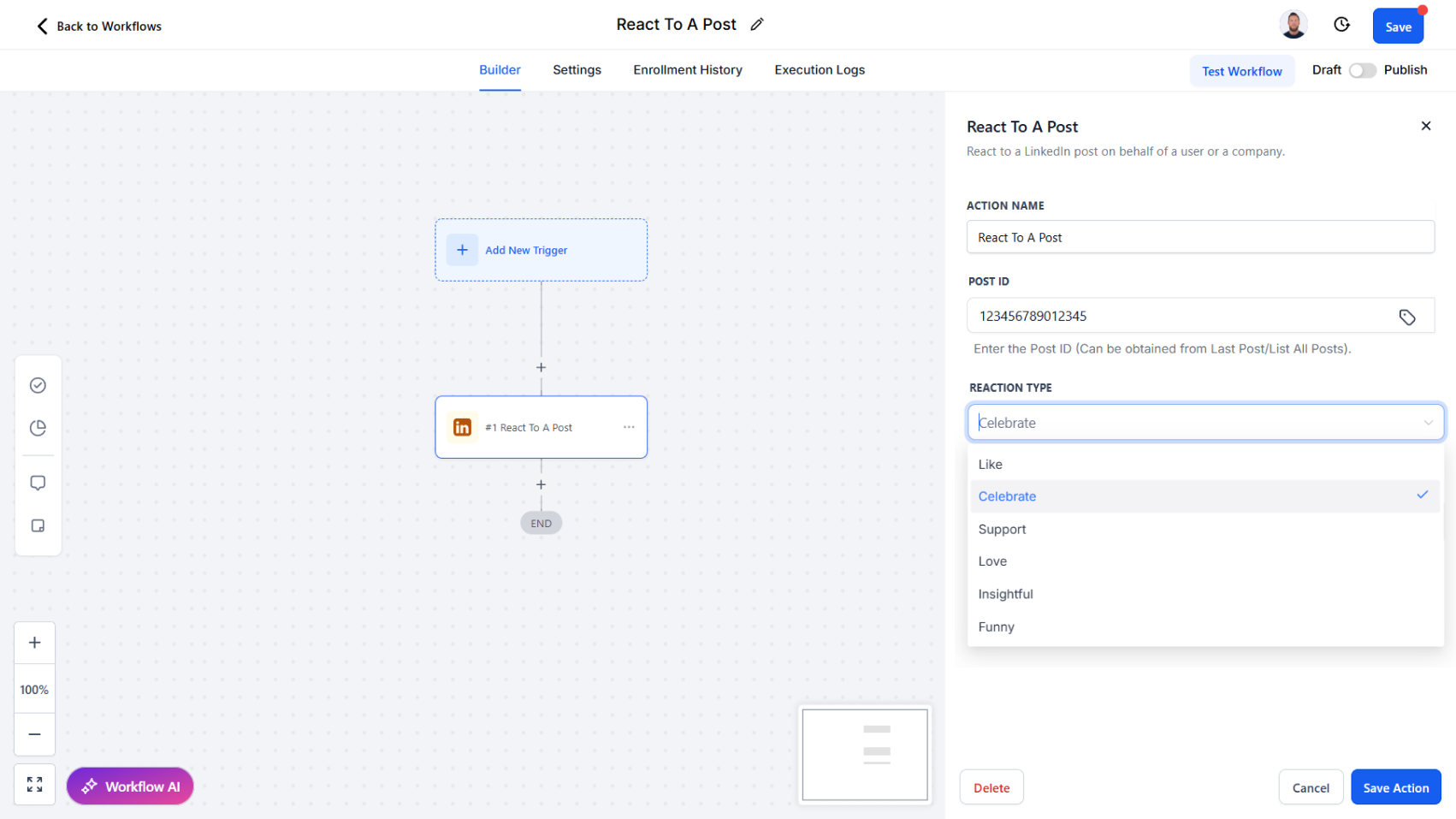
Workflow Action - React to a Post

Engage with LinkedIn content at scale by automating reactions from your personal or company account.

We’ve introduced a new workflow action, React to a Post, which allows you to add reactions to LinkedIn content directly through your workflows. This action complements Retrieve Last Post and Comment on a Post, giving you multiple ways to automate authentic engagement.

How it works today:

  • Provide a Post ID or use the ID retrieved from the Retrieve Last Post action.
  • Select from available reactions: Like, Celebrate, Support, Love, Insightful, or Funny.
  • React using your personal LinkedIn account or, with the right permissions, on behalf of a company page.

Why this matters:

  • Boost visibility by engaging with prospects’ or companies’ content consistently
  • Showcase company presence by reacting as your business page
  • Strengthen relationships with quick, meaningful engagement signals
  • Automate post engagement as part of wider outreach and nurturing workflows

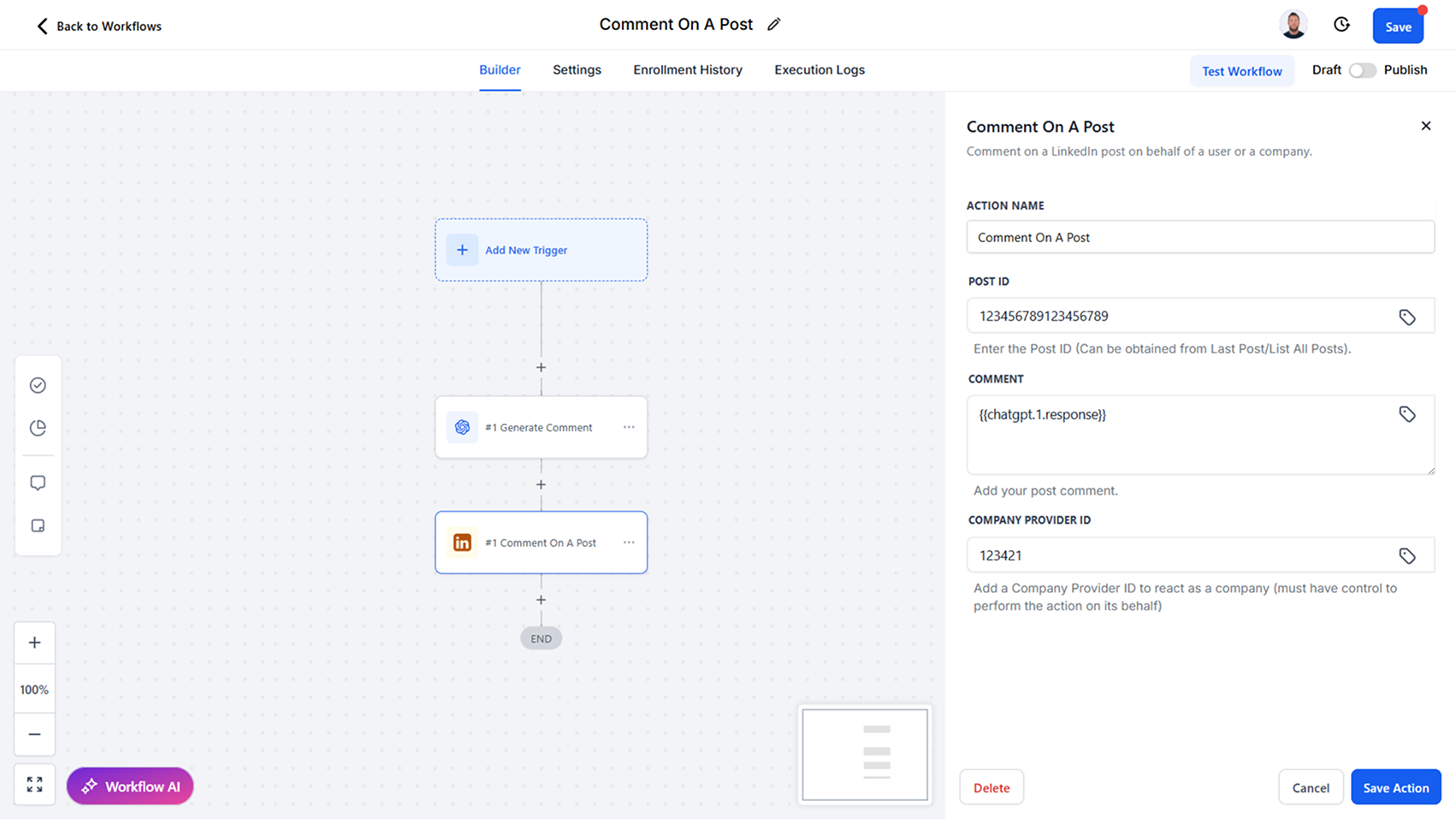
Workflow Action - Comment on a Post

Automate LinkedIn engagement by commenting on posts as yourself or on behalf of a company.

We’ve added a new workflow action, Comment on a Post, enabling you to leave comments on LinkedIn content directly through your workflows. This action works seamlessly with Retrieve Last Post, making it easy to comment on the latest activity from a user or company.

How it works today:

  • Provide a Post ID or use the ID retrieved from the Retrieve Last Post action.
  • Post a comment as your personal LinkedIn account.
  • If you have the required permissions, you can also comment on behalf of a company page.

Why this matters:

  • Drive engagement by commenting on prospects’ or companies’ latest posts
  • Support company-wide thought leadership by engaging through your business page
  • Automate timely interactions without leaving your CRM
  • Create scalable engagement strategies that feel personalized and relevant

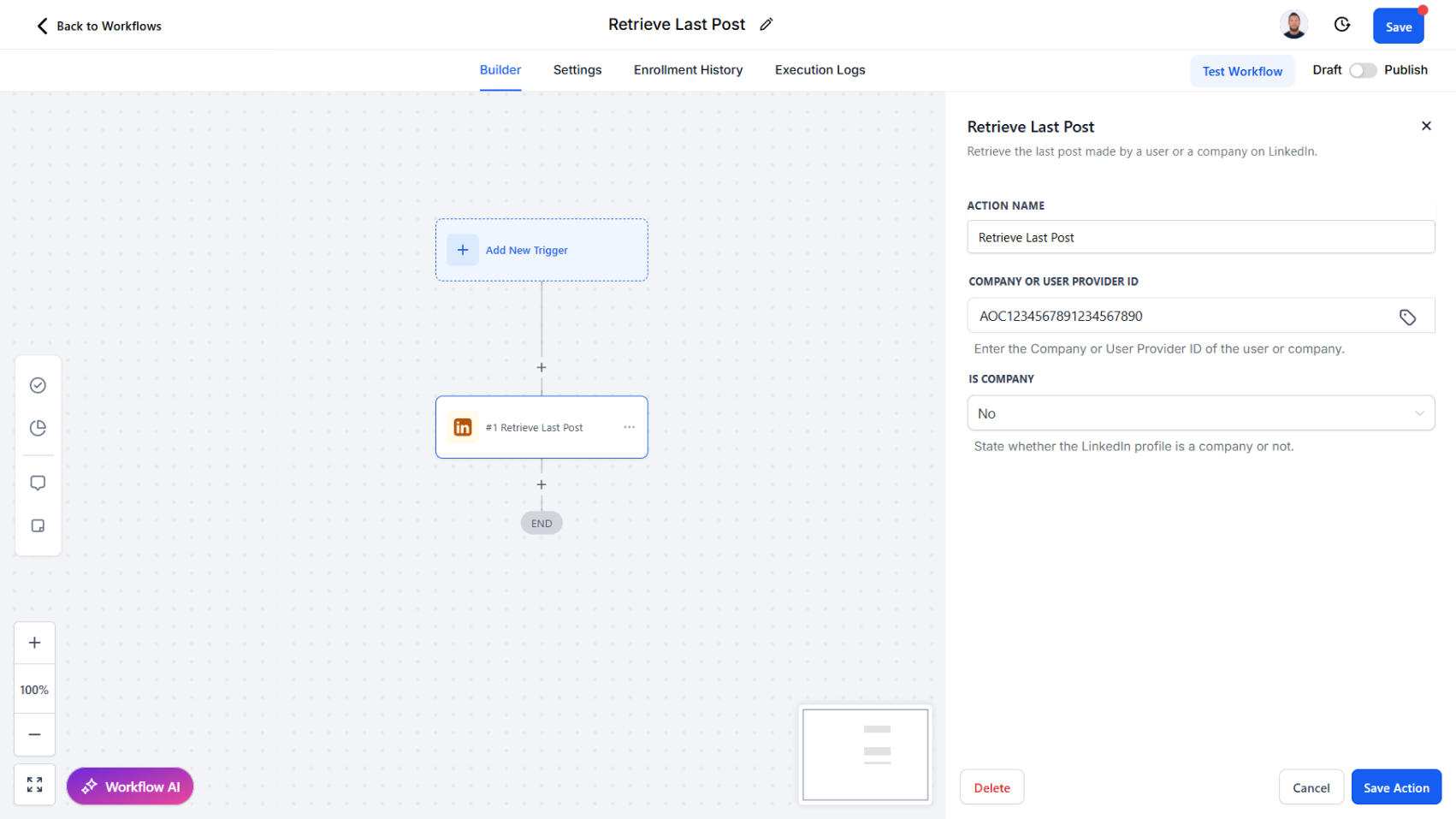
Workflow Action - Retrieve Last Post

Access the latest LinkedIn post from a user or company with detailed engagement metrics for smarter interactions.

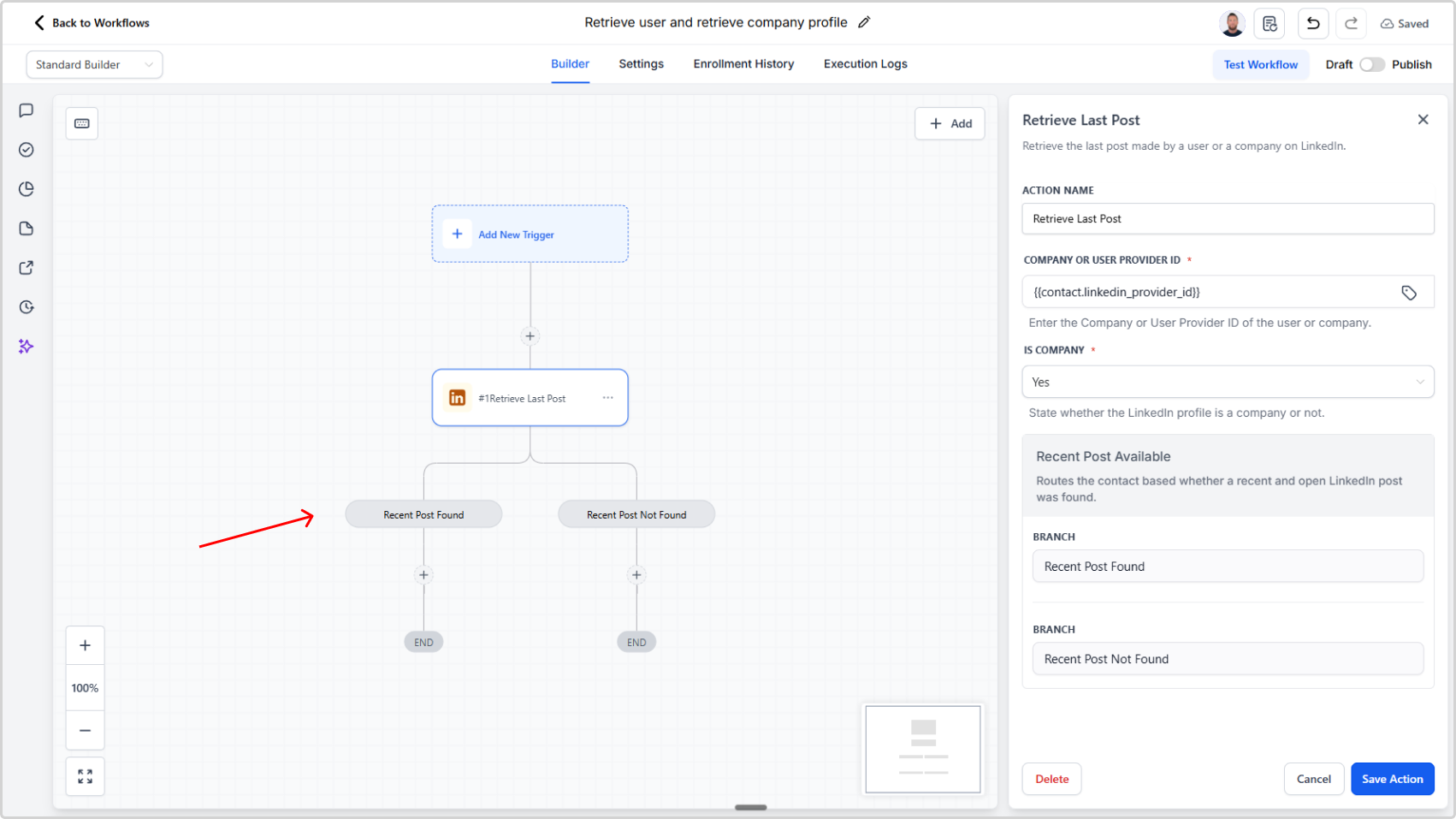
We’ve introduced a new workflow action, Retrieve Last Post, which allows you to automatically pull the most recent post from a LinkedIn user or company. This action is designed to provide both the post itself and rich engagement data, enabling more contextual and timely responses.

How it works today:

The Retrieve Last Post action retrieves the latest published post along with key details, including:

  • Post ID and share URL
  • Date and hours since posting
  • Post text and whether it is a repost
  • Comment count, impressions, and reaction count
  • Whether commenting, reacting, or sharing is allowed
  • Author information

Why this matters:

  • Engage more meaningfully by commenting or reacting to the most recent post
  • Use post insights (impressions, comments, reactions) to guide when and how you engage
  • Personalize outreach with context from a contact’s or company’s latest activity
  • Automate timely engagement strategies directly in your workflows

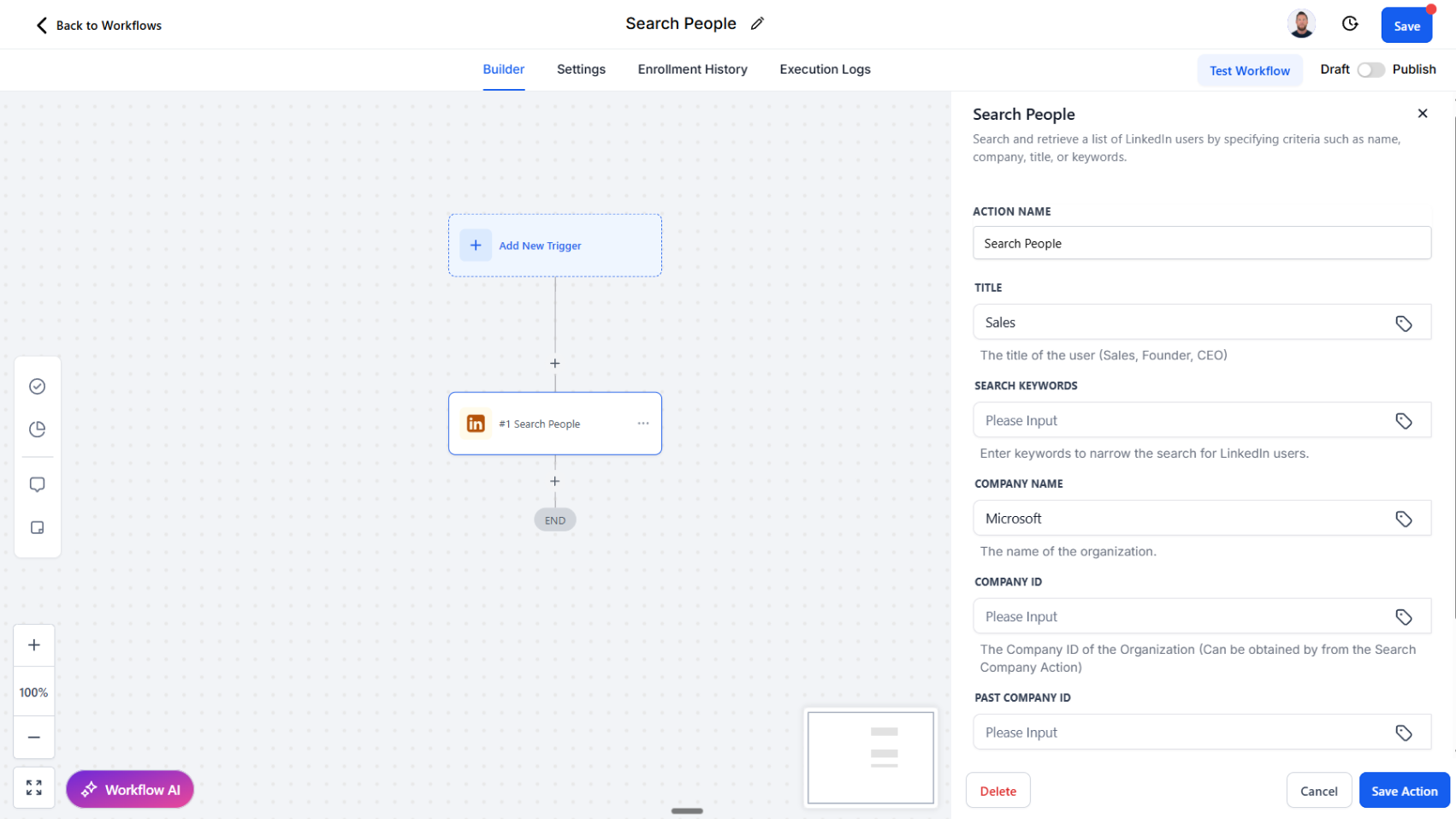
Improved: Workflow Action - Search People

Refine your LinkedIn people searches with new filters for title, keywords, and company history.

We’ve expanded the Search People workflow action to give you more precision and control when finding LinkedIn users. This update makes it easier to narrow down your searches and target the right audience for your workflows.

How it works today:

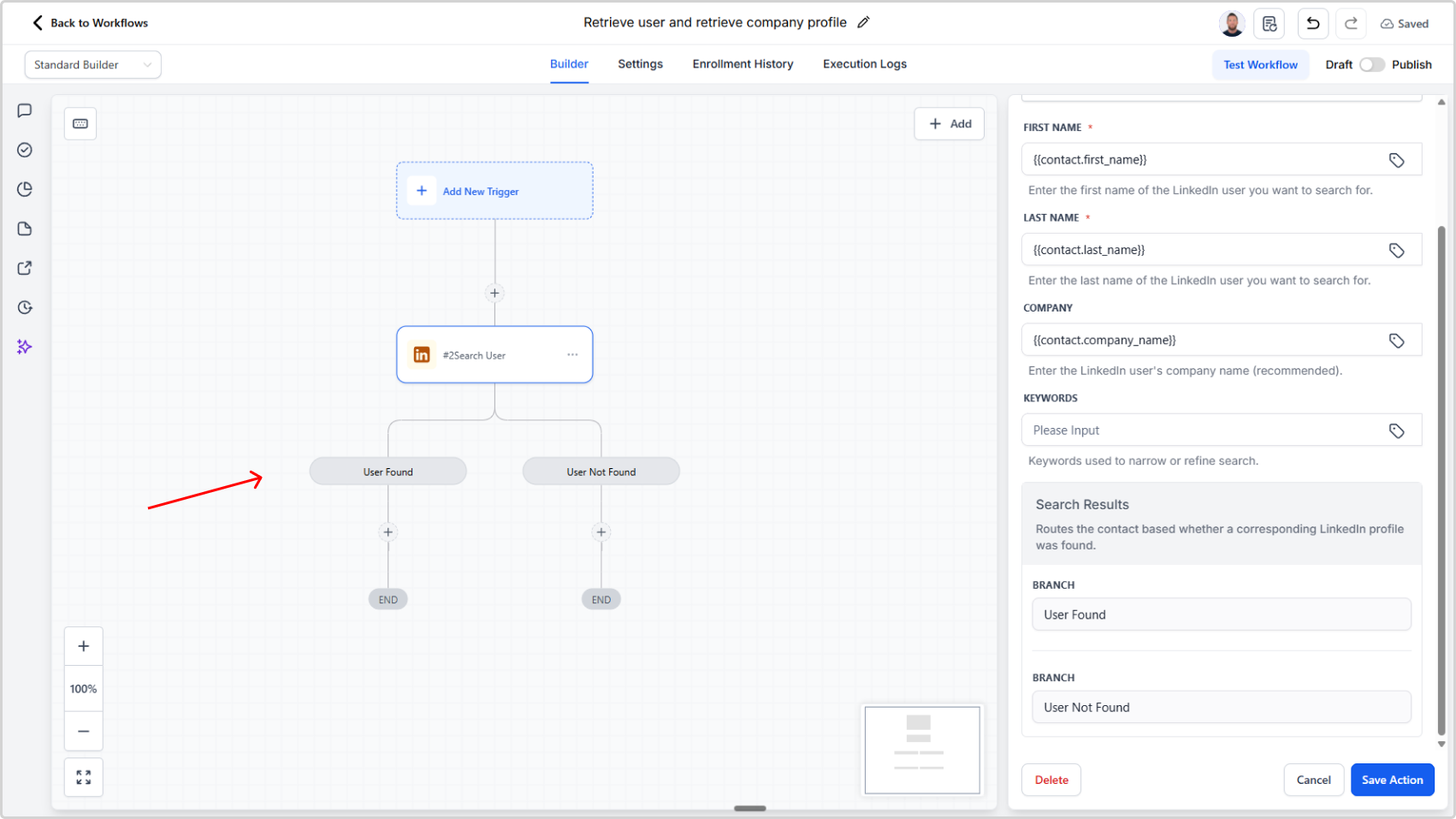
The Search People action now includes additional filtering fields to refine search results:

  • Title: Search by role (e.g., CEO, Founder, Sales).
  • Keywords: Search by industry, sector, or other keywords.
  • Company Name: Search by current company.
  • Company ID / Past Company ID: Search for individuals associated with a company, including past employees (e.g., former Salesforce employees).

Why this matters:

  • Gain sharper targeting when prospecting or segmenting contacts
  • Identify prospects based on roles, industries, or company history
  • Build more relevant and qualified lead lists
  • Automate enriched searches directly within workflows without manual effort

Workflow Trigger - New Connection

Automatically launch workflows the moment a new LinkedIn connection is made.

We’ve introduced a new trigger to help you act quickly on valuable new relationships. The New Connection trigger activates workflows as soon as a new LinkedIn connection is established.

How it works:

  • Whenever a new connection is added, the workflow is triggered instantly.
  • From there, you can chain follow-up actions such as:
    • Find or create a contact in the CRM
    • Tagging the new contact for organization and segmentation
    • Sending a welcome or follow-up message
    • Enriching the profile with LinkedIn data
    • Firing off subsequent workflows and actions inside your CRM

Why this matters:

  • Take immediate action on every new LinkedIn connection
  • Streamline onboarding, introductions, or outreach workflows
  • Ensure new contacts are properly tagged and organized
  • Strengthen relationship-building with timely, automated engagement

Workflow Trigger - New Message

Easily capture inbound LinkedIn messages and trigger automated workflows for faster, smarter responses.

We’ve added a powerful new trigger to help you automate workflows around LinkedIn conversations. The New Message trigger allows workflows to start automatically whenever a new message is received in your LinkedIn account.

How it works:

  • When a new message arrives, the workflow is triggered instantly.
  • You can then chain follow-up actions such as:
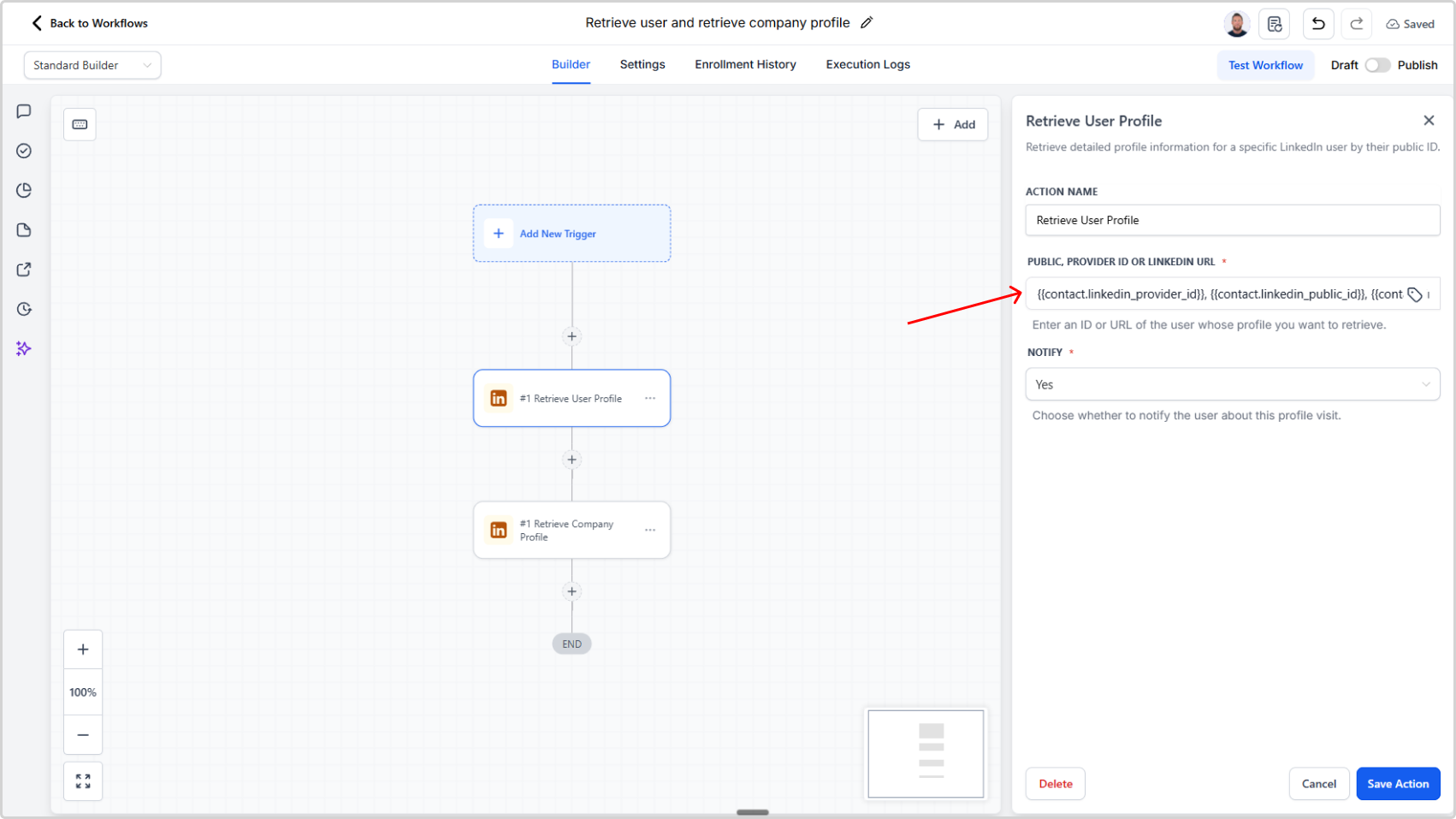
    • Look up a contact by provider ID, Name etc.
    • Find an existing contact
    • Find or create a new contact
    • Trigger any subsequent workflow actions (e.g., send alerts, update records, or launch nurture sequences)

Why this matters:

  • Never miss an inbound message from a connection
  • Route LinkedIn conversations into your CRM in real time
  • Automate contact matching and enrichment without manual effort
  • Kick off personalized workflows (e.g., task creation, follow-up reminders, or handoff to sales teams)

Two-Way LinkedIn Messaging

Send and receive messages with attachments, auto-create leads from inbound chats, and track delivery receipts.

We’re excited to announce the release of two-way LinkedIn chat, bringing real-time LinkedIn messaging directly into your CRM conversations flow.

What’s New

  • Send & Receive Messages: Engage with your LinkedIn connections without leaving the CRM.
  • Rich Media Support: Share and receive attachments including PDFs, images, videos, and audio files. Attachments are stored for 3 months before expiration.
  • Lead & Contact Creation: When a new LinkedIn user messages you, their information is automatically captured to create a lead or contact record in the CRM.
  • Delivery Receipts: Track message delivery to know when your outreach has successfully landed.

How It Works

  • All LinkedIn chats now appear in the CRM conversations tab for seamless communication.
  • Messages sent through new workflow actions Start a Chat and Send a Message also sync into conversations, ensuring a complete message history.
  • Incoming LinkedIn messages can trigger workflows, enabling automated follow-ups, lead assignment, or nurturing actions.
  • Authentication has been updated to accommodate additional fields required for chat functionality. View updated authentication steps here.

Why It Matters

This update bridges LinkedIn engagement with your CRM in a powerful new way:

  • Capture every opportunity: Turn inbound LinkedIn chats into new leads or contacts automatically.
  • Stay in sync: Manage conversations from one central CRM hub.
  • Work with context: Keep a full history of chats and attachments connected to each contact.
  • Stay reliable: Delivery receipts provide confidence that your outreach is reaching the intended recipient. We’re excited to introduce two-way LinkedIn chat, bringing real-time LinkedIn messaging seamlessly into your CRM conversations flow.

How it works today:

  • All LinkedIn chats now appear in the CRM conversations tab for unified communication.
  • Messages sent through workflow actions such as Start a Chat and Send a Message automatically sync into conversations, creating a complete message history.
  • Incoming LinkedIn messages can trigger workflows, enabling automated follow-ups, lead assignment, or nurturing actions.
  • Authentication has been updated to support additional fields required for chat functionality.

Key features:

  • Send & Receive Messages: Engage with your LinkedIn connections without leaving the CRM.
  • Rich Media Support: Share and receive attachments including PDFs, images, videos, and audio files (attachments stored for 3 months before expiration).
  • Lead & Contact Creation: Automatically capture new LinkedIn users as leads or contacts when they message you.
  • Delivery Receipts: Track message delivery to confirm when outreach has successfully landed.

Why this matters:

  • Capture every opportunity: Turn inbound LinkedIn chats into leads or contacts instantly.
  • Stay in sync: Manage all conversations from one central CRM hub.
  • Work with context: Keep a full history of chats and attachments tied to each contact.
  • Stay reliable: Delivery receipts provide confidence that your outreach is reaching the intended recipient.